Web presence step by step Chapter 14: Installing and configuring Live Helper Chat to add text chat support to a website

Previous step: Chapter 13: Installing and configuring MyBB to create a community forum site
Next step: Chapter 15: Using dwservice.net to provide remote technical support as an alternative to TeamViewer

Web presence step by step is a series of posts that show you to how to build a web presence.

In this chapter we install and configure Live Helper Chat to add text chat support to a website.

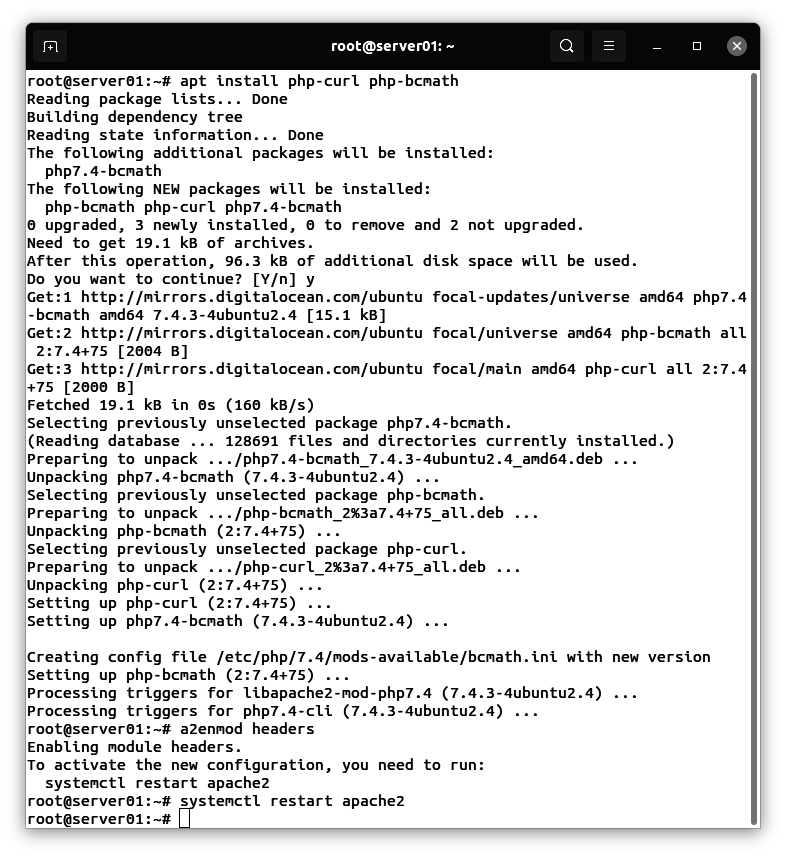
Installing the php-curl and php-bcmath extensions, enabling the Apache headers module, and restarting the Apache web server

Live Helper Chat requires the php-curl library, the php-bcmath library, and the headers Apache module.

Use an SSH terminal program to connect to the Ubuntu Linux cloud server you created in Chapter 3: Buying an Ubuntu Linux cloud server from Digital Ocean.

Enter these commands:

apt install php-curl php-bcmath
a2enmod headers
apachectl restart
Creating the MySQL database that will store data for the Live Helper Chat software

Enter this command:

mysql -u root -p

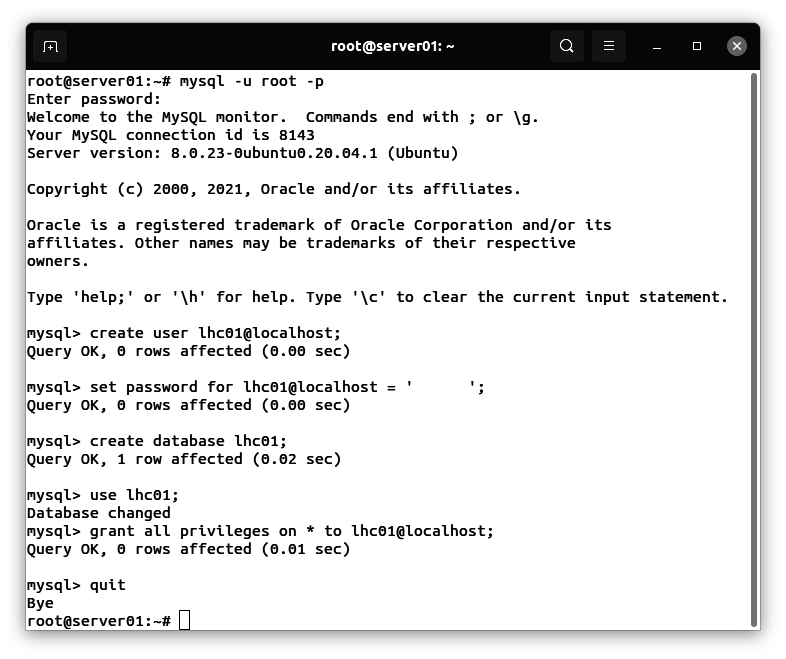
In the MySQL console, enter these commands (where ‘xxxxxx’ is your password):

create user lhc01@localhost;
set password for lhc01@localhost = 'xxxxxx';
create database lhc01;
use lhc01;
grant all privileges on * to lhc01@localhost;
quit
Downloading the zip file containing the Live Helper Chat software

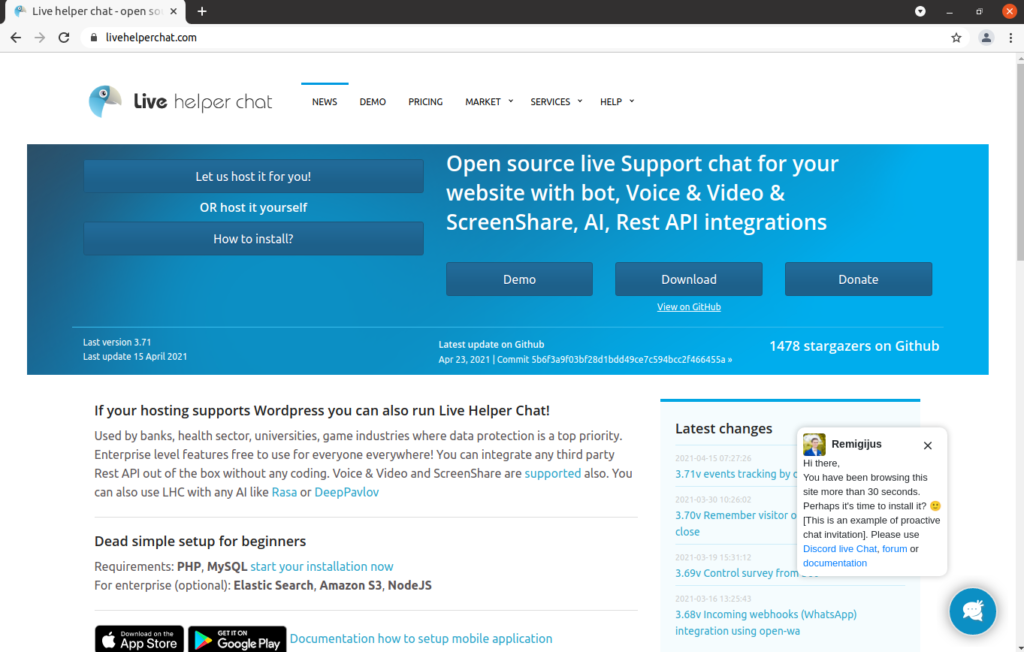
Visit this site:

https://livehelperchat.com

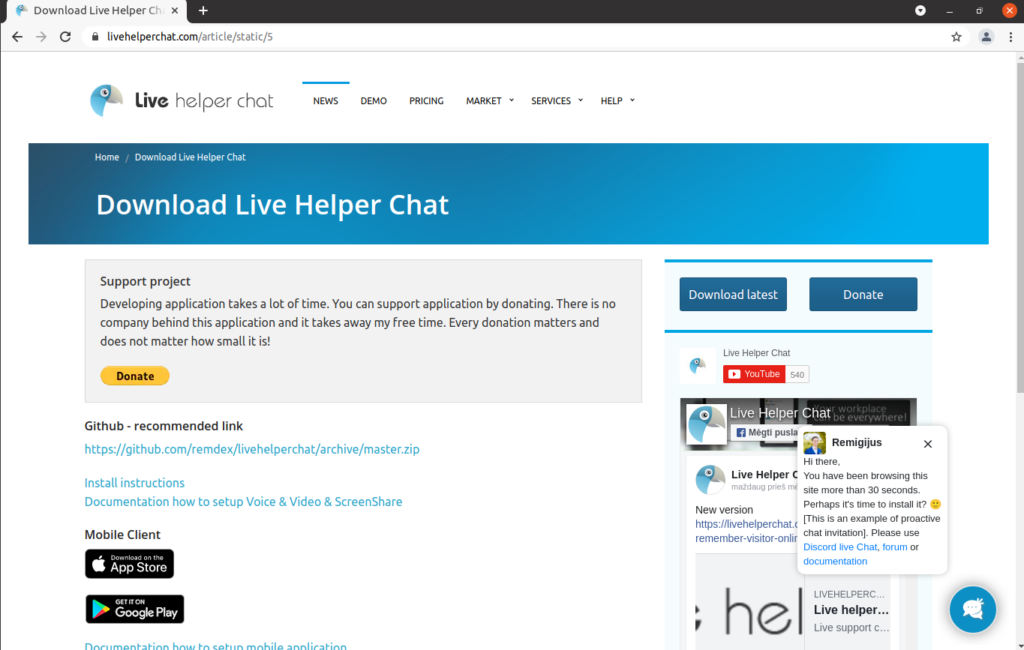
Click on “Download”:

Click on on the link below “Github – recommended link”:
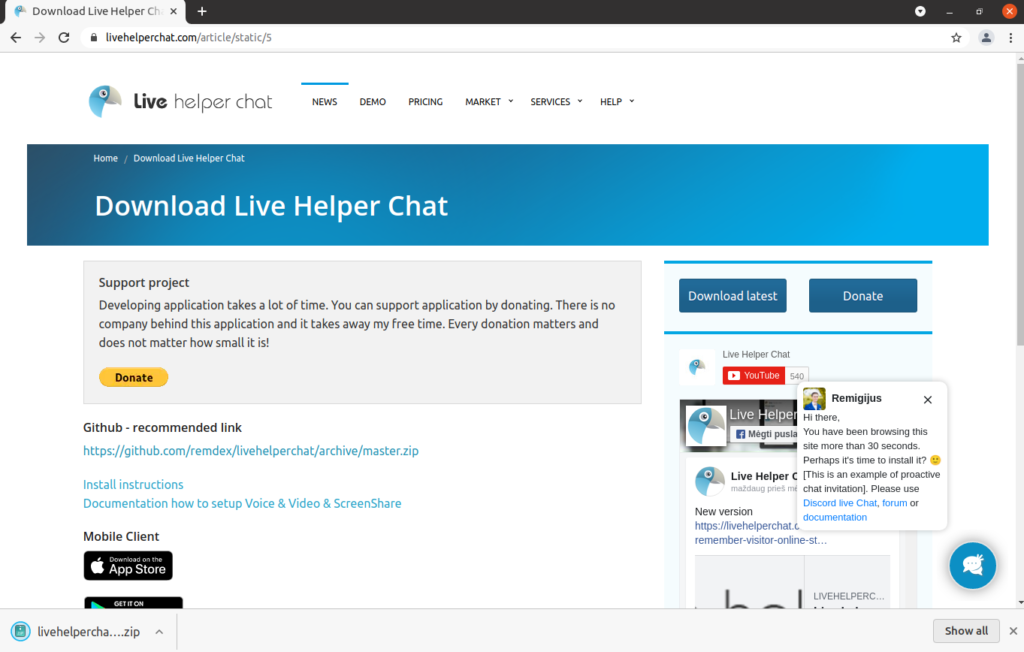
The file downloads:
Extracting the contents of the zip file

If you need detailed instructions on how to uncompress zip files or rename directories on Windows, MacOS, or Linux

This chapter assumes that you have followed the steps in Chapter 8: Installing and configuring WordPress to create a website, and Chapter 9: Installing and configuring phpMyAdmin to manage MySQL databases. If you have not read those chapters, and you are not familiar with how to uncompress a zip file or rename a directory using your operating system, please consult those chapters.

Uncompressing the livehelperchat-master.zip file

We need to uncompress the livehelperchat-master.zip file:
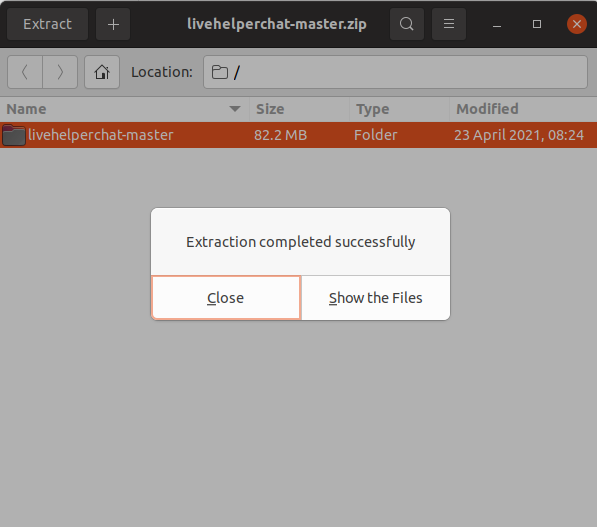
Viewing the extracted folders and files

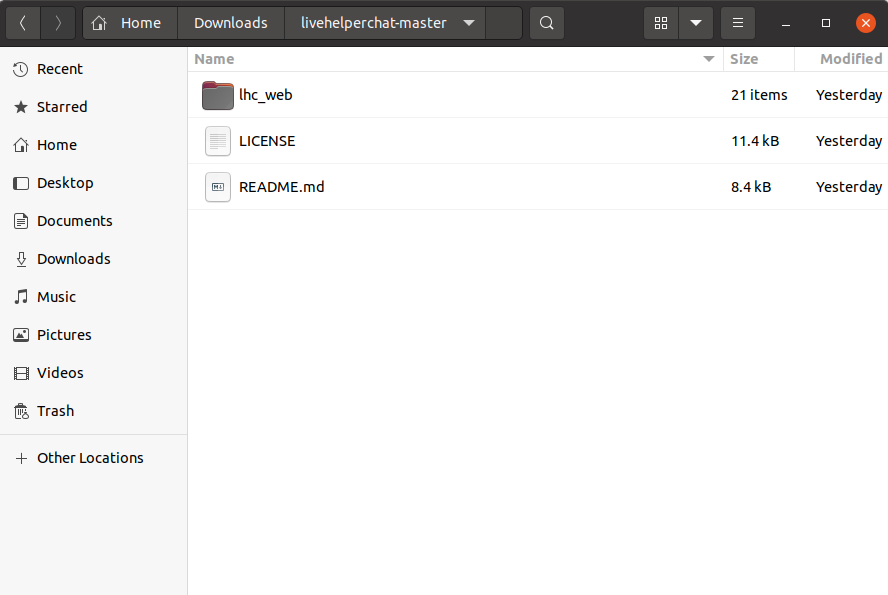
We can see the lhc_web directory:
Using FileZilla to upload the lhc_web directory to the directory containing the documents for your website

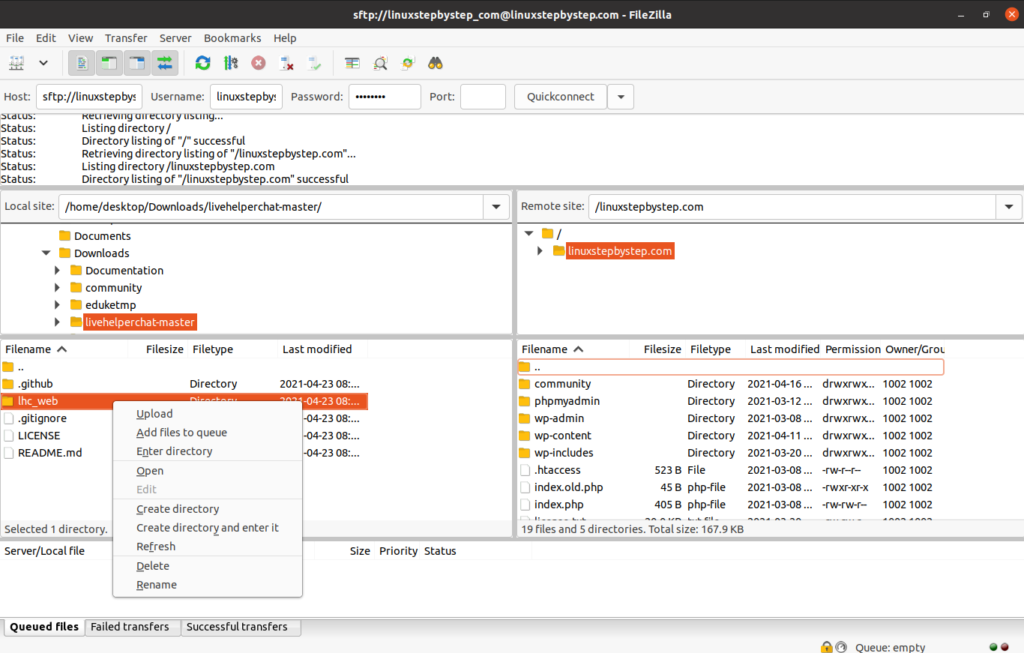
We will use the FileZilla file transfer program to upload the directory “lhc_web” to the directory containing the documents for your website.

If you need detailed instructions on how to install and use FileZilla on Windows, MacOS, or Linux

This chapter assumes that you have read Chapter 7: Configuring the SSH server on an Ubuntu Linux cloud server to limit SFTP directory visibility within chroot jail directories, or that you are familiar with the FileZilla file transfer program.

Using Filezilla, connect to the Ubuntu Linux cloud server you created in Chapter 3: Buying an Ubuntu Linux cloud server from Digital Ocean. On the right (remote) side, select the directory that contains the documents for your website. On the left (local) side, select the directory that contains the “lhc_web” directory. Right-click or command-click on the directory, select Upload:
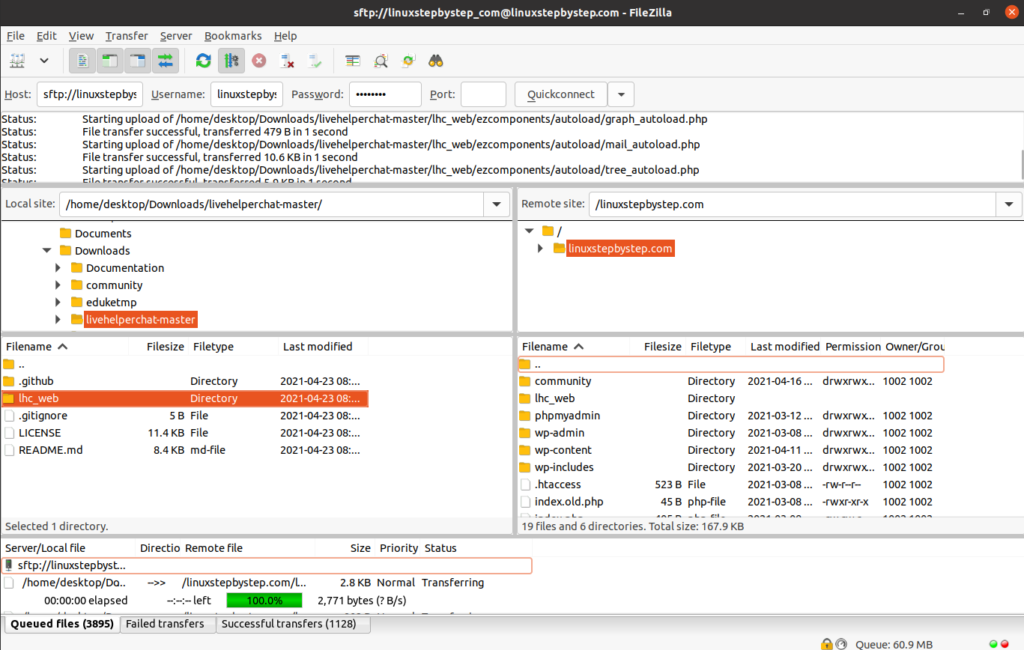
The transfer completes:
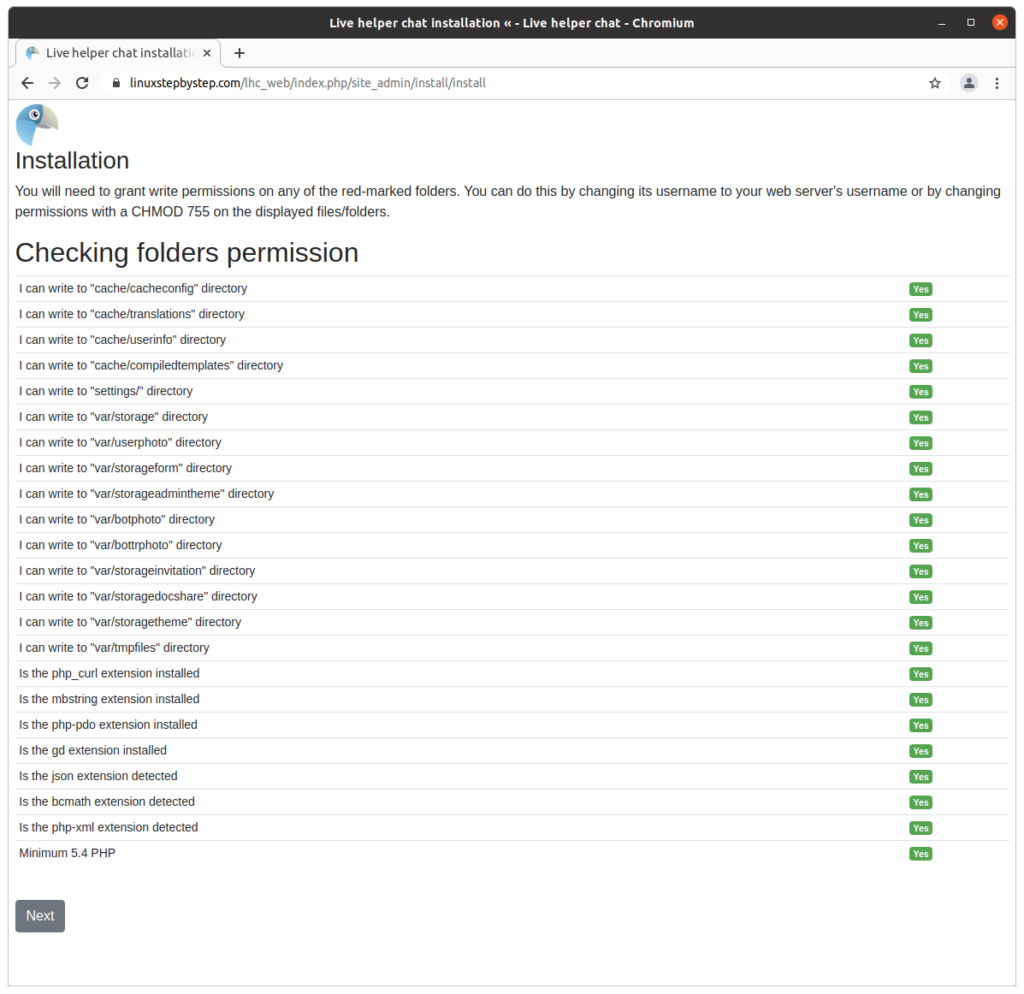
Installing the Live Helper Chat software using the Live Helper Chat installation wizard

For our example domain, we will visit:

https://linuxstepbystep.com/lhc_web/index.php/site_admin/install/install

(substitute your domain name)

Click “Next”:
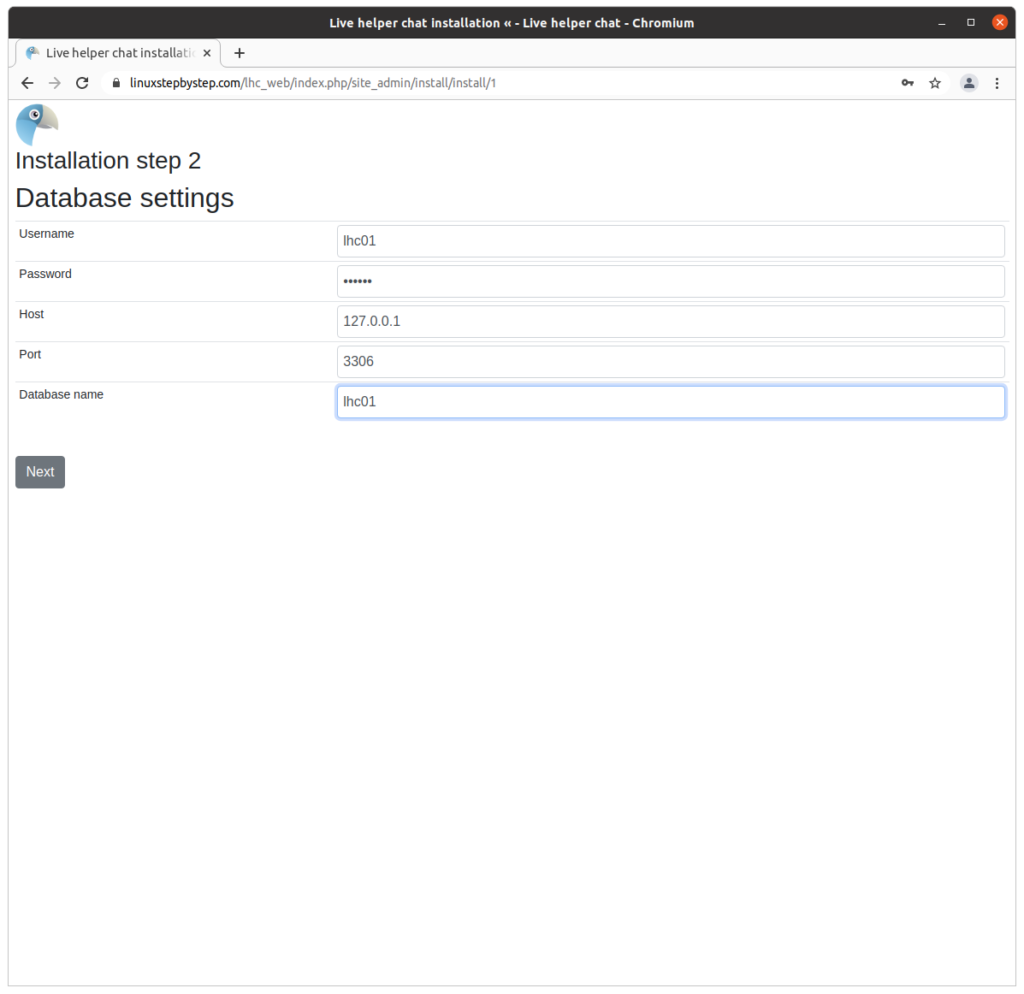
Complete the fields as shown. Click “Next”:
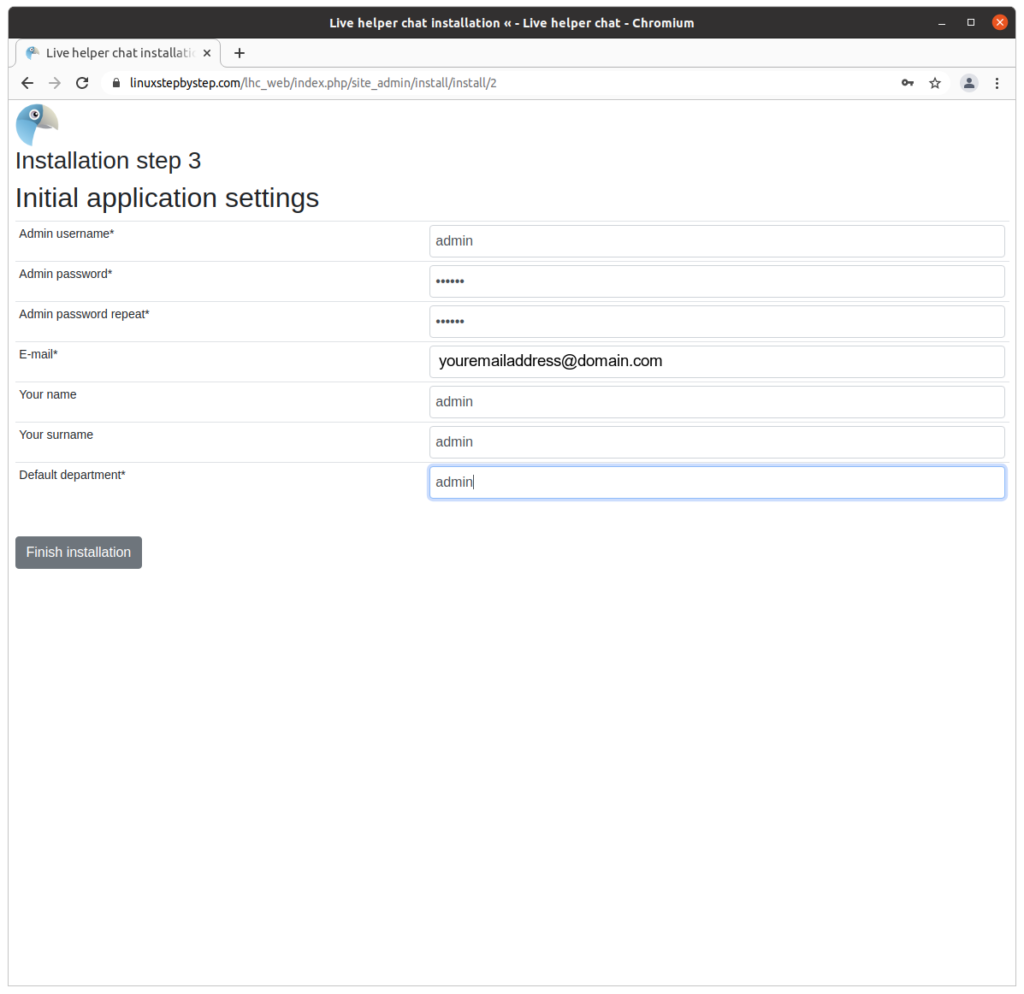
Complete the field as shown below. Click “Finish installation”:
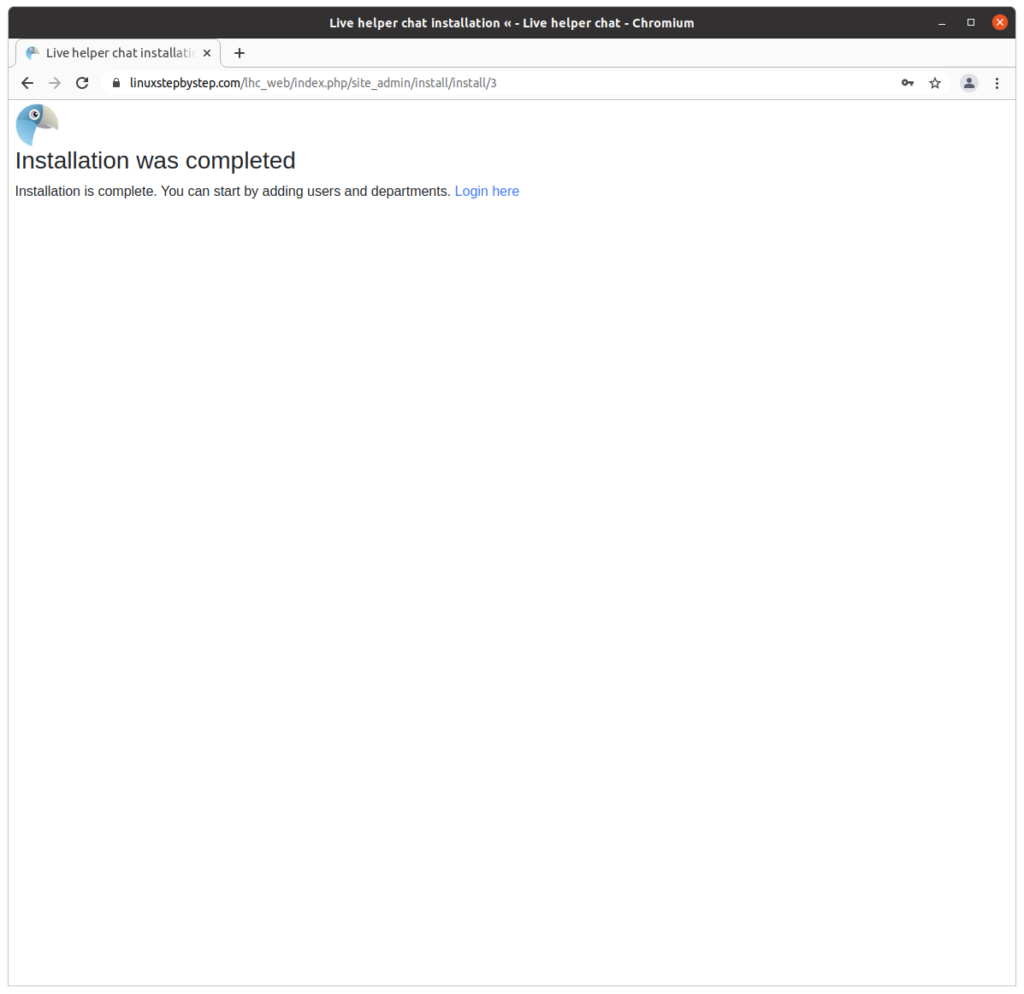
Click “Login here”:
Generating the Live Helper Chat JavaScript text to add to an HTML header

(Note: for our example domain, we can visit this site at https://linuxstepbyste.com/lhc_web/index.php/site_admin)

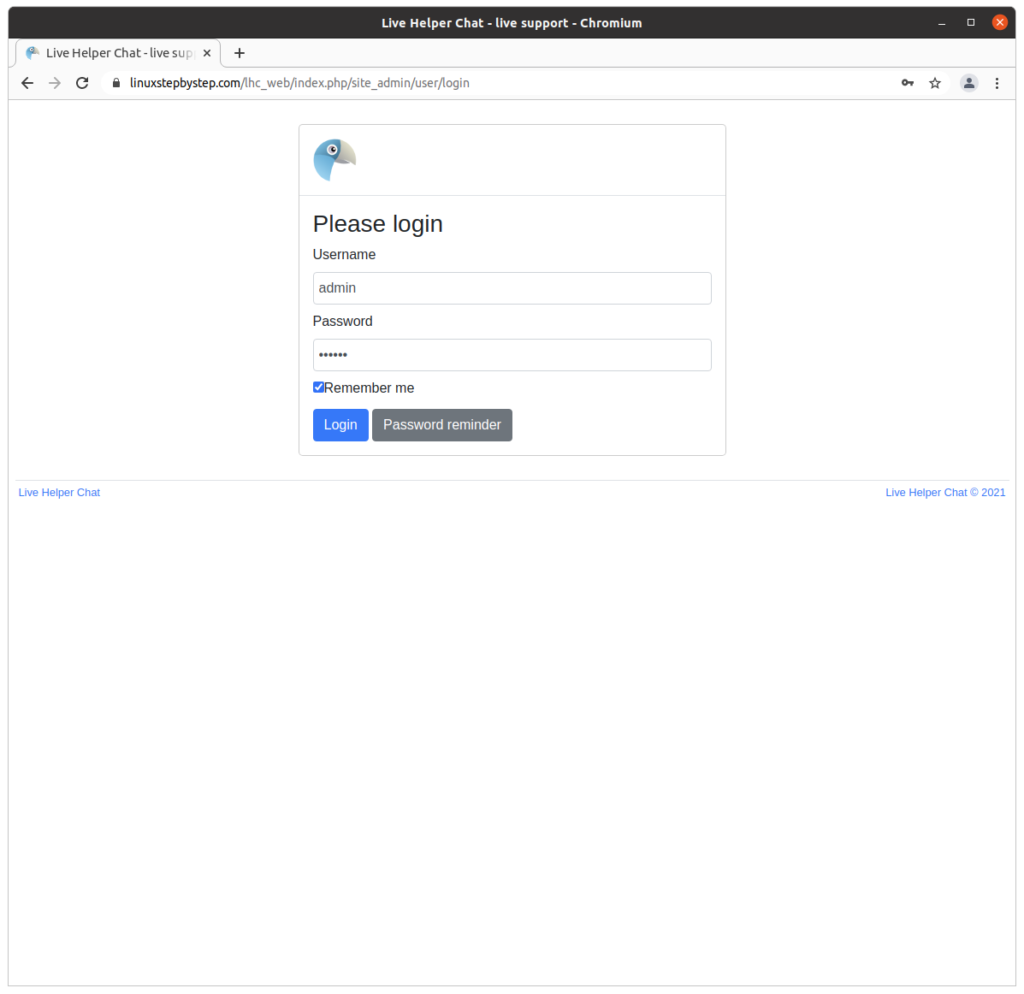
Enter your username and password. Click “Login”:
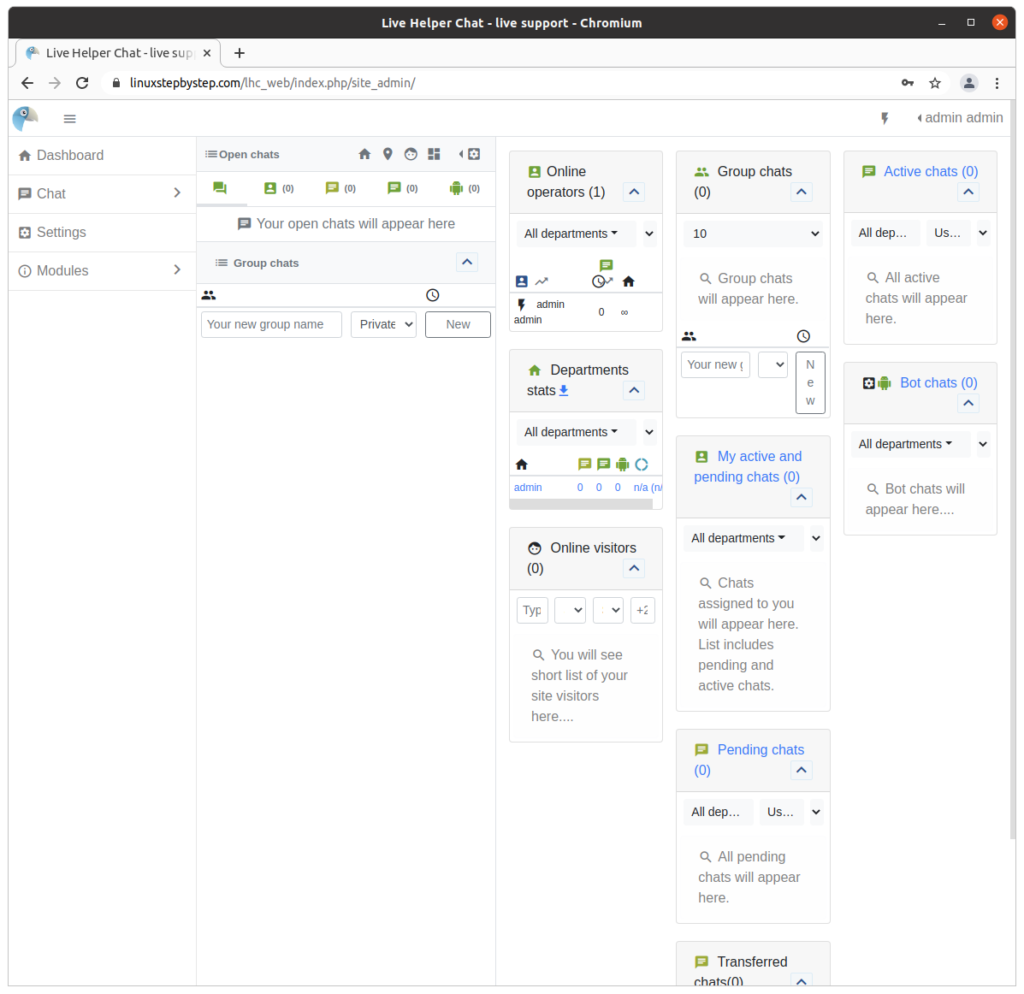
Click on “Settings”:
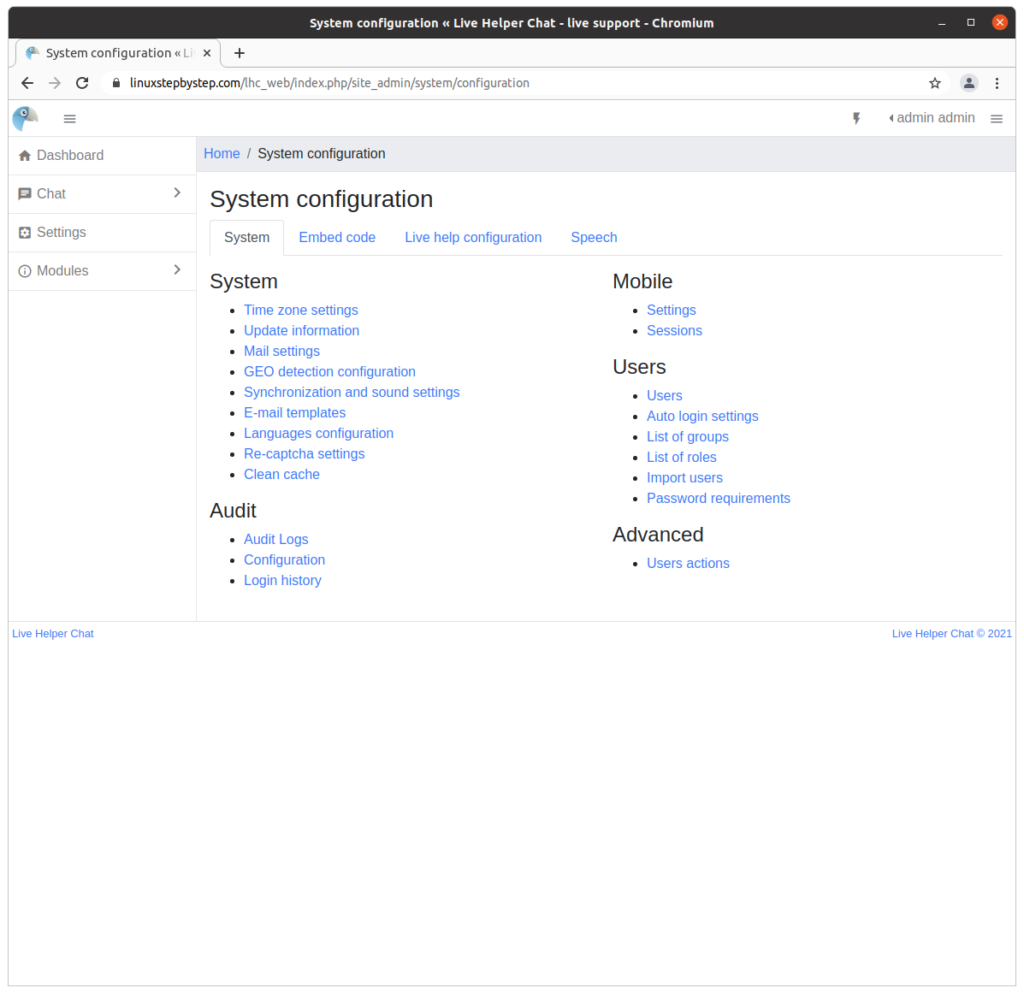
Under “Mobile,” click on “Settings”:
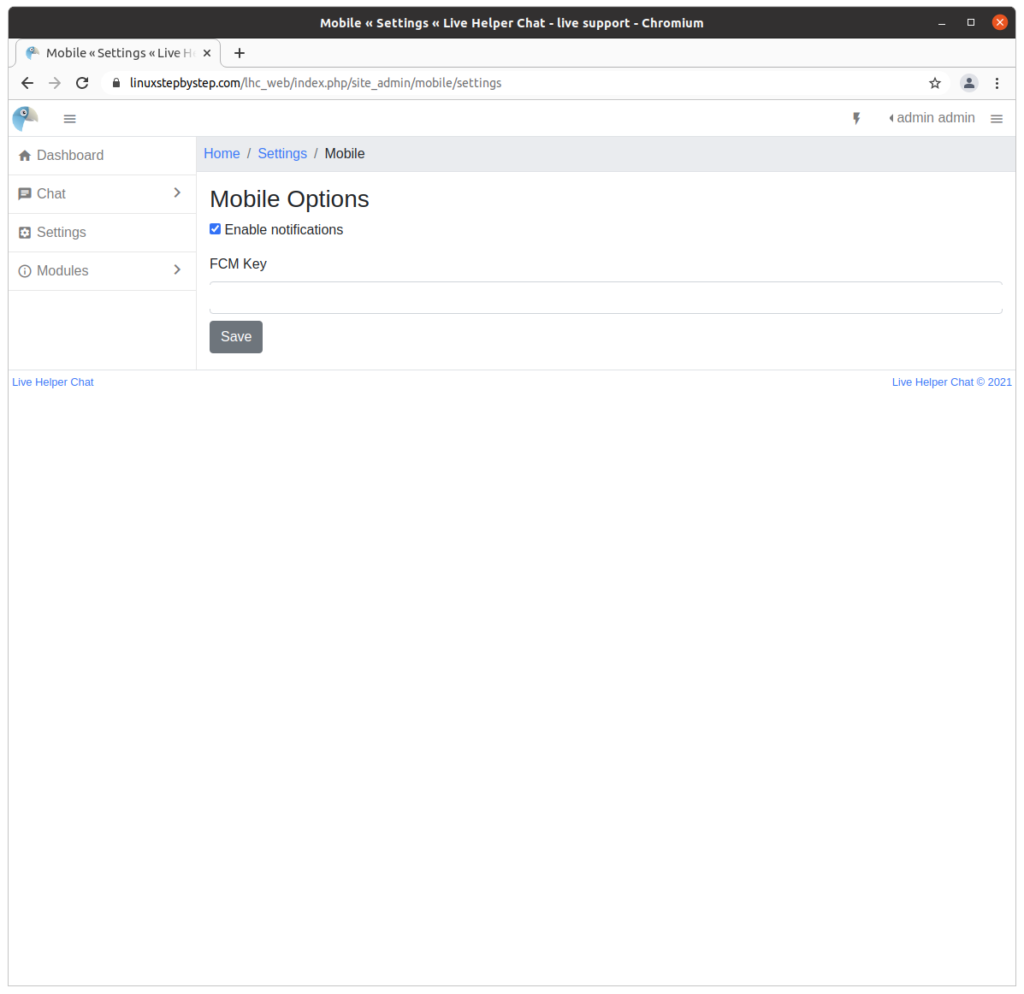
Select the checkbox “Enable notifications,” click on “Save”:
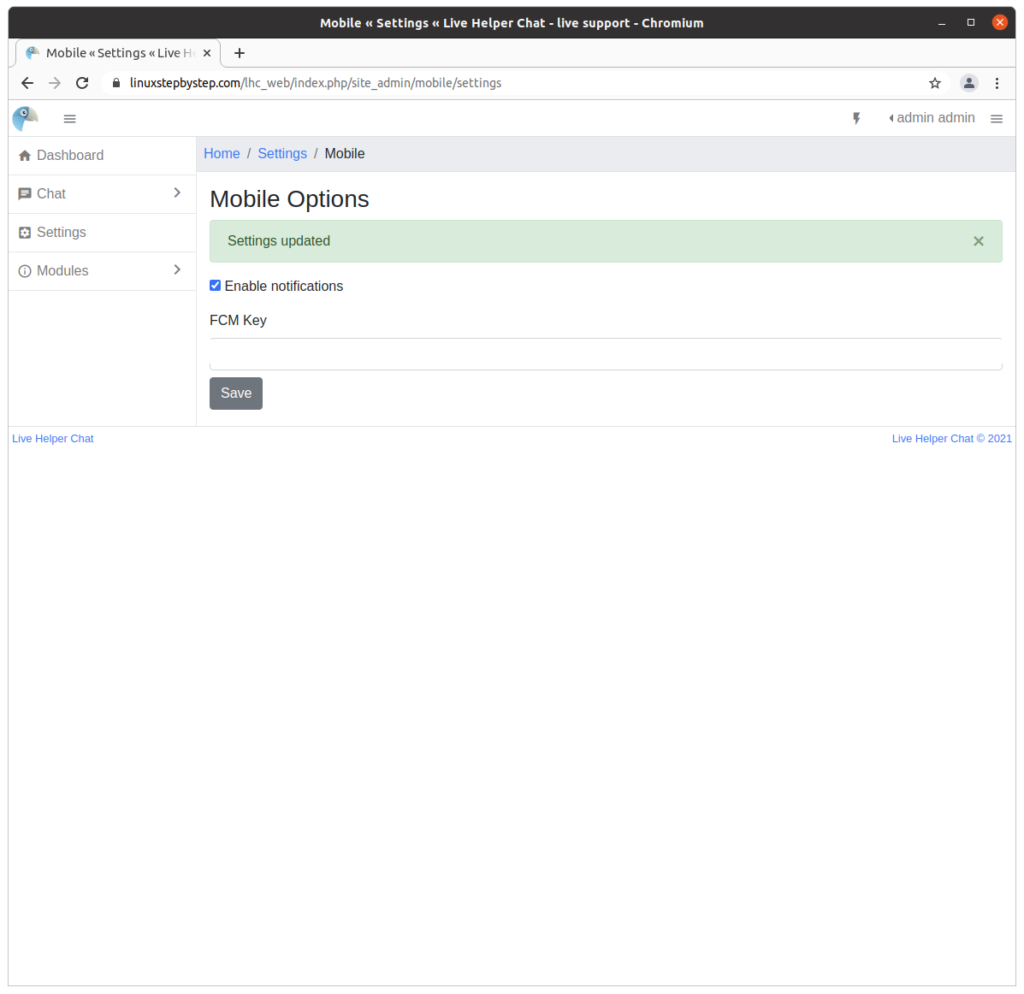
Click on “Settings”:
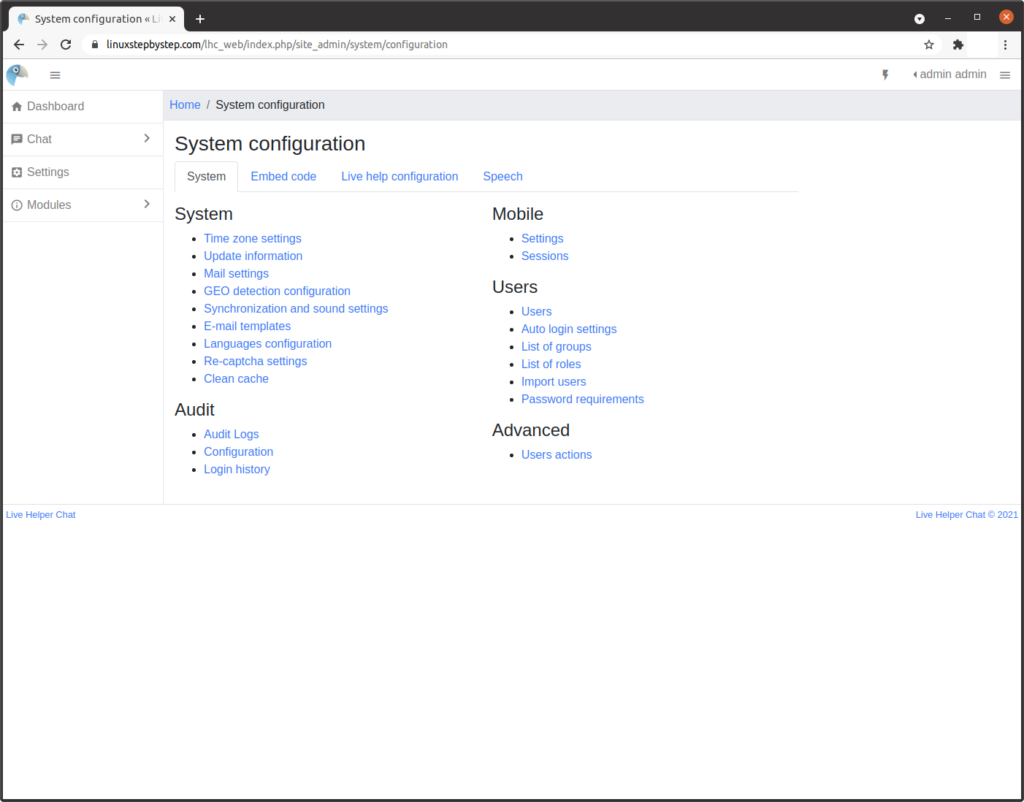
Click on “Embed code”:
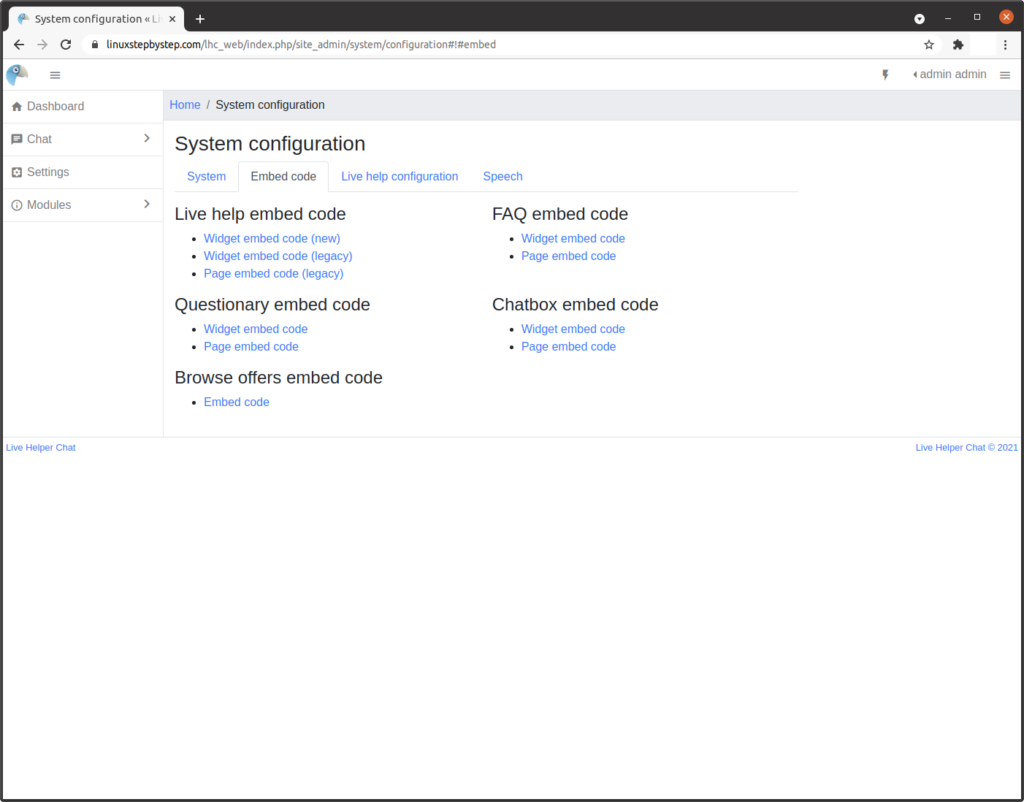
Click on “Widget embed code (new):
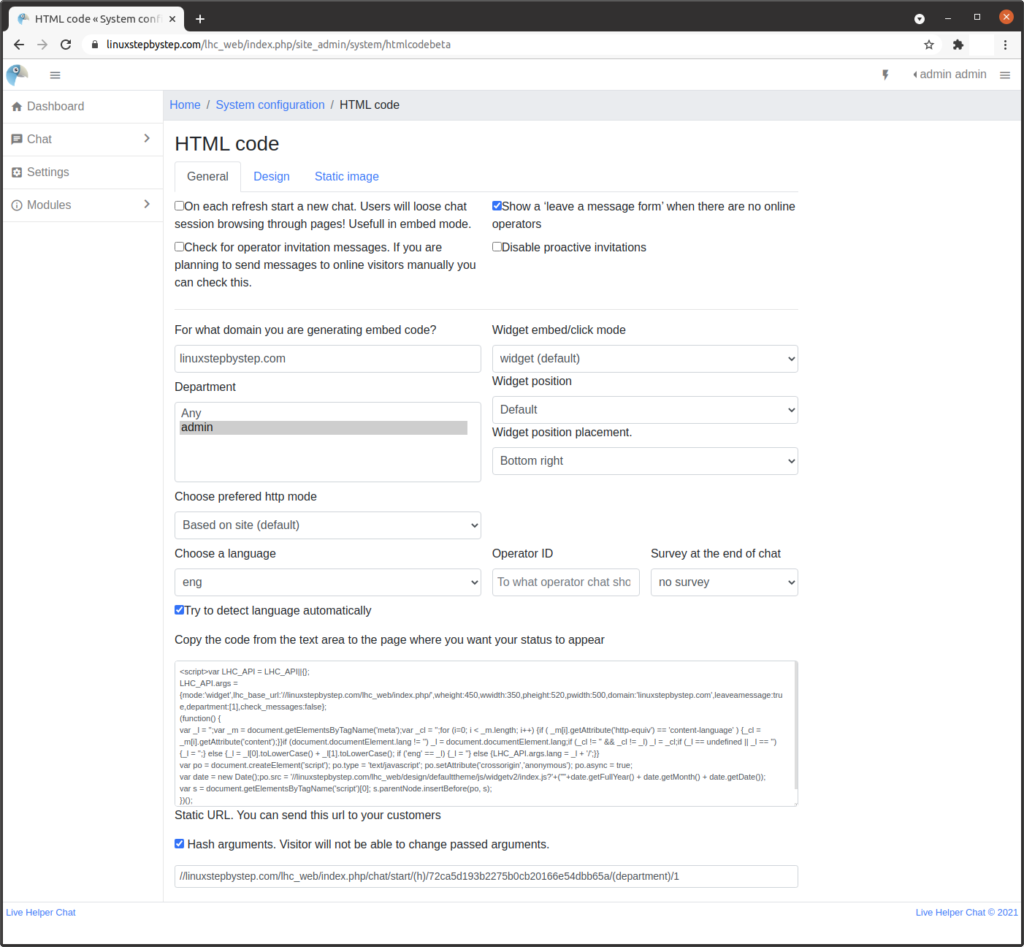
Complete the fields and select the options as required for your site. Copy the code from the text area to the page where you would like the web chat window to appear:
Embedding Live Helper Chat in a WordPress site

To embed the Live Helper Chat application in a WordPress site, we must first install the Insert Headers and Footers plugin for WordPress.

Installing the Insert Headers and Footers WordPress plugin

In your WordPress control panel, click on “Plugins,” then click on “Add New”:
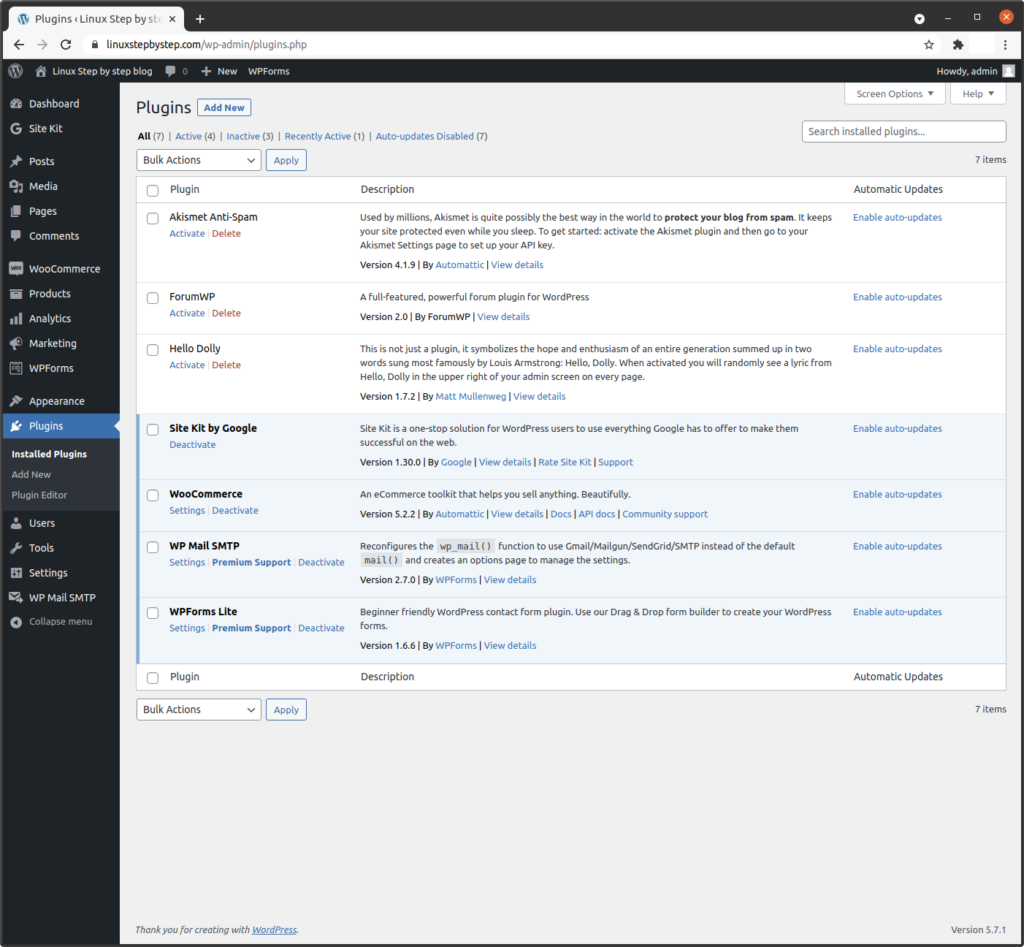
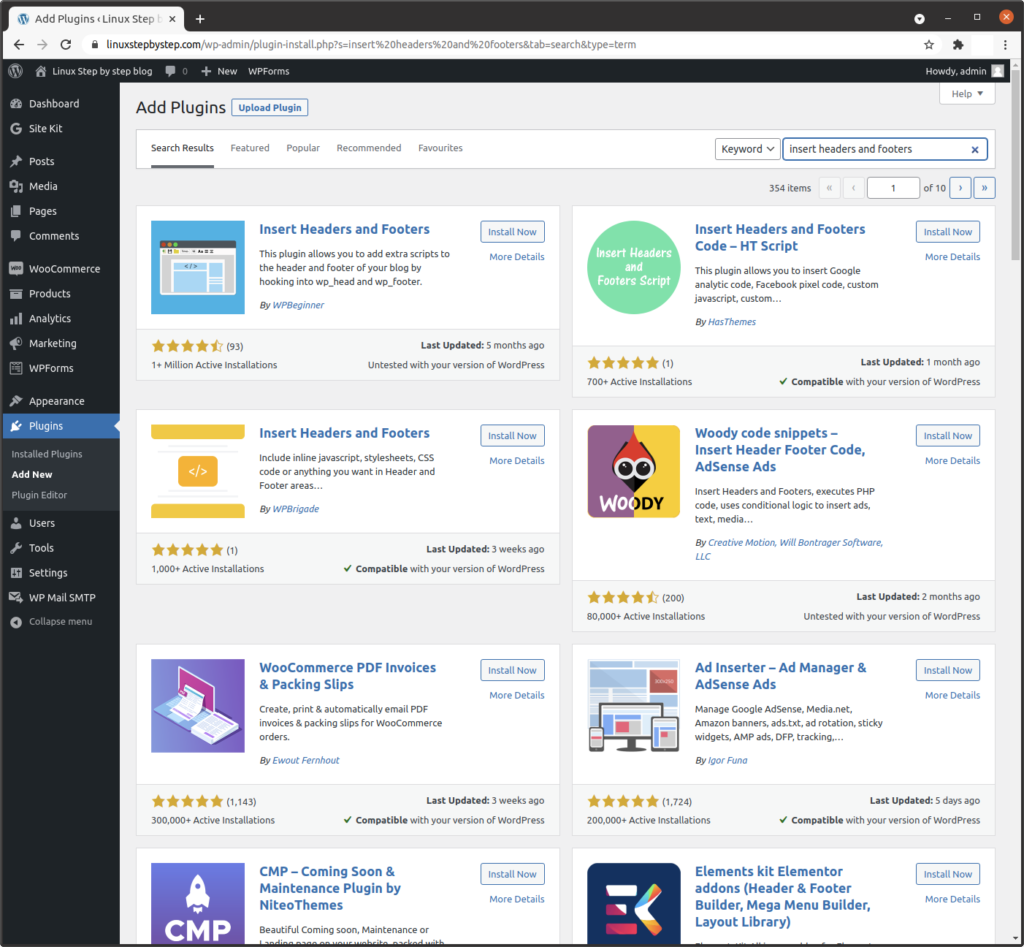
In the search window, enter the text “insert headers and footers,” locate the plugin “Insert Headers and Footers,” click on “Install Now”:
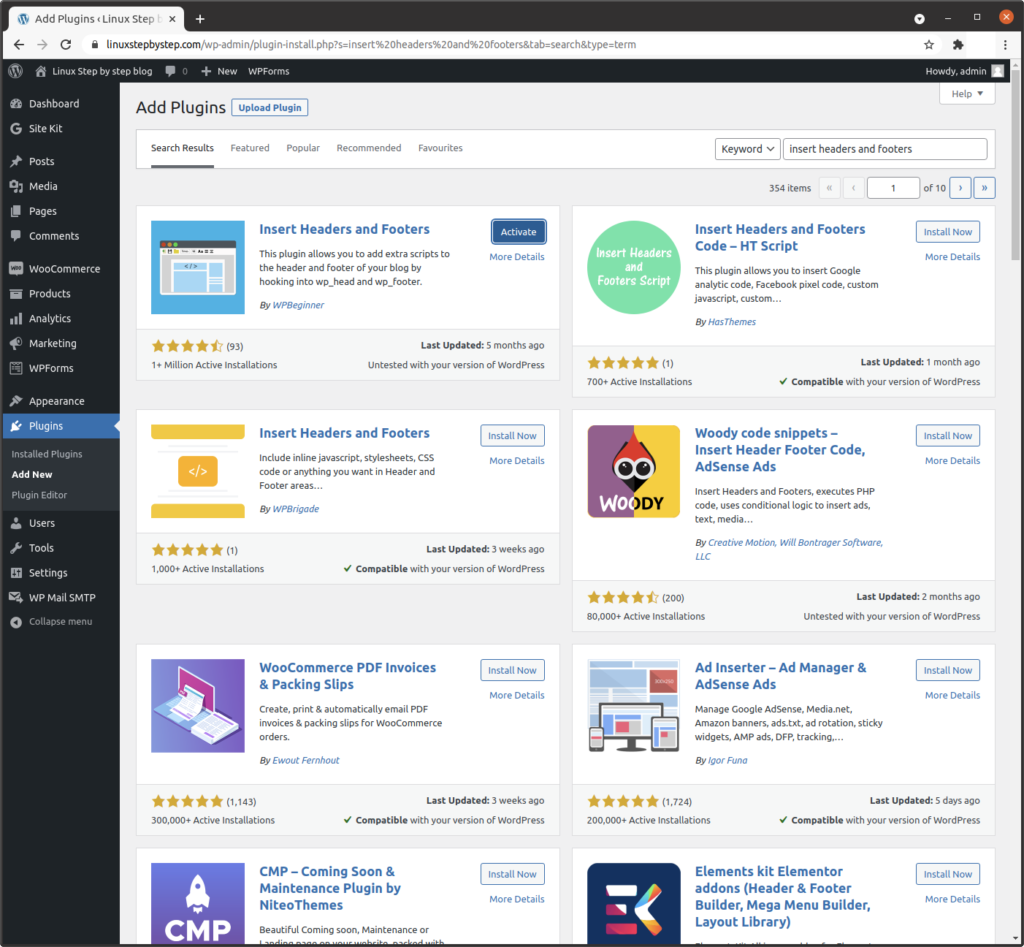
Click on “Activate”:
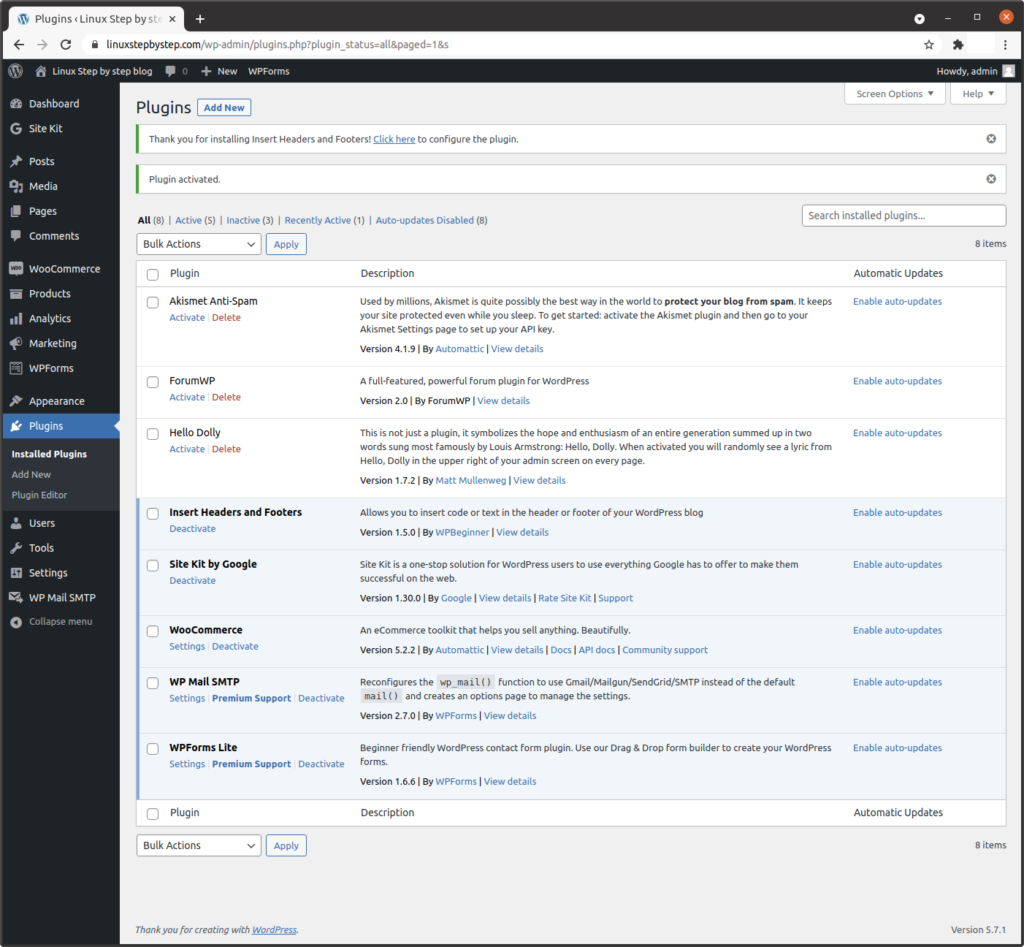
Click on “Settings,” then click on “Insert Headers and Footers”:
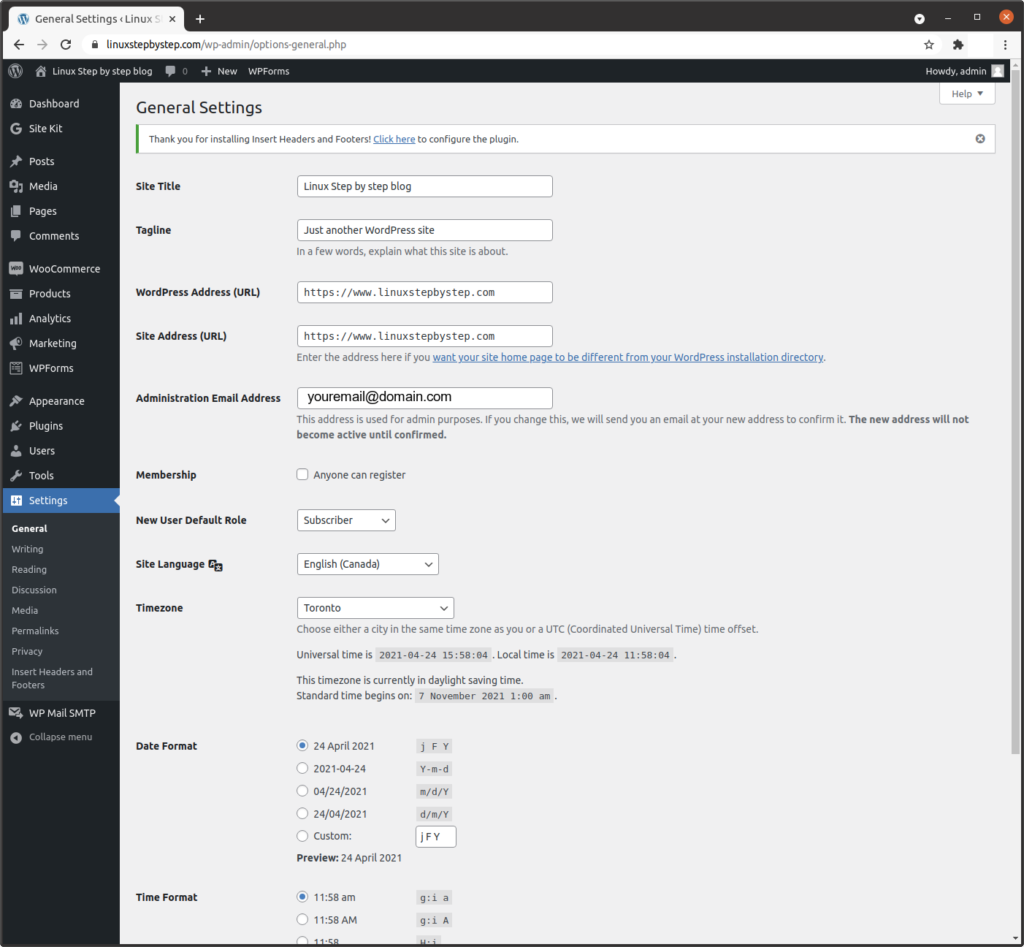
Adding the JavaScript code using the Insert Headers and Footers WordPress plugin

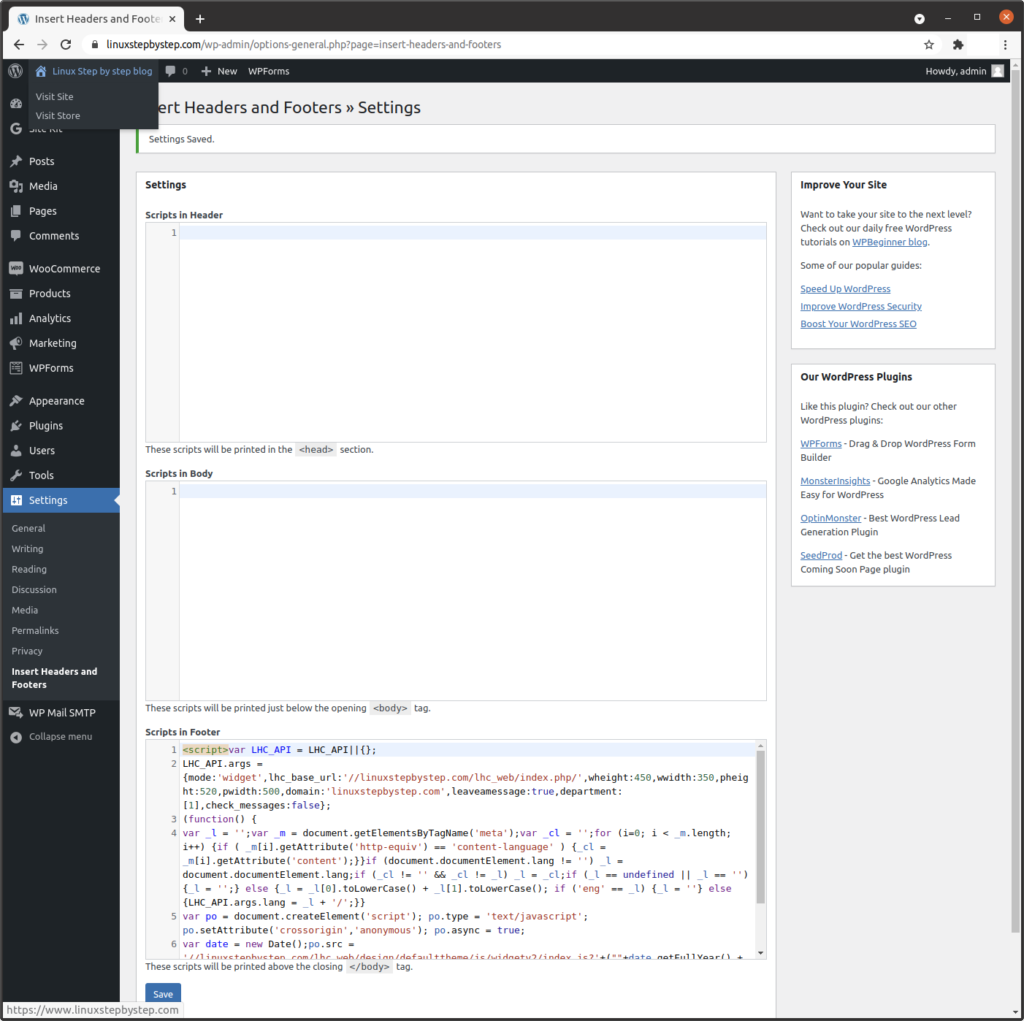
Complete the fields as shown.
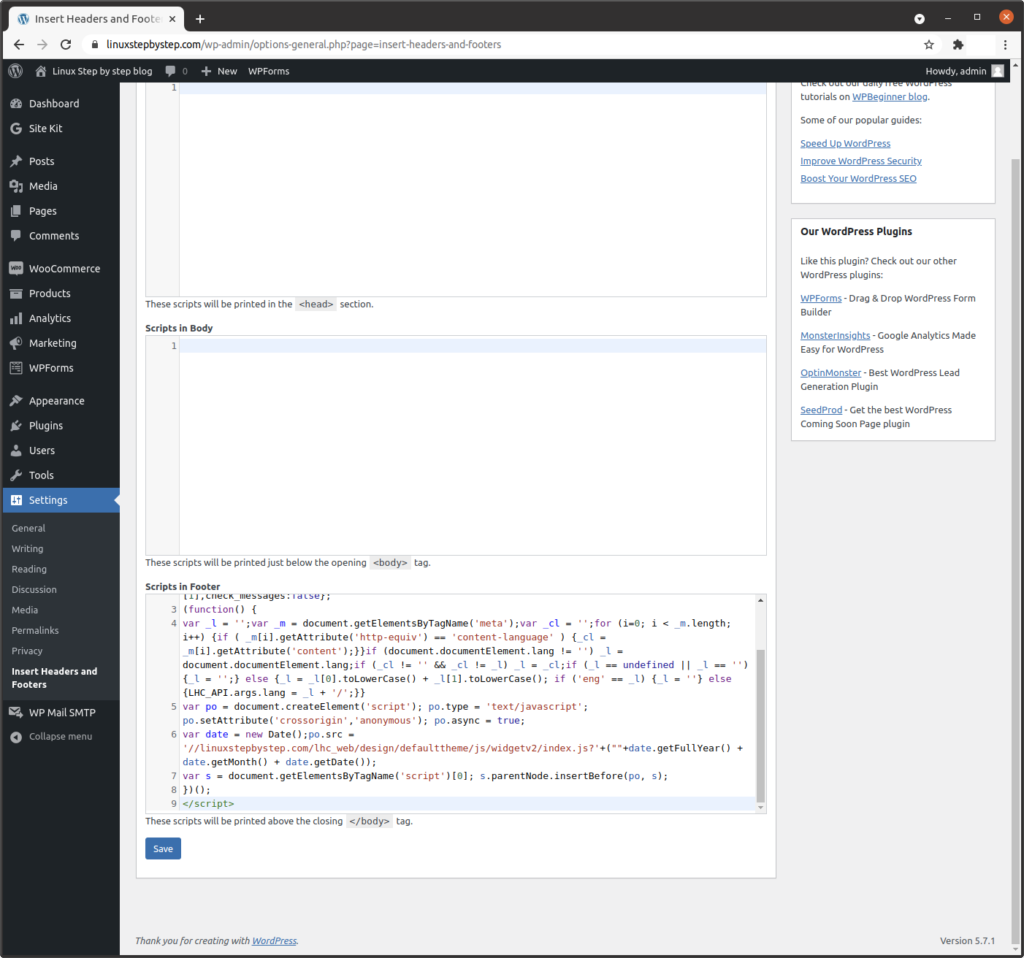
Scroll to the bottom of the page. Paste the JavaScript code you generated earlier in the section “Generating the Live Help Chat JavaScript text to add to an HTML header” to the field “Scripts in Footer,” click “Save”:
Cick on “Visit Site”:
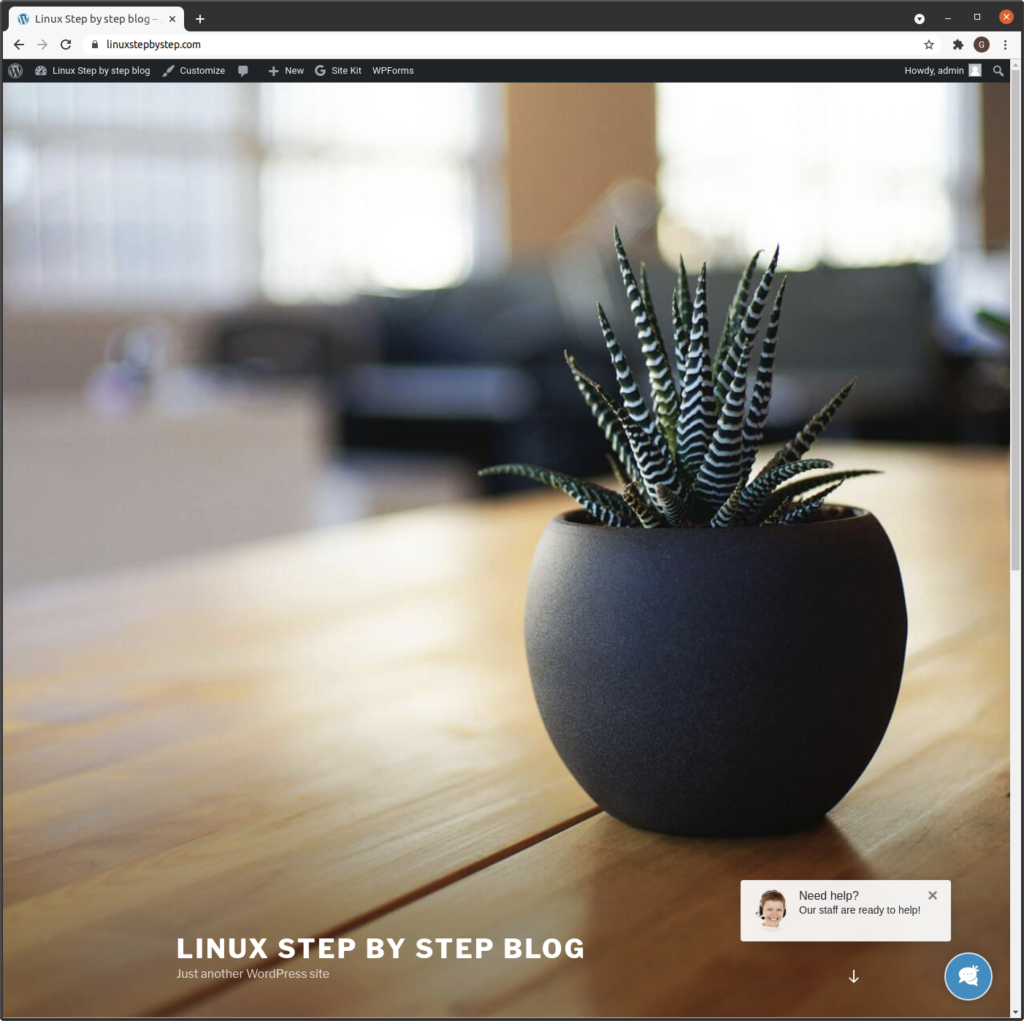
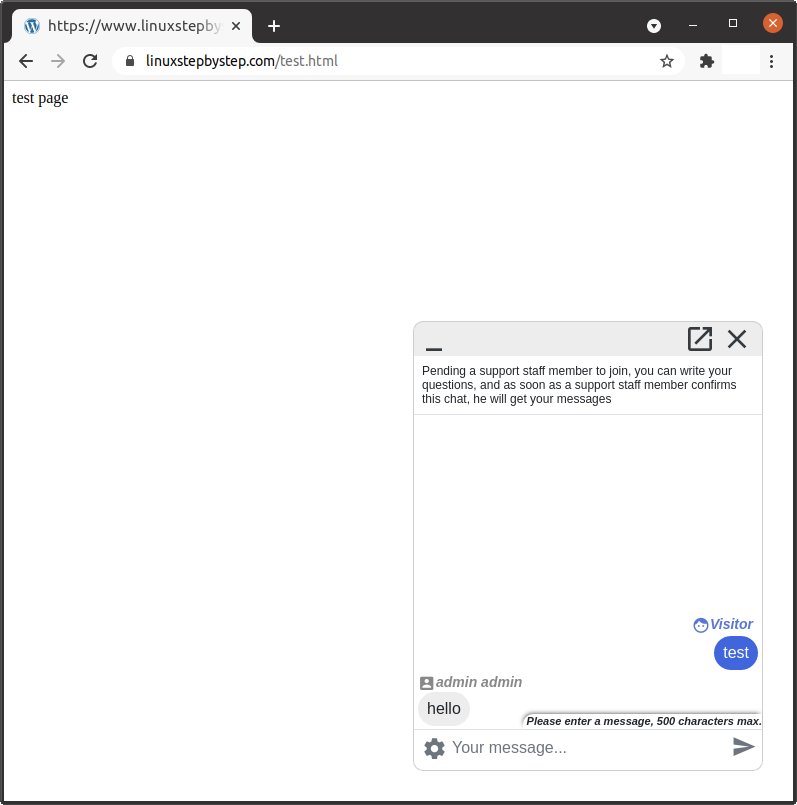
The chat window is visible on the WordPress site:
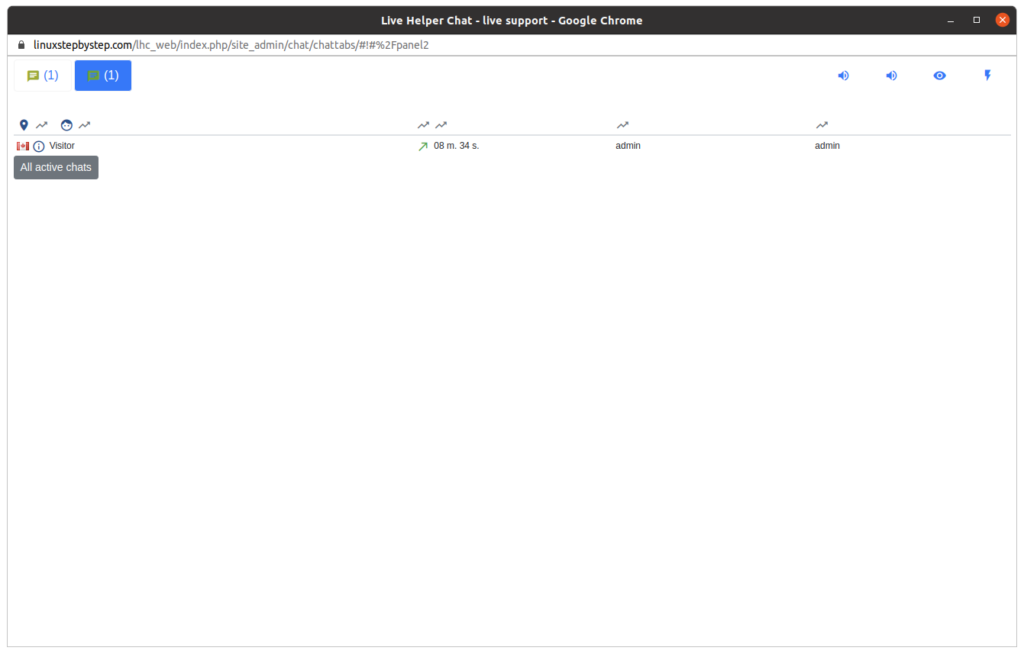
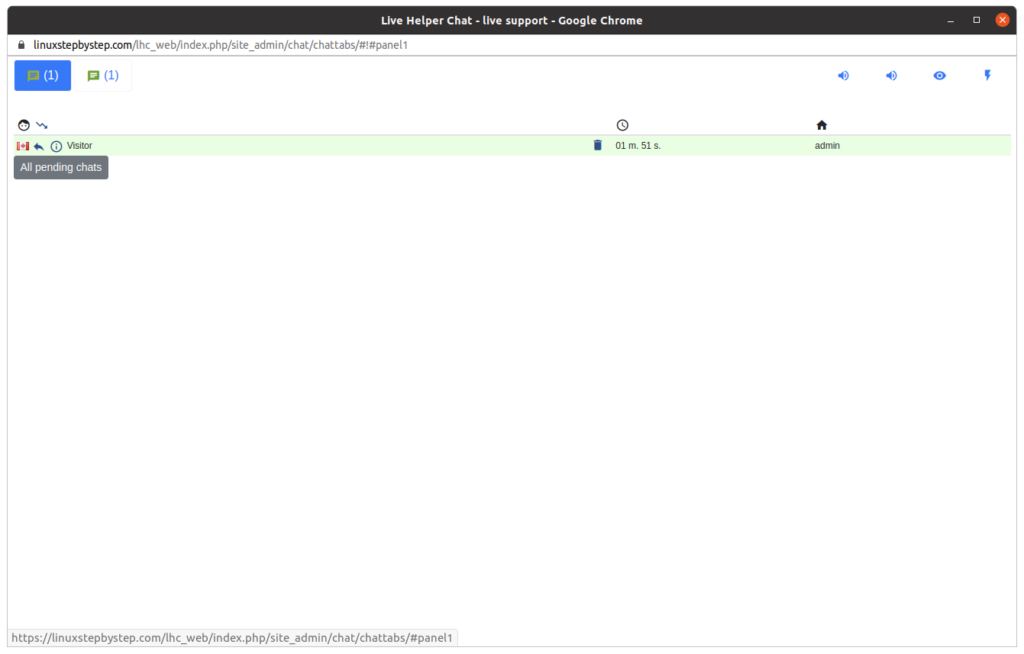
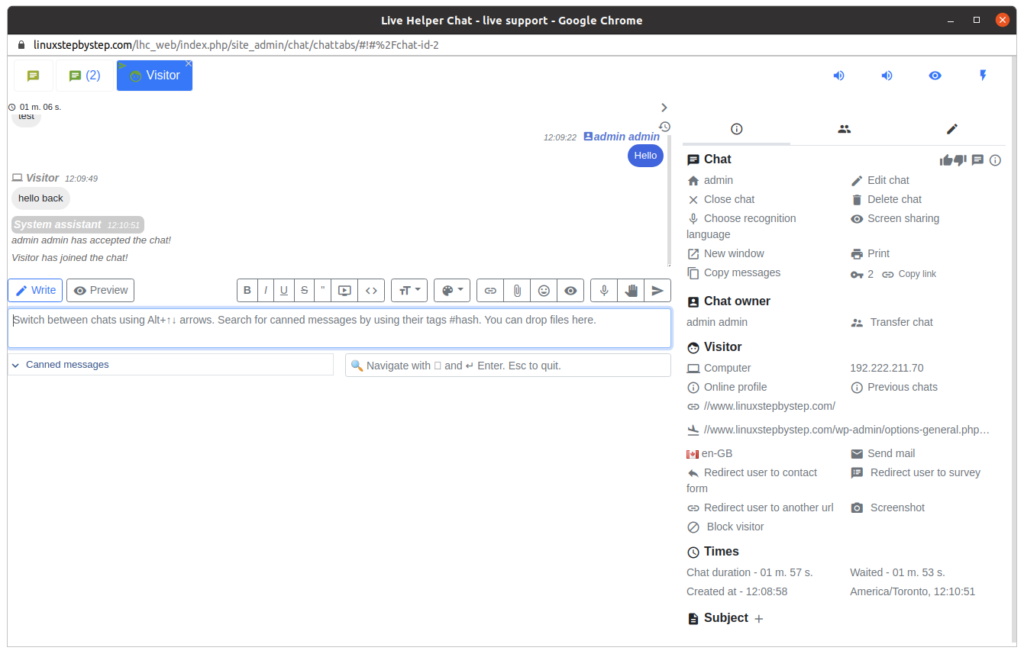
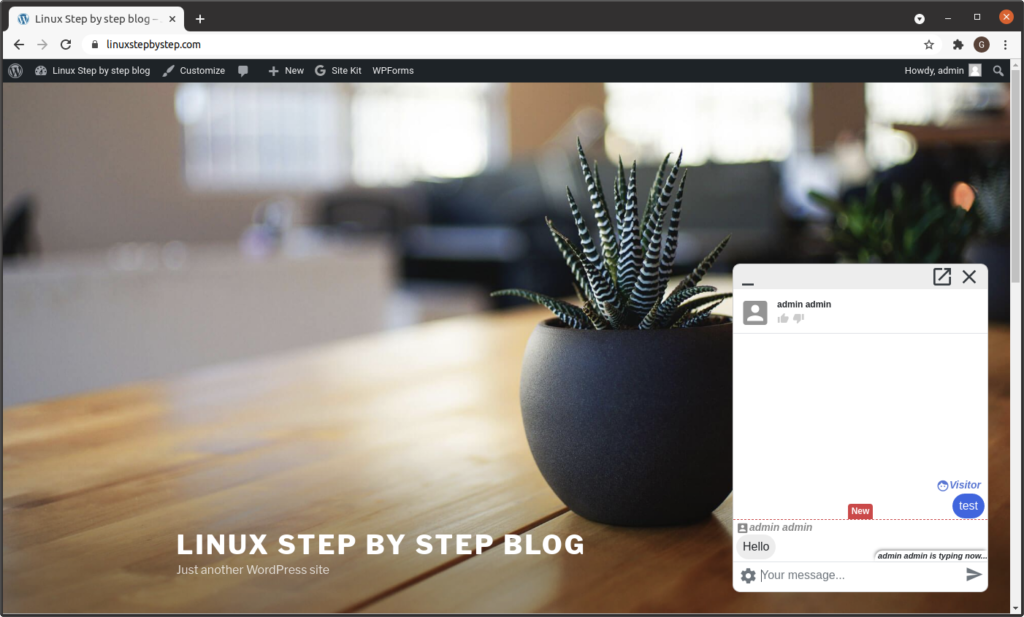
Texting between the site’s visitors and the site’s operators:
Embedding Live Helper Chat in a simple web page

We can add the Live Helper Chat text chat window to a simple web page.

Using an SSH terminal program, connect to your Ubuntu Linux cloud server. Change to the directory containing the documents for your website. Enter the command:

nano test.html

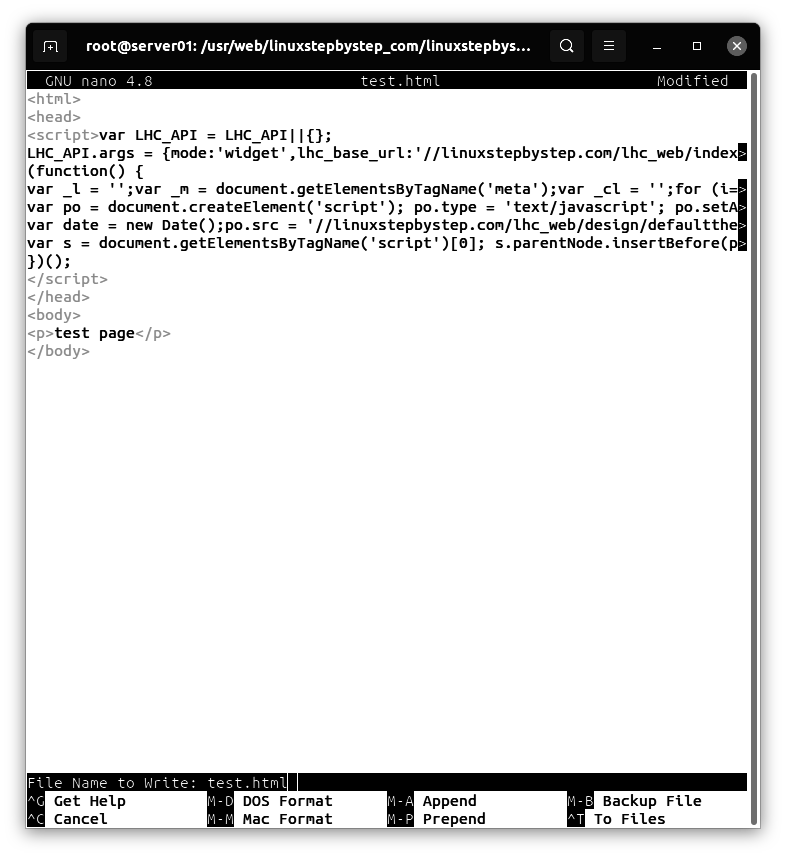
Paste the JavaScript code you generated in the section “Generating the Live Help Chat JavaScript text to add to an HTML header,” press Control-X to save and exit the file:
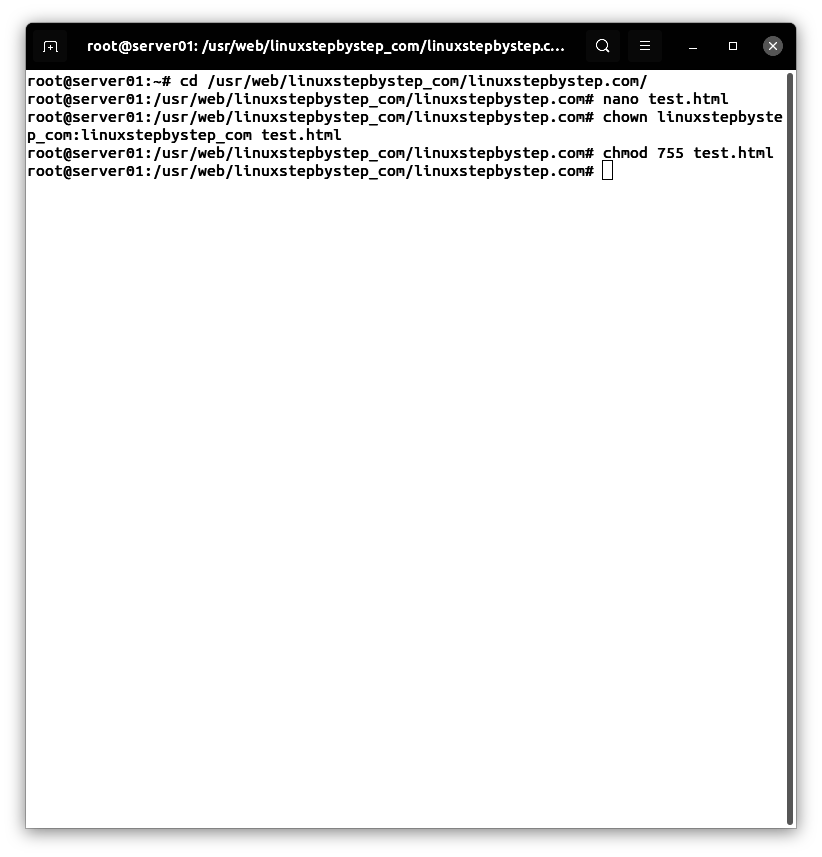
Enter these commands (where username is the username that owns the documents for the website):

chown username:username test.html
chmod 755 test.html
View the test.html page in a web browser:
Accessing the Live Helper Chat operator panel

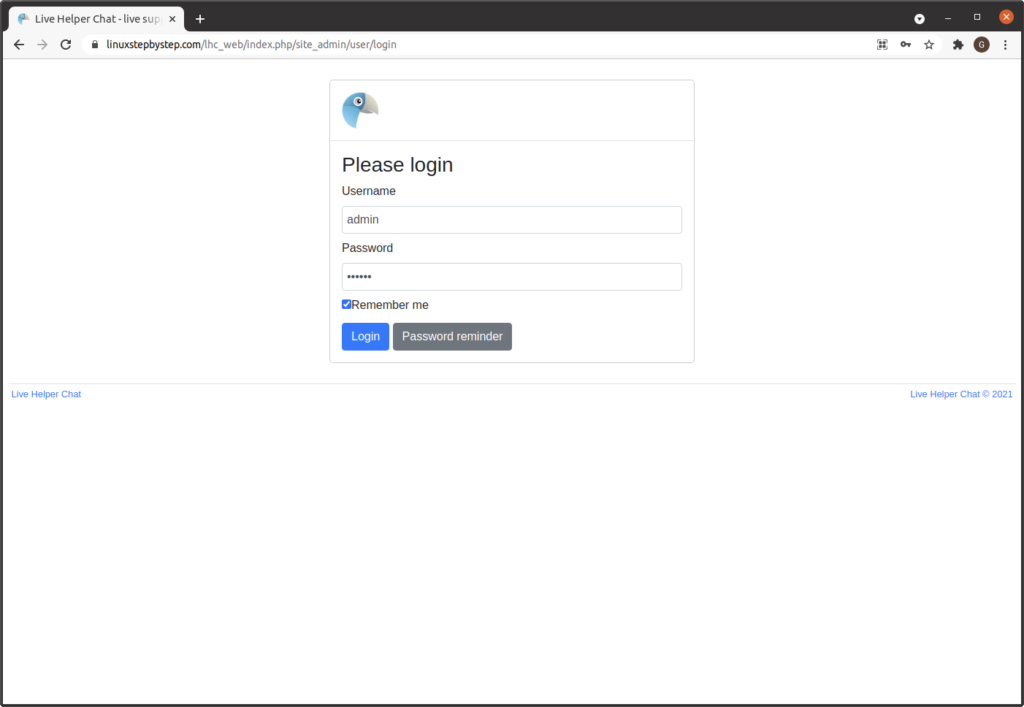
For our example domain, we can visit this site at https://linuxstepbyste.com/lhc_web/index.php/site_admin (Substitute your domain name.)

Enter your username and password. Click “Login”:
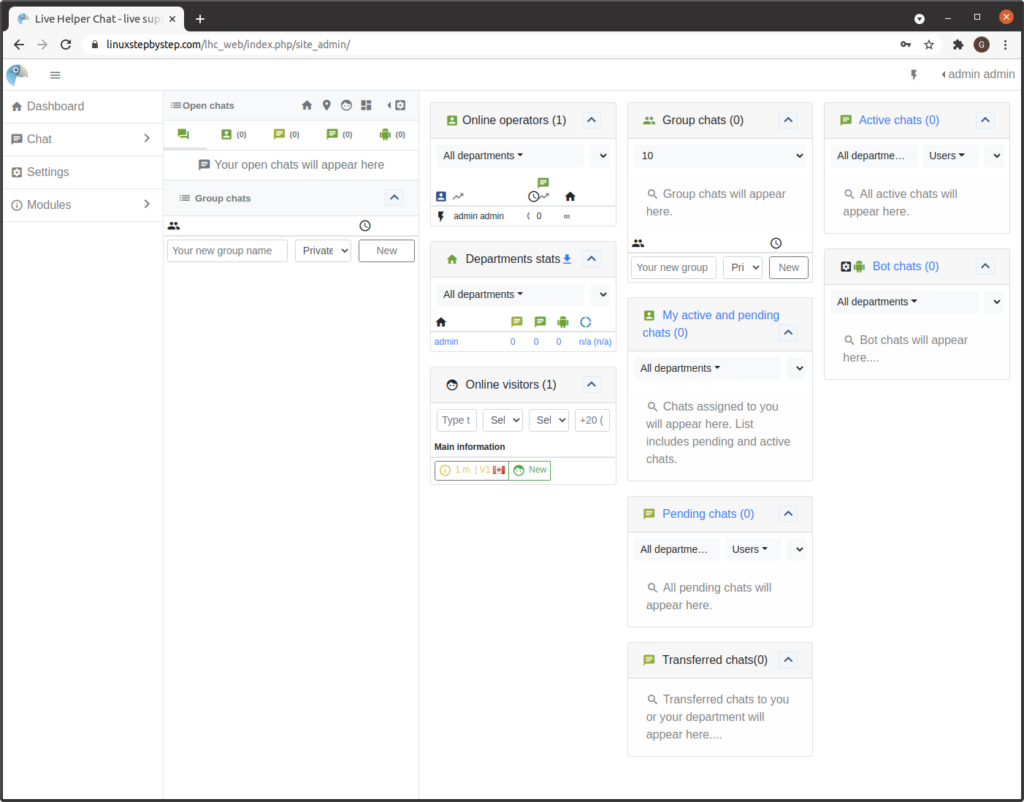
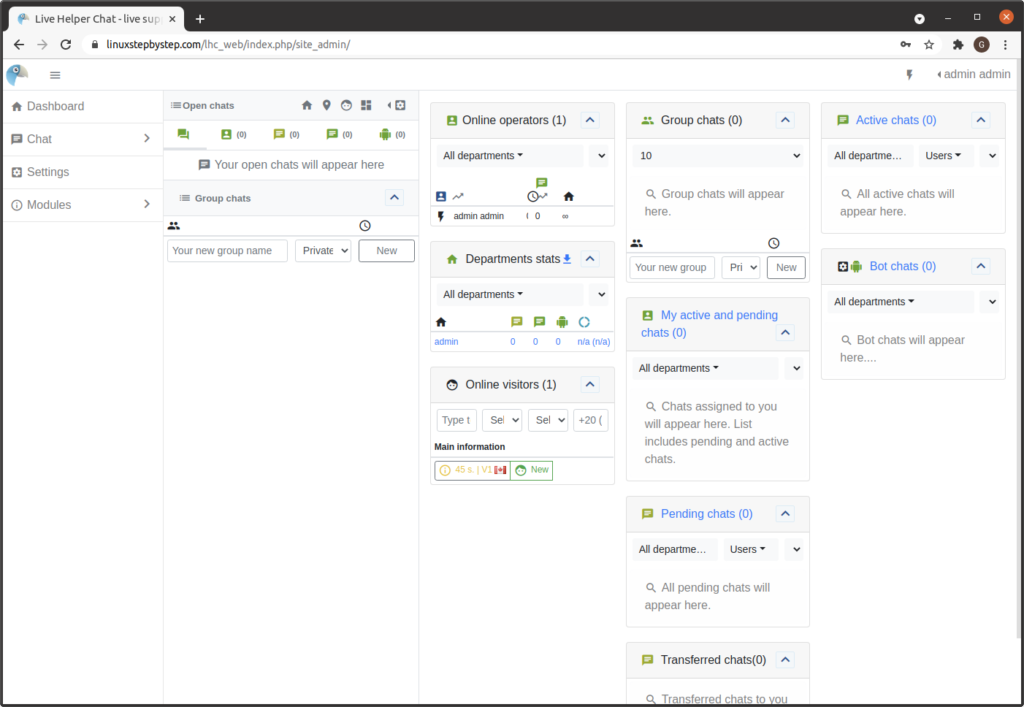
Click on “Chat”:
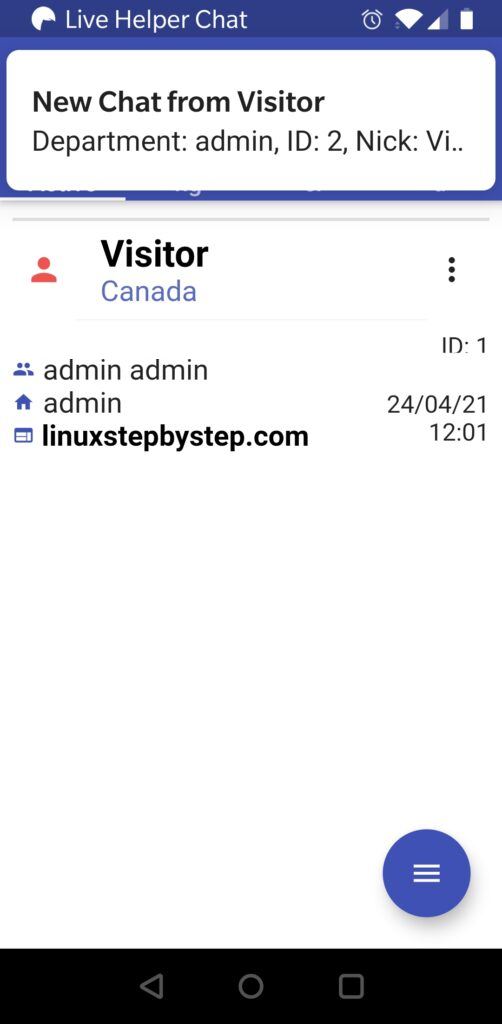
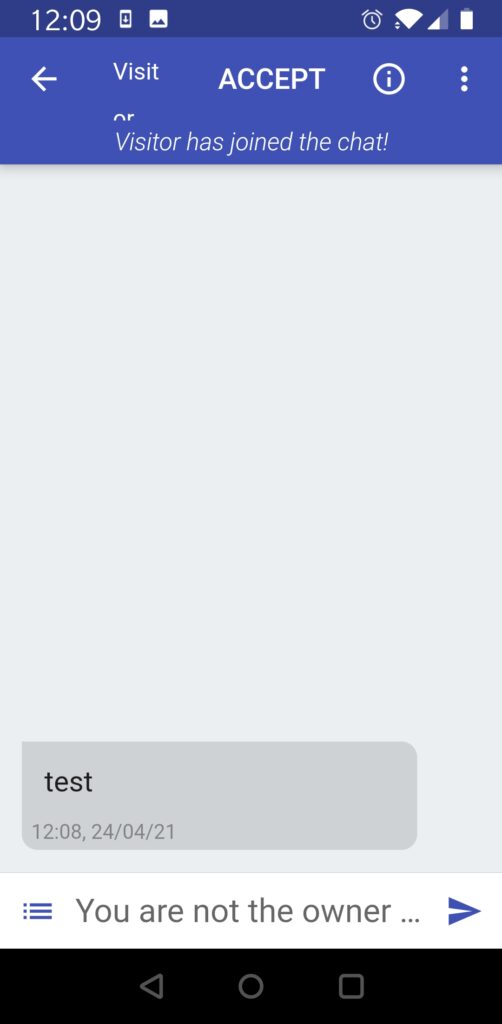
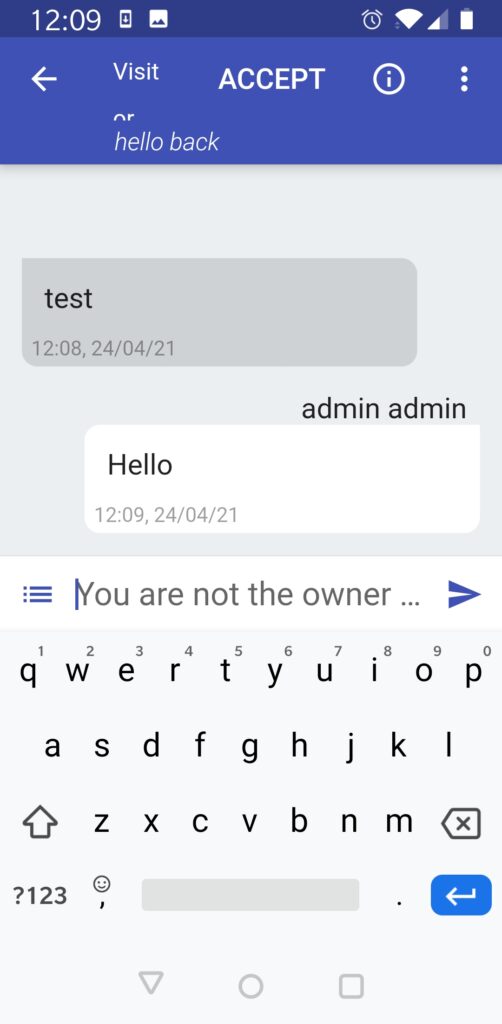
Configuring and Using the Android client

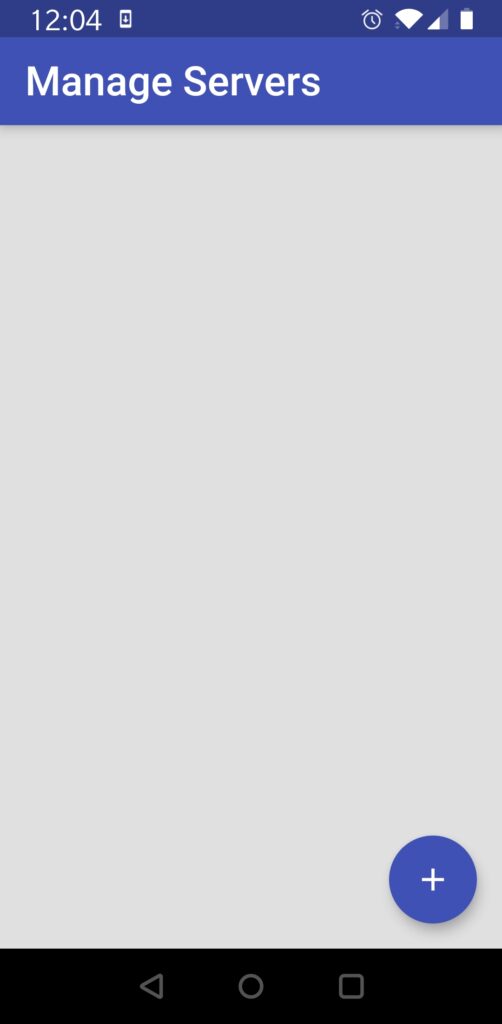
Download the “Live Helper Chat” app from the Google Play Store. When you launch the application, you will see this screen. Click on “+”:
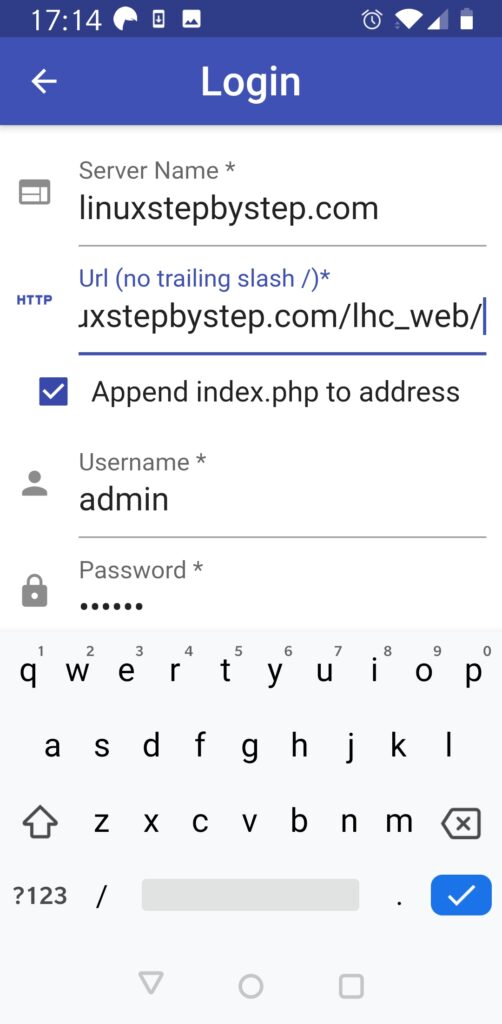
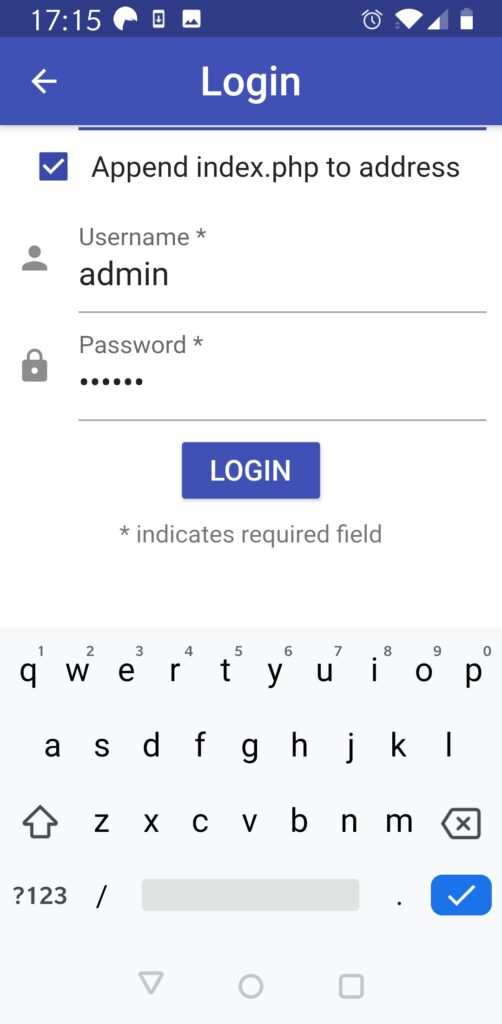
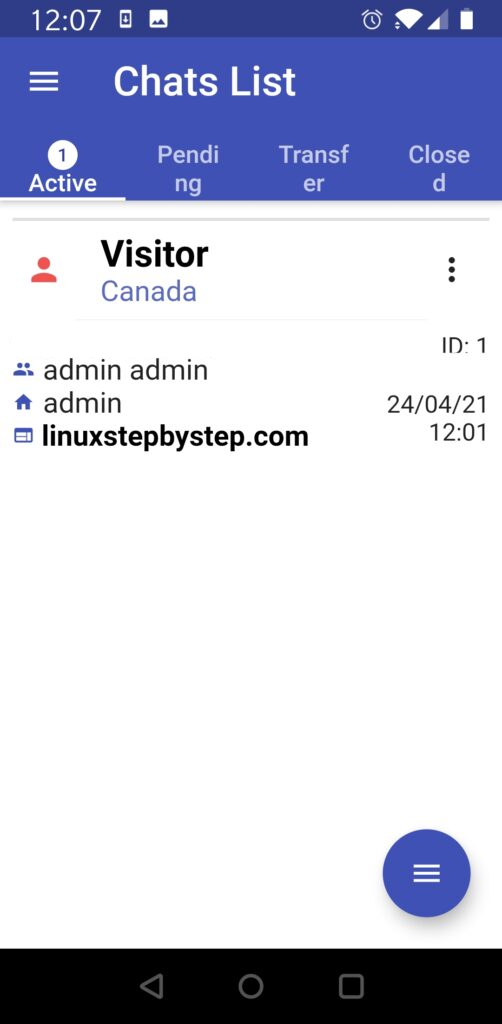
Complete the fields below as shown (substitute your domain name). Click “Login”:
Configuring and using the iOS client

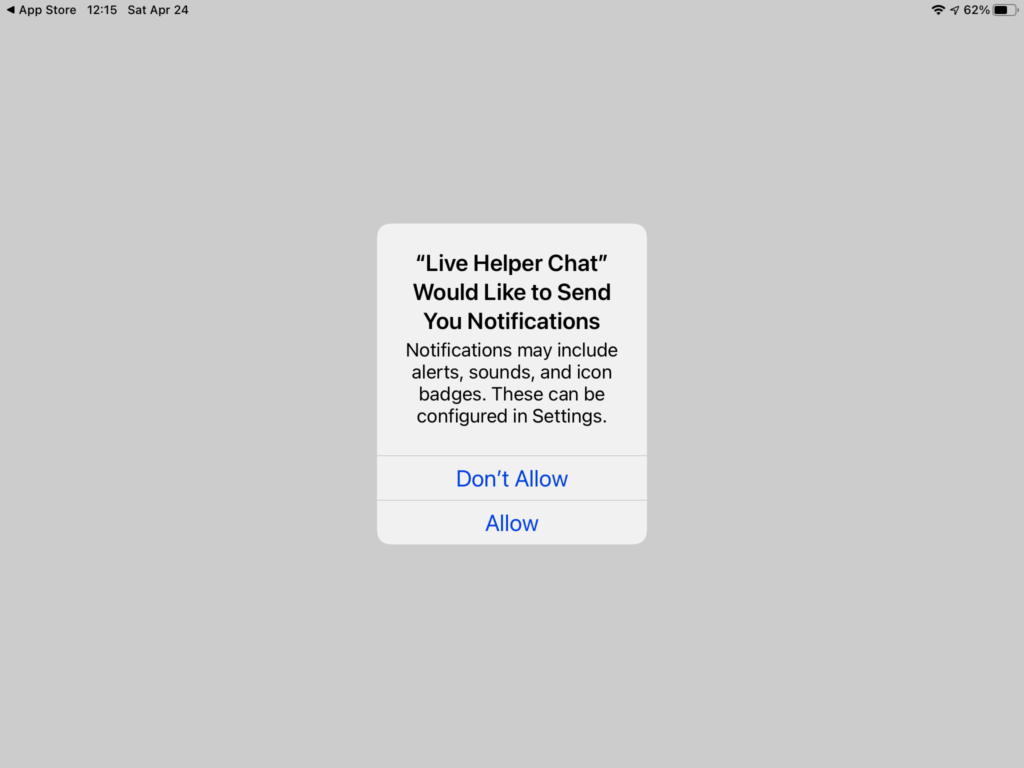
Download the “Live Helper Chat” app from the Apple App Store. When you launch the application, you will see this screen. Click on “Allow”:

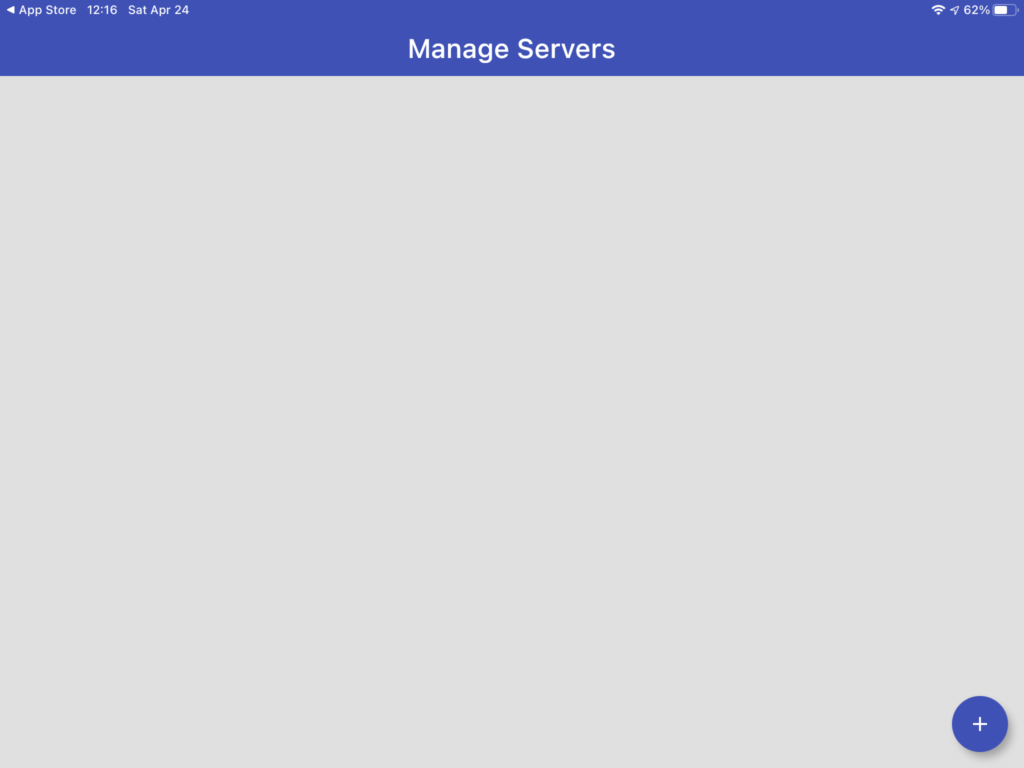
Click on “+”:

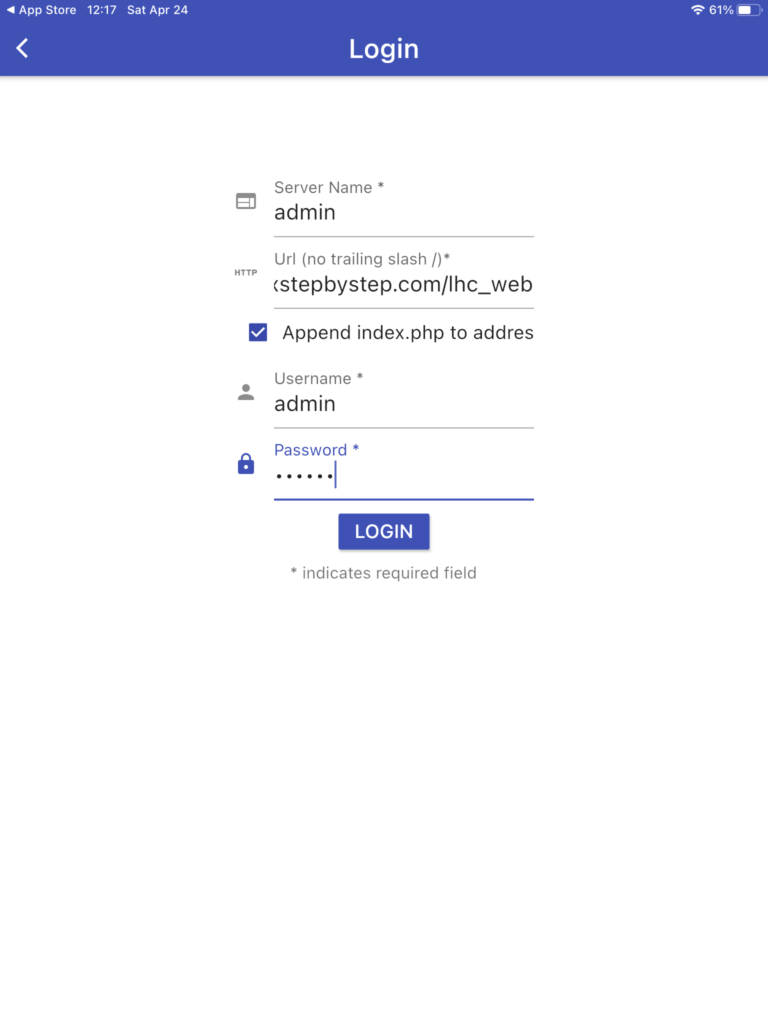
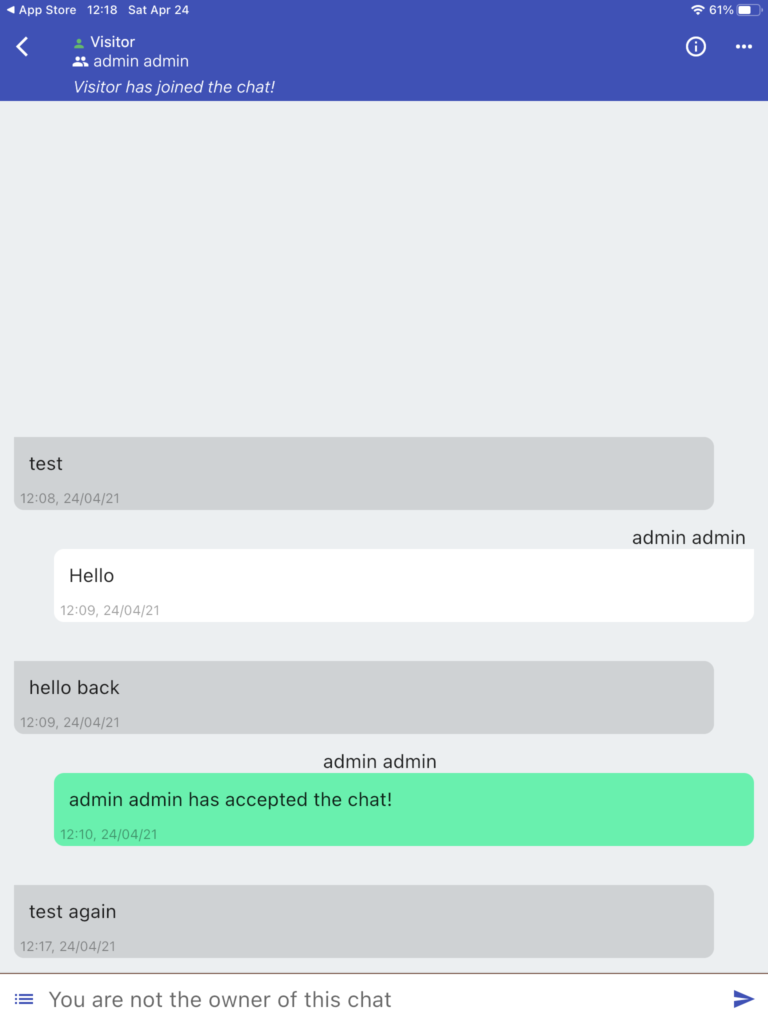
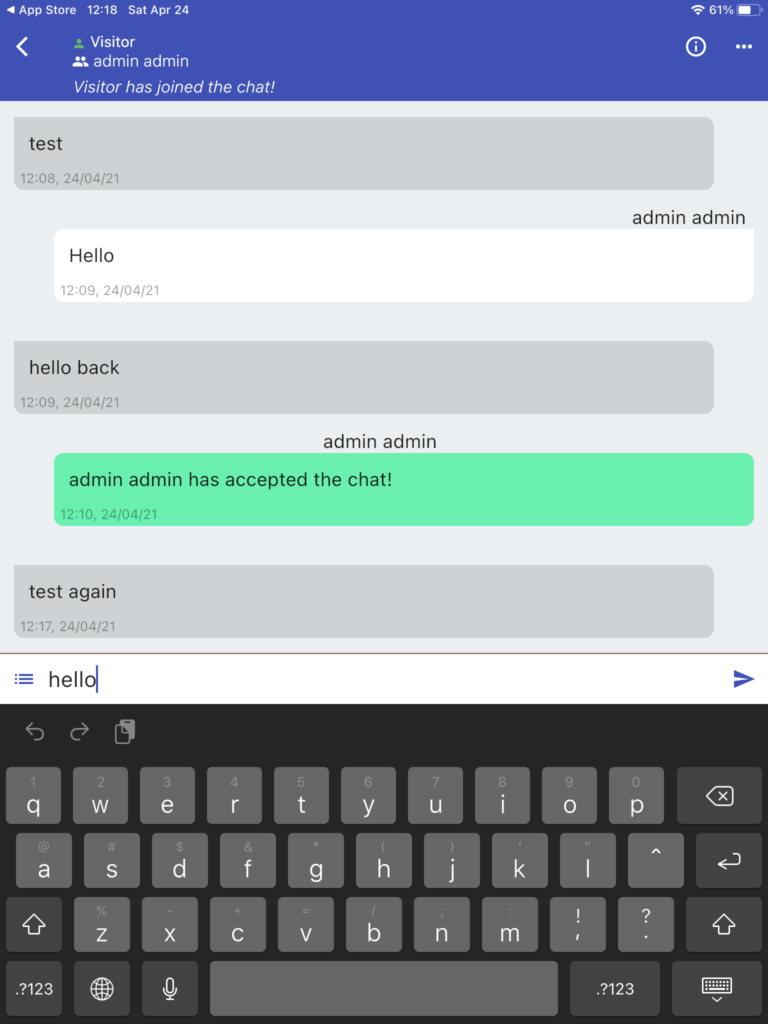
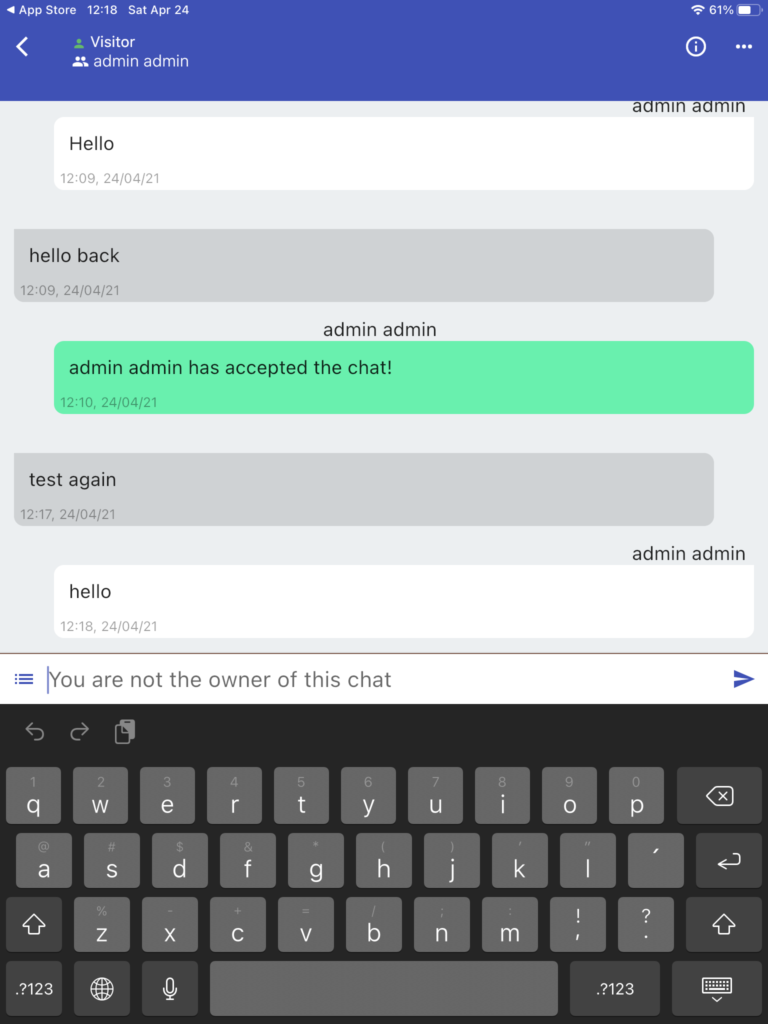
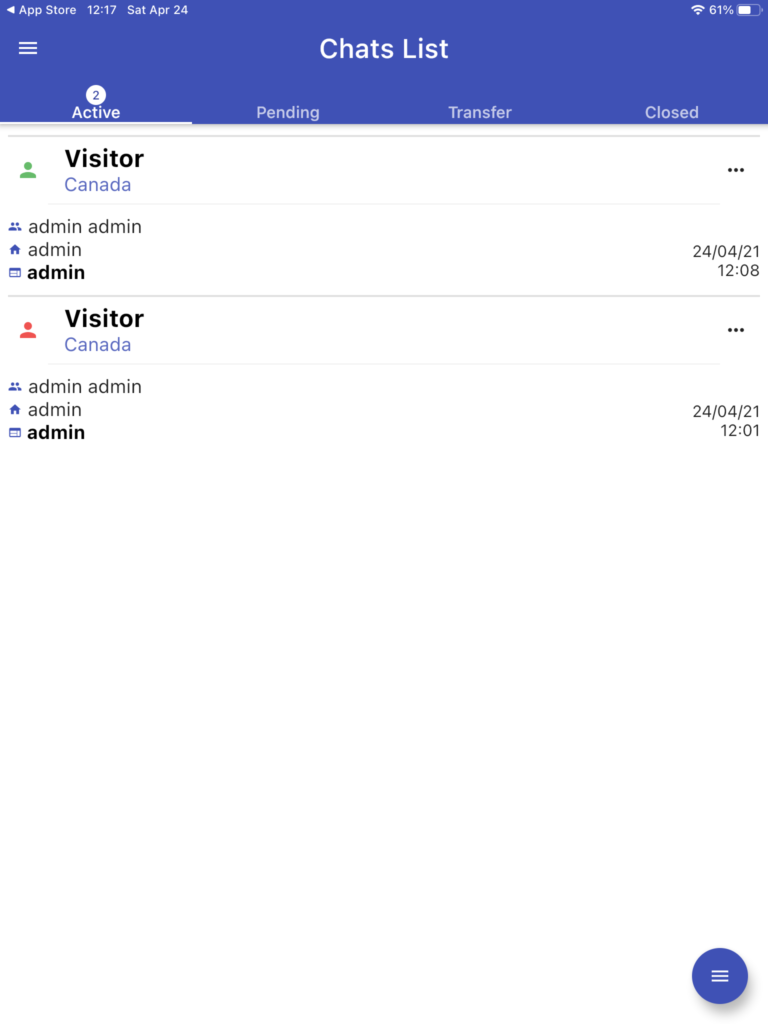
Complete the fields as shown (substitute your domain name). Click “Login”:
Previous step: Chapter 13: Installing and configuring MyBB to create a community forum site
Next step: Chapter 15: Using dwservice.net to provide remote technical support as an alternative to TeamViewer
Web presence step by step Chapter 13: Installing and configuring MyBB to create a community forum site

Previous step: Chapter 12: Installing and configuring the WooCommerce plugin for WordPress to enable a shopping cart for transactions
Next step: Chapter 14: Installing and configuring Live Helper Chat to add text chat support to a website

Web presence step by step is a series of posts that show you to how to build a web presence.

In this chapter, we install and configure MyBB to create a community forum site.

If you are not familiar with SSH terminal programs

This chapter assumes that you have read Chapter 4: Using an SSH terminal program to connect to an Ubuntu Linux cloud server. If you are not familiar with SSH terminal programs, please consult that chapter.

Creating a MySQL database to host the data for the MyBB community forum site

Use an SSH terminal program to connect to the Ubuntu Linux cloud server you created in Chapter 3: Buying an Ubuntu Linux cloud server from Digital Ocean.

From the system prompt, enter the command:

mysql -u root -p

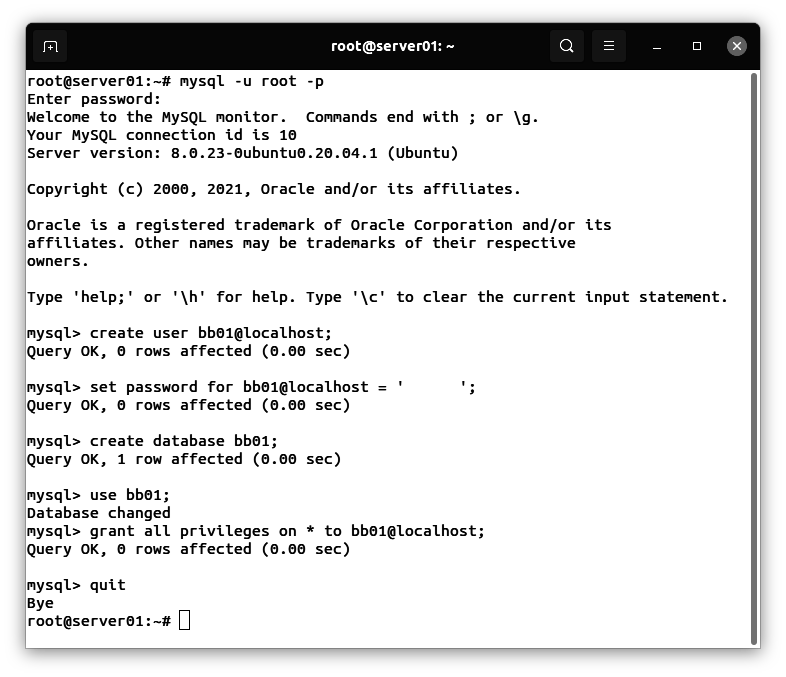
From the MySQL console prompt, enter these commands (use a unique password in place of ‘xxxxxx’):

create user bb01@localhost;
set password for bb01@localhost = 'xxxxxx';
create database bb01;
use bb01;
grant all privileges on * to bb01@localhost;
quit

Installing the php-gd extension

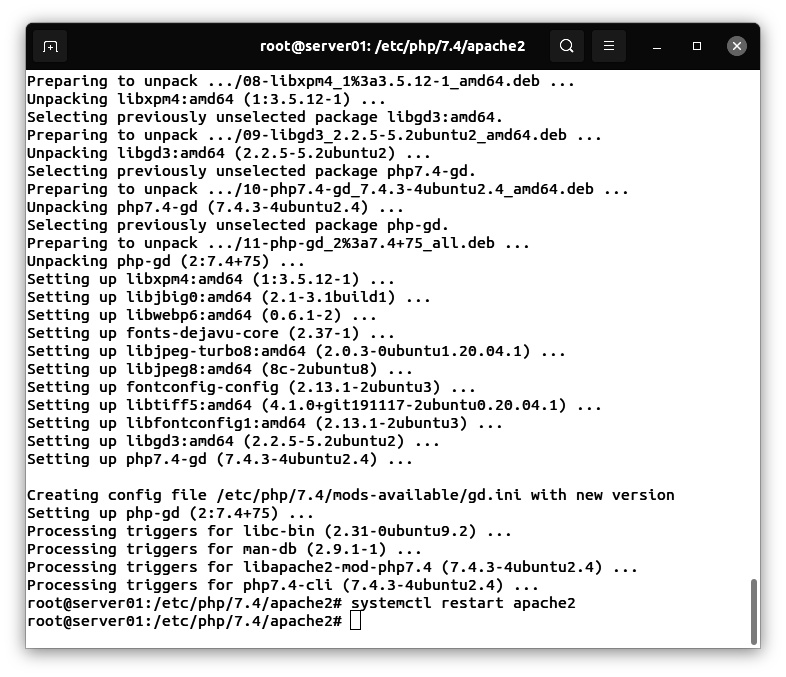
In order to generate graphics representing captchas, we need to install the php-gd extension.

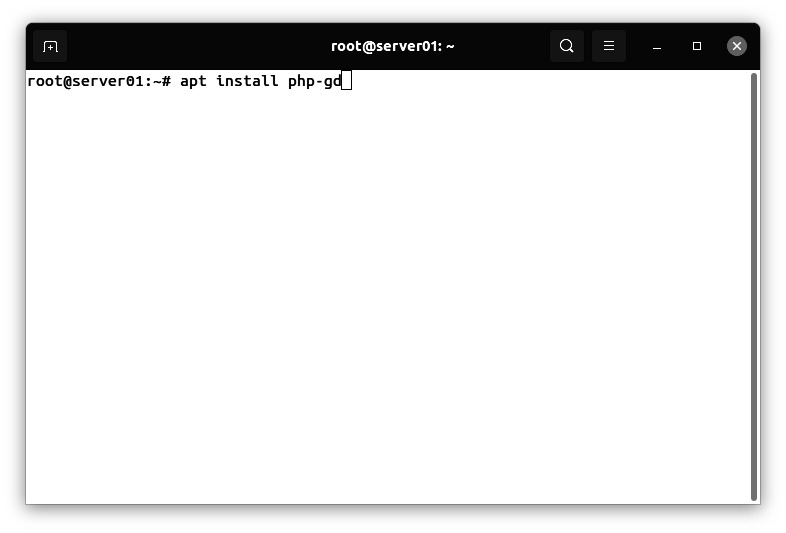
Enter the command:

apt install php-gd

Enter the command:

systemctl restart apache2

Configuring a Gmail account to allow MyBB to send email messages

We need to select or create a Gmail account that the MyBB community forum software will use to send email messages. This can be the same Gmail account you selected or created in Chapter 11: Installing and configuring the WP Mail SMTP plugin for WordPress to enable WordPress to send email messages.

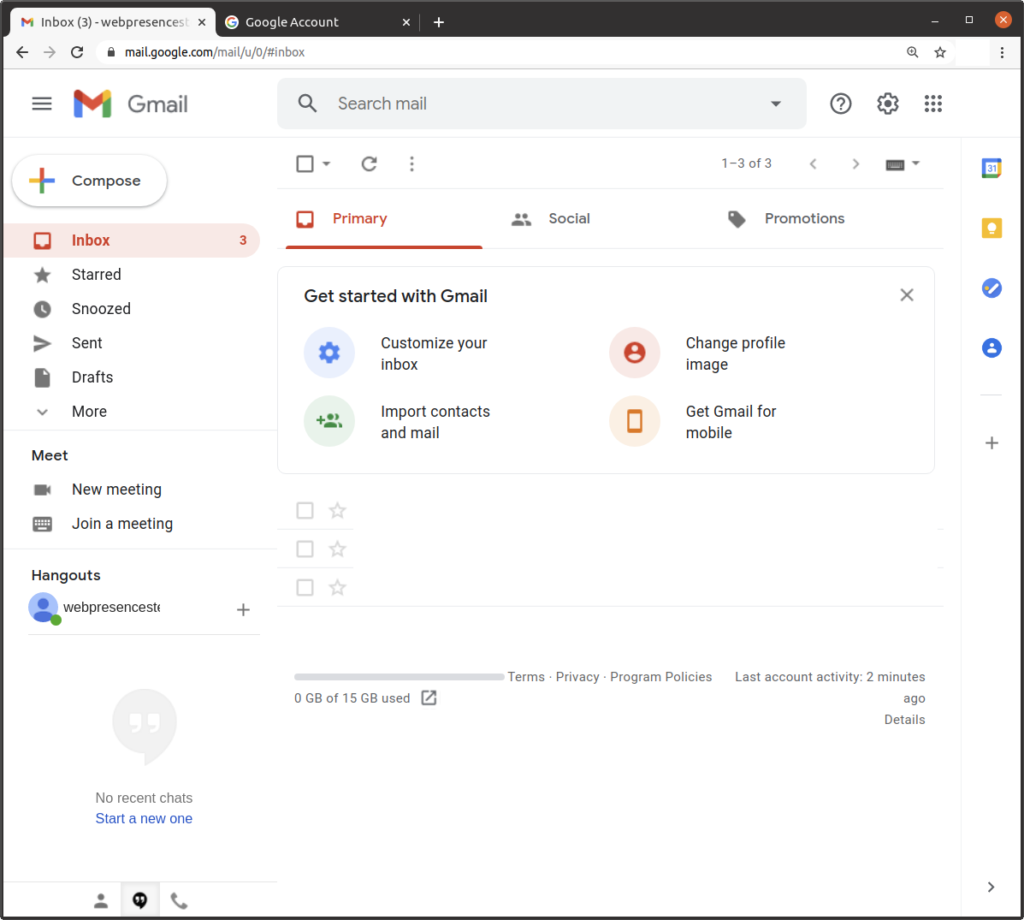
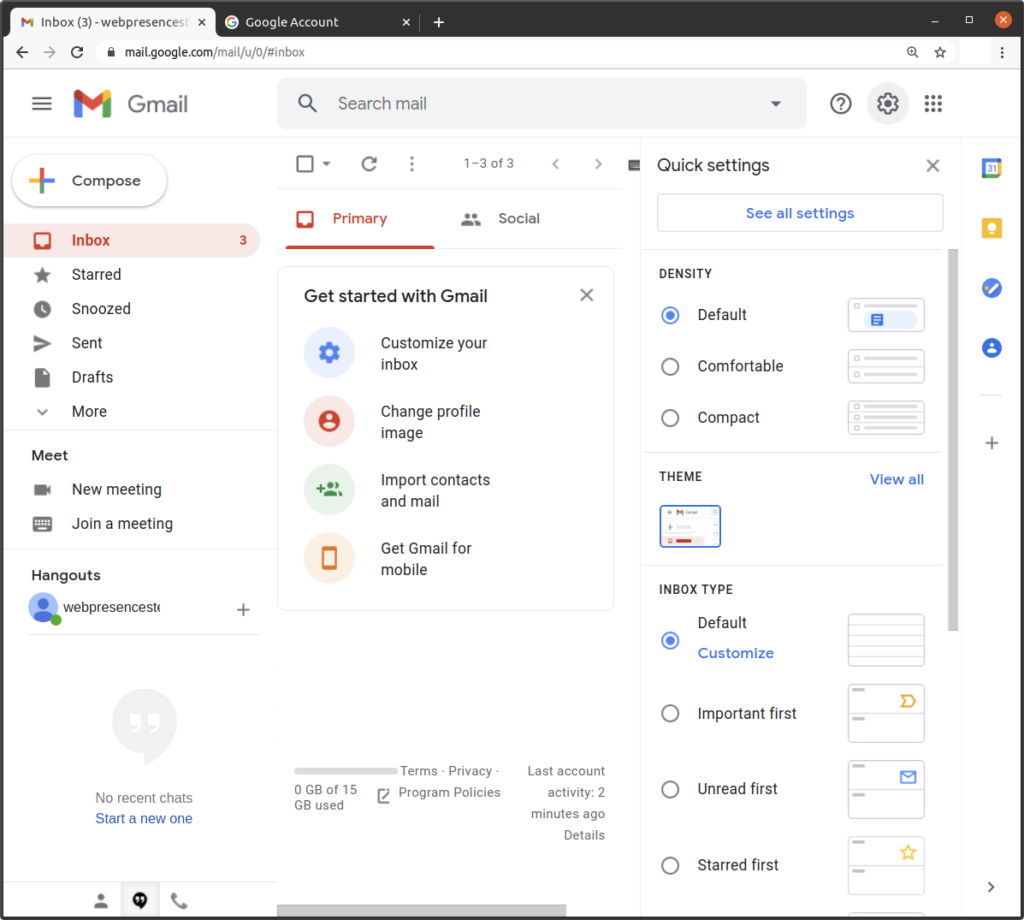
Click on the settings icon (gear symbol in upper-right):

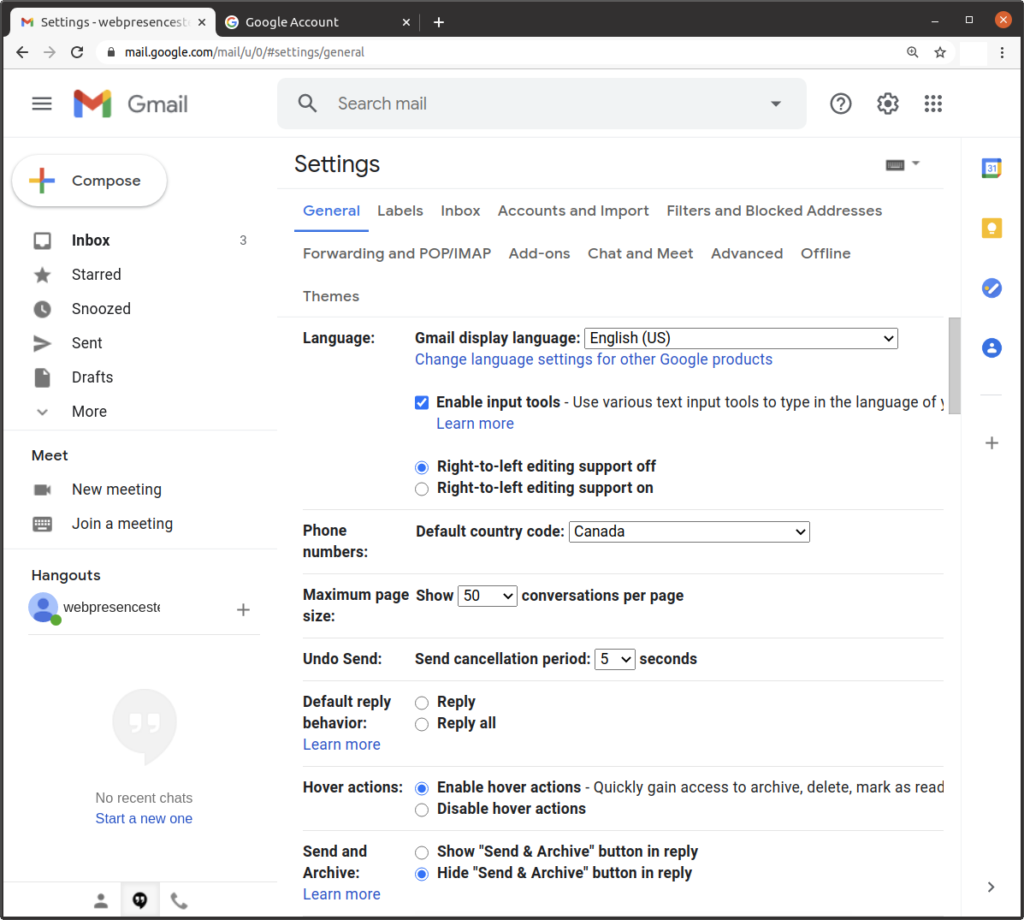
Click on “See all settings”:

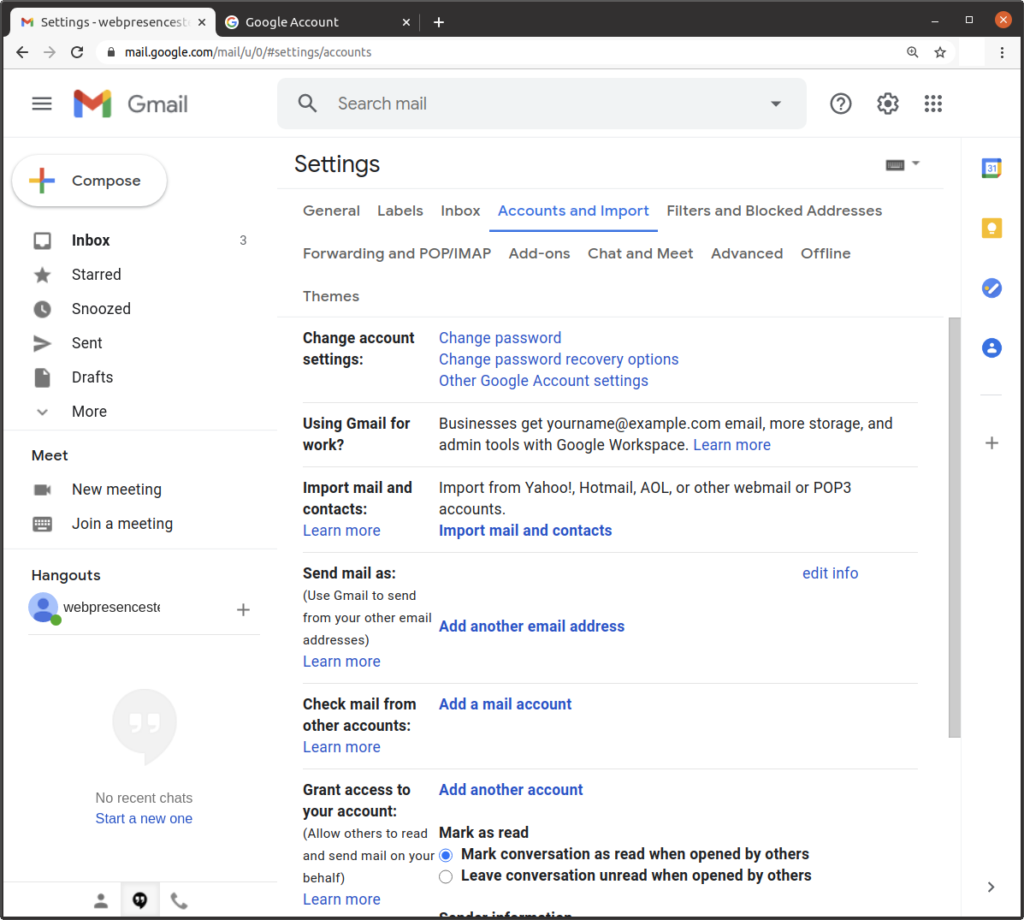
Click on “Accounts and Import”:

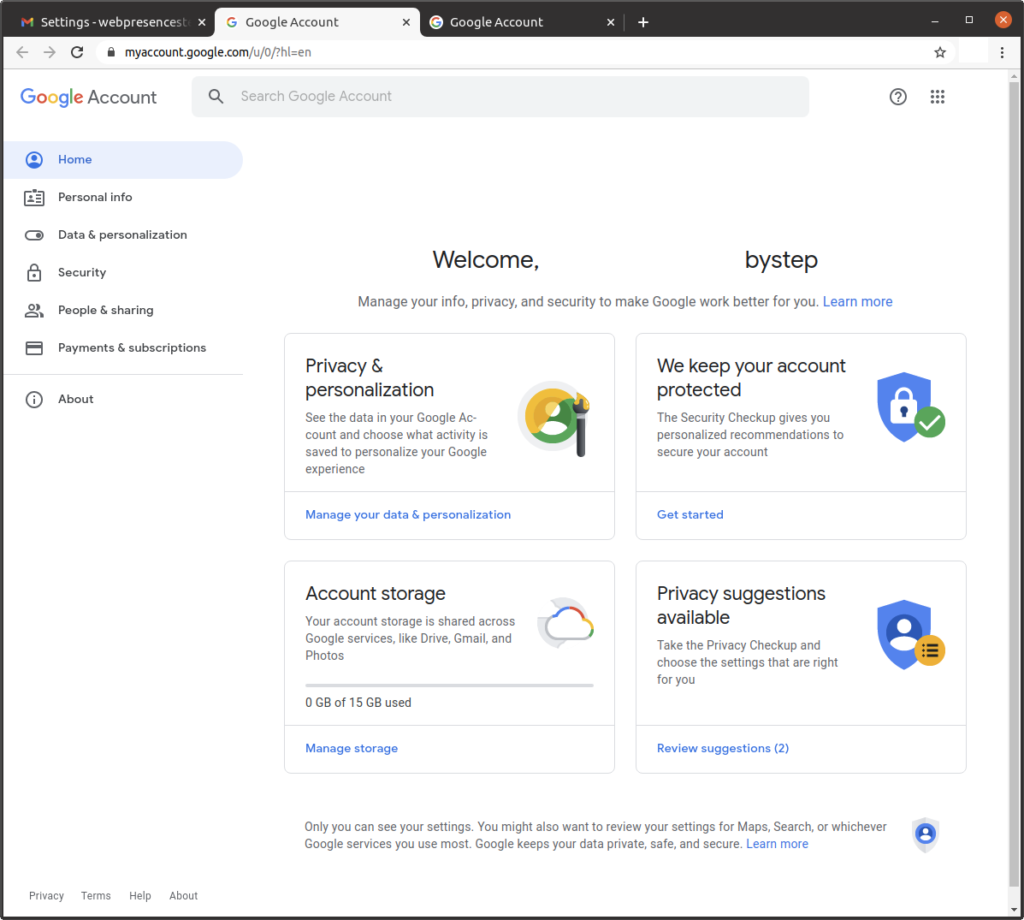
Click on “Other Google Account settings”:

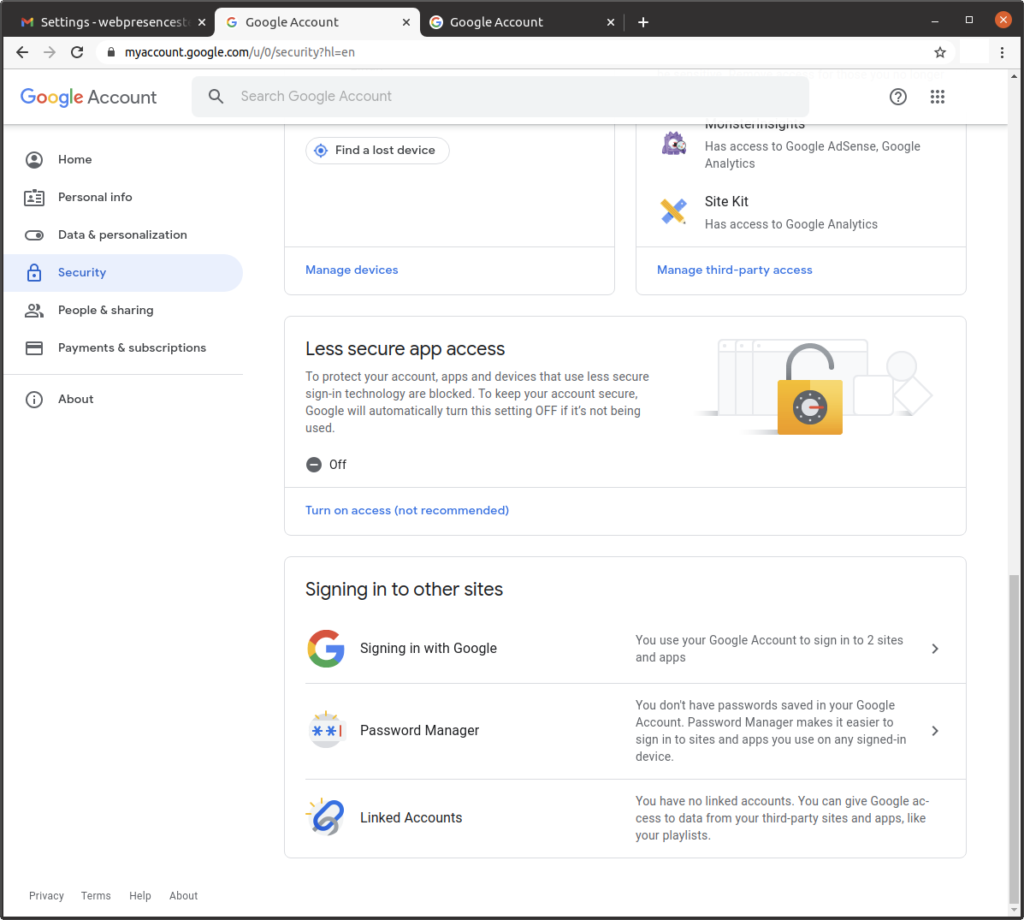
Click on “Security”:

In the section “Less secure app access,” click on “Turn on access (not recommended)”:

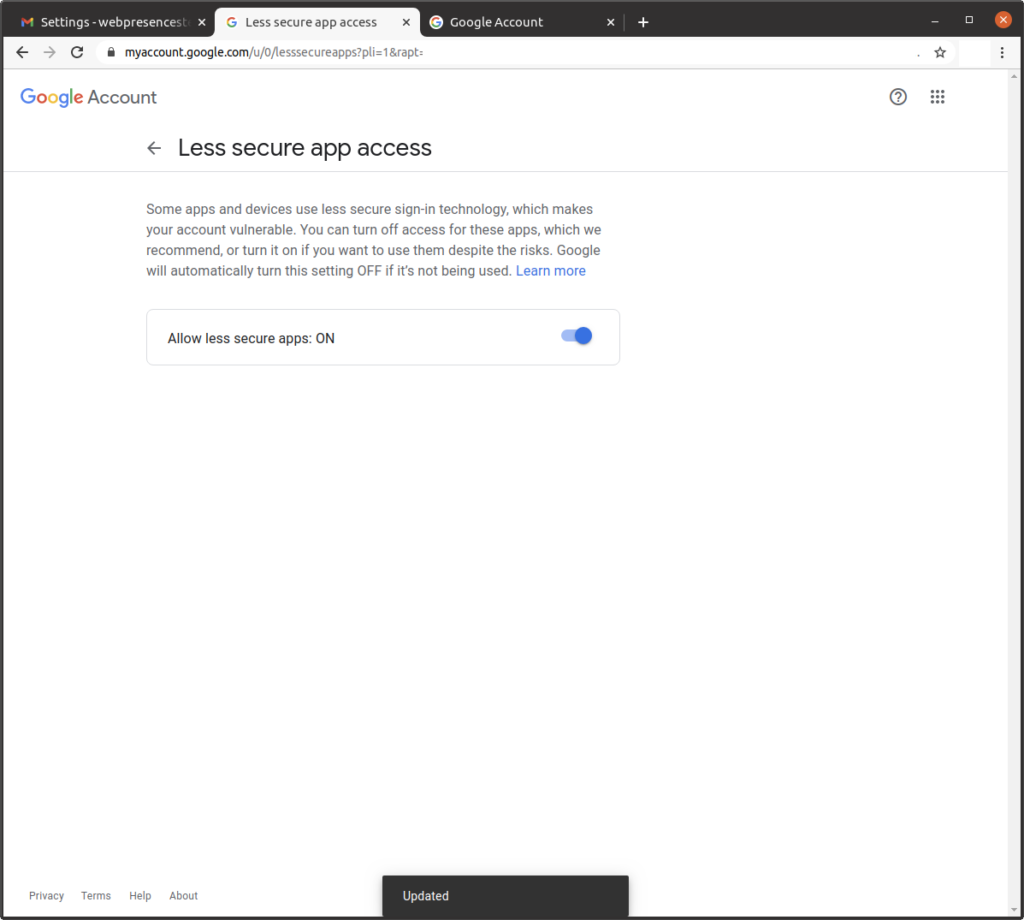
Enable the control so that the page displays “Allow less secure apps: ON”:

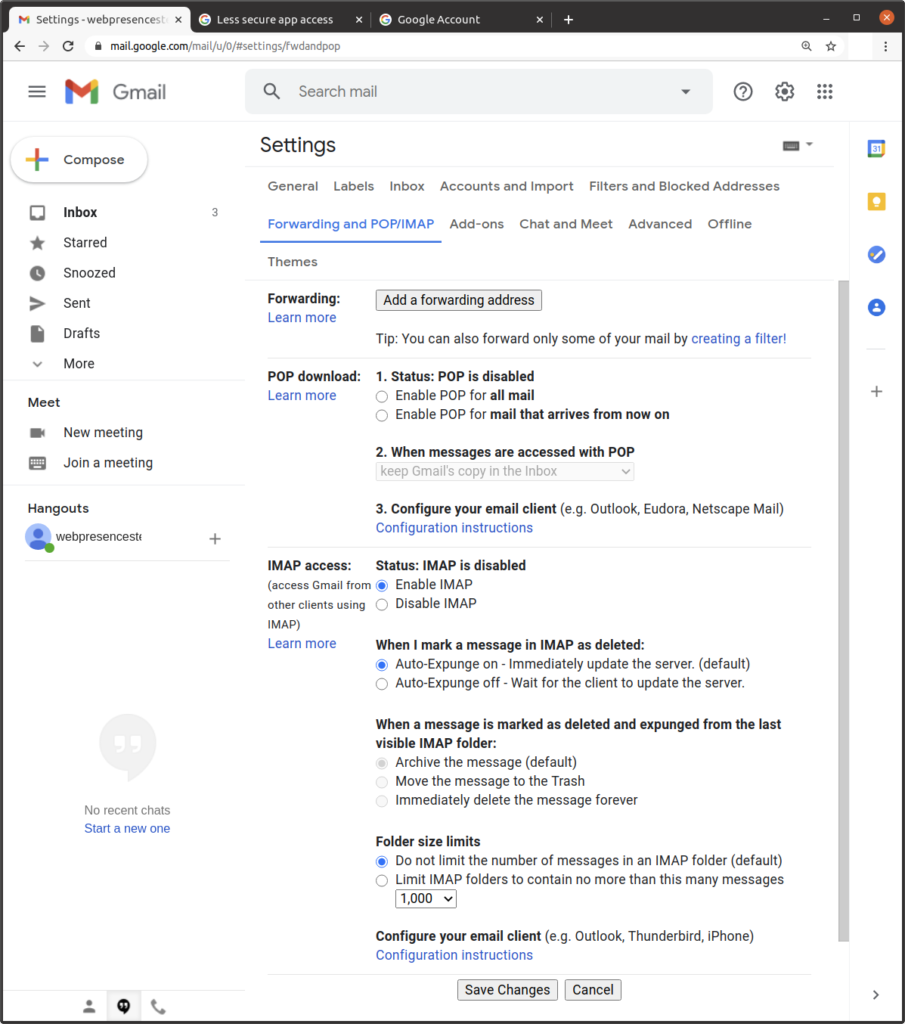
Click on “Forwarding and POP/IMAP,” select the option “Enable IMAP,” click on “Save Changes”:

Downloading the MyBB zip file

Visit this site:

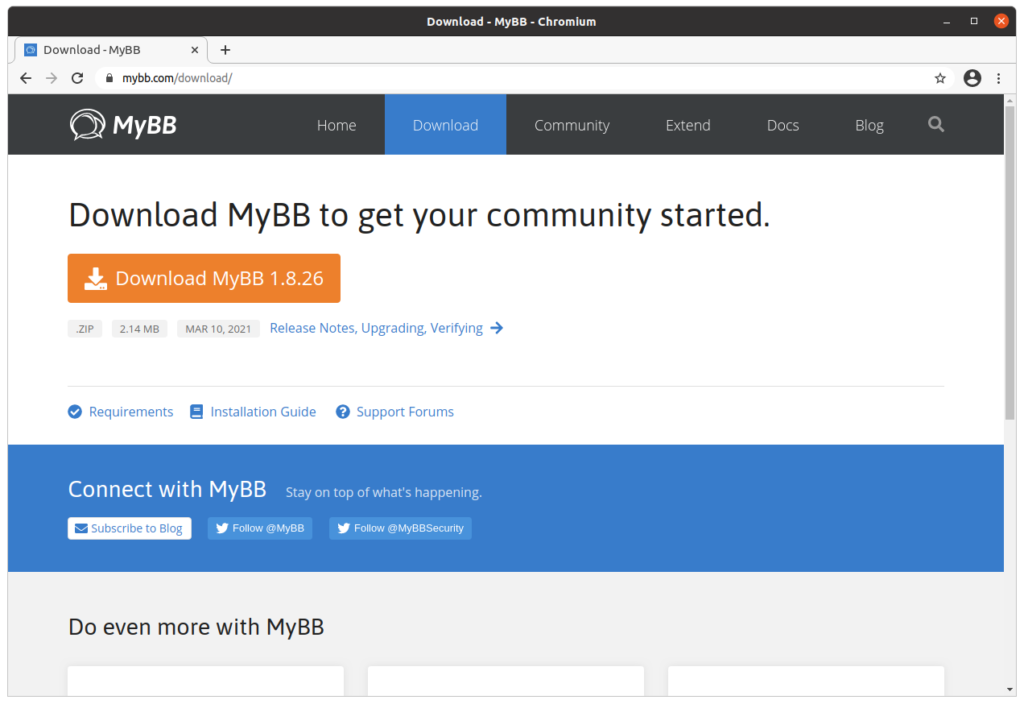
https://mybb.com/download/

Click on “Download MyBB x.x.xx” (where x.x.xx is the version):

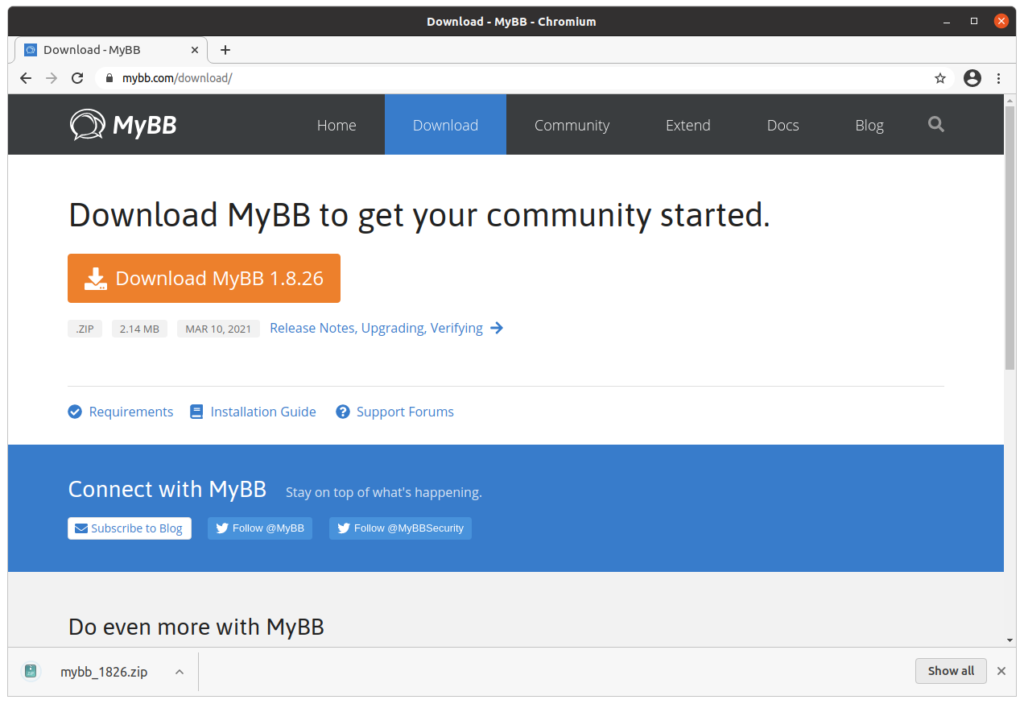
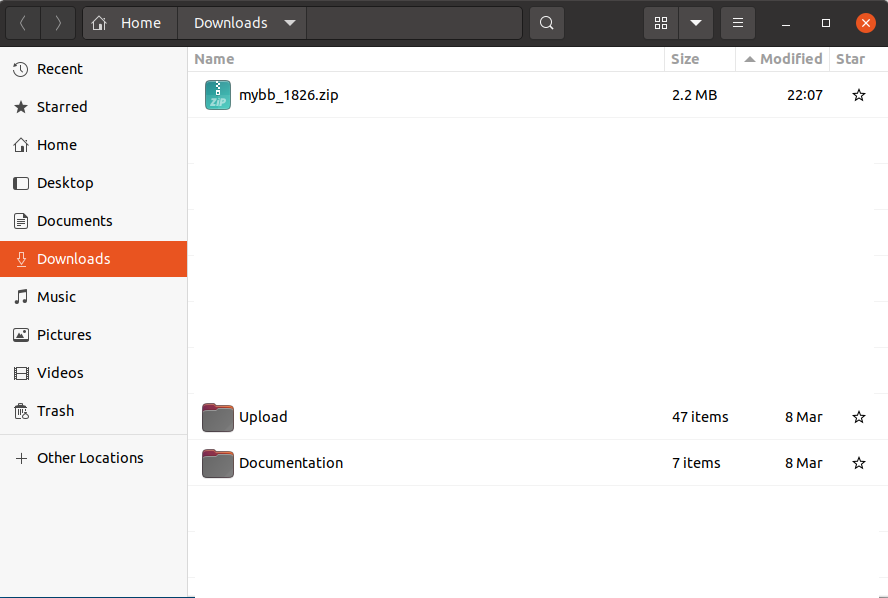
The file downloads:

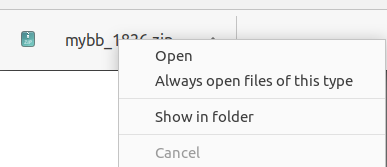
If you are using Chrome, right-click or command-click on the name of the file, select “Show in folder”:

Uncompressing the MyBB zip file and renaming the Upload directory

If you need detailed instructions on how to uncompress zip files or rename directories on Windows, MacOS, or Linux

This chapter assumes that you have followed the steps in Chapter 8: Installing and configuring WordPress to create a website, and Chapter 9: Installing and configuring phpMyAdmin to manage MySQL databases. If you have not read those chapters, and you are not familiar with how to uncompress a zip file or rename a directory using your operating system, please consult those chapters.

Uncompressing the mybb_xxxx.zip file

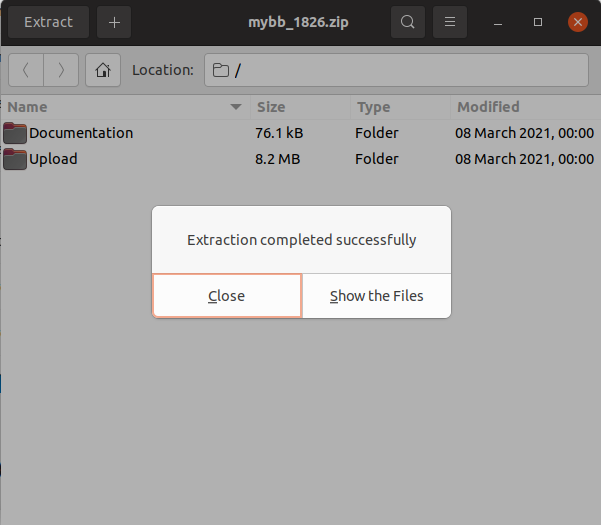
We need to uncompress the mybb_xxxx.zip file:

Uncompressing the zip file extracts 2 directories: “Documentation,” and “Upload”:

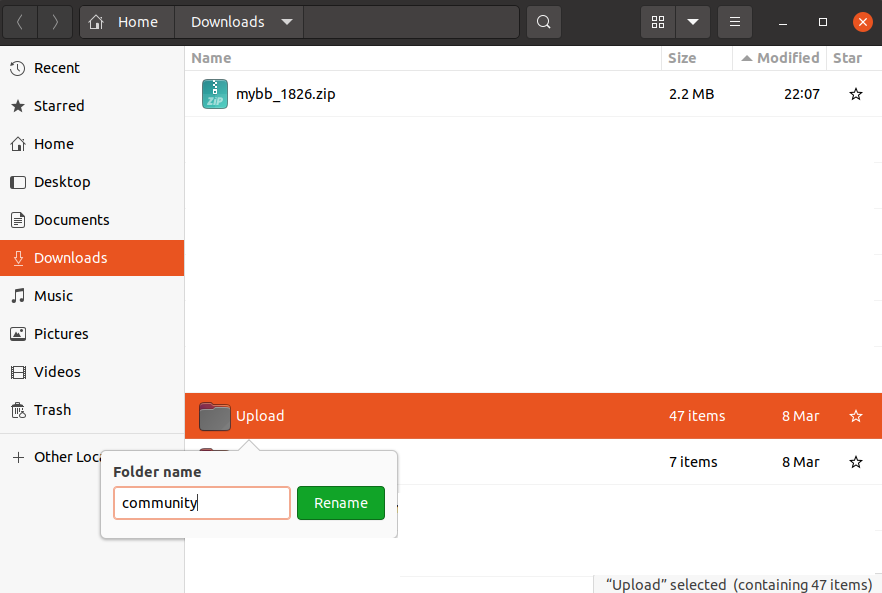
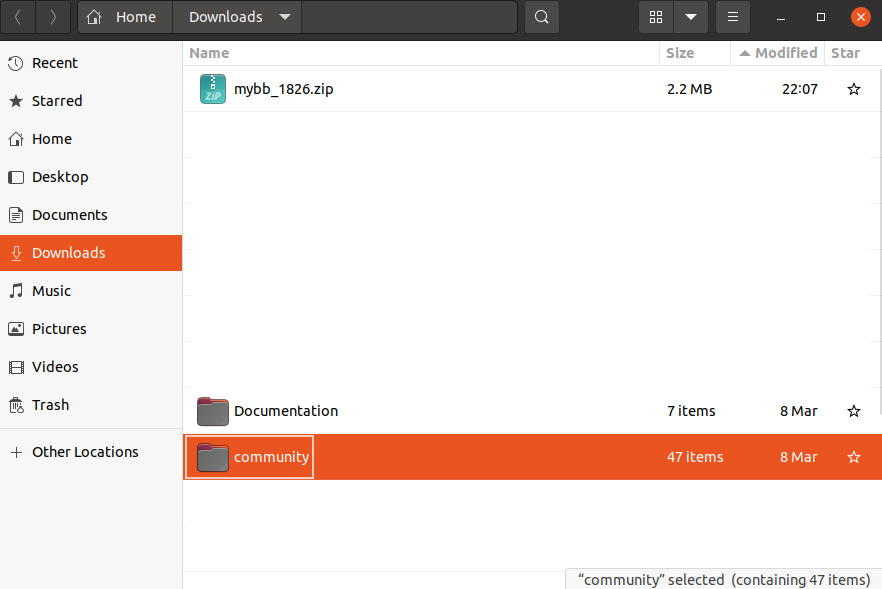
Renaming the directory named “Upload” to “community”

Rename the “Upload” directory to “community”:

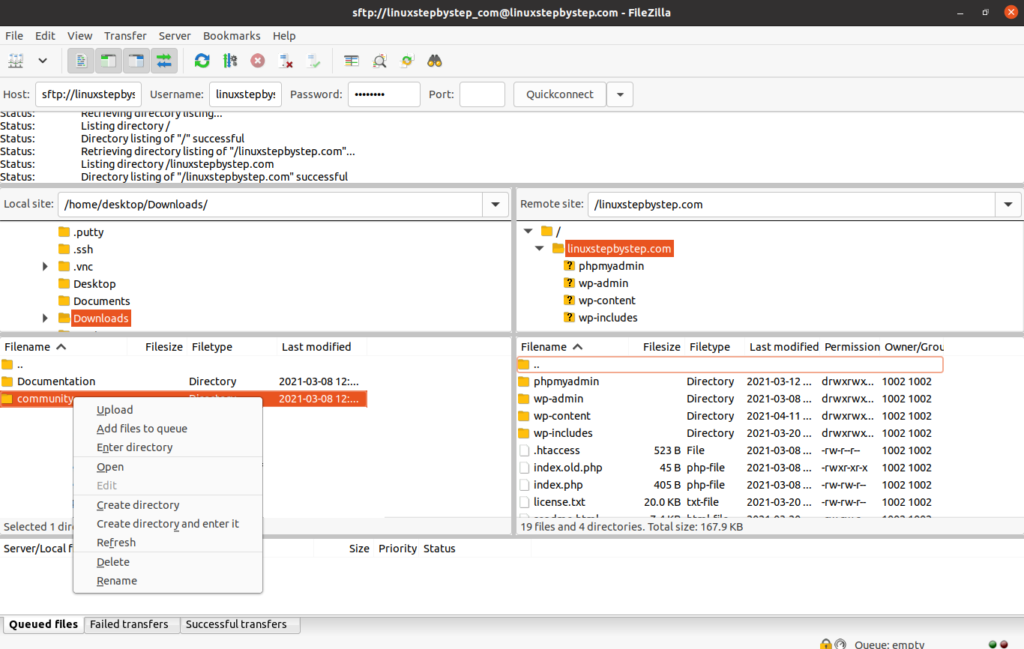
Using FileZilla to upload the community directory to the directory containing the documents for your website

We will use the FileZilla file transfer program to upload the directory renamed as “community” to the directory containing the documents for your website.

If you need detailed instructions on how to install and use FileZilla on Windows, MacOS, or Linux

This chapter assumes that you have read Chapter 7: Configuring the SSH server on an Ubuntu Linux cloud server to limit SFTP directory visibility within chroot jail directories, or that you are familiar with the FileZilla file transfer program.

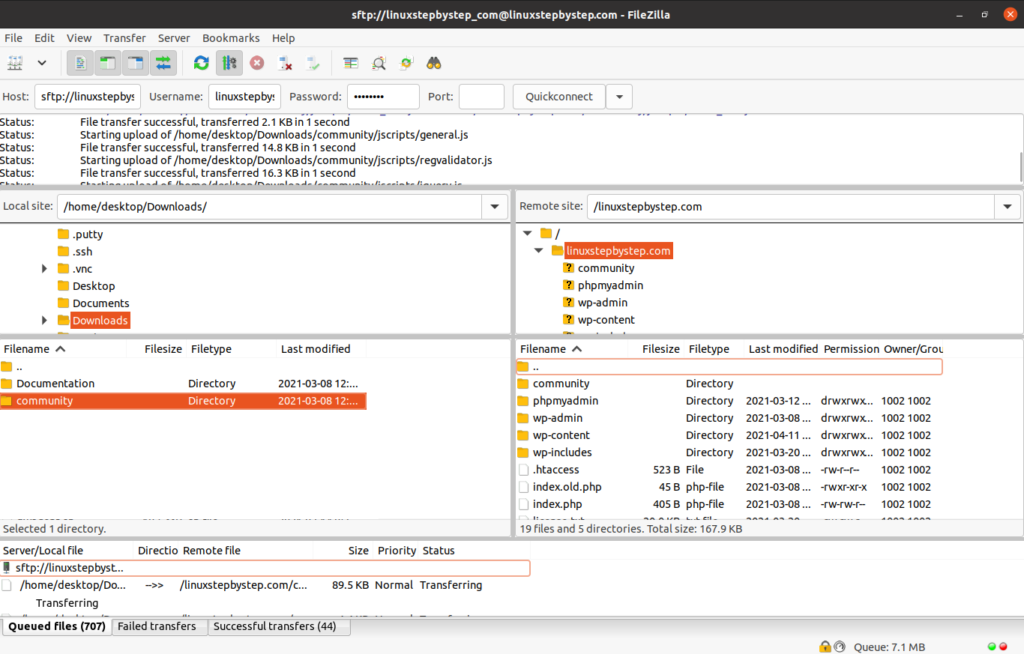
Using Filezilla, connect to the Ubuntu Linux cloud server you created in Chapter 3: Buying an Ubuntu Linux cloud server from Digital Ocean. On the right (remote) side, select the directory that contains the documents for your website. On the left (local) side, select the directory that contains the “community” directory. Right-click or command-click on the directory, select Upload:

The transfer completes:

Installing the MyBB software using the MyBB installation wizard

For our example domain, we will visit:

https://linuxstepbystep.com/community

(substitute your domain name)

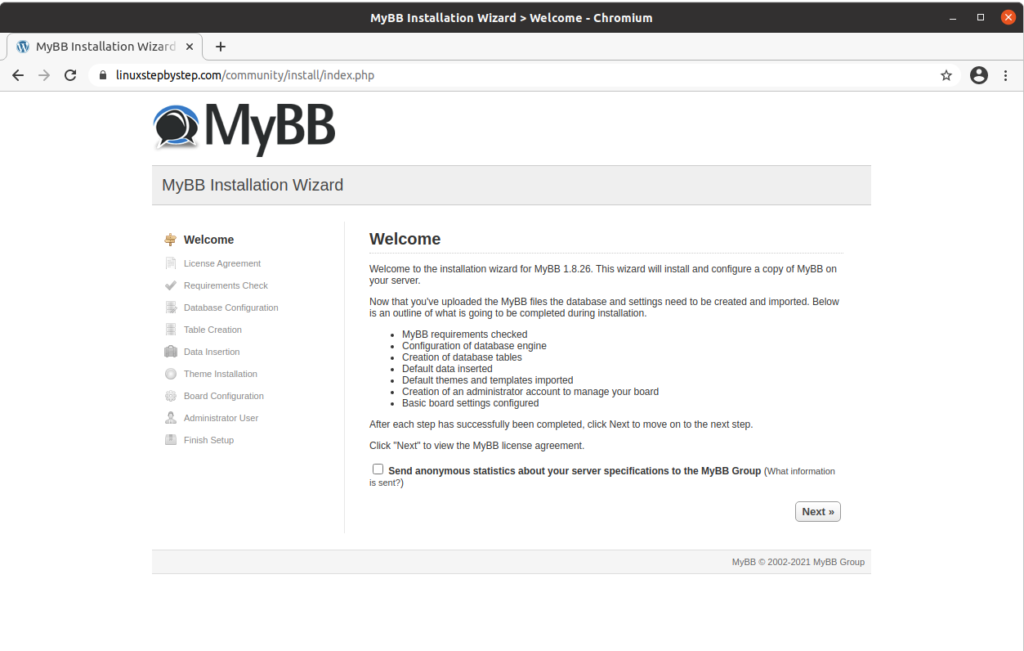
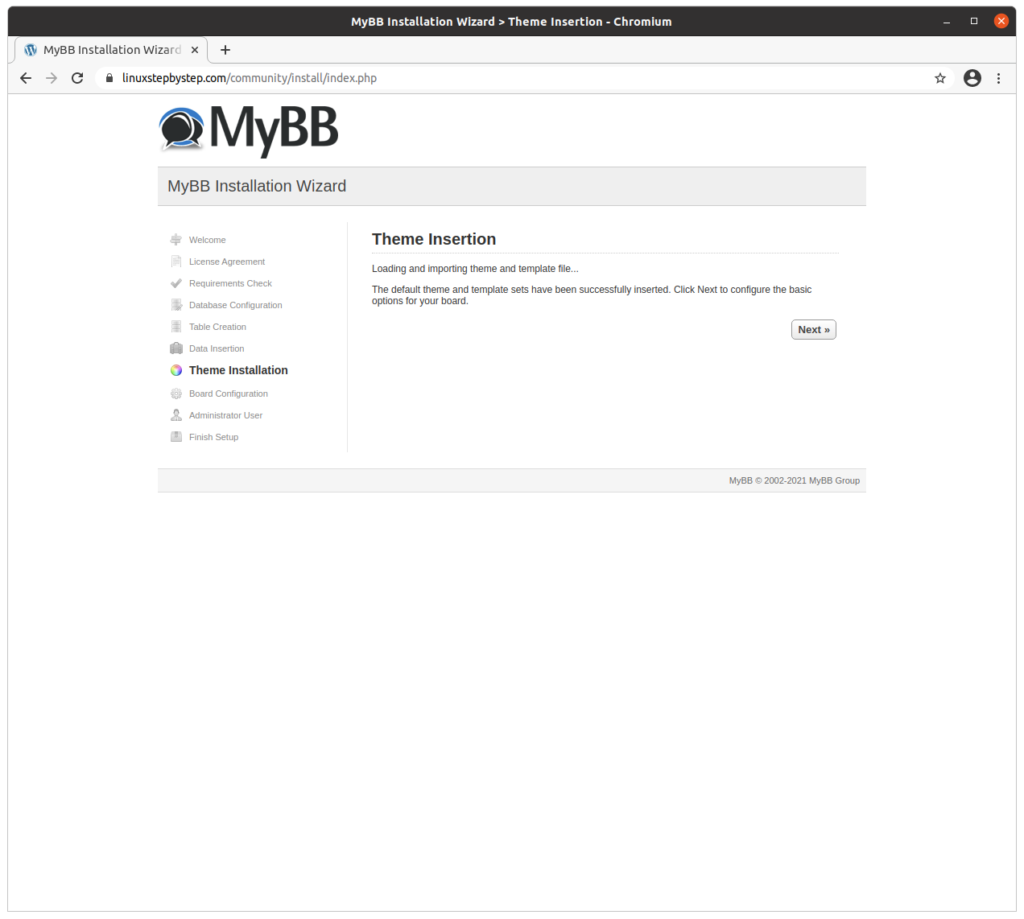
Click “Next”:

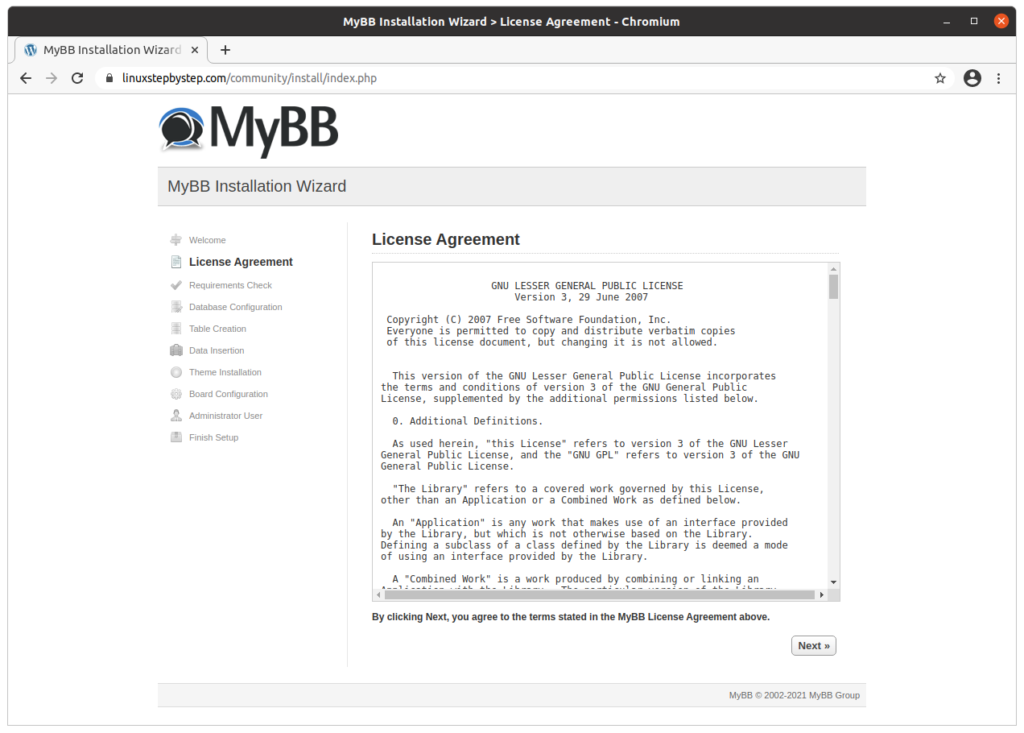
Click “Next”:

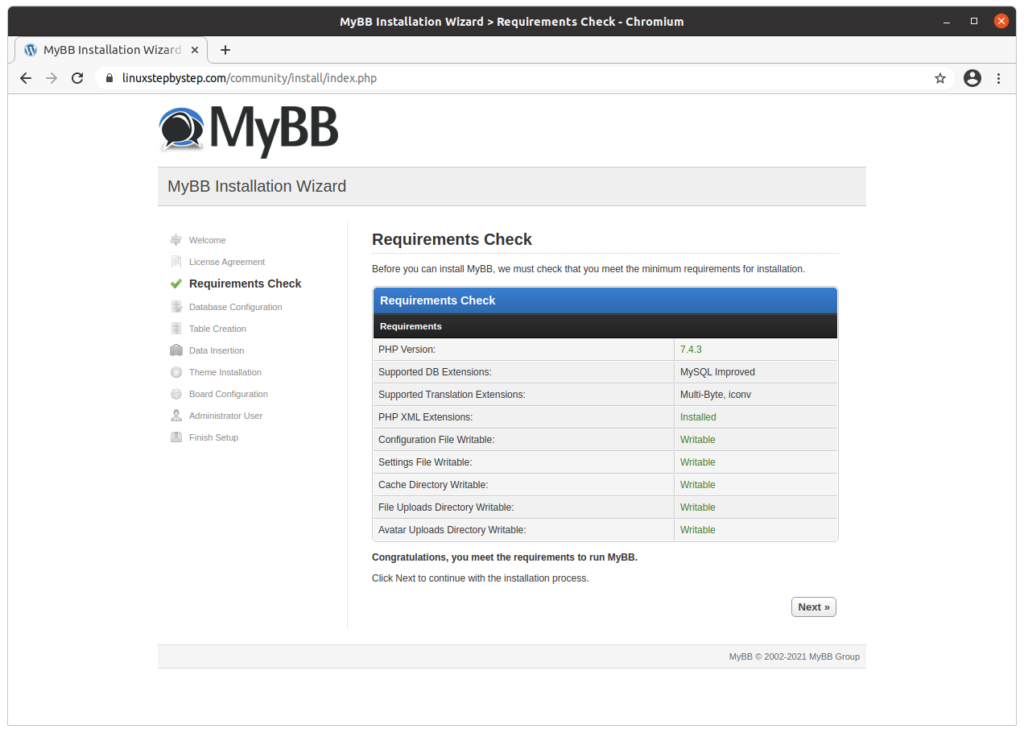
Click “Next”:

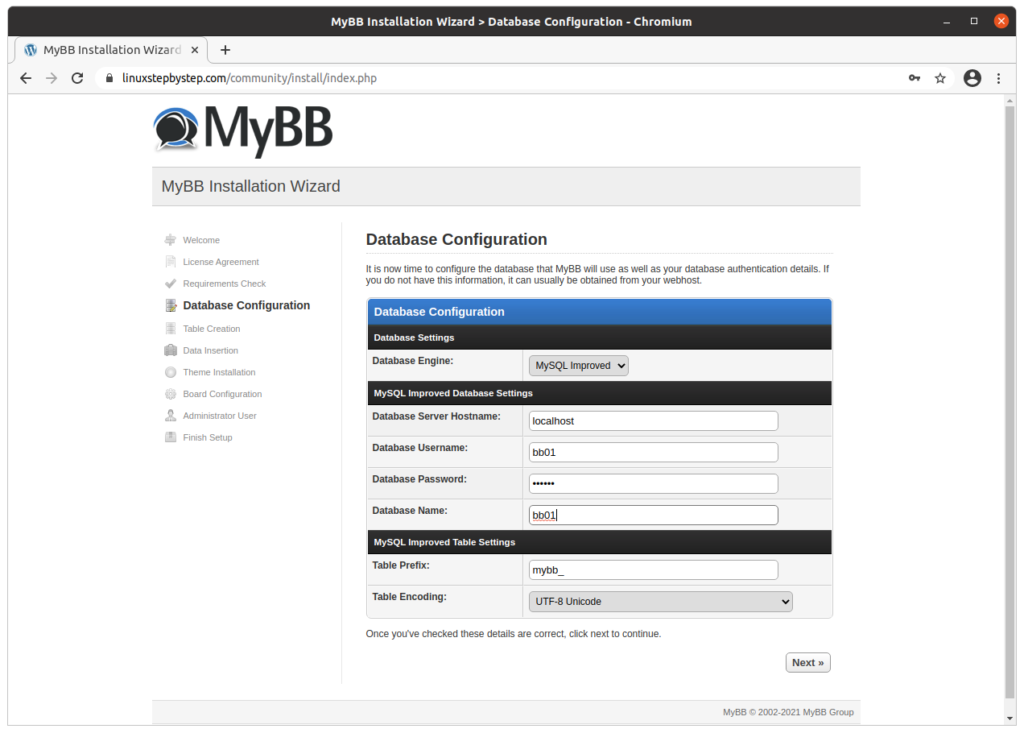
Complete the fields as show below. Click “Next”:

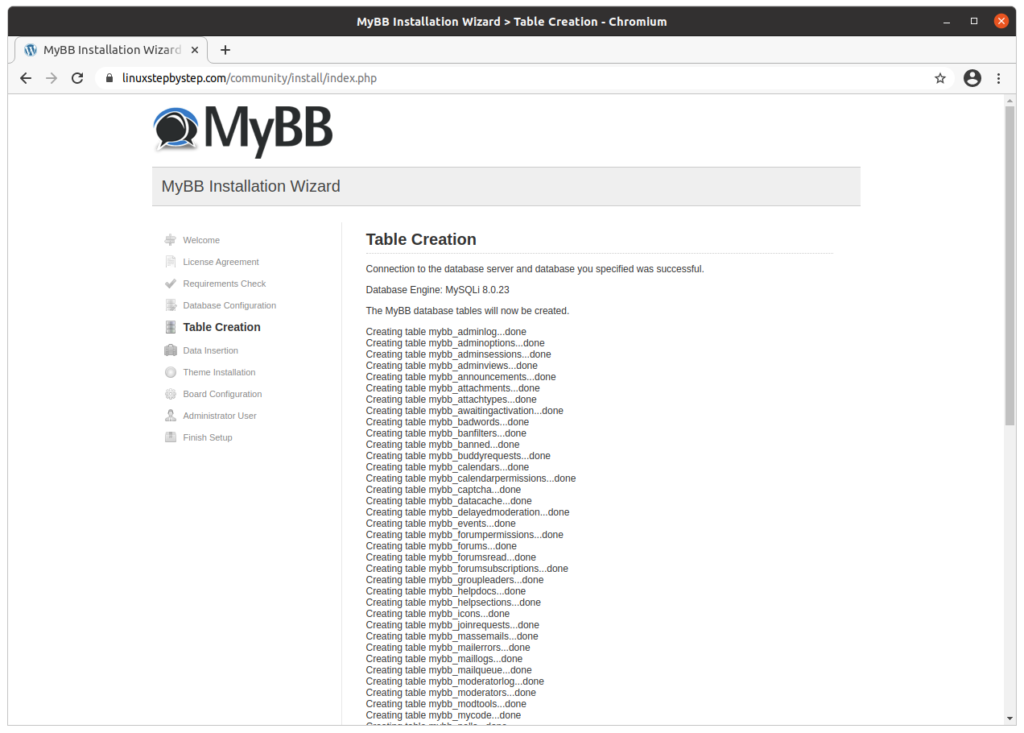
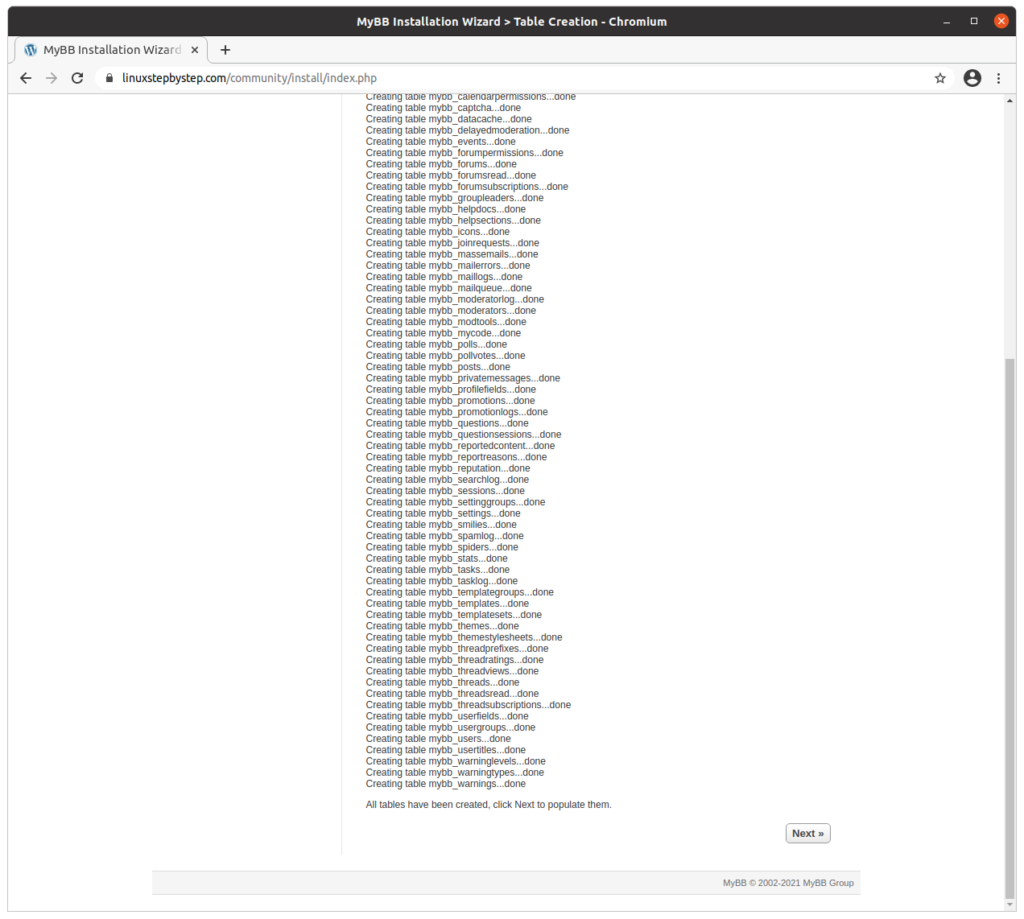
Scroll to the bottom of the web page. Click “Next”:

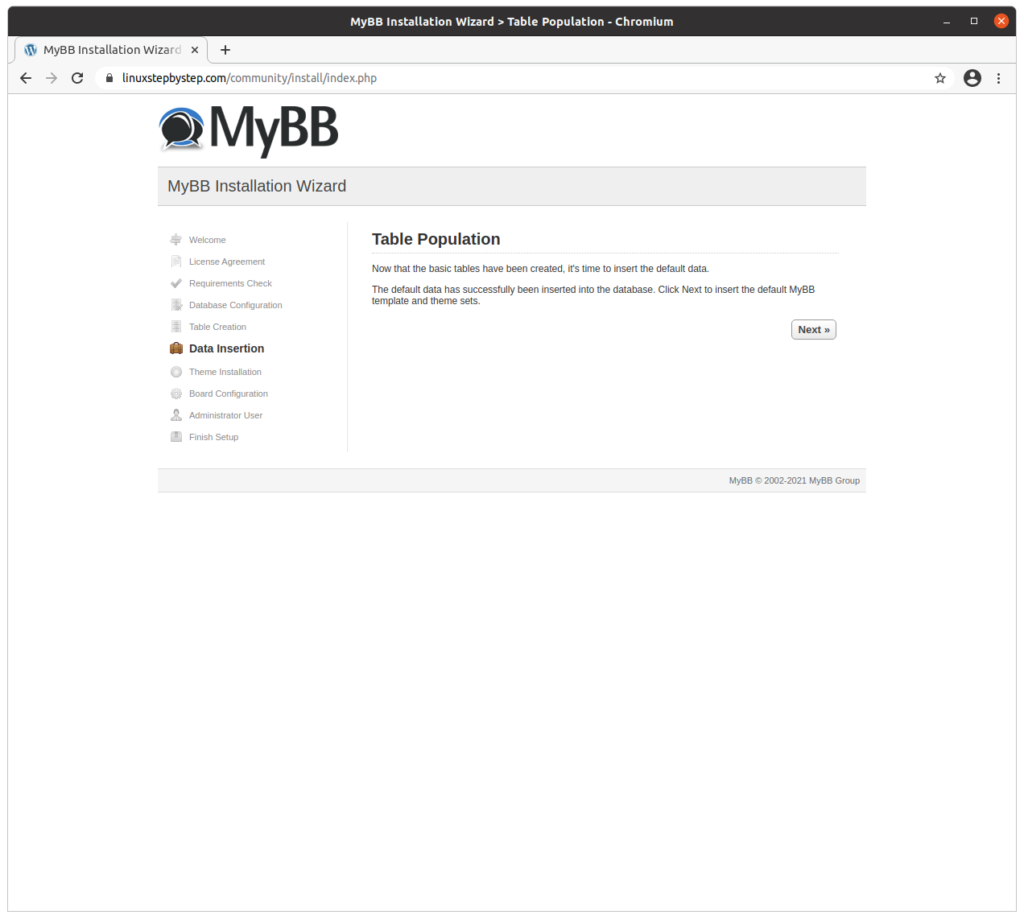
Click “Next”:

Click “Next”:

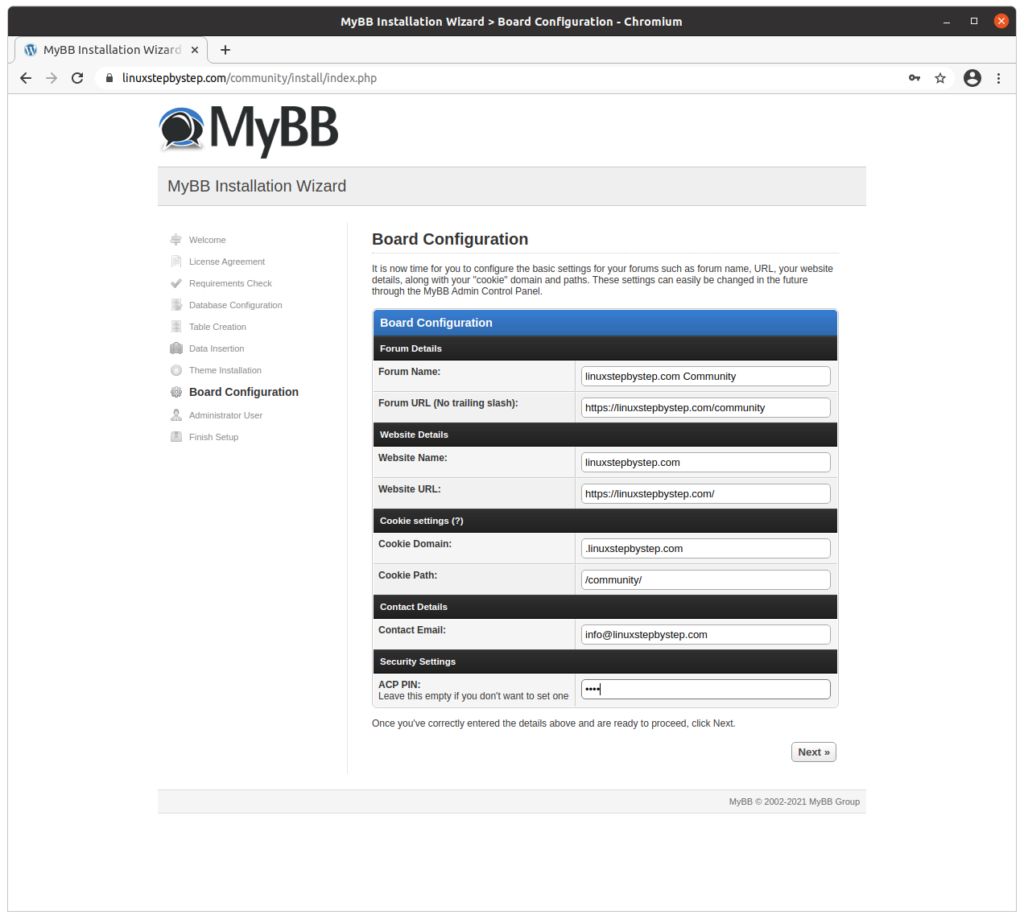
Complete the fields as show below. Click “Next”:

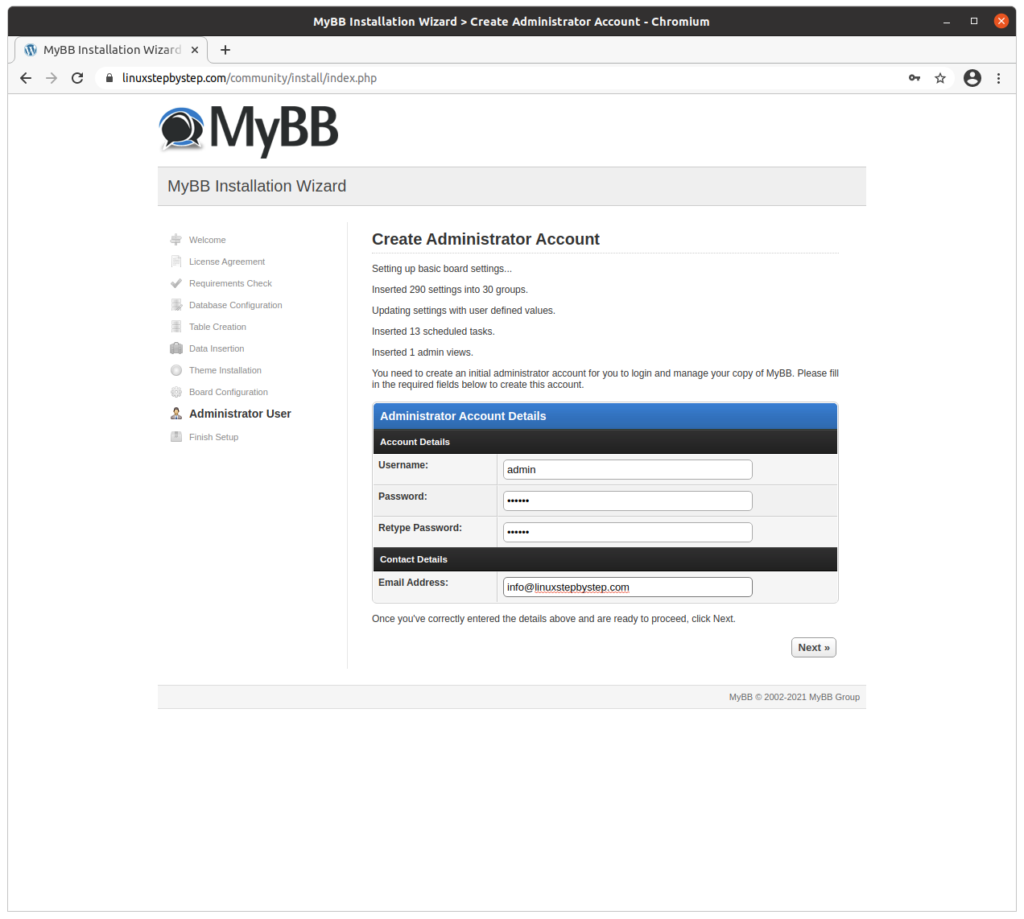
Complete the fields as show below. Click “Next”:

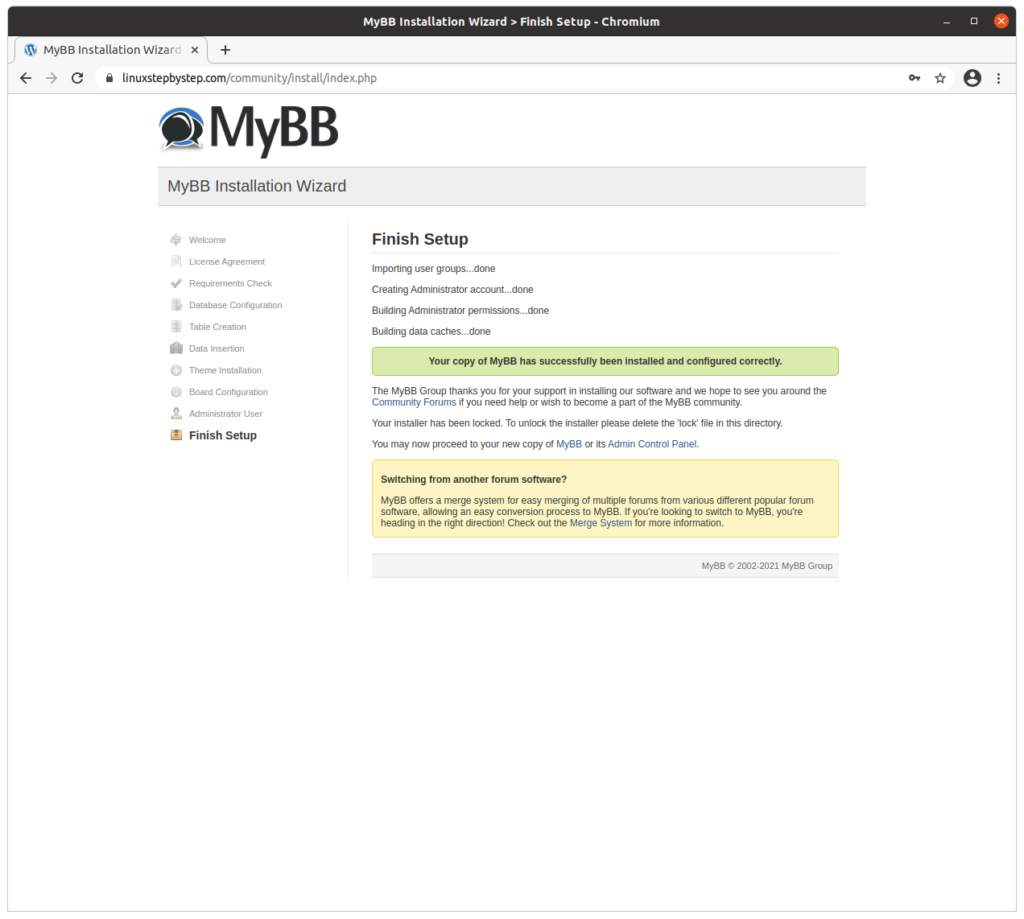
This screen will display when we have finished:

Visiting the community forum site

For our example domain, we will visit:

https://linuxstepbystep.com/community

(substitute your domain name)

Logging into the admin account

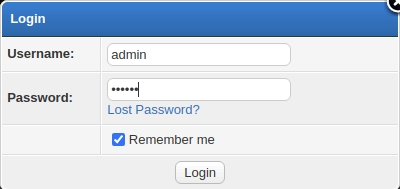
Enter the username and password for the admin user. Click “Login”:

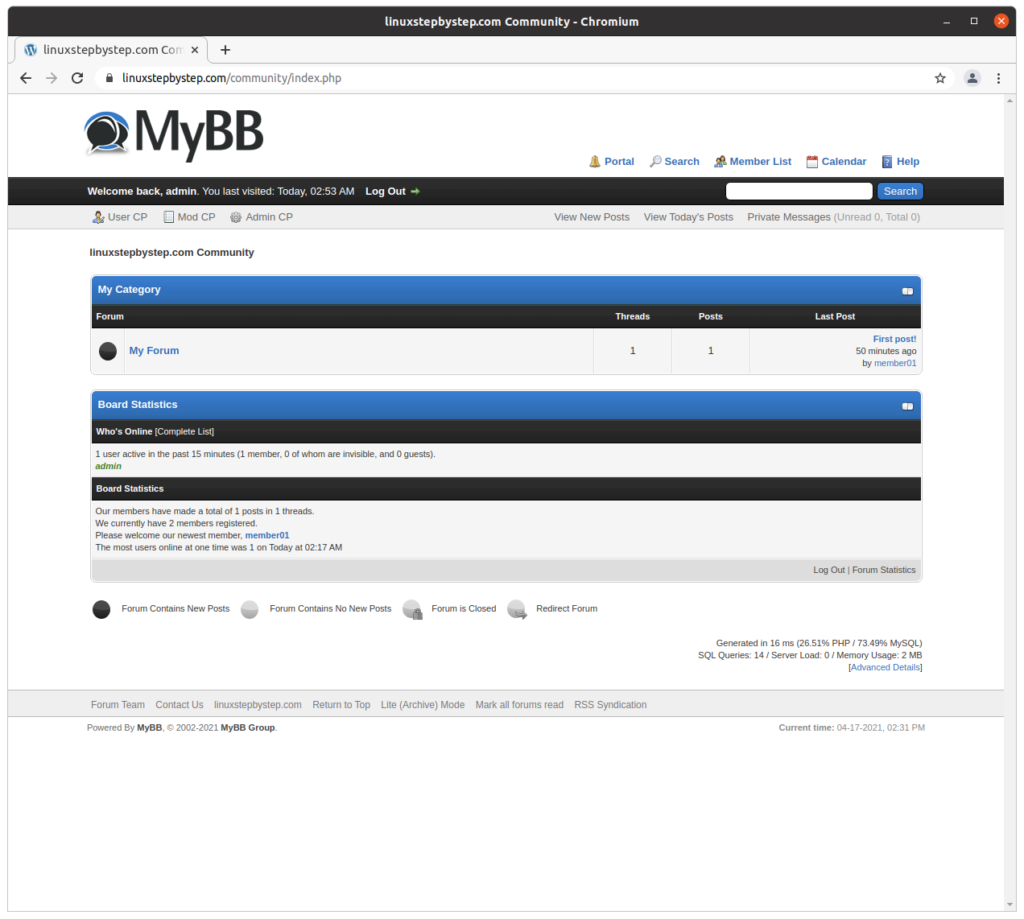
Click on “Admin CP”:

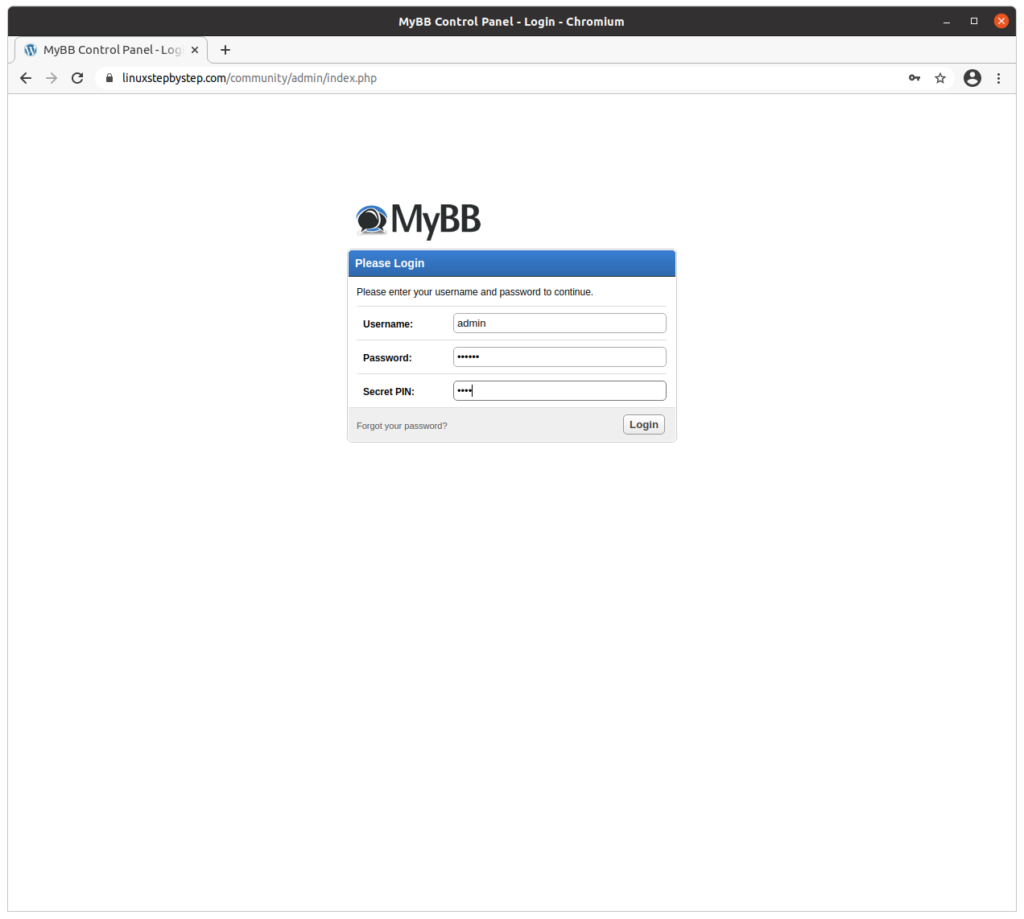
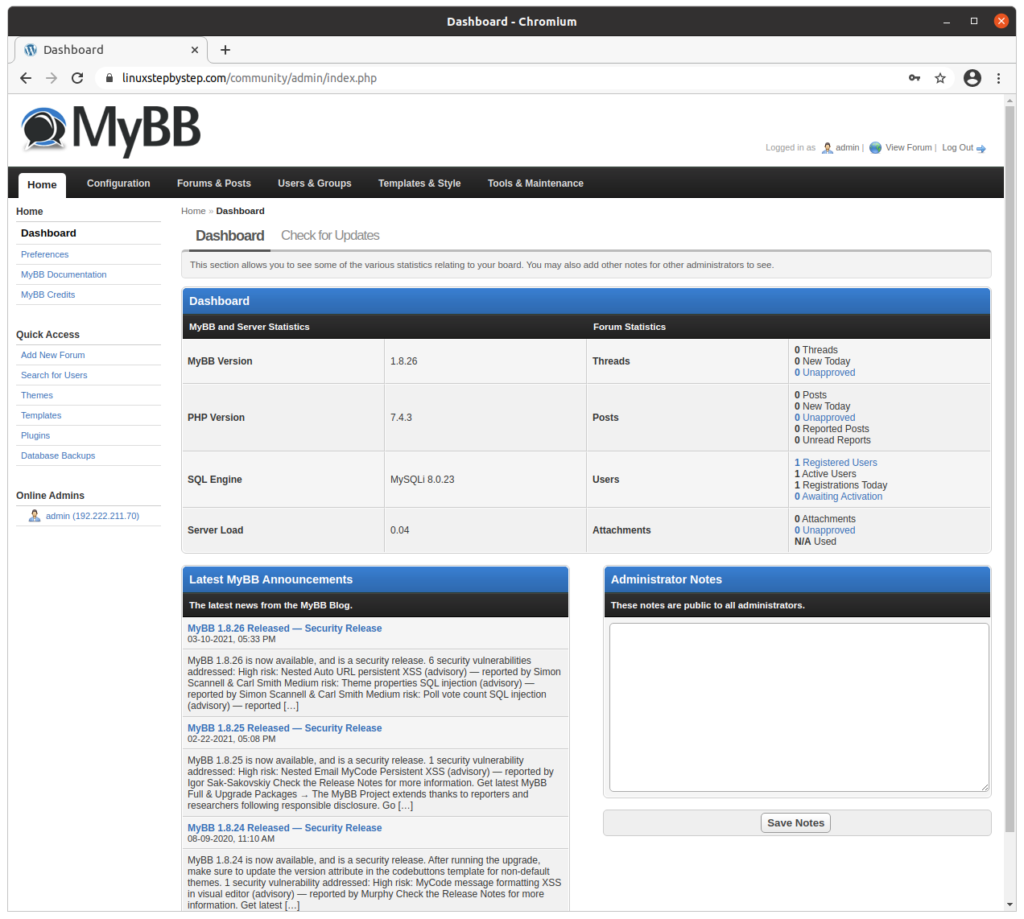
Enter the username and password for the admin user. Enter the secret PIN. Click “Login”:

Configuring the MyBB community forum site

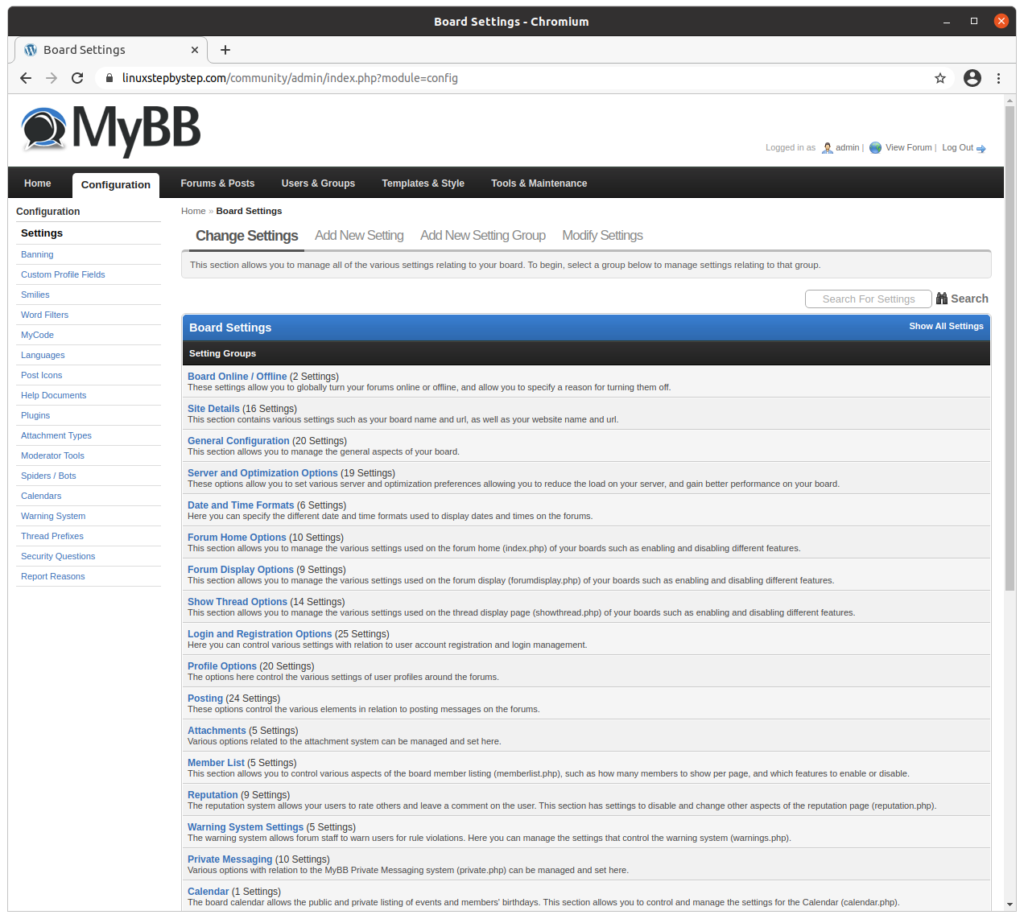
Click on “Configuration”:

Scroll towards the bottom of the web page:

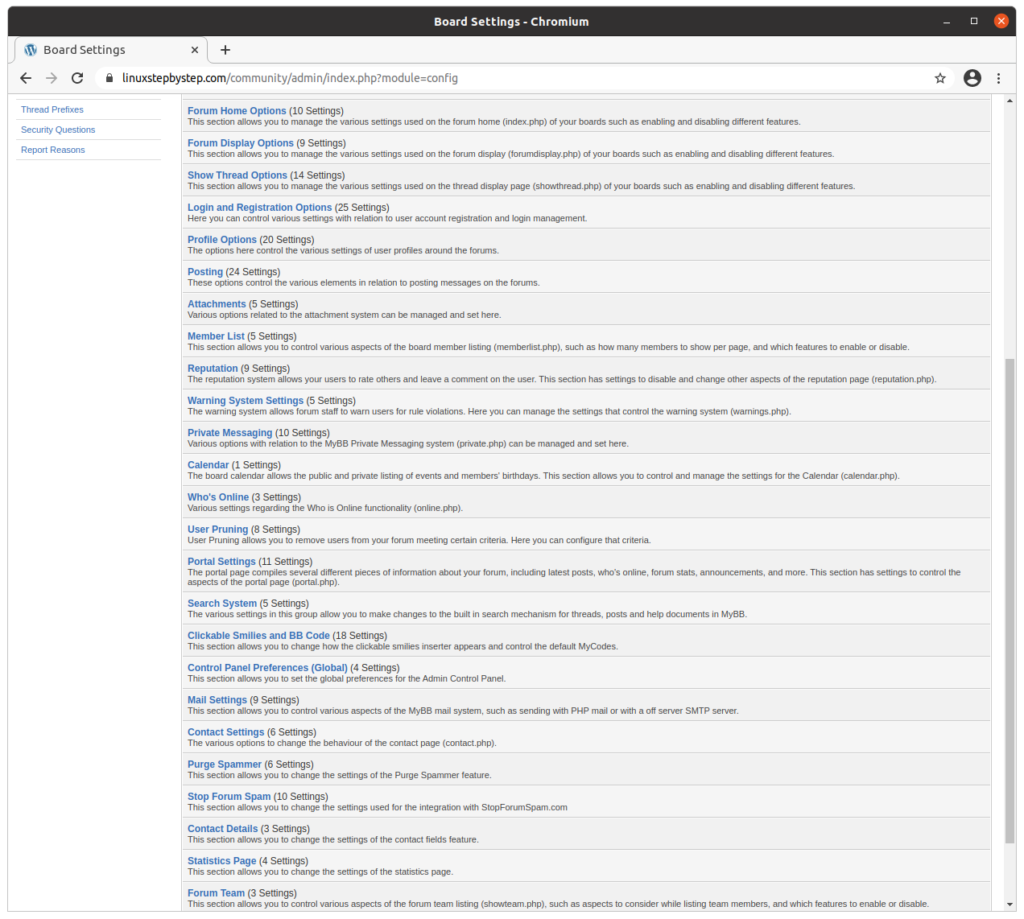
Click on “Mail Settings”:

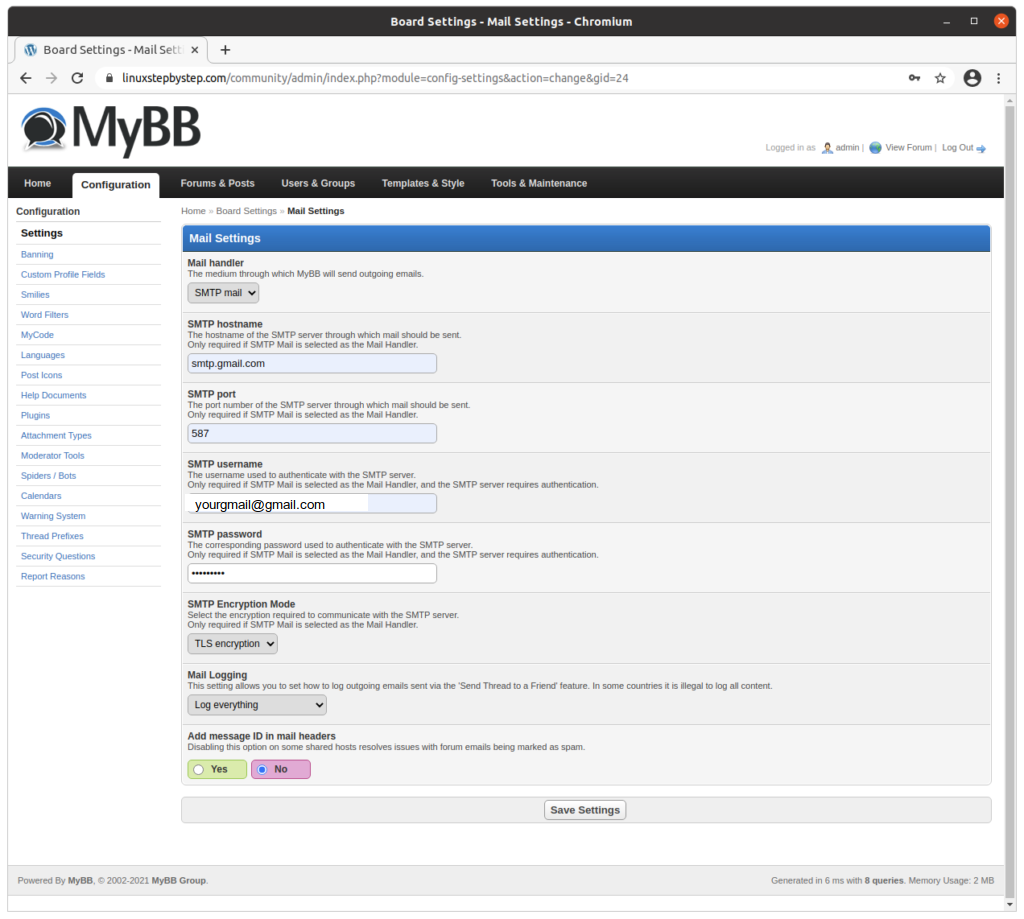
Configure settings for “Mail handler”

Mail handler: select "SMTP mail"
SMTP hostname: smtp.gmail.com
SMTP port: 587
SMTP username: the address of the gmail account you selected or created earlier in this procedure
SMTP Encryption Mode: select "TLS encryption"

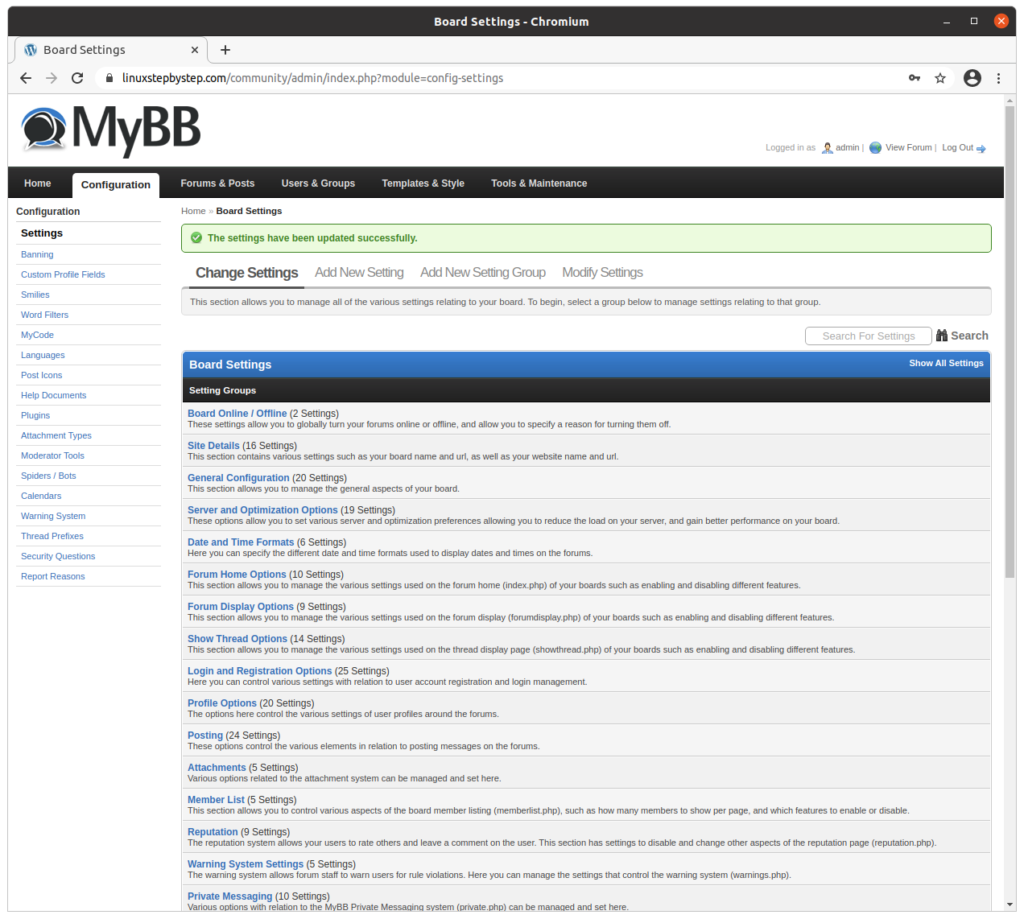
Click “Save Settings”:

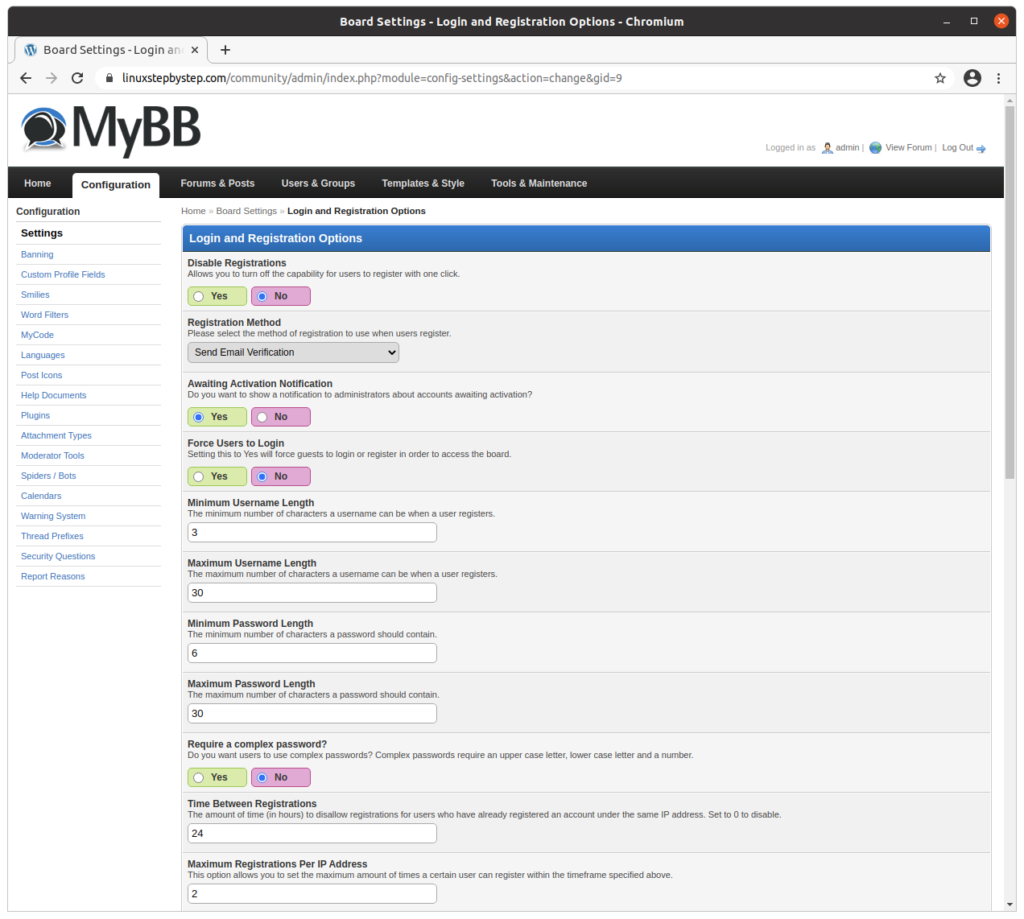
Click on “Login and Registration Options”:

For “Registration Method,” select “Send Email Verification”:

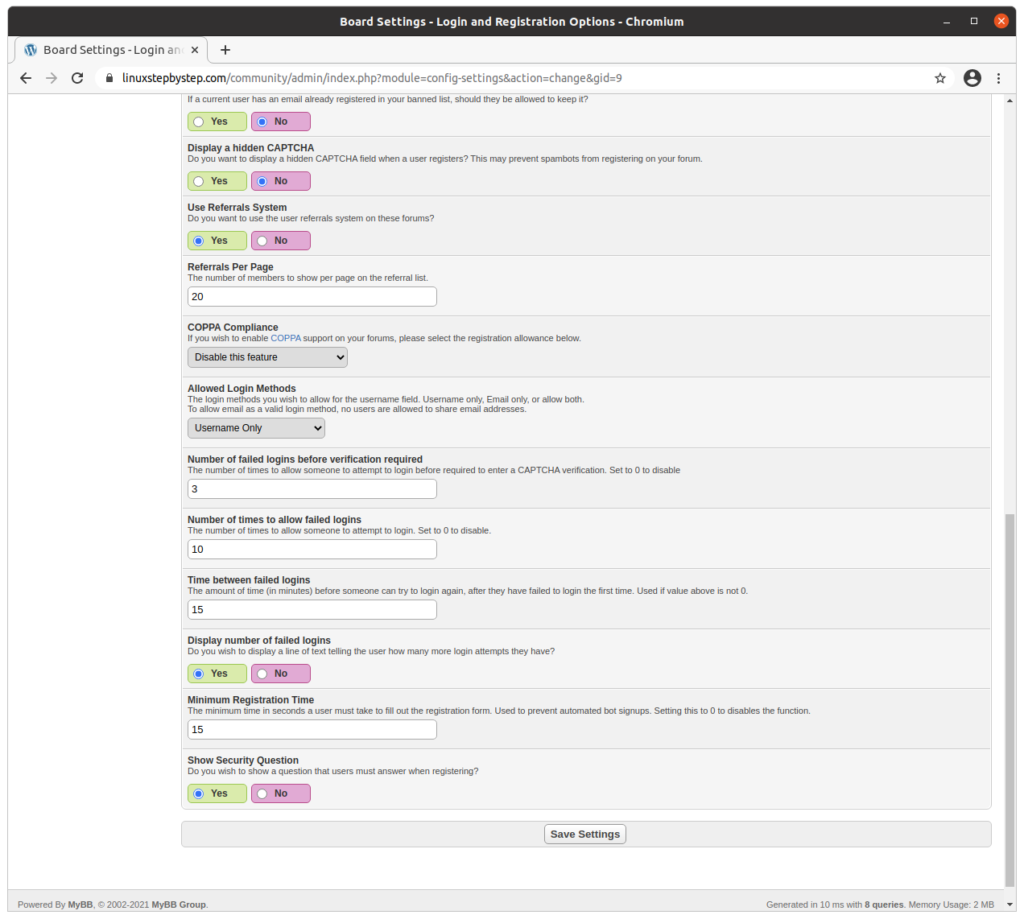
Scroll to the bottom of the web page. Click on “Save Settings”:

Registering as a new user on the community forum site

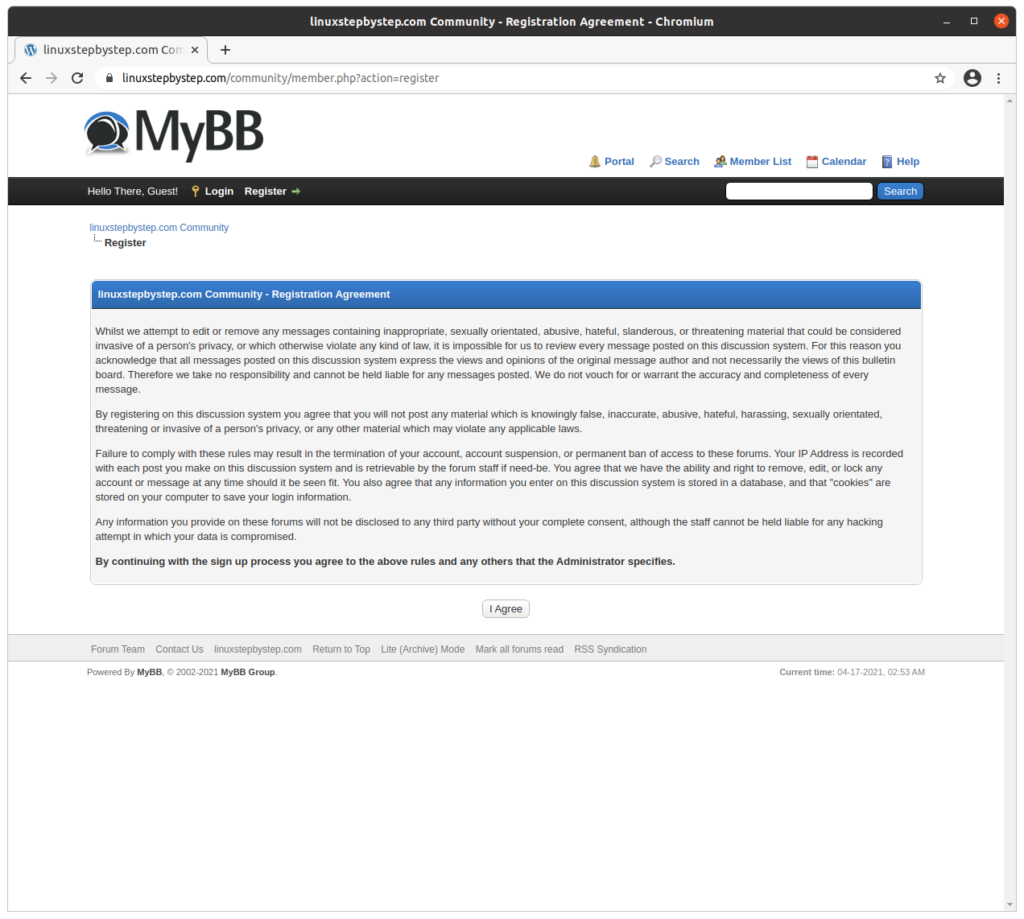
Use a web browser to visit the community forum site. Click on “Register.” On the page titled “Registration Agreement,” consider then if you decide click “I agree”:

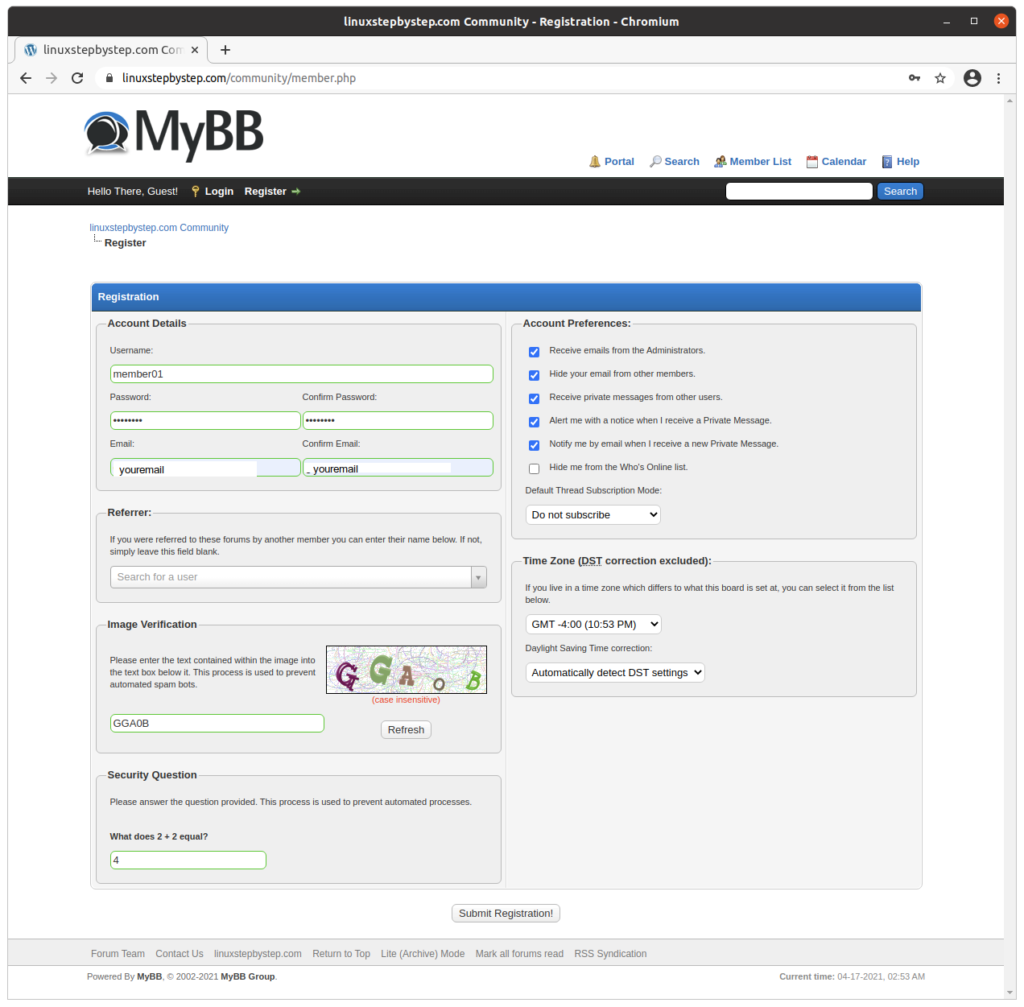
Complete the fields as show in the example below. Click “Submit Registration!”:

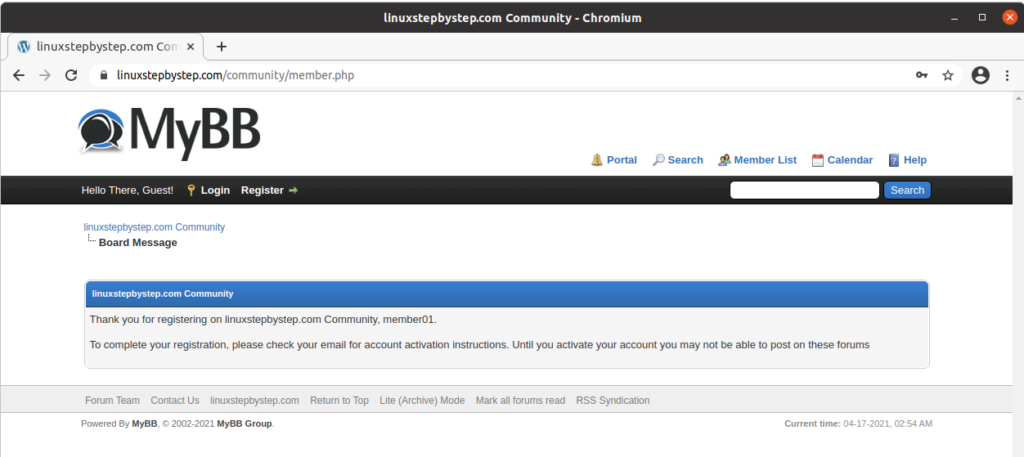
MyBB displays this message:

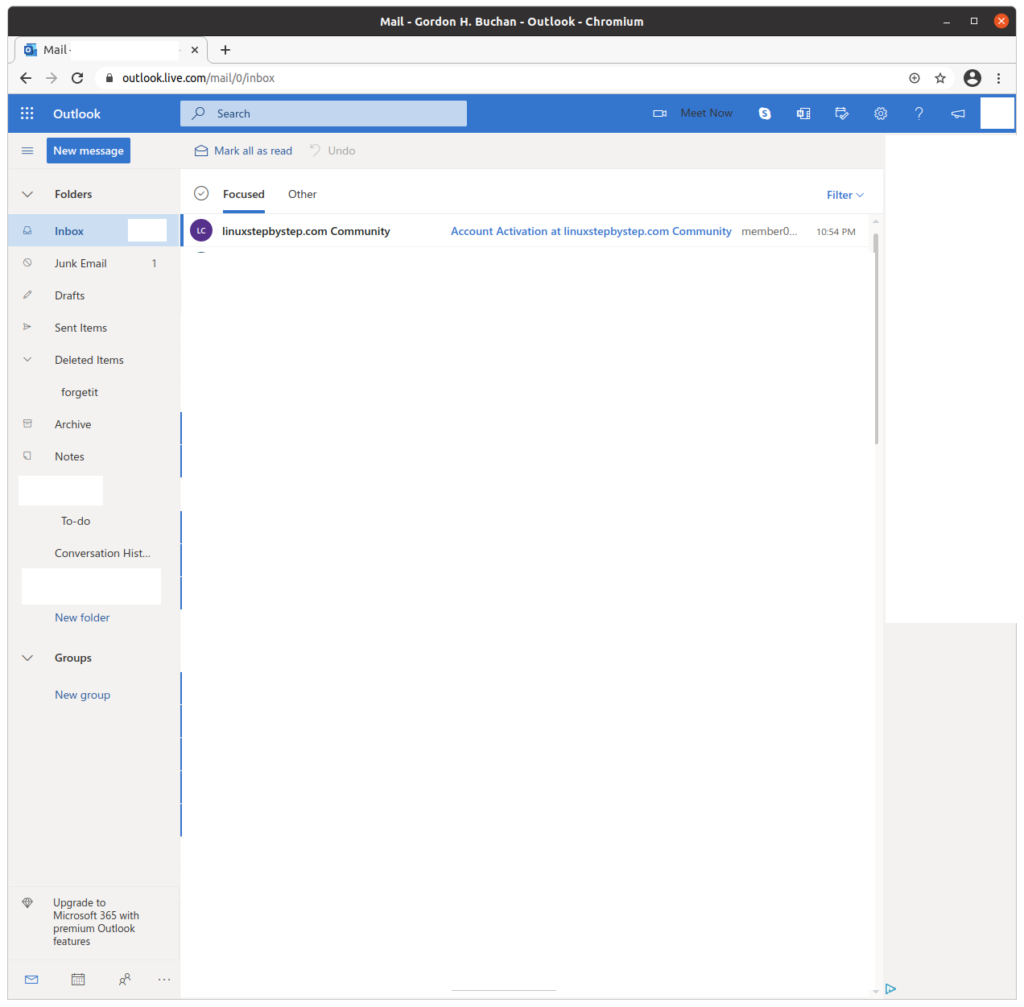
Check the email account you provided during registration. View the message sent by MyBB community forum site:

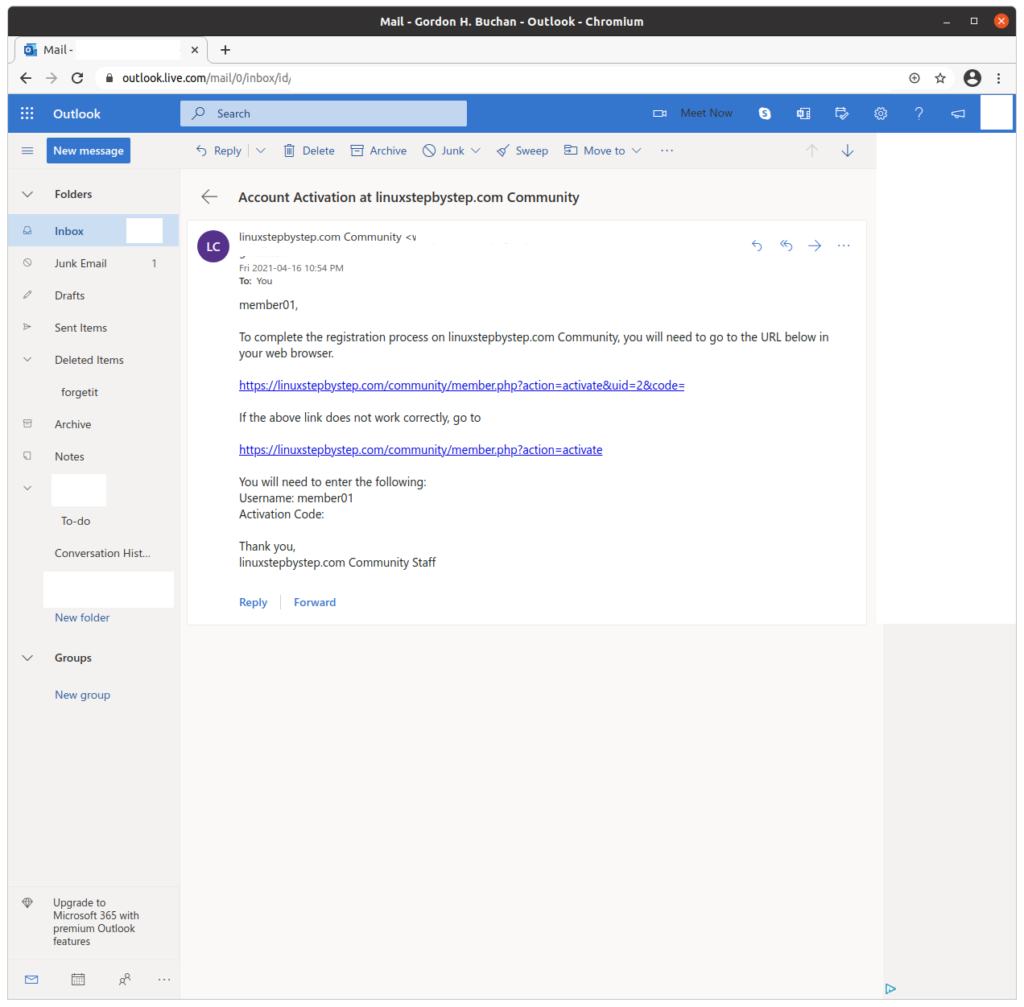
To activate your account, click on the link in the email:

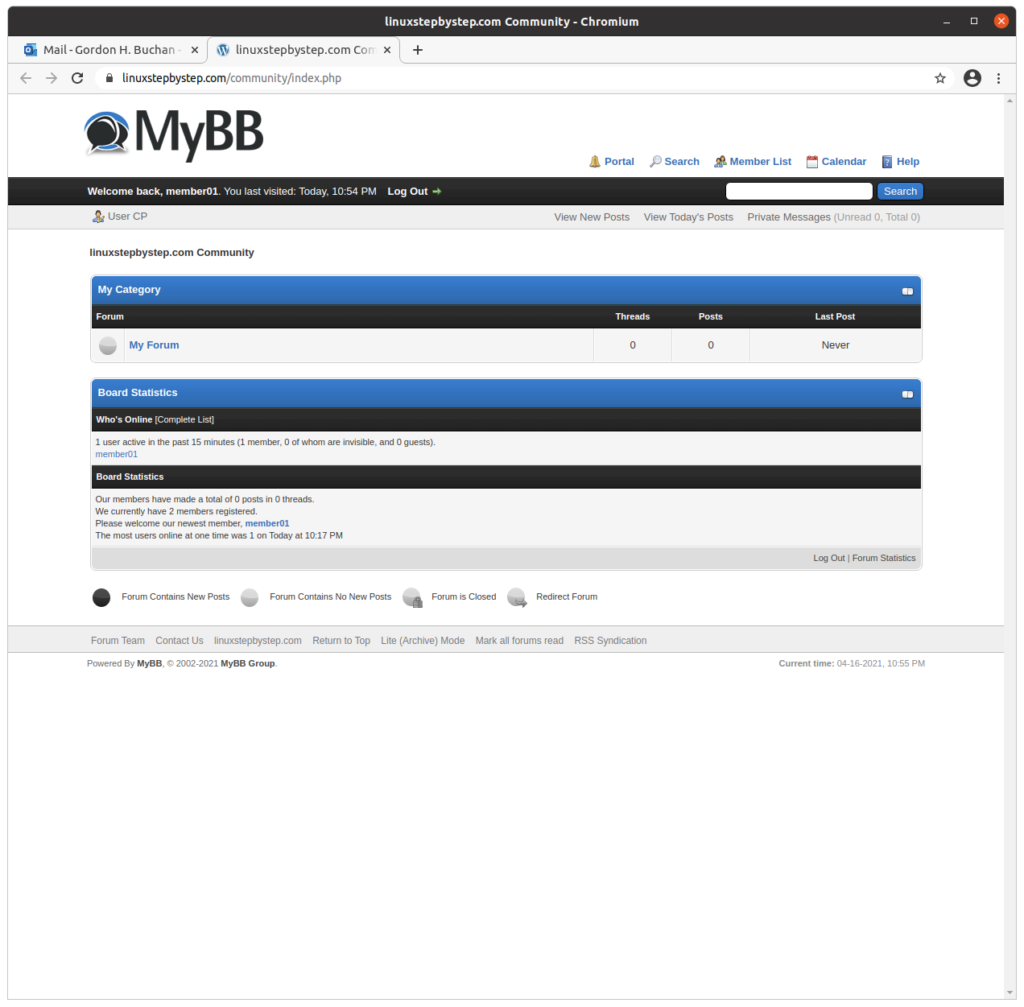
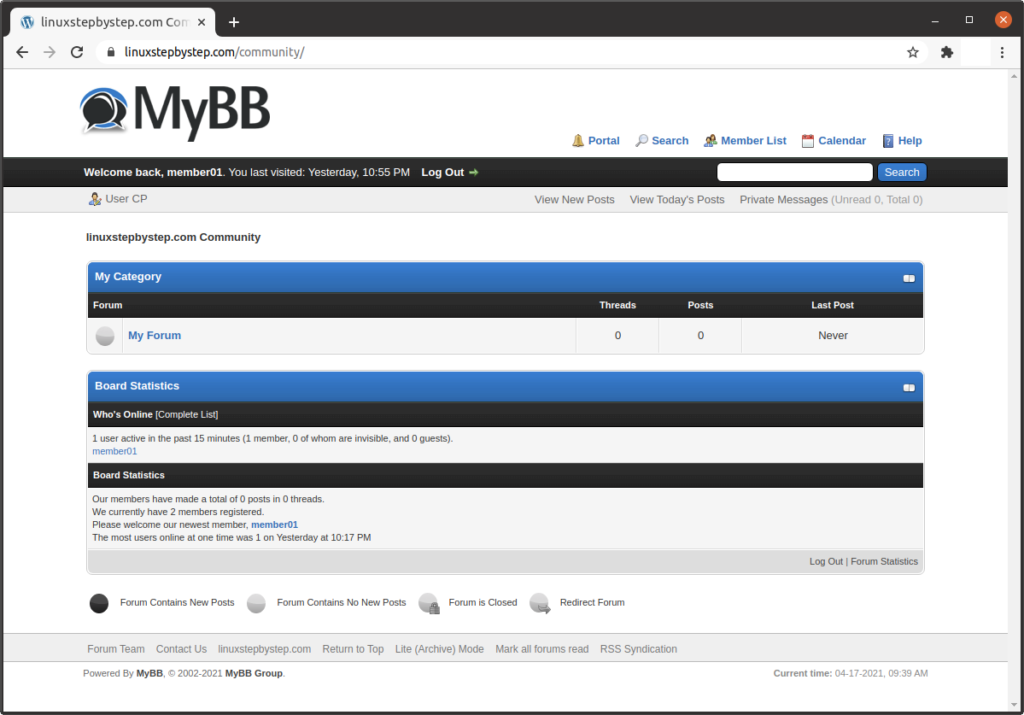
Welcome as a member:

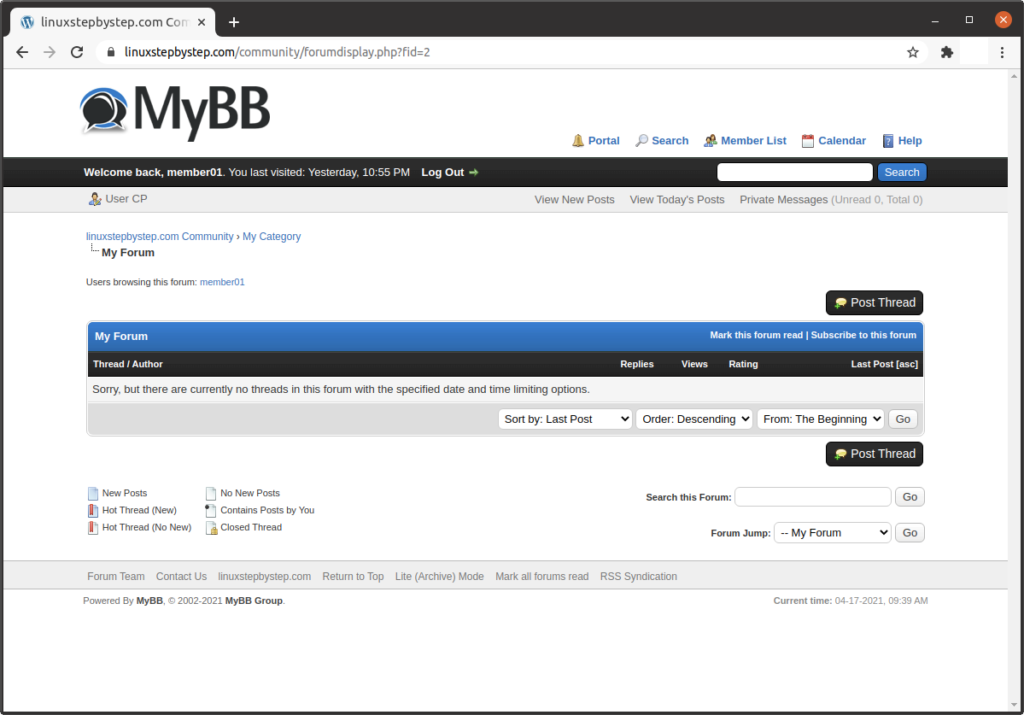
We will create a post. Click on “My Forum”:

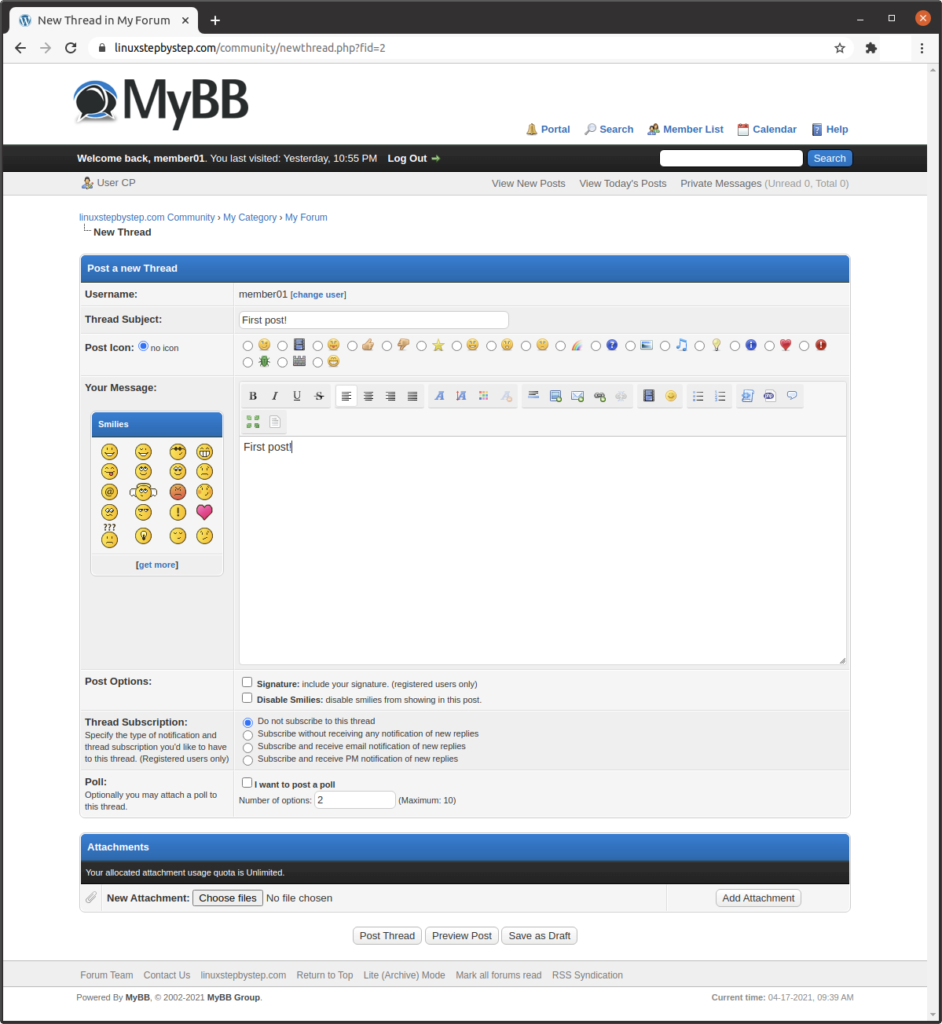
Click on “Post Thread”:

In the field “Thread Subject:” enter a subject.

In the field “Your Message:” enter the text of a message.

Click on “Post Thread”:

The message is displayed. Click on “My Category”:

We now have 1 thread and 1 post:

Previous step: Chapter 12: Installing and configuring the WooCommerce plugin for WordPress to enable a shopping cart for transactions
Next step: Chapter 14: Installing and configuring Live Helper Chat to add text chat support to a website

Forwarding ports to a KVM guest using iptables and Network Address Translation (NAT)

This post describes how to create a BASH script that opens the KVM virtual network adapter to outside traffic, and forwards ports from the KVM host to the KVM guest using iptables and Network Address Translation (NAT).

The KVM virtual network adapter rejects packets from the outside world by default

By default, the virtual network adapter for KVM (virbr0) is configured to block network traffic originating from outside the host computer. This can be resolved with iptables directives, which will be described below.

You do not need to use /etc/ufw/before.rules or /etc/libvirt/hooks/qemu to forward ports to a KVM guest

Many Internet articles and posts on this subject give the incorrect impression that the only way to forward ports to a KVM guest is via UFW and its /etc/ufw/before.rules file, and/or that you need to create a post-configuration script as a qemu “hook” in the /etc/libvirt/hooks/qemu file. You can open the virtual network adapter to outside traffic and forward ports to the KVM guest under NAT solely using iptables directives.

An example of a BASH script that opens the virtual adapter to outside traffic, and forwards ports from the host to the guest

To illustrate the solution, here is a sample BASH script that contains iptables directives that open the virtual adapter to outside traffic, and forwards ports 80/tcp, 443/tcp, and 8022/tcp from the host to the guest.

A note about the source code view below

For formatting reasons, the text is limited to a fixed width. To fully view the text, you can scroll to the right to see the ends of lines, or use the print view for this blog post.

#!/usr/bin/bash
# generated 2021/04/07 20:37:46 EDT by forwardportstoguestgenerator.php v0102
# Gordon Buchan https://gordonbuchan.com

# values
kvmsubnet="192.168.122.0/24"
wanadaptername="enx4ce1734b693e"
wanadapterip="192.168.46.123"
kvmadaptername="virbr0"
kvmadapterip="192.168.122.174"

# allow virtual adapter to accept packets from outside the host
iptables -I FORWARD -i $wanadaptername -o $kvmadaptername -d $kvmsubnet -j ACCEPT
iptables -I FORWARD -i $kvmadapterip -o $wanadaptername -s $kvmsubnet -j ACCEPT
# forward ports from host to guest
iptables -t nat -A PREROUTING -i $wanadaptername -d $wanadapterip -p tcp --dport 80 -j  DNAT --to-destination $kvmadapterip:80
iptables -t nat -A PREROUTING -i $wanadaptername -d $wanadapterip -p tcp --dport 443 -j DNAT --to-destination $kvmadapterip:443
iptables -t nat -A PREROUTING -i $wanadaptername -d $wanadapterip -p tcp --dport 8022 -j DNAT --to-destination $kvmadapterip:22

A PHP script that generates a BASH script that opens the virtual network adapter to outside traffic, and forwards ports from the host to the guest

This script runs the ifconfig and virsh commands to compile lists of possible WAN interfaces and KVM guests. This script prompts for choices at console, and generates a text file containing a BASH script with iptables directives that open the virtual adapter to outside traffic, and forward ports from the host to the guest using network address translation (NAT).

A note about the source code view below

For formatting reasons, the text is limited to a fixed width. To fully view the text, you can scroll to the right to see the ends of lines, or use the print view for this blog post.

To view the source code in an another text editor, download and uncompress the zip file described below, or select and copy the text from the source code example below, and paste the text into a file on your computer called “forwardportstoguest.php”

Consider copying the file to your server’s /usr/bin directory with a chmod of 755 so that it can be executed from the system path. Steps to do so are included in the procedure below.

Saving the PHP script to a file called forwardportstoguestgenerator.php

Download this zip file:

https://blog.gordonbuchan.com/files/forwardtoguest0102.zip

Uncompress the zip file to extract the file “forwardportstoguestgenerator.php” then copy the file to your KVM host computer.

or

Select and copy the text from the source code example above, and paste the text into a file on your computer called “forwardportstoguestgenerator.php”

#!/usr/bin/php
<?PHP
// forwardportstoguestgenerator.php
// v0102
// scan ifconfig and virsh, create iptables directives to forward ports to kvm guests
// chmod this script 755 to run as ./forwardportstoguestgenerator.php or run with php forwardportstoguestgenerator.php
// writes to a text file the BASH script forwardportstoguestscript.sh
 
// 2021/04/07
// Gordon Buchan https://gordonbuchan.com
// MIT license https://mit-license.org
 
// overview
// run the command "ifconfig" to isolate potential wan adapter names and ip addresses
// infer the KVM subnet based on the first 3 sections of the ip address of the "virbr0" adapter
// run the command "virsh net-dhcp-leases default" to isolate potential kvm guest names and ip addresses
// ask client to choose WAN adapter
// ask client to choose KVM guest
// create a batch file containing iptables directives to open the virtual adapter to packets from outside the host
// and to forward ports from the host adapter to the KVM guest adapter 80/tcp, and 443/tcp, 8022/tcp
 
// //////////////////////////////////////////////////////////////////////////////////
// start function sink
 
// str_contains() polyfill for pre PHP8
if (!function_exists('str_contains')) {
    function str_contains(string $haystack, string $needle): bool
    {
        return '' === $needle || false !== strpos($haystack, $needle);
    }
}
 
// end function sink
// //////////////////////////////////////////////////////////////////////////////////
 
// start get the WAN adapter names and ip addresses
 
// capture output of ifconfig command to variable $ifcstr
$ifcstr = `ifconfig`;
 
// convert string $ifcstr to array of lines $ifcstrarr
// use linefeed as field delimiter in array population
$ifcstrarr = explode("\n",$ifcstr);
 
// count lines in the array
$ifcstrarrnumlines = count($ifcstrarr);
 
$adnamestrarr = array();
$adipstrarr = array();
 
$kvmsubnet = "";
 
// iterate through array of lines
for ( $i=0;$i<$ifcstrarrnumlines;$i++) {
 
    if ( str_contains($ifcstrarr[$i],"flags")) {
        $flagsstr = "flags";
        $flagsstrloc = strpos("$ifcstrarr[$i]", $flagsstr) - 2;
        $adnamestr = substr($ifcstrarr[$i],0,$flagsstrloc);
    } // close if str contains "flags"
 
    // we will eventually filter virbr0, but for now we can find out the subnet for the KVM guest network
 
    if ( str_contains($ifcstrarr[$i],"inet") && !str_contains($ifcstrarr[$i],"inet6") ) {
 
        $inetstr = "inet";
        $inetstrloc = strpos("$ifcstrarr[$i]",$inetstr) + 5;
        $adipstr = substr($ifcstrarr[$i],$inetstrloc,"20");
        $spacestrloc = strpos("$adipstr"," ");
        // trimming the variable
        $adipstr = substr($adipstr,0,$spacestrloc);
 
        if (str_contains($adnamestr,"virbr0")) {
            // start infer KVM subnet
            // //////////////////////////////////////////////////////////
            // do stuff here to get the virbr0 ip address so we can infer subnet
            $kvmsubnetraw = $adipstr;
            $lastdotloc = strrpos($kvmsubnetraw,".");
            $kvmsubnet = substr($kvmsubnetraw,0,$lastdotloc) . ".0/24";
            echo "\nKVM subnet\nkvmsubnet: $kvmsubnet\n\n";
            // end infer KVM subnet
            // //////////////////////////////////////////////////////////
        } else {
            // stuff the arrays they will match by number because done at same time
            // filter for loopback device
            if (!($adipstr == "127.0.0.1")) {
                $adnamestrarr[] = $adnamestr;
                $adipstrarr[] = $adipstr;
            }
        }
 
    } // close if str contains "inet"
 
} // end for $i
 
//so we are always defined
$adnamestrarrnumlines = "";
$adnamestrarrnumlines = count ($adnamestrarr);
if (!$adnamestrarrnumlines) {
    echo "no WAN adapters found.\nStopping.\n";
    exit();
}

// if we do not have a KVM subnet, then something is wrong. Stop.
if (!$kvmsubnet) {
    echo "KVM subnet not detected. Stopping.\n";
    exit();
}
 
// end get the WAN adapter names and ip addresses
// //////////////////////////////////////////////////////////////////////////////////
 
// start get the KVM guest names and ip addresses
 
// capture output of virsh command to variable $ifcstr
$virshleastr = `virsh net-dhcp-leases default`;
 
// convert string $virshleastr to array of lines $virshleastrarr
// use linefeed as field delimiter in array population
$virshleastrarr = explode("\n",$virshleastr);
 
// count lines in the array
$virshleastrarrnumlines = count($virshleastrarr);
 
$kvmnamestrarr = array();
$kvmipstrarr = array();
 
// iterate through array of lines
for ( $j=0;$j<$virshleastrarrnumlines;$j++) {
    if ( str_contains($virshleastrarr[$j],"ipv4")) {
        $ipv4str = "ipv4";
        $ipv4strloc = strpos("$virshleastrarr[$j]", $ipv4str) + 11;
        $kvmlinestr = substr($virshleastrarr[$j],$ipv4strloc,50);
        $slashstr = "/";
        $slashstrloc = strpos("$kvmlinestr",$slashstr);
        $kvmipstr = substr($kvmlinestr,0,$slashstrloc);
        $kvmnamestr = substr($kvmlinestr,$slashstrloc+5,12);
        $kvmnamestr = trim($kvmnamestr);
        //stuff the arrays they will match by number because done at same time
        $kvmnamestrarr[] = $kvmnamestr;
        $kvmipstrarr[] = $kvmipstr;
    } // close if str contains "ipv4"
} // end for $j
 
$kvmnumlines = count ($kvmnamestrarr);
if (!$kvmnumlines) {
    echo "no VM guest DHCP leases found. Please start a VM.\nStopping.\n";
    exit();
}

// end get the KVM guest names and ip addresses
// //////////////////////////////////////////////////////////////////////////////////
 
// start ask client to choose WAN adapter
 
// show the possible WAN adapters as a numbered list to console:
echo "WAN adapters\n";
for ($k=0;$k<$adnamestrarrnumlines;$k++) {
    $displaynum = $k + 1;
    echo "$displaynum. $adnamestrarr[$k] $adipstrarr[$k]\n";
}
 
echo "\n";
 
// use readline function to ask questions interactively
// trap function in a while condition for sanity checking on input until satisfied
$wananswer = "";
while (!$wananswer || ($wananswer>$displaynum) || !is_numeric($wananswer) ) {
    $wananswer = readline("Please choose a WAN adapter (1-$displaynum): ");
}
 
echo "choice entered: $wananswer\n";
 
// because humans start at 1 and computers start at 0
$wanchoiceminus = $wananswer - 1;
 
$wanadaptername = $adnamestrarr[$wanchoiceminus];
$wanadapterip = $adipstrarr[$wanchoiceminus];
 
echo "\n";
echo "wanadaptername: $wanadaptername\n";
echo "wanadapterip: $wanadapterip\n";
echo "\n";
 
// end ask client to choose WAN adapter
// //////////////////////////////////////////////////////////////////////////////////
 
// start ask client to choose KVM guest
 
// show the possible KVM guests as a numbered list to console:
echo "KVM guests\n";
echo "(hint: if a VM is not listed here, start the VM so it gets a DHCP lease)\n";
for ($m=0;$m<$kvmnumlines;$m++) {
    $displaynum = $m + 1;
    echo "$displaynum. $kvmnamestrarr[$m] $kvmipstrarr[$m]\n";
}
 
echo "\n";
 
// use readline function to ask questions interactively
// trap function in a while condition for sanity checking on input until satisfied
$kvmanswer = "";
while (!$kvmanswer || ($kvmanswer>$displaynum) || !is_numeric($kvmanswer) ) {
    $kvmanswer = readline("Please choose a KVM guest (1-$displaynum): ");
}
 
echo "choice entered: $kvmanswer\n";
 
// because humans start at 1 and computers start at 0
$kvmchoiceminus = $kvmanswer - 1;
 
// we should not confuse kvm guest name with kvmadaptername
// we hardcode the name of the kvm adapter as the string "virbr0"
$kvmadaptername = "virbr0";
$kvmadapterip = $kvmipstrarr[$kvmchoiceminus];
 
echo "\n";
echo "kvmadaptername: $kvmadaptername\n";
echo "kvmadapterip: $kvmadapterip\n";
echo "\n";
 
// end ask client to choose KVM guest
// //////////////////////////////////////////////////////////////////////////////////
 
// start engine section
 
// construct the string variable containing the contents of the script file
 
$timestring = date("Y/m/d H:i:s T");
 
// start from nothing
$scriptcontents = "";
 
$scriptcontents .= "#!/usr/bin/bash\n";
$scriptcontents .= "# generated $timestring by forwardportstoguestgenerator.php v0102\n";
$scriptcontents .= "# Gordon Buchan https://gordonbuchan.com\n";
$scriptcontents .= "\n";
$scriptcontents .= "# values\n";
$scriptcontents .= "kvmsubnet=\"$kvmsubnet\"\n";
$scriptcontents .= "wanadaptername=\"$wanadaptername\"\n";
$scriptcontents .= "wanadapterip=\"$wanadapterip\"\n";
$scriptcontents .= "kvmadaptername=\"$kvmadaptername\"\n";
$scriptcontents .= "kvmadapterip=\"$kvmadapterip\"\n";
$scriptcontents .= "\n";
$scriptcontents .= "# allow virtual adapter to accept packets from outside the host\n";
$scriptcontents .= "iptables -I FORWARD -i \$wanadaptername -o \$kvmadaptername -d \$kvmsubnet -j ACCEPT\n";
$scriptcontents .= "iptables -I FORWARD -i \$kvmadapterip -o \$wanadaptername -s \$kvmsubnet -j ACCEPT\n";
$scriptcontents .= "# forward ports from host to guest\n";
$scriptcontents .= "iptables -t nat -A PREROUTING -i \$wanadaptername -d \$wanadapterip -p tcp --dport 80 -j  DNAT --to-destination \$kvmadapterip:80\n";
$scriptcontents .= "iptables -t nat -A PREROUTING -i \$wanadaptername -d \$wanadapterip -p tcp --dport 443 -j DNAT --to-destination \$kvmadapterip:443\n";
$scriptcontents .= "iptables -t nat -A PREROUTING -i \$wanadaptername -d \$wanadapterip -p tcp --dport 8022 -j DNAT --to-destination \$kvmadapterip:22\n";
 
$scriptfilename = "forwardportstoguestscript.sh";
 
# write the text file
$fh = fopen("$scriptfilename","w");
$filesuccess = fwrite($fh,$scriptcontents);
fclose($fh);
 
if ($filesuccess) {
    echo "SUCCESS script written to file: $scriptfilename\n";
    chmod("$scriptfilename", 0755);
    $scriptperms = substr(sprintf('%o', fileperms("$scriptfilename")), -4);
    echo "scriptperms: $scriptperms\n";
    if ($scriptperms == "0755") {
        echo "SUCCESS chmod 755 $scriptfilename successful.\n";
    } else {
        echo "ERROR chmod 755 not $scriptfilename not successful.\n";
    }
} else {
    echo "ERROR script not written to file: $scriptfilename\n";
}
 
// end engine section
// /////////////////////

Executing as root

If you have not logged in as root, please escalate to root.

Enter this command:

sudo su

Installing php cli and net-tools

The PHP script requires the php cli and the ifconfig command from net-tools. The script also requires virsh, but you likely have that tool installed already if you are hosting KVM guests.

Ubuntu

Enter the command:

apt install php-cli net-tools

Fedora

Enter the command:

dnf install php-cli net-tools

Executing the PHP script forwardportstoguestgenerator.php to generate the BASH script forwardportstoguestscript.sh

Enter the command:

php forwardportstoguestgenerator.php

When prompted, choose a WAN adapter and a KVM guest.

You will see output similar to the following:

root@server:/usr/bin# php forwardportstoguestgenerator.php
KVM subnet
kvmsubnet: 192.168.122.0/24
WAN adapters
1. enx4ce1734b693e 192.168.46.123
2. wlp0s20f3 192.168.46.103
Please choose a WAN adapter (1-2): 1
choice entered: 1
wanadaptername: enx4ce1734b693e
wanadapterip: 192.168.46.123
KVM guests
(hint: if a VM is not listed here, start the VM so it gets a DHCP lease)
1. midland 192.168.122.174
Please choose a KVM guest (1-1): 1
choice entered: 1
kvmadaptername: virbr0
kvmadapterip: 192.168.122.174
SUCCESS script written to file: forwardportstoguestscript.sh
scriptperms: 0755
SUCCESS chmod 755 forwardportstoguestscript.sh successful.

Executing the BASH script forwardportstoguestscript.sh

Enter the command:

bash forwardportstoguestscript.sh

Testing the forwarded ports

Using a different workstation on the network, connect to the IP address of the computer hosting the KVM guest.

If you have forwarded the public-facing ports on your router to the IP address of the computer hosting the KVM guest, test whether traffic on the ports is forwarded to the KVM guest.