Web presence step by step Chapter 5: Configuring an Ubuntu Linux cloud server to create a Linux Apache MySQL PHP (LAMP) web server, Part 1

Previous step: Chapter 4: Using an SSH terminal program to connect to an Ubuntu Linux Cloud Server
Next step: Chapter 6: Configuring an Ubuntu Linux cloud server to create a Linux Apache MySQL PHP (LAMP) web server, Part 2

Web presence step by step is a series of posts that show you to how to build a web presence.

In this post, we configure a basic Linux Apache MySQL PHP (LAMP) web server and test the IP address for reputation.

A note re MySQL and MariaDB

A few years ago, the company that owned MySQL was purchased by Oracle. The open source code was legally “forked” into a project called MariaDB. When this document refers to “MySQL,” it is actually referring to the MariaDB descendant of the MySQL database engine, made possible by the terms of the GPLv2 open source software license. Notice that to maintain compatibility with existing software, the command to invoke MariaDB on the command line is “mysql.”

Installing a basic web server to test the reputation of the IP address

Sometimes, a cloud service provider will recycle an IP address with a troubled history and give you a server that has a “dirty” IP address that is blacklisted. In order to test the server’s IP address to make sure it is not blacklisted, we have to do a basic web server setup.

In order to do a basic web server setup, we will have to connect to the Ubuntu Linux cloud server with an SSH terminal program.

We will use an SSH terminal server to connect to the cloud server, and create a basic web server to test the IP address. If the IP address is blacklisted, we will simply destroy the cloud server and try again, getting a new IP address which we will test. Once we have a successful test, we can proceed to advanced web server setup in Chapter 6: Configuring an Ubuntu Linux cloud server to create a Linux Apache MySQL PHP (LAMP) web server, Part 2.

Connecting to the Ubuntu Linux cloud server with an SSH terminal program

(Note: this post assumes that you have read the preceding Chapter 4: Using an SSH terminal program to connect to an Ubuntu Linux Cloud Server, or you are familiar with SSH terminal programs.)

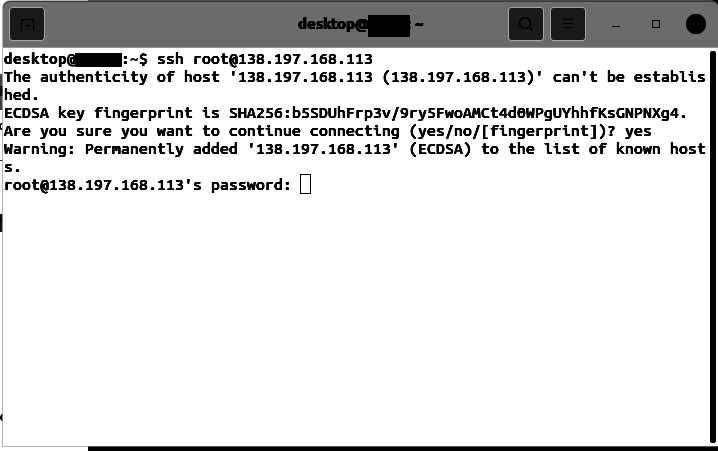
Use an SSH terminal program to connect to the IP address of the cloud server that you created in Chapter 3: Buying an Ubuntu Linux cloud server from Digital Ocean:
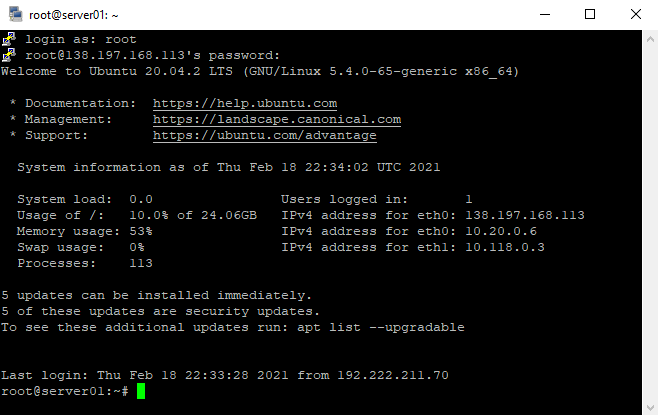
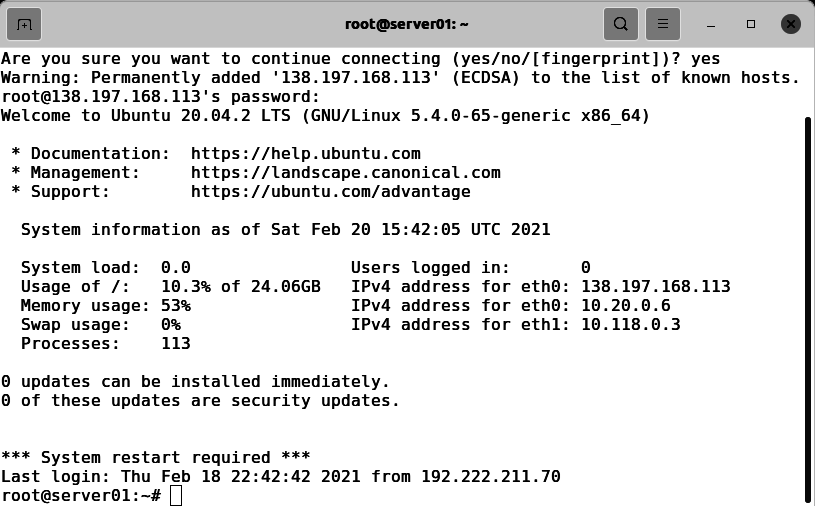
This is what a successful login looks like:
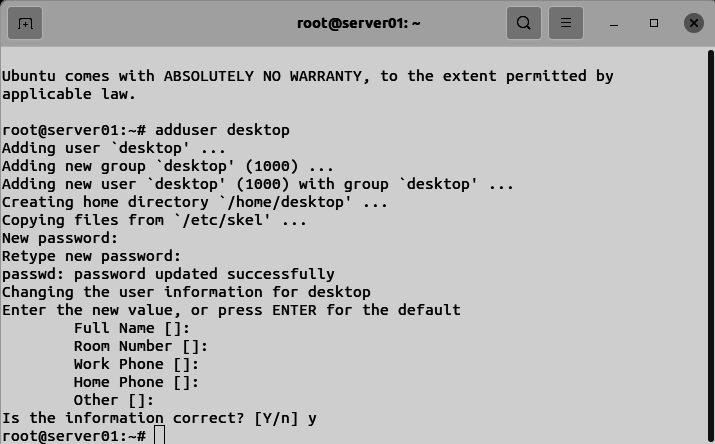
While we are here, we will add a second user to the server. Enter the command:

adduser desktop
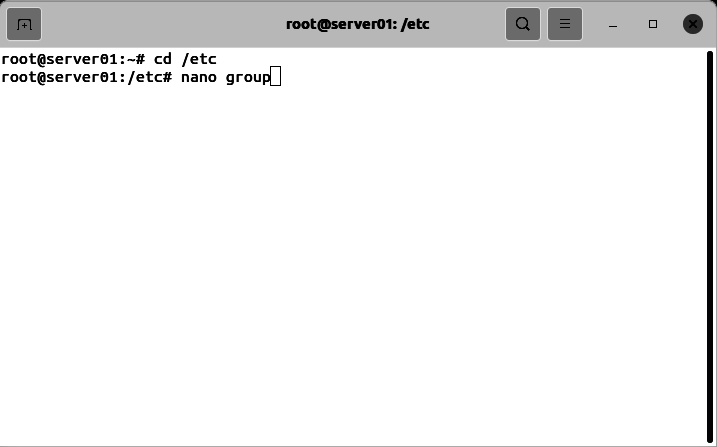
Add the user to the sudo group. Enter the commands:

cd /etc
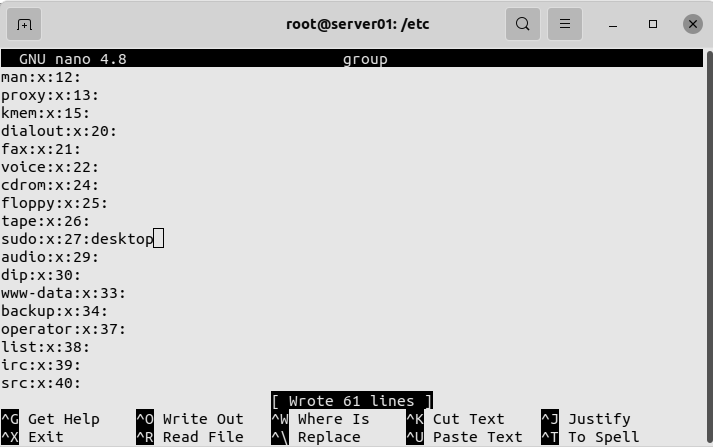
nano group
go to the line starting with sudo, add the desktop user after the colon:
Enter the commands:

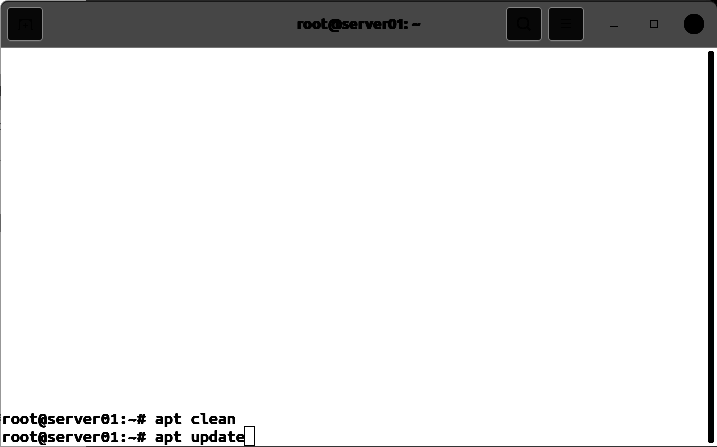
apt clean
apt update
Enter the command:

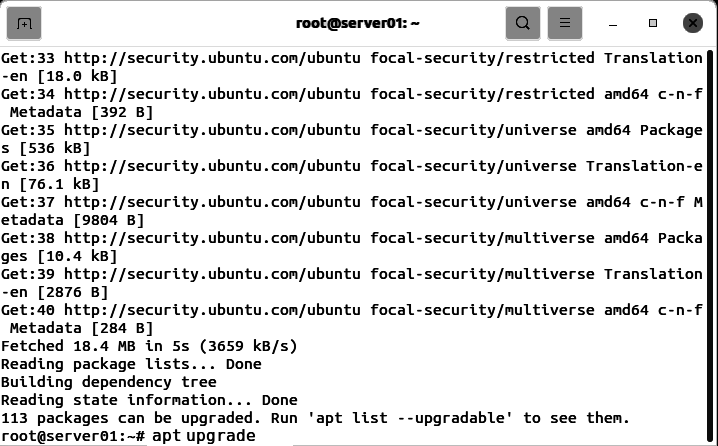
apt upgrade
When prompted, enter y for yes, and press Enter:
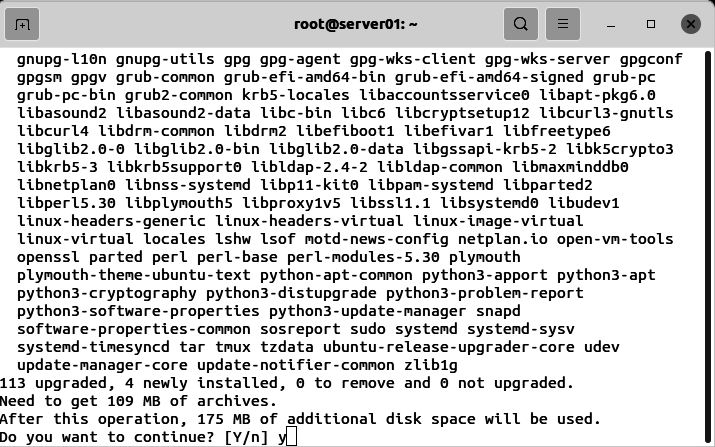
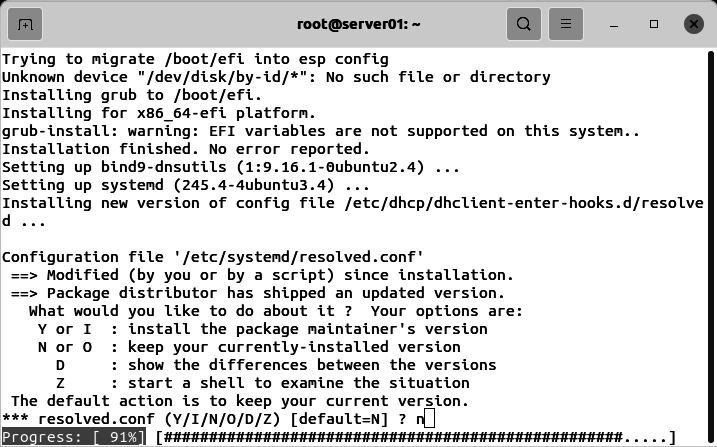
If you see a question like this, accept the default. In this case, n for no and press Enter:
Enter the commands:

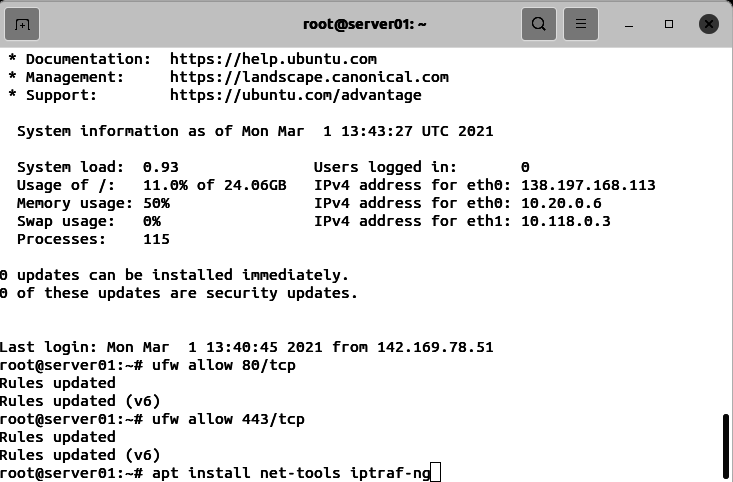
ufw allow 80/tcp
ufw allow 443/tcp
apt install net-tools iptraf-ng
Enter the command:

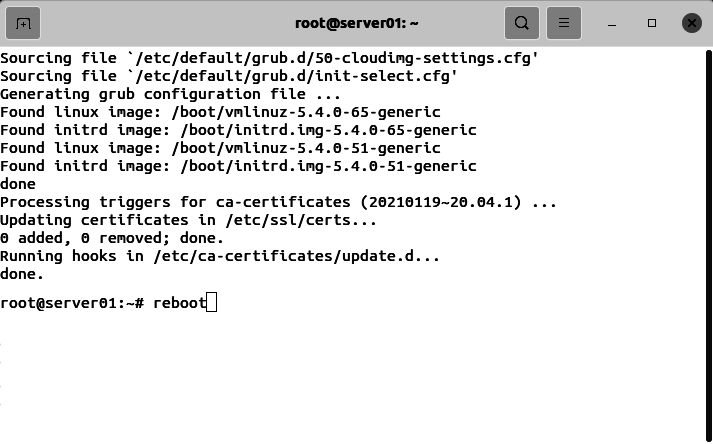
reboot
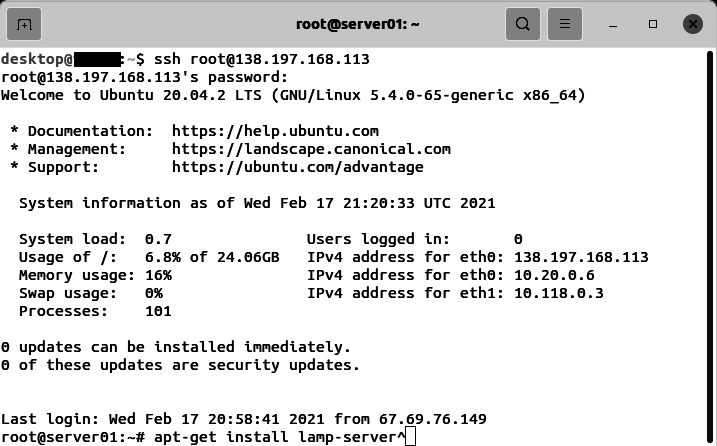
Use an SSH terminal program to connect to the Ubuntu Linux cloud server. Enter the command:

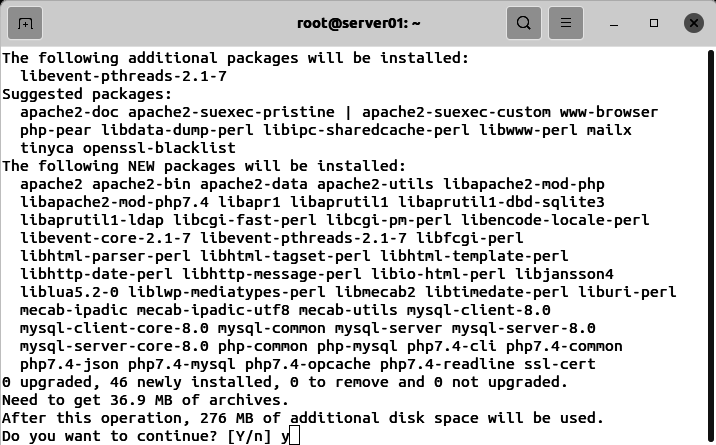
apt-get install lamp-server^
When prompted, enter y for yes, and press Enter:
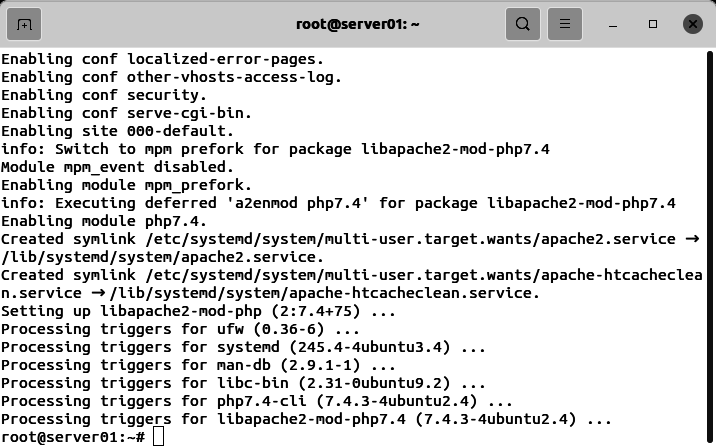
This is what it looks like when the install finishes:
Testing the IP address of the Ubuntu Linux cloud server

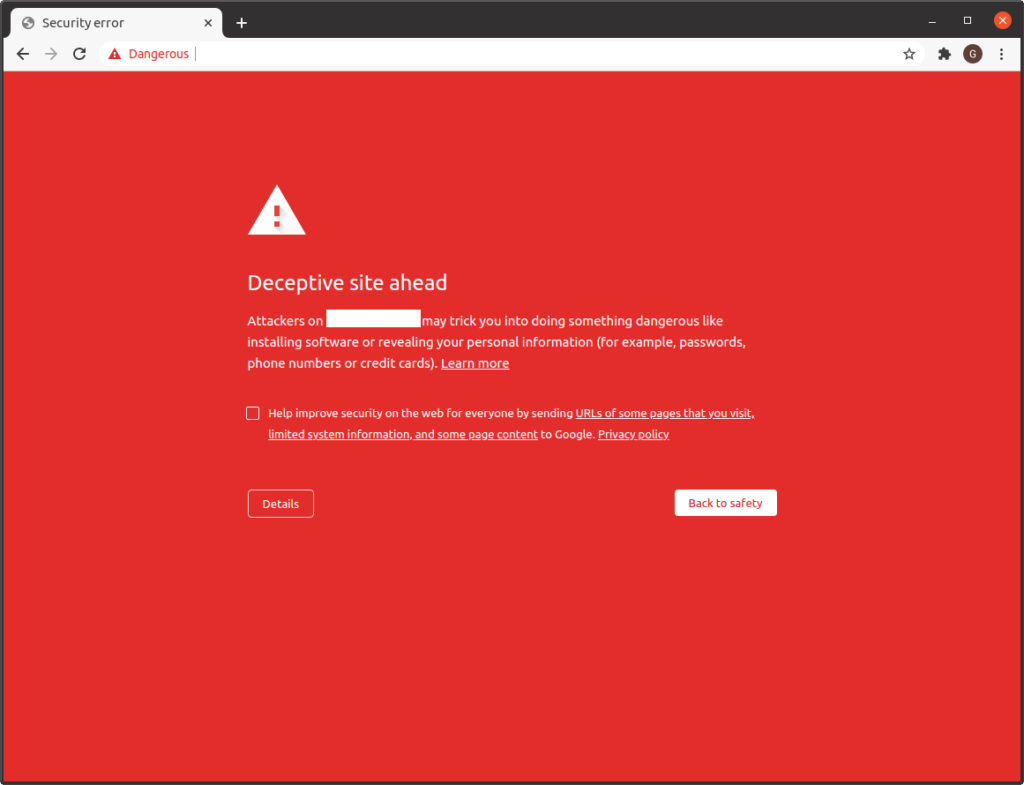
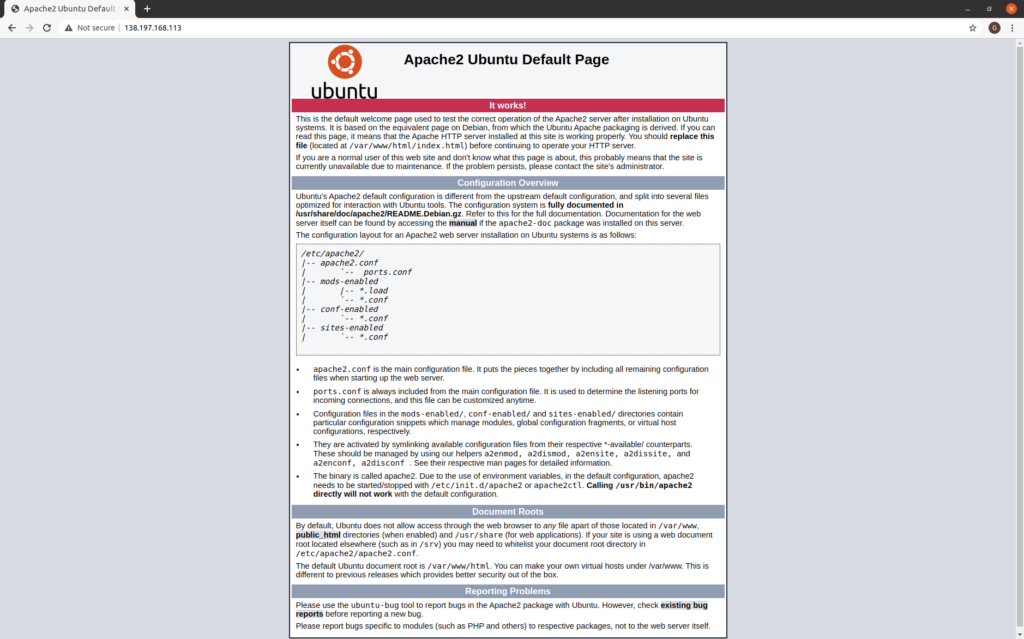
Use a web browser to visit the IP address of the Ubuntu Linux cloud server.

If you get a warning like this, the IP address you have been assigned has a bad reputation. If this happens for you, use the Digital Ocean control panel to destroy the cloud server, then try again.
If you get a message like this, it means that the IP address you have been assigned has a good reputation. This means that we can proceed with the rest of the build:
Associating a host name with an IP address in DNS

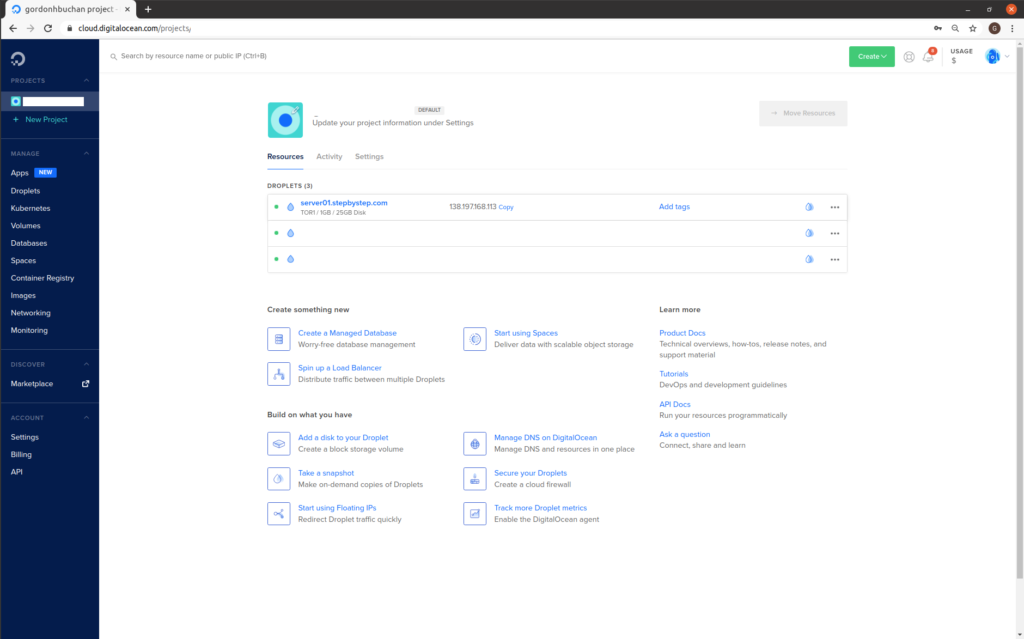
Visit the Digital Ocean site. Click on the IP address of the cloud server to copy it to the clipboard:
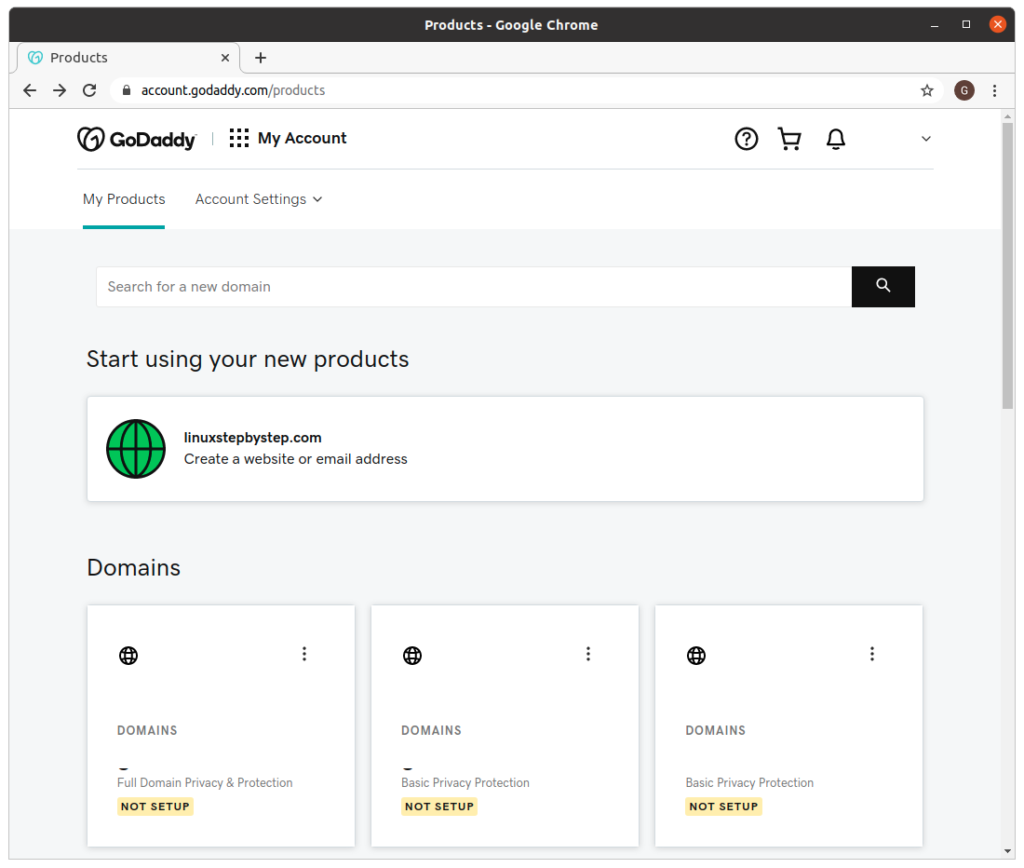
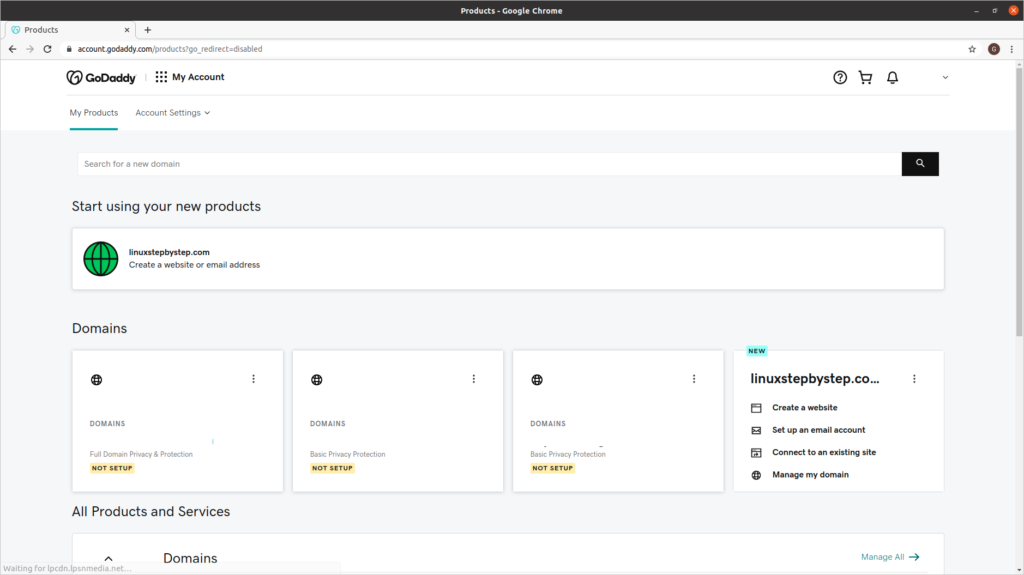
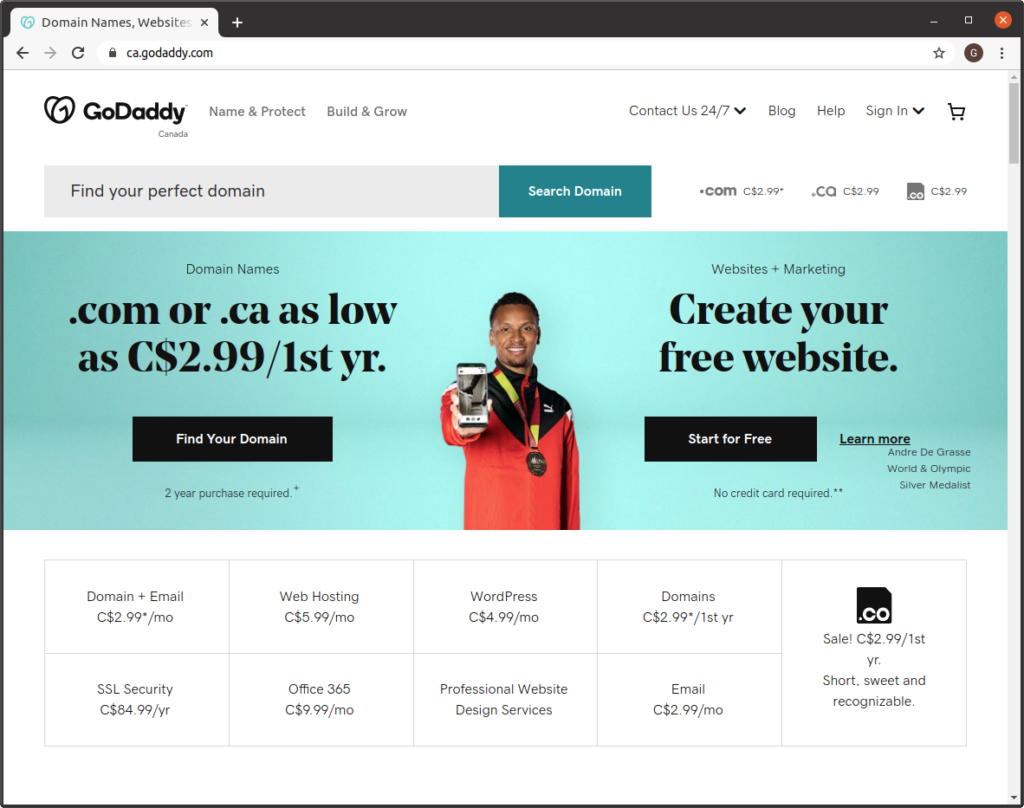
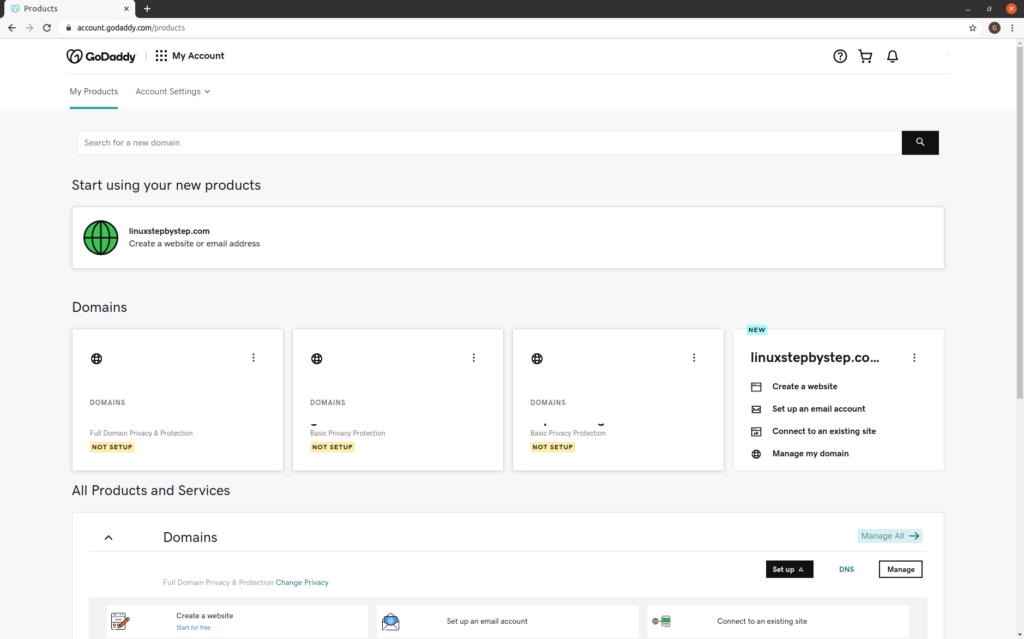
Visit the GoDaddy site. Click on “Manage All”:
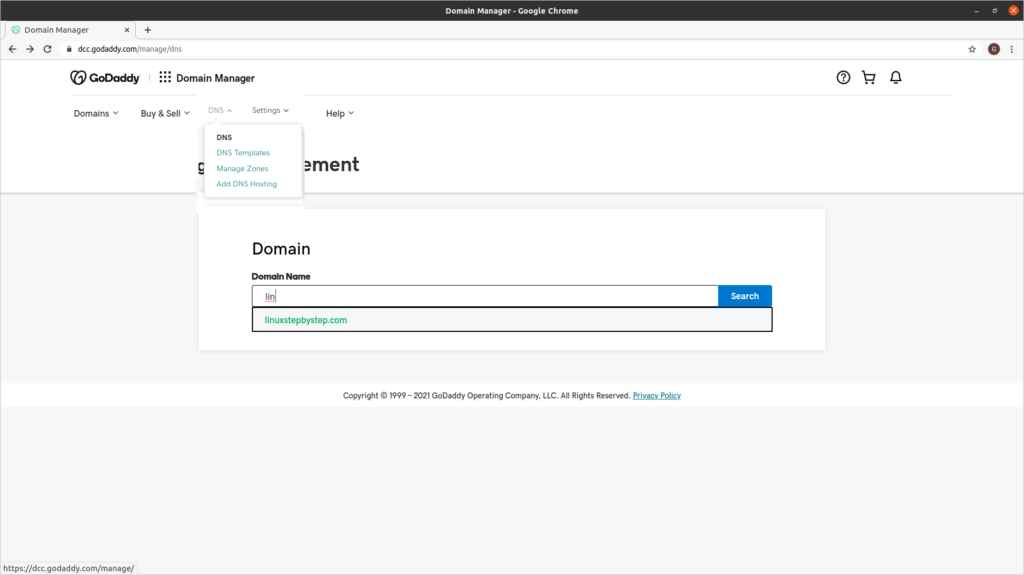
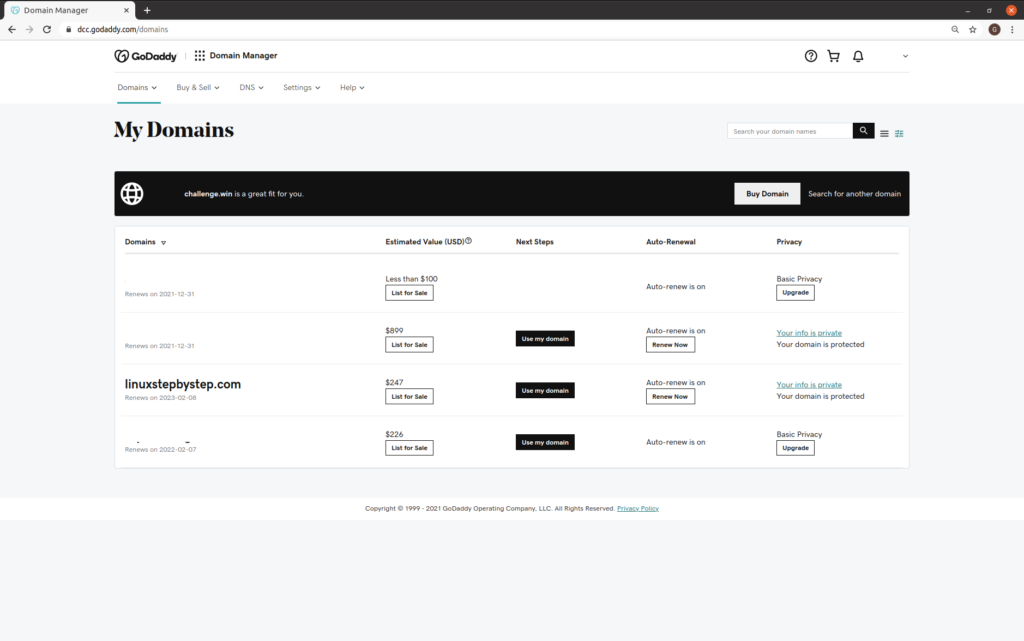
Click on “DNS”:
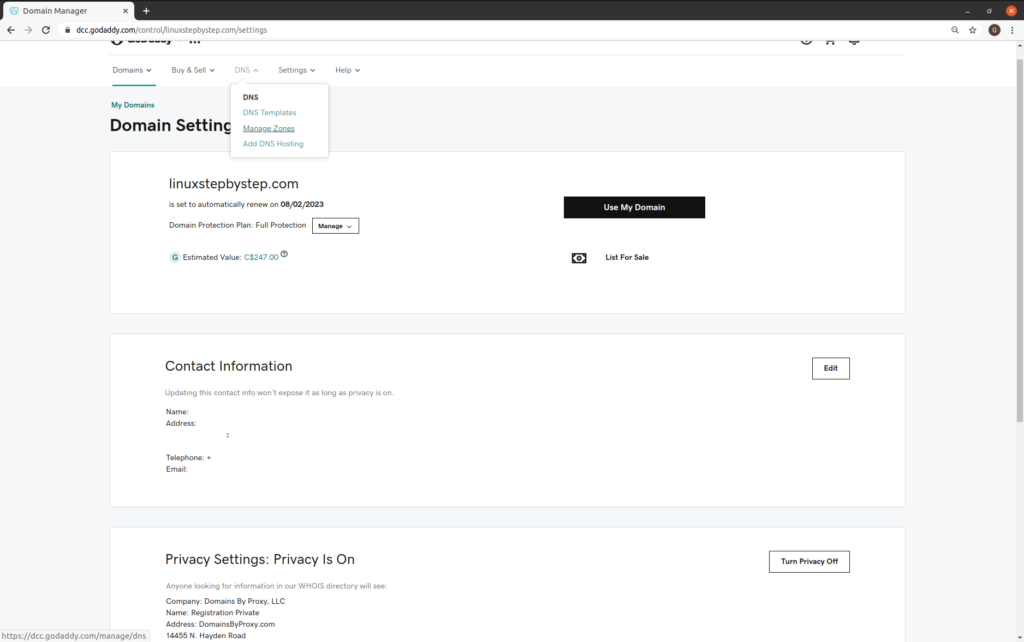
Click on “Manage Zones”:
search for your domain name:
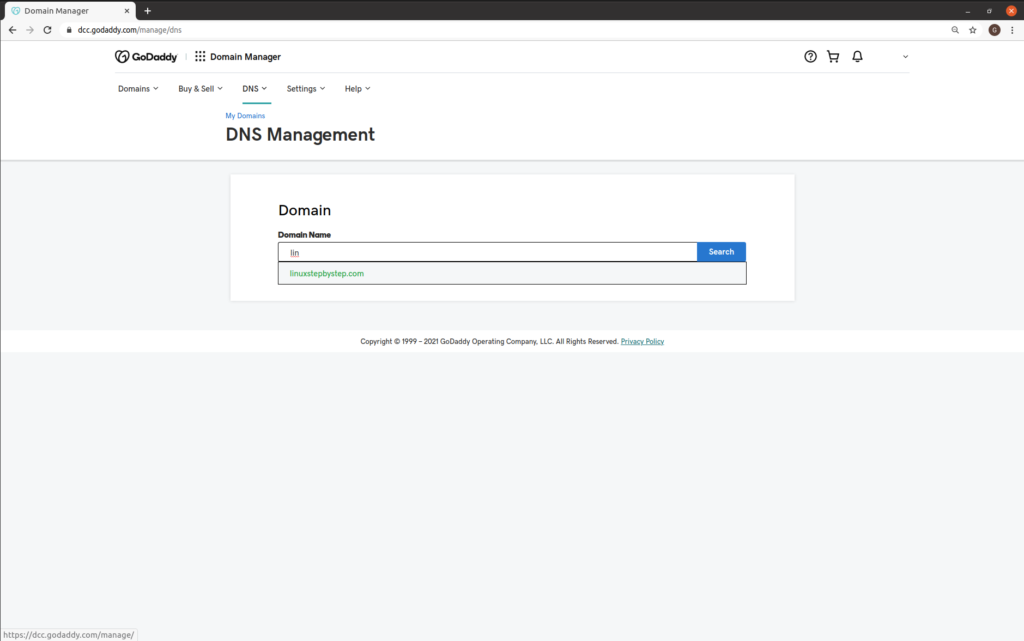
This is the DNS Zone file for your domain name. It tells the Internet where to point requests for email and your website:
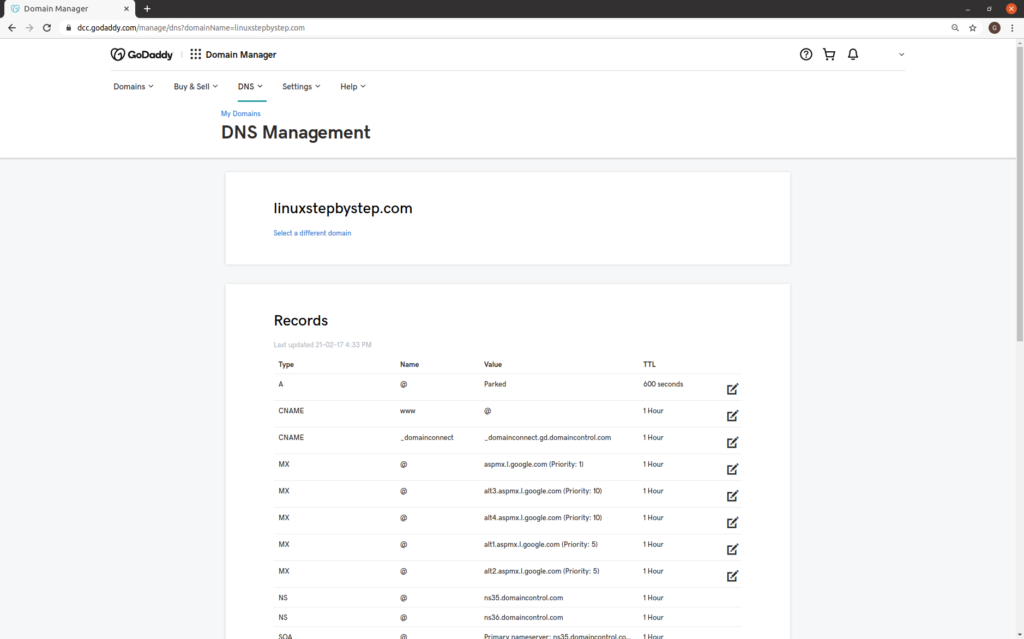
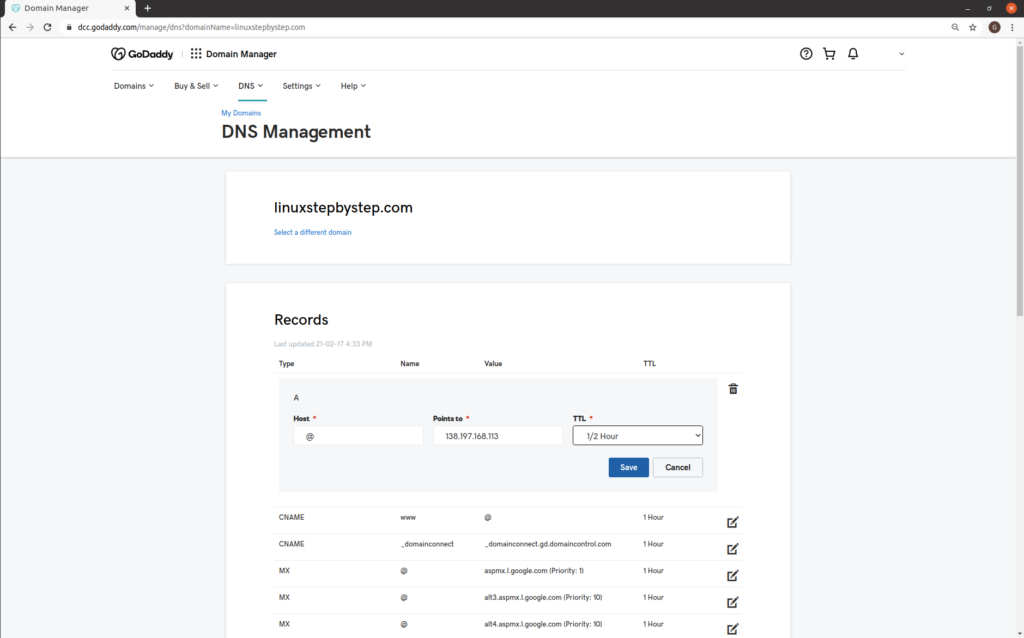
Click on the edit icon for the A record for the Name “@”

Enter the IP address for your Ubuntu Linux cloud server.
Specify a TTL of 1/2 hour.
Click save.
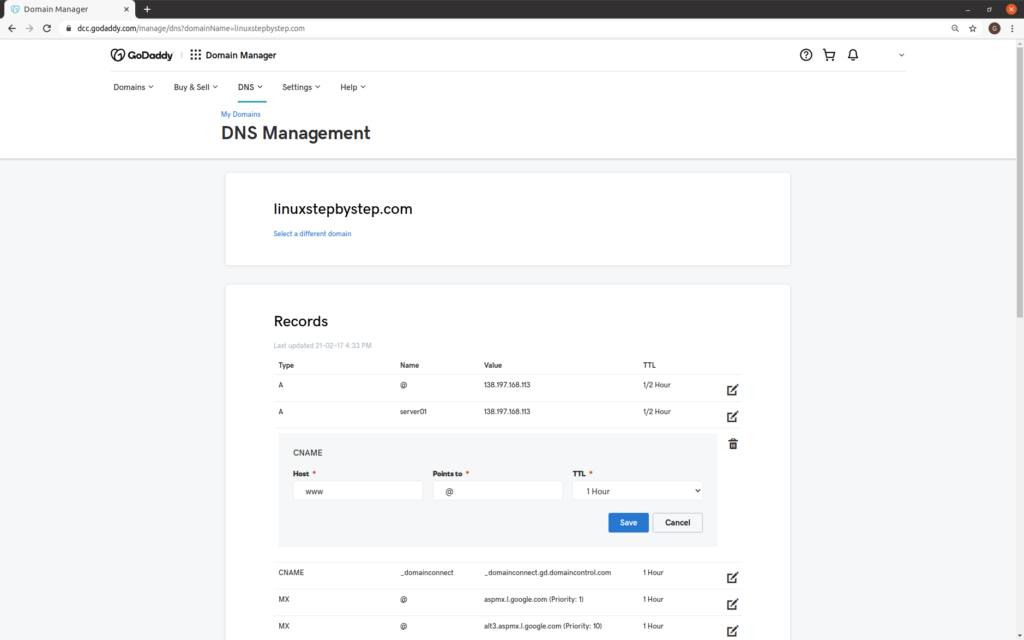
Note the CNAME record:

CNAME www @ 1 Hour

a CNAME, or “canonical name” is a nickname for a host. It means that www.yourdomainname.com will point to the IP address set for yourdomainname.com

GoDaddy populates a DNS zone file with this CNAME record by default. We are discussing this because you need to know this much about DNS zone files and domain names if you want to run a web server.
Previous step: Chapter 4: Using an SSH terminal program to connect to an Ubuntu Linux Cloud Server
Next step: Chapter 6: Configuring an Ubuntu Linux cloud server to create a Linux Apache MySQL PHP (LAMP) web server, Part 2
Web presence step by step Chapter 4: Using an SSH terminal program to connect to an Ubuntu Linux cloud server

Previous step: Chapter 3: Buying an Ubuntu Linux cloud server from Digital Ocean
Next step: Chapter 5: Configuring an Ubuntu Linux cloud server to create a Linux Apache MySQL PHP (LAMP) web server, Part 1

Web presence step by step is a series of posts that show you how to build a web presence.

In this post, we learn how to use an SSH terminal program to connect to an Ubuntu Linux cloud server.

Windows

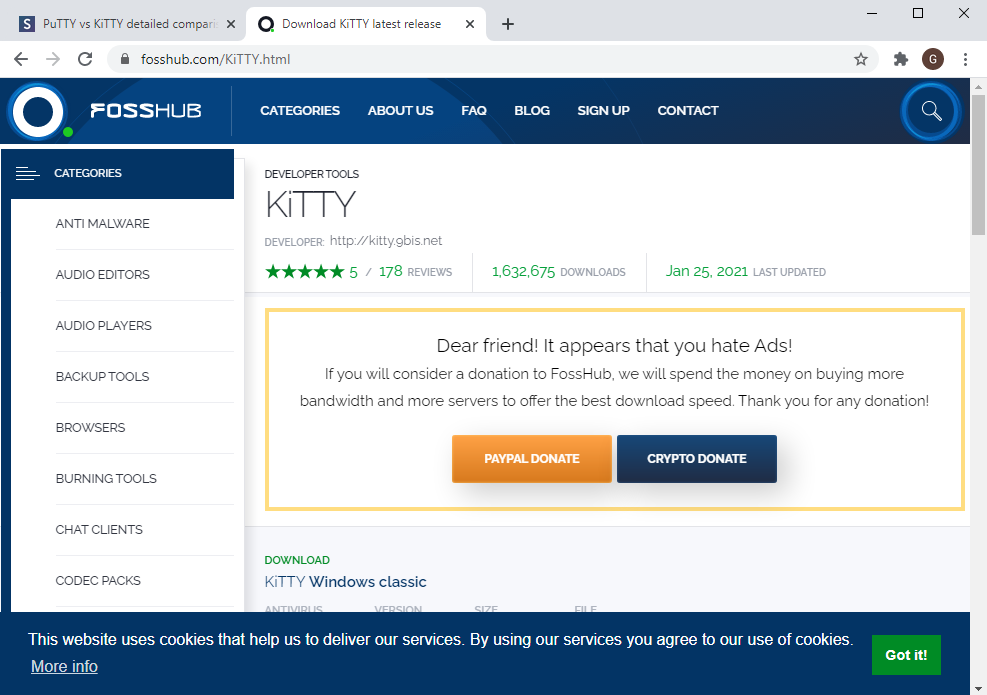
Visit this link to download the KiTTY SSH terminal program for Windows:

https://fosshub.com/KiTTY.html

Click on “Got it!” to remove the message at the bottom. Click on “DOWNLOAD KiTTY Windows classic”:

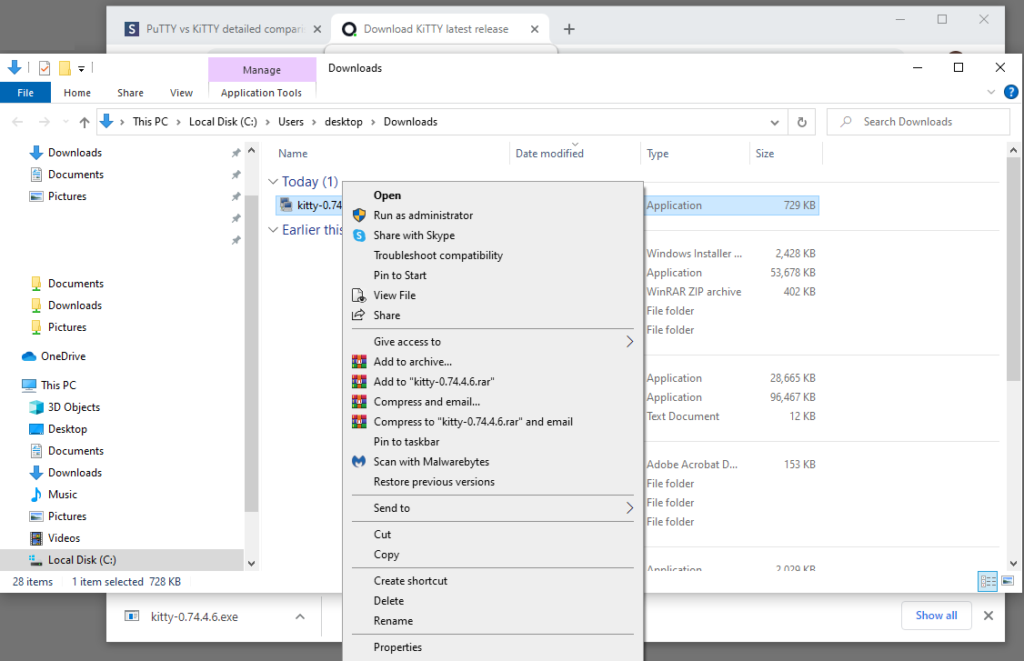
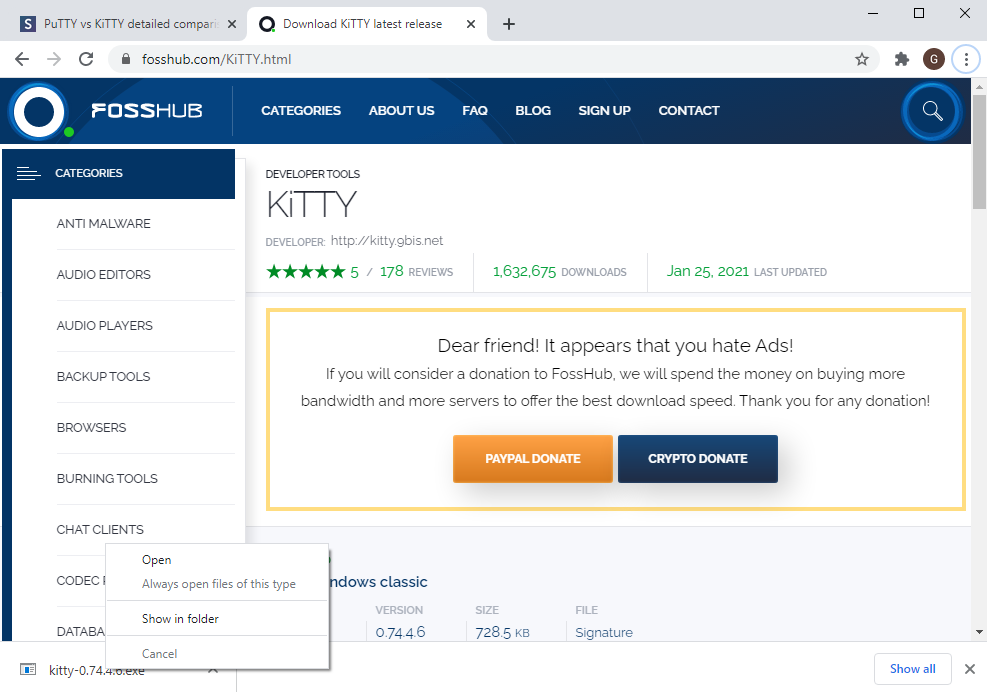
In the lower-left of your browser, right-click on the name of the downloaded file. Select “Show in folder”:

Right-click on kitty program. Click “Open”:

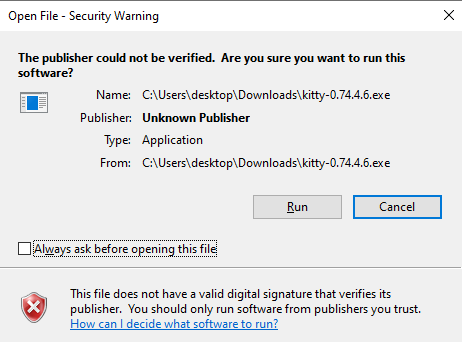
Un-check the box “Always ask before opening this file.” Click “Run”:

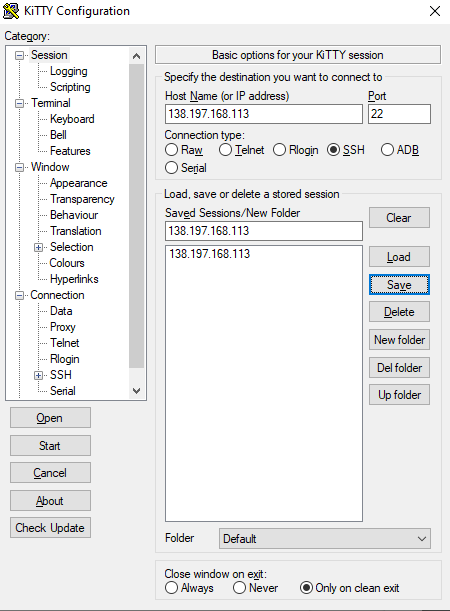
Host Name (or IP address): enter the IP address of your cloud server
Port: 22
Connection type: SSH
Saved Sessions/New Folder: enter the IP address of your cloud server

Click Save. Click Open:

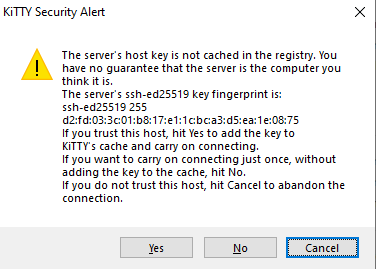
The following warning appears. Click Yes:

A terminal window appears. This is what it looks like after you login::

MacOS

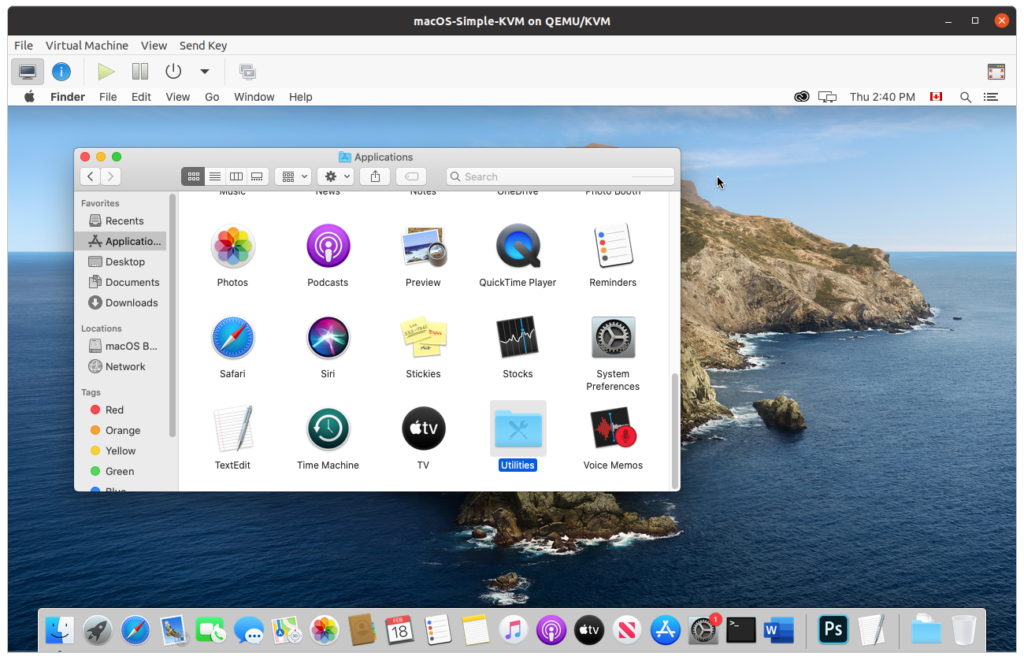
From Finder, go to Applications. From the Applications folder, double-click on Utilities:

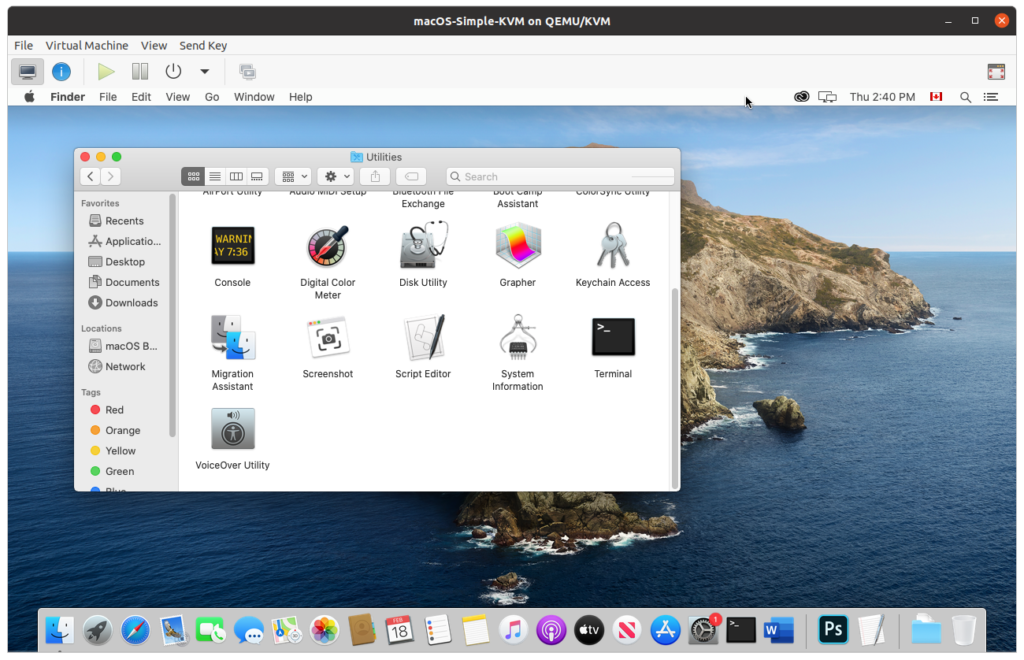
Scroll down and locate the Terminal application. Double-click to start Terminal:

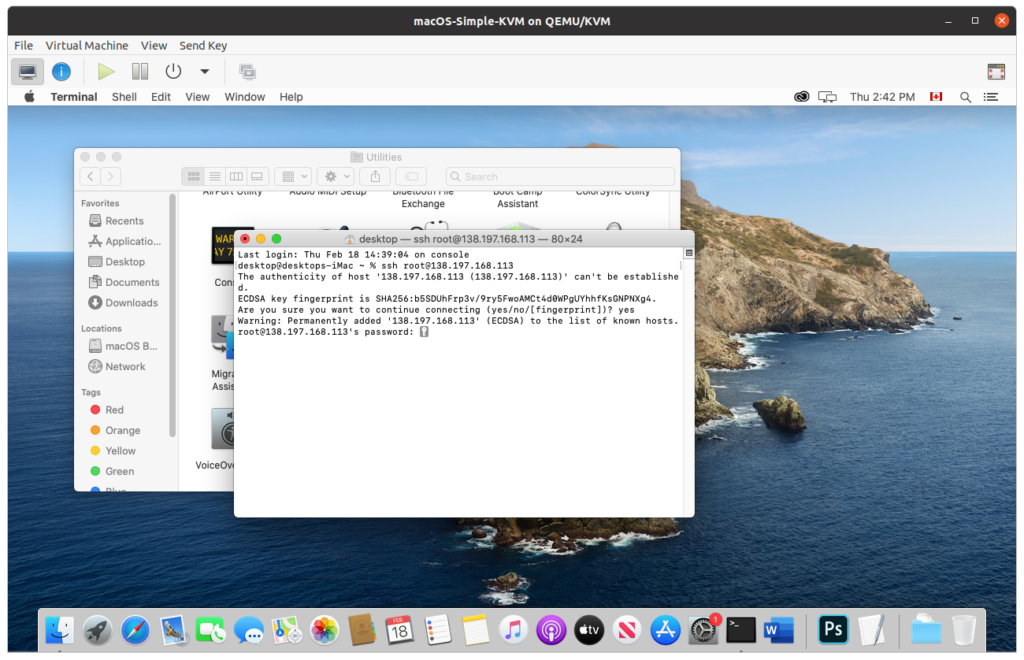
A Terminal window appears:

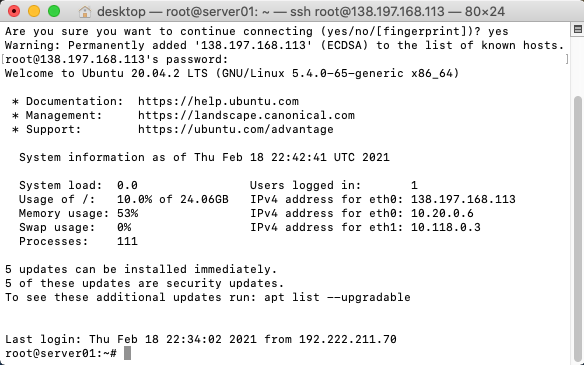
From this window, enter the command: root@ipaddressofyourcloudserver, substituting the IP address of your cloud server. This is what it looks like after you login:

Linux

There are 2 ways to launch the Terminal program under Linux.
Opening a Terminal session by right-clicking on the desktop

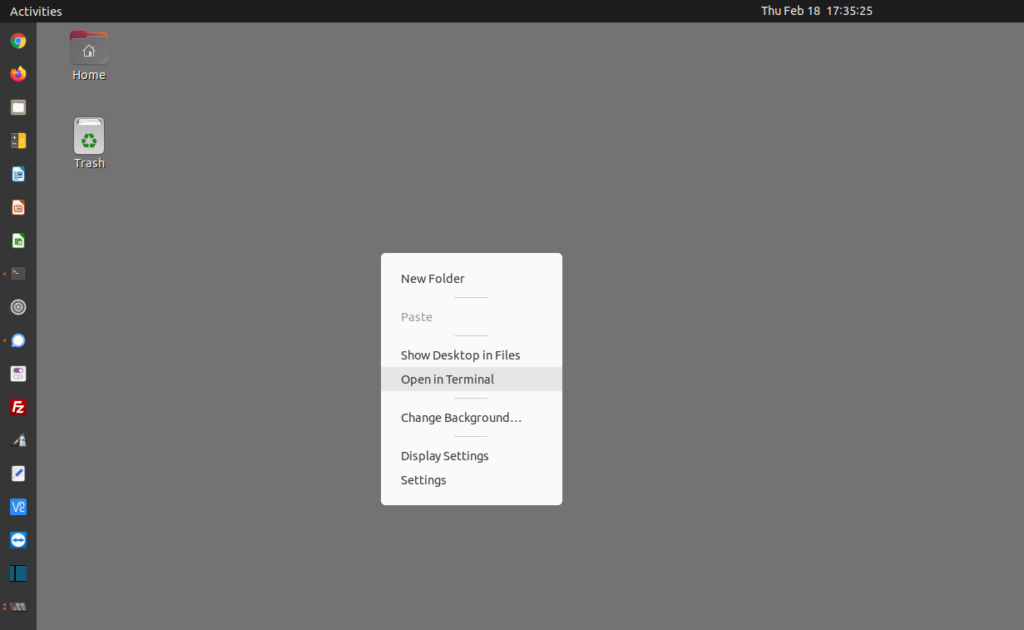
Right-click on the desktop. Select “Open in Terminal”:

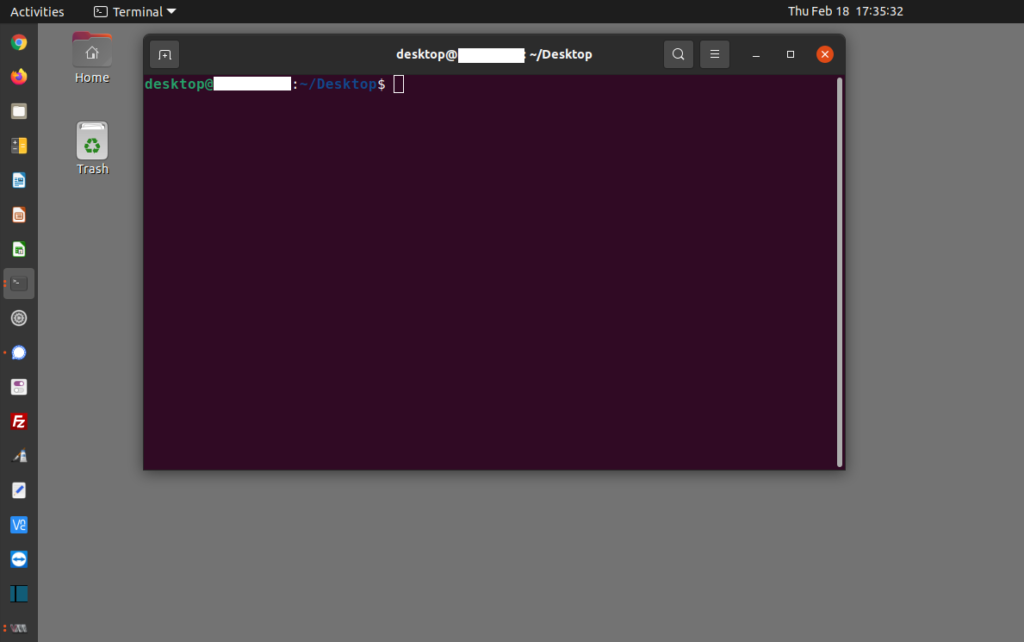
A Terminal window appears:

Opening a Terminal session by clicking “Show Applications”

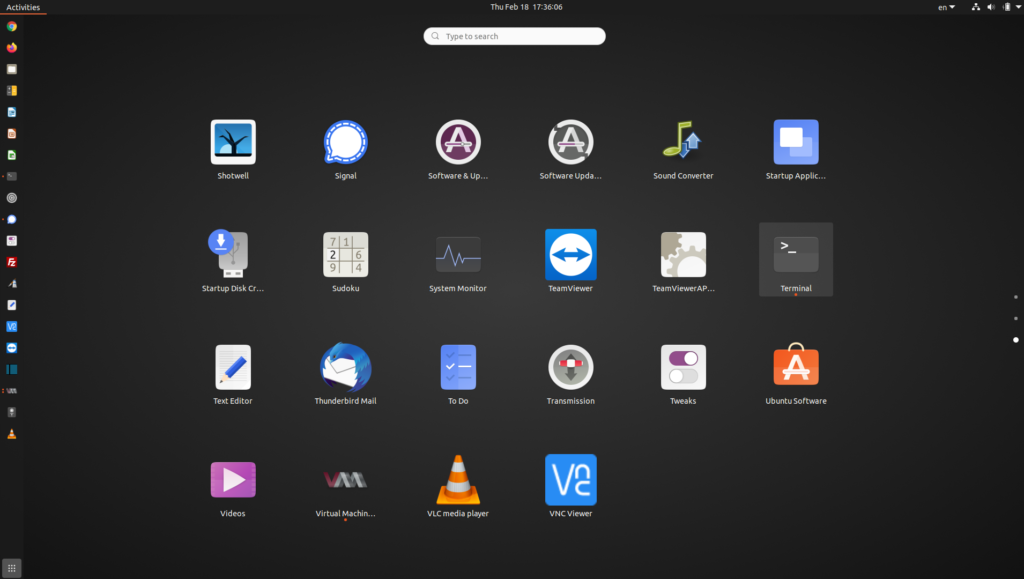
Click on the icon in the lower-left of your desktop to “Show Applications.” Scroll down to find the terminal program,

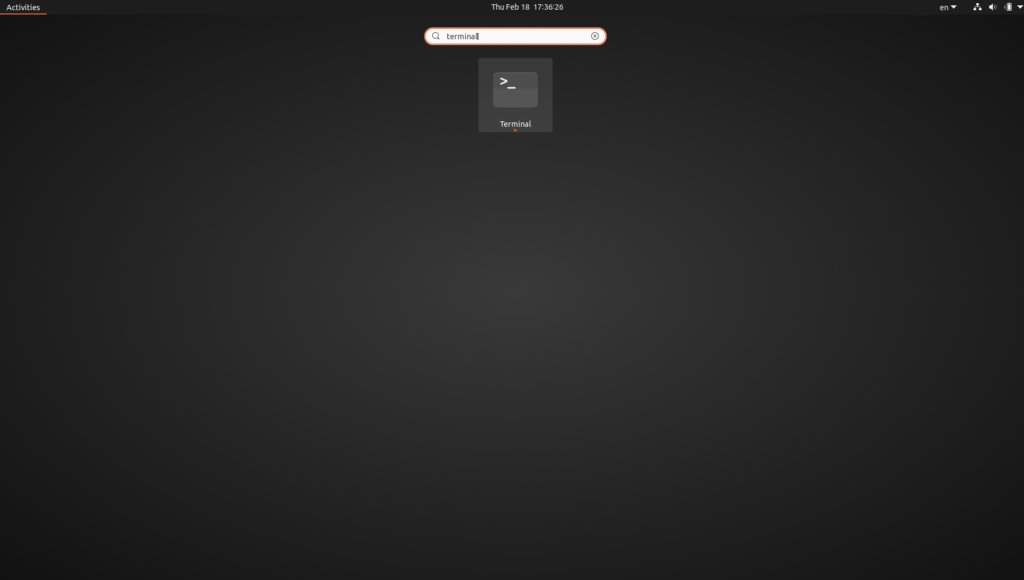
or enter the word “terminal” in the box “Type to search”:

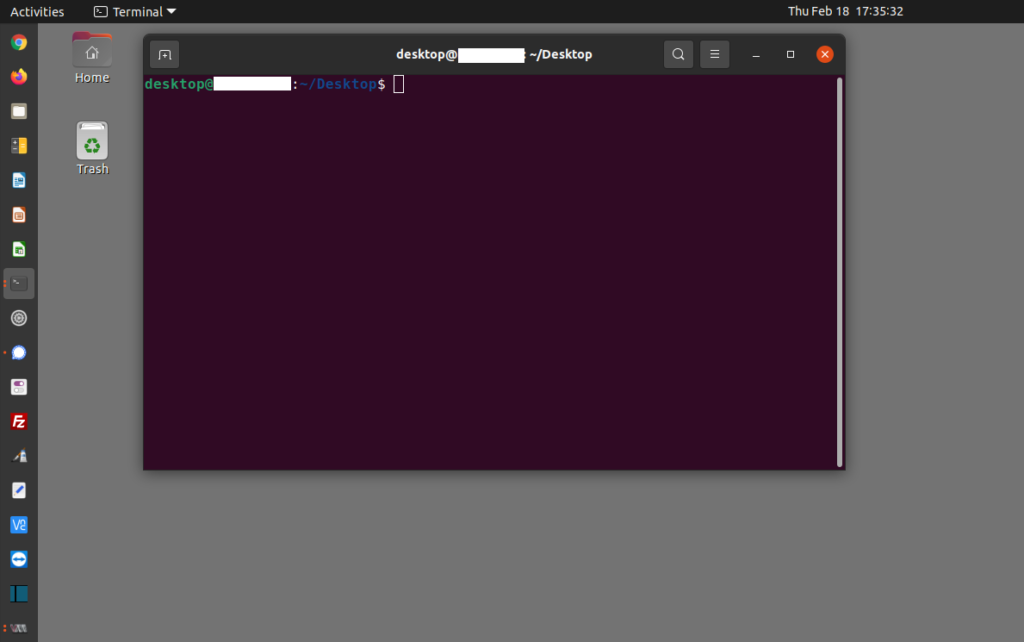
A Terminal window appears:

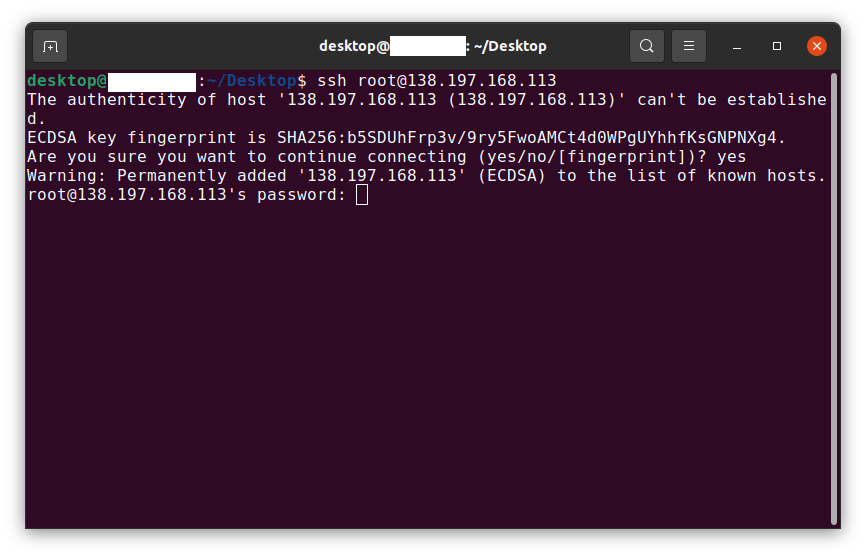
From this window, enter the command: root@ipaddressofyourcloudserver, substituting the IP address of your cloud server:

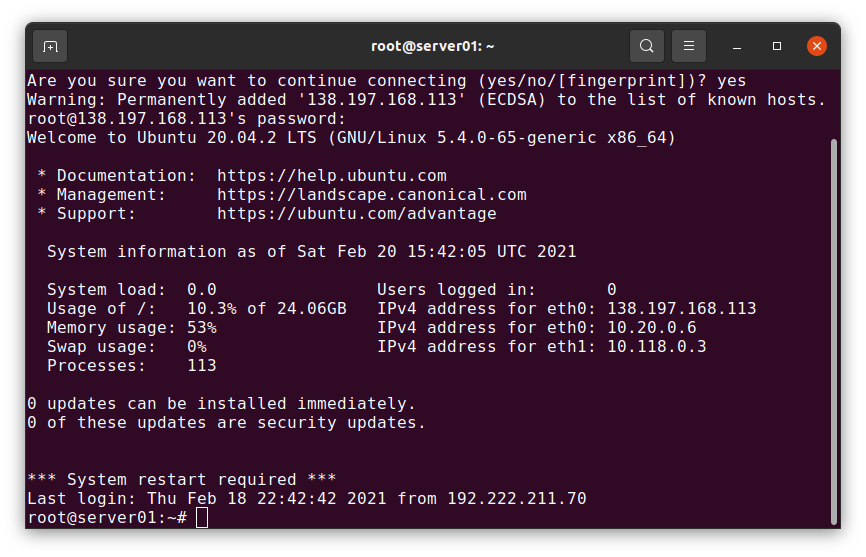
This is what it looks like after you login:

Previous step: Chapter 3: Buying an Ubuntu Linux cloud server from Digital Ocean
Next step: Chapter 5: Configuring an Ubuntu Linux cloud server to create a Linux Apache MySQL PHP (LAMP) web server, Part 1

Web presence step by step Chapter 3: Buying an Ubuntu Linux cloud server from Digital Ocean

Previous step: Chapter 2: Buying branded email from Gmail
Next step: Chapter 4: Using an SSH terminal program to connect to an Ubuntu Linux cloud server

Web presence step by step is a series of posts that will show you how to build a web presence.

In this post, we buy an Ubuntu Linux cloud server from Digital Ocean.

Connecting to the Digital Ocean site

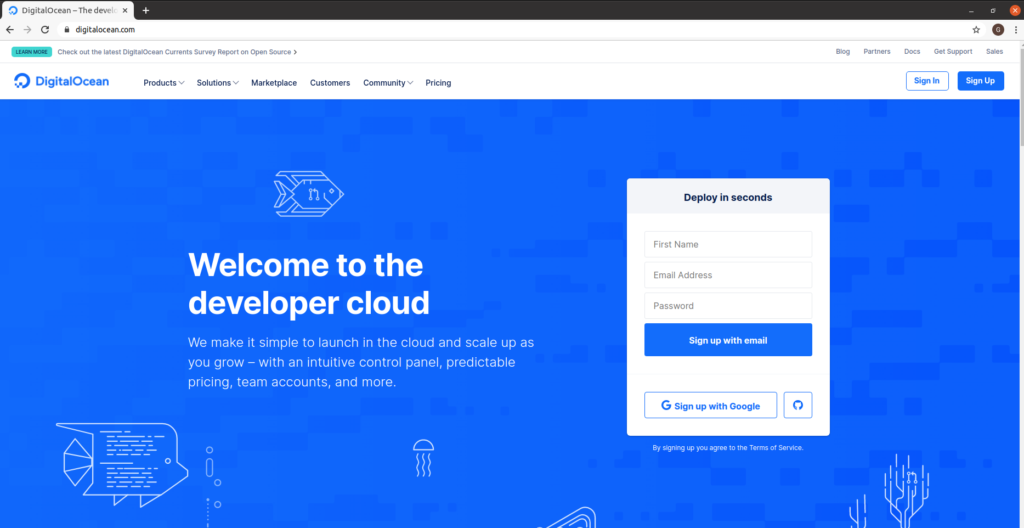
Visit the Digital Ocean site. Create an account, or login to an existing account.

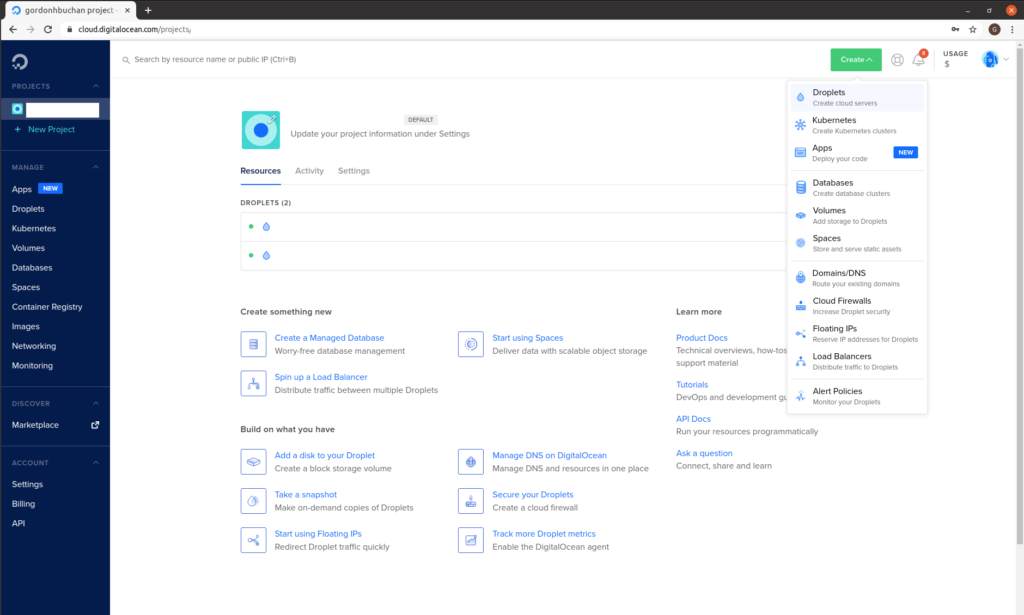
Click on “Create,” click on “Droplets”:


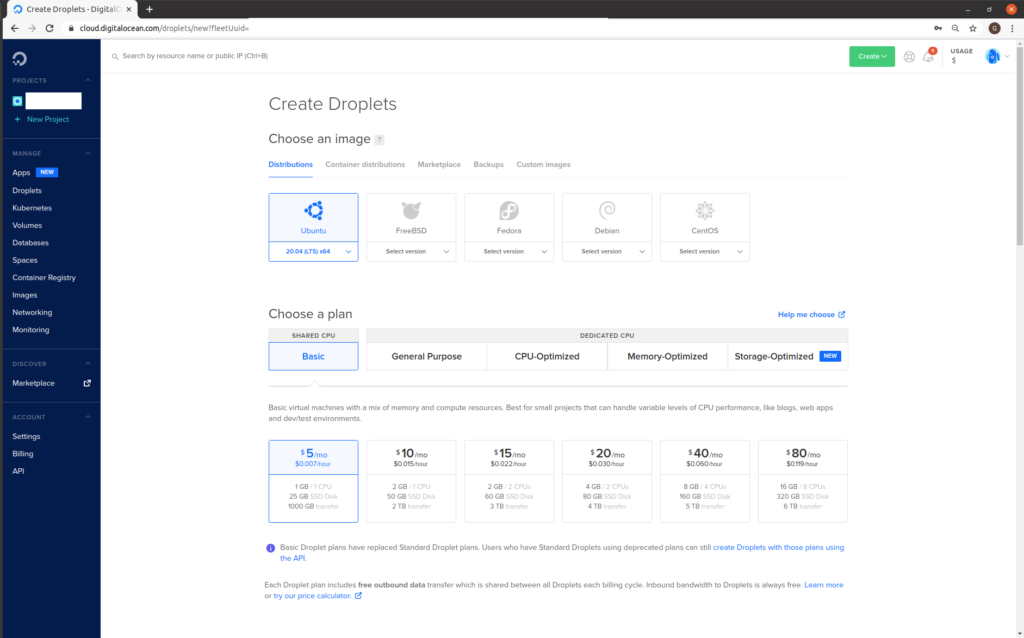
“Choose an image”: Ubuntu 20.04 (LTS) x64
“Choose a plan”: Shared CPU Basic

Click to select the option for “$5/mo”: (NOTE: this has recently changed to “$6/mo”)

Scroll down.

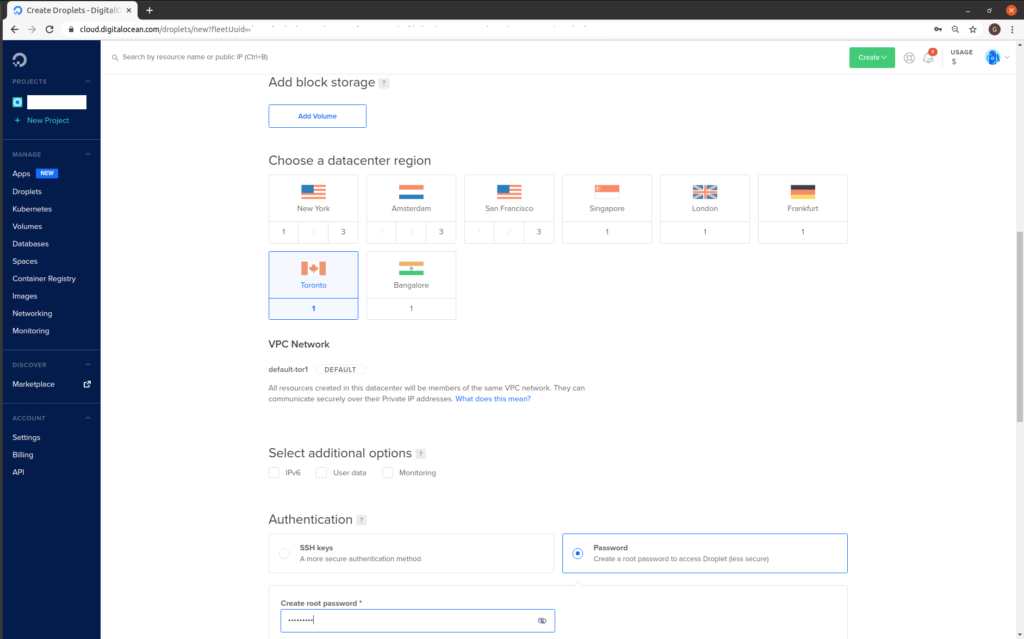
“Choose a datacenter region”: choose a region.
“Authentication”: click to select the option “Password.”
“Create root password”: enter a password.

Scroll down.

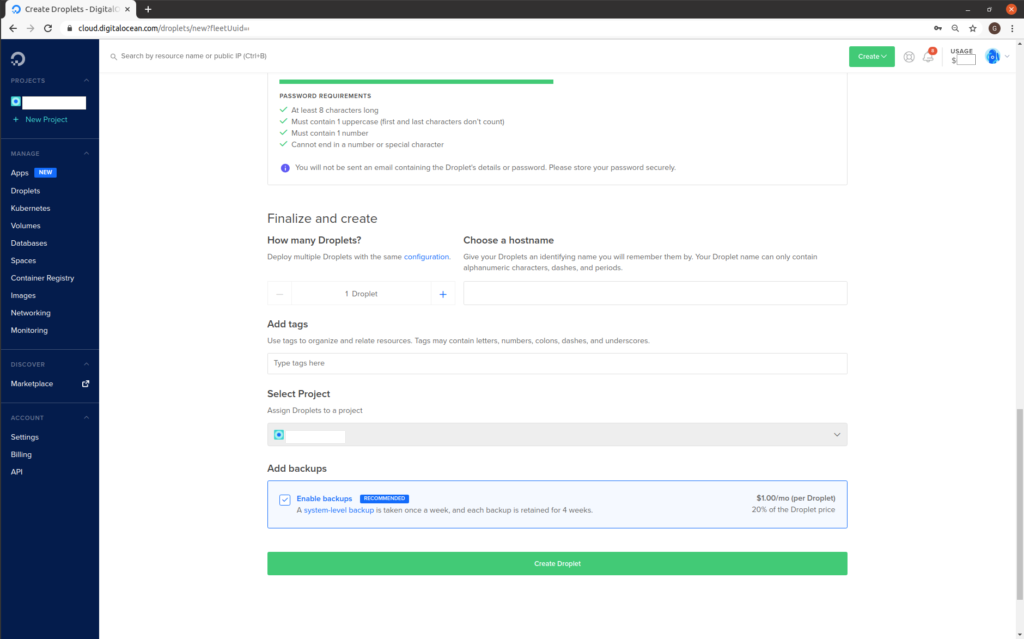
“Choose a hostname”: enter a hostname. This should in the format servername.yourdomain.com
“Add backups”: Click to select the option “Enable backups.”

Click Create Droplet:

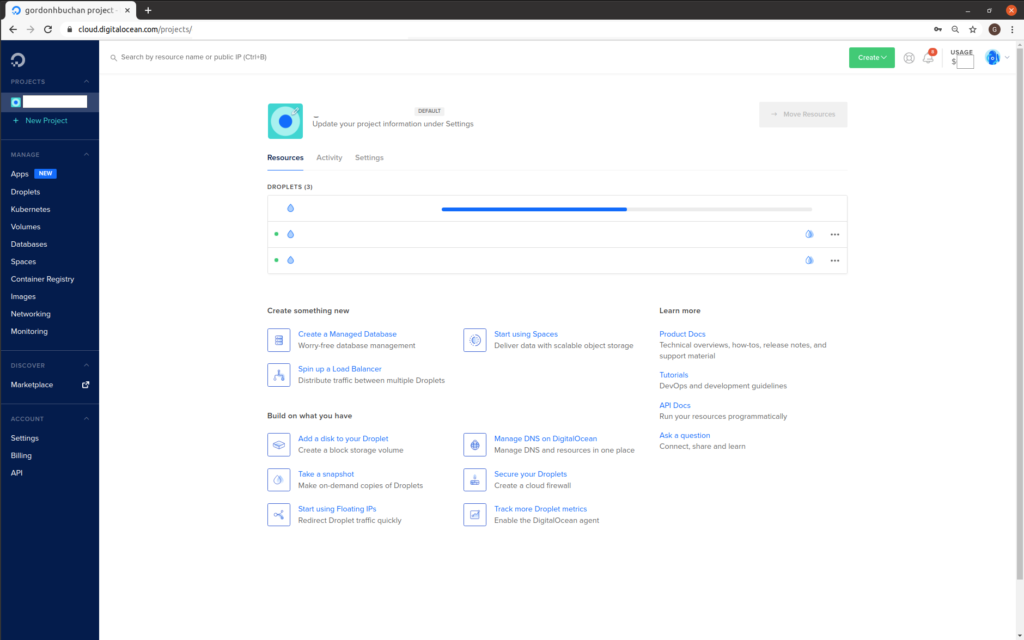
For a few seconds, you can watch a progress bar as the cloud server is being created:

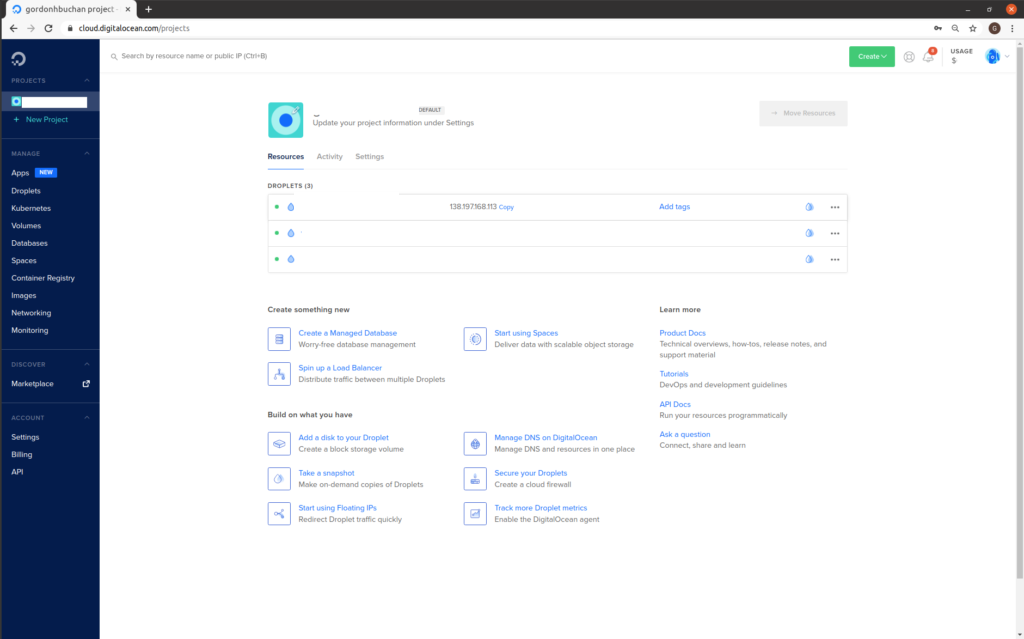
Take note of your new cloud server’s IP address.

Tip: If you move your mouse pointer over the IP address, you will see the word “copy.” You can click on the IP address to copy the IP address for the cloud server to the clipboard.

Previous step: Chapter 2: Buying branded email from Gmail
Next step: Chapter 4: Using an SSH terminal program to connect to an Ubuntu Linux cloud server

Web presence step by step Chapter 2: Buying branded email from Gmail

Previous step: Chapter 1: Buying a domain name from GoDaddy
Next step: Chapter 3: Buying an Ubuntu Linux cloud server from Digital Ocean

Web presence step by step is a series of posts that show you to how to build a web presence.

In this post, we set up branded email for the domain we registered in Chapter 1: Buying a domain name from GoDaddy, using Google Workspace, formerly Gmail for Business.

Google actually starts you with Workspace Business Standard for C$15/mo (US$12/mo). At the end of this procedure, we will downgrade to Workspace Business Starter for C$7/mo (US$6/mo).

(In later chapters, we will build out our website capabilities with other vendors.)

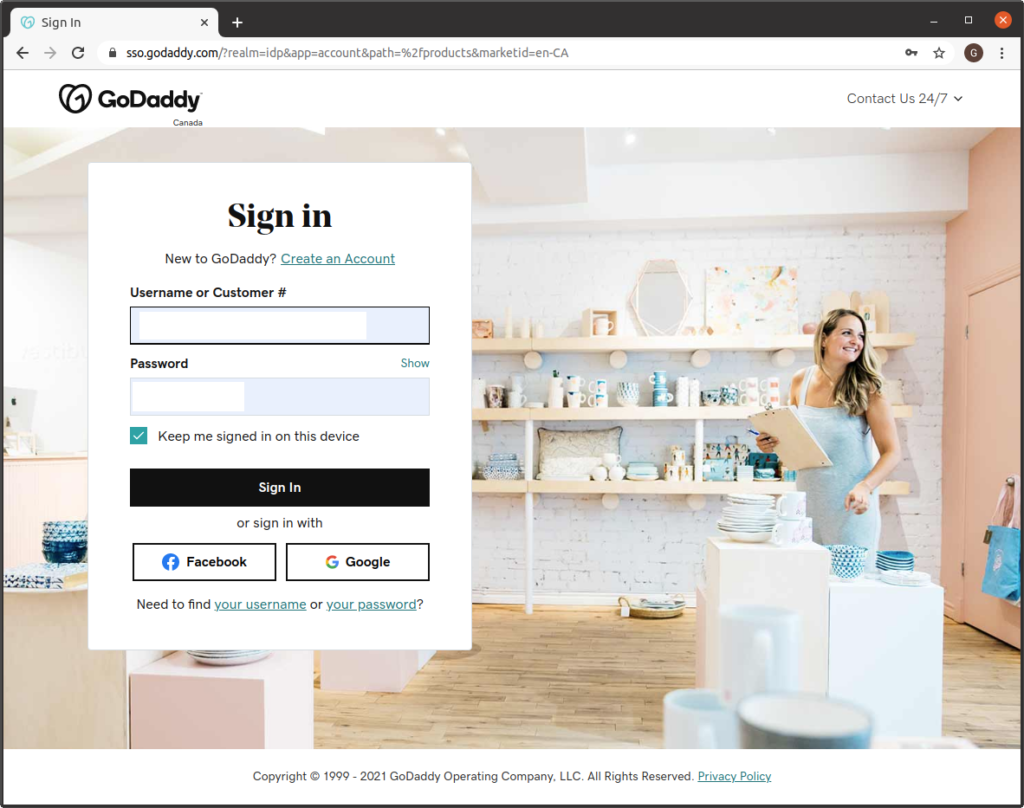
Start by logging into the GoDaddy account you used to register a domain in Chapter 1: Buying a domain name from GoDaddy. This will help the Google Workspace control panel to communicate with GoDaddy later in this procedure.

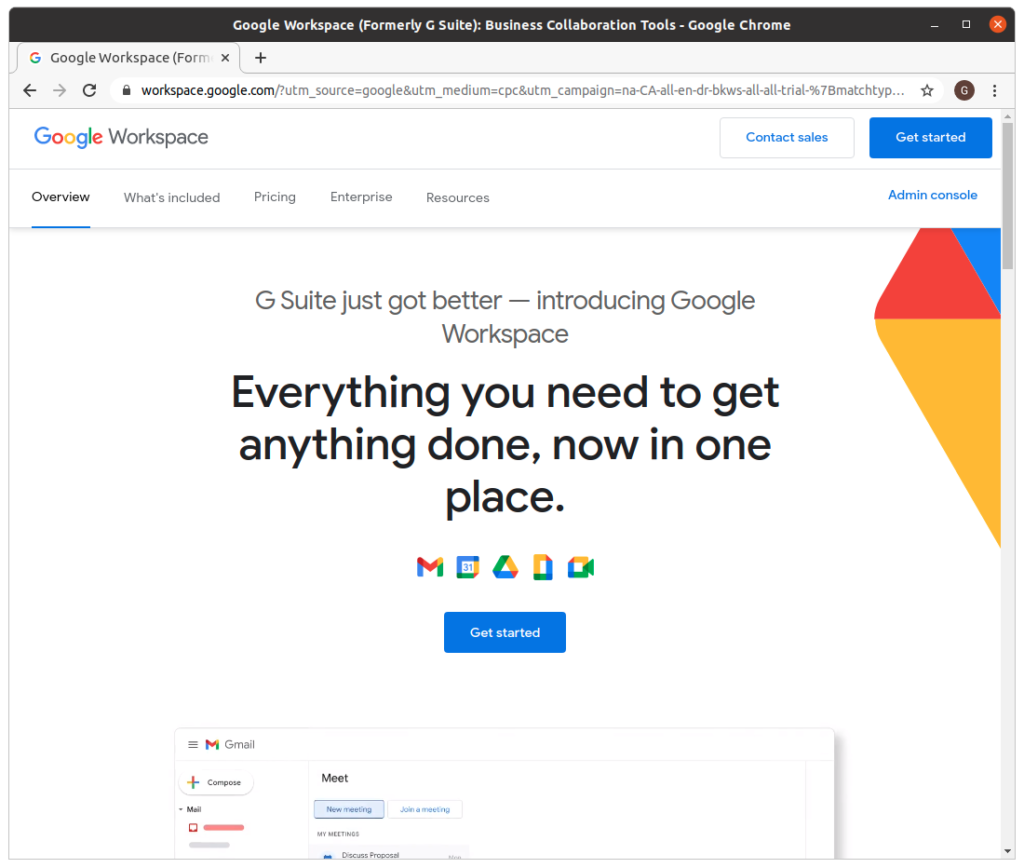
Visit the Google Workspace site. Click Get Started:

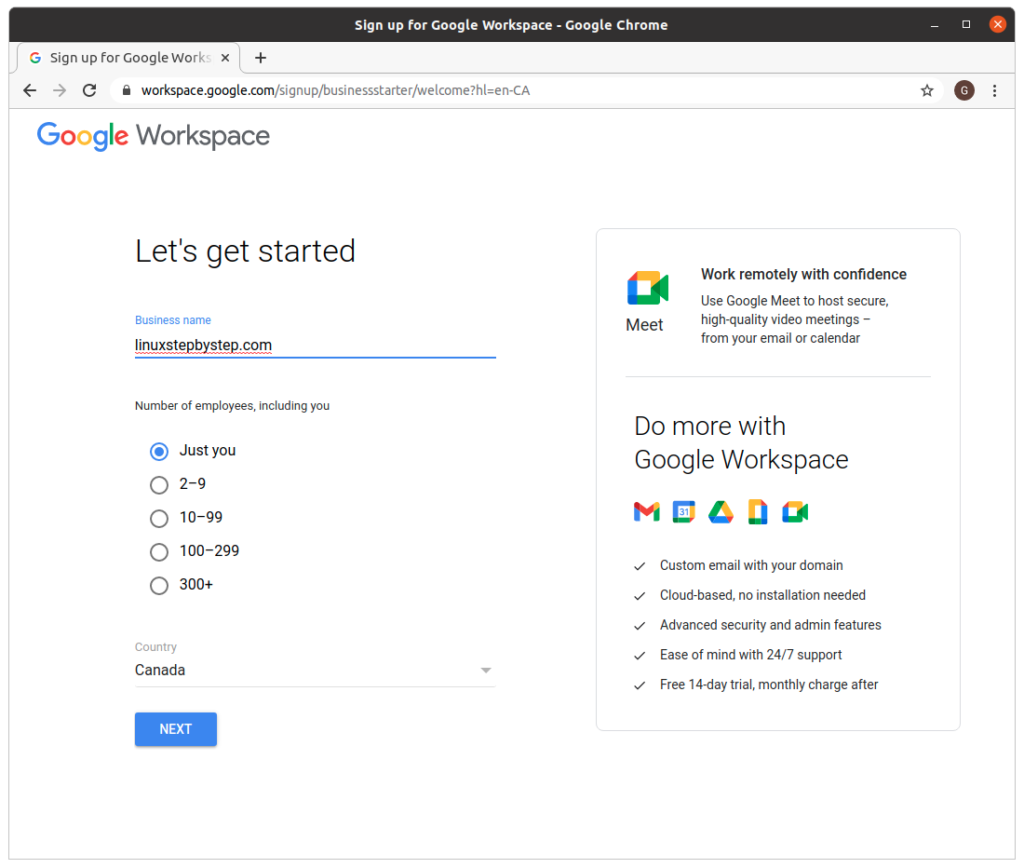
Under Business name, enter the name of your business. if you are not sure, enter the name of your domain as the business name. Under “Number of employees, including you,” choose “Just you” for now. You will be able to add other accounts later. Click “Next”:

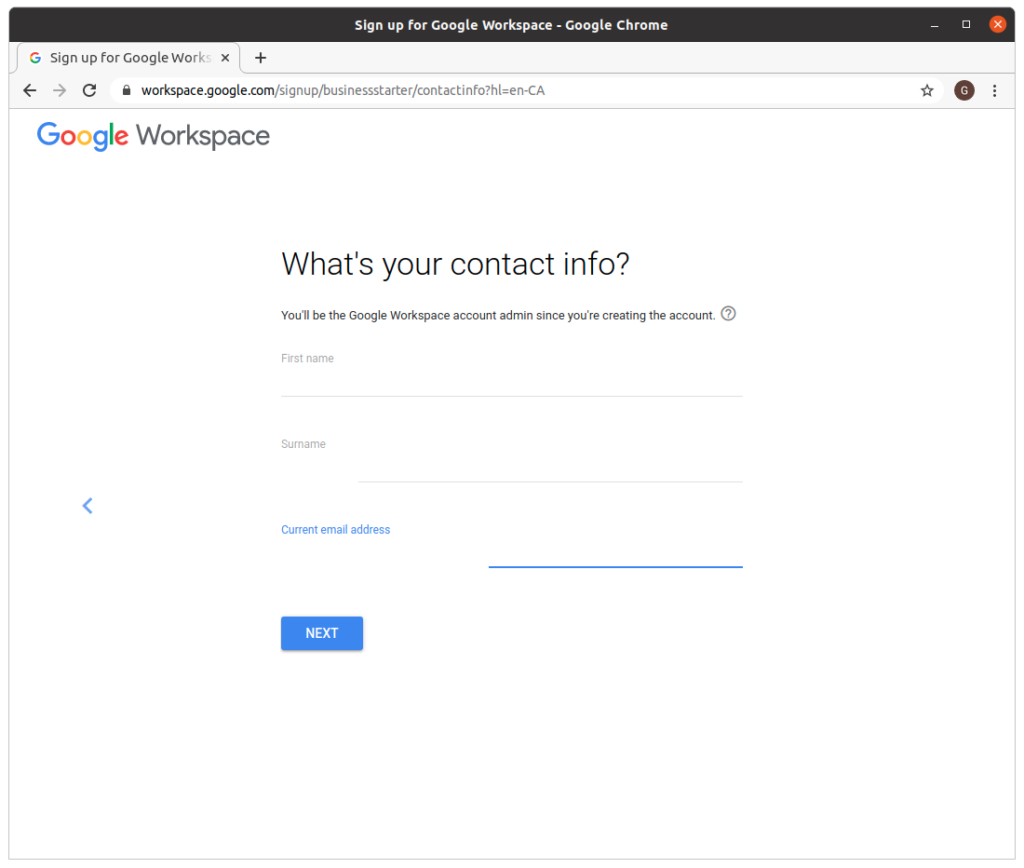
Enter “First name”,”Surname”,”Current email address.” Click “Next”:

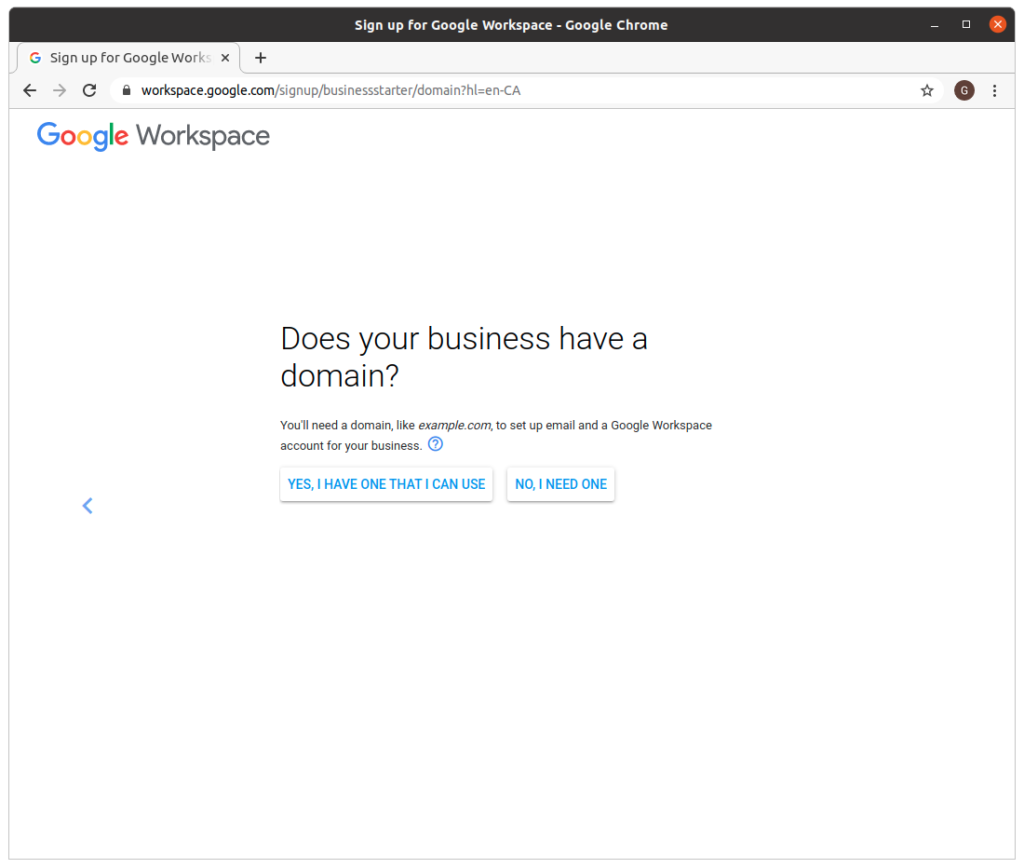
Click on “Yes, I have one that I can use”:

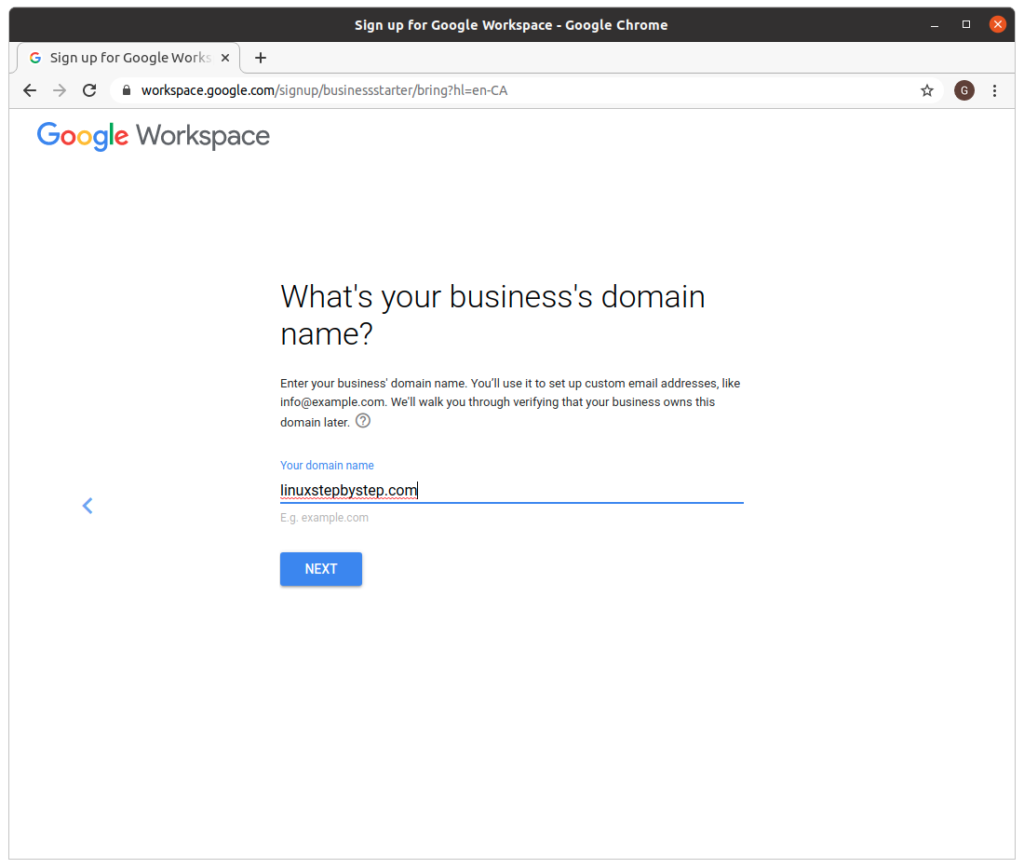
Enter “Your domain name”
Click Next:

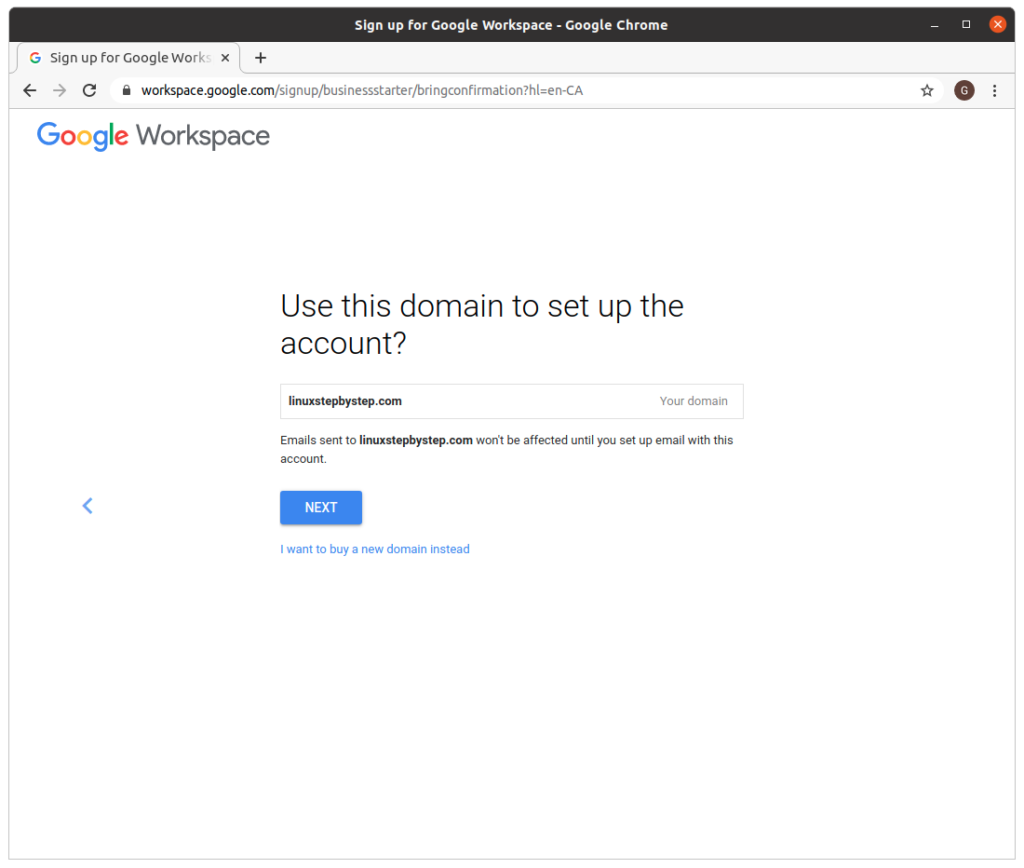
Click “Next”:

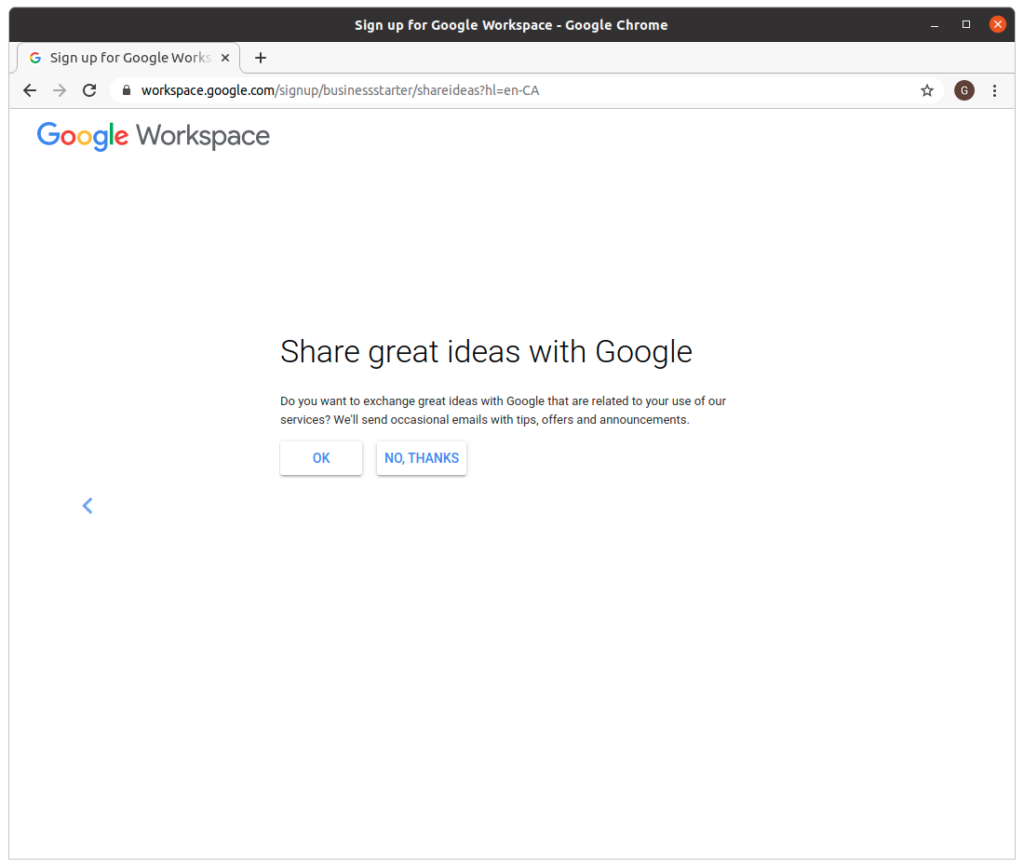
Click “No, thanks”:

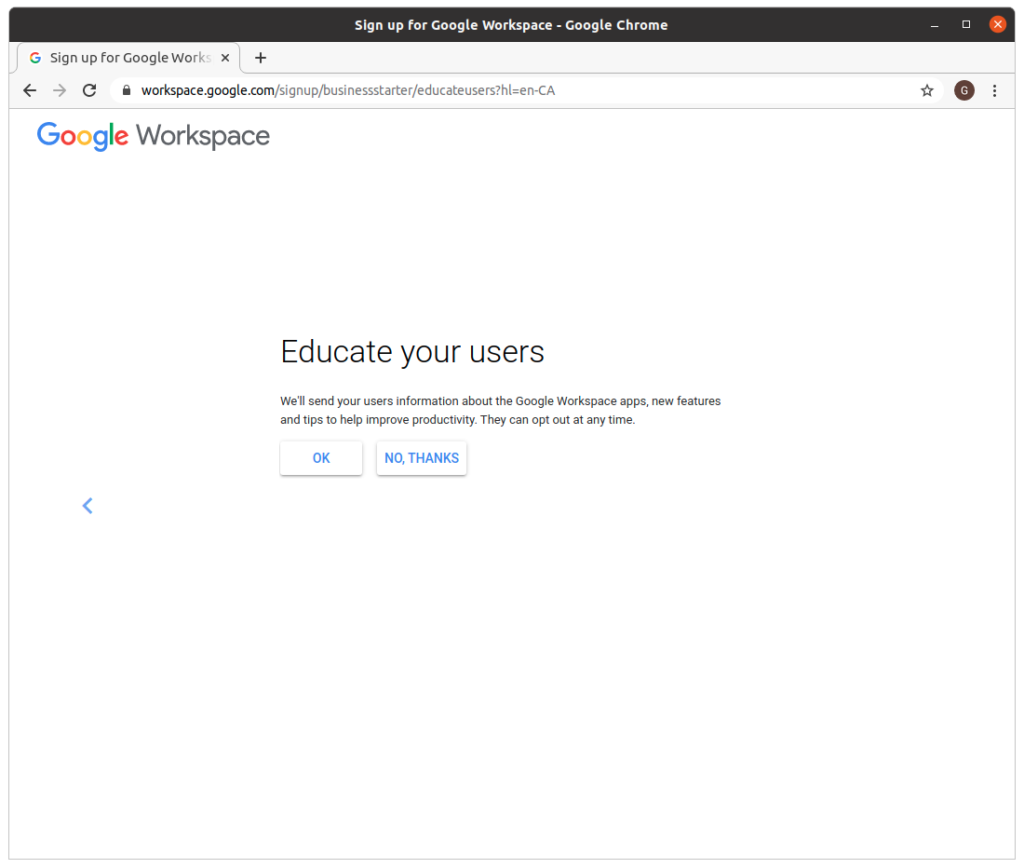
Click “No, thanks”:

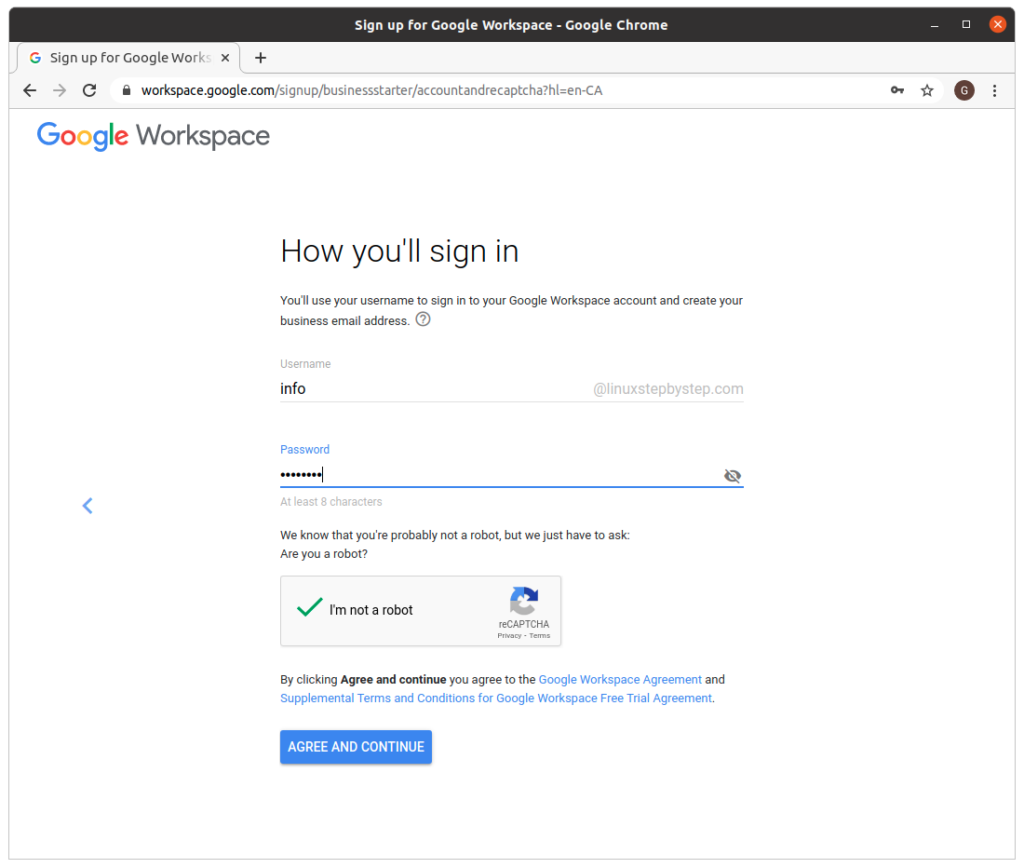
enter values for “Username” and “Password.” If you are not sure, use “info” as the “Username.” Click “Agree and continue”:

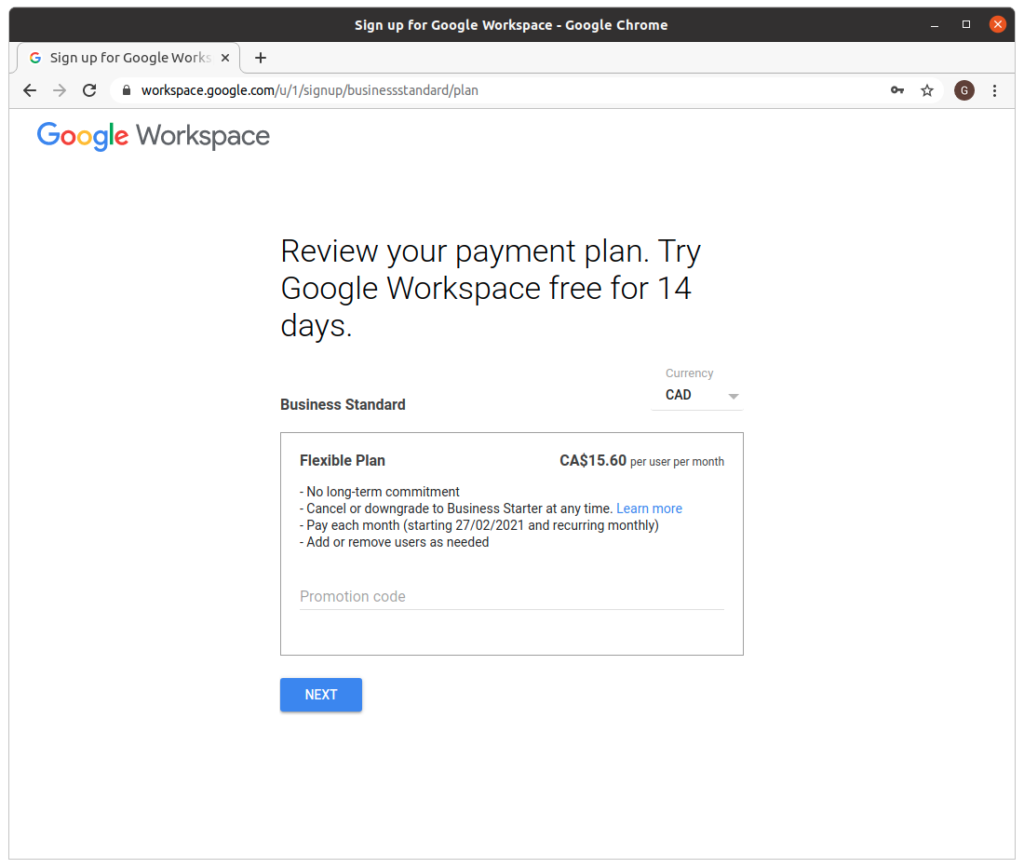
Click “Next”:

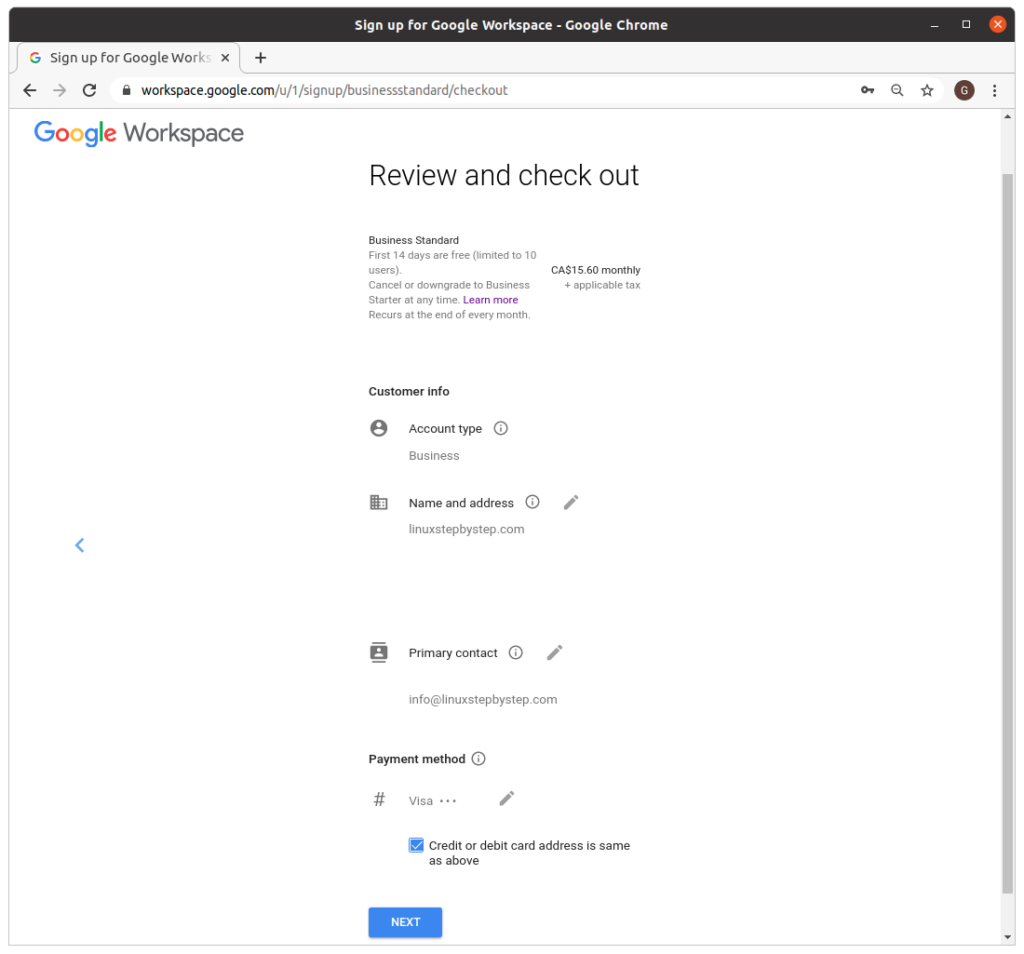
Enter information for “Name and address,” “Payment method.” Click “Next”:

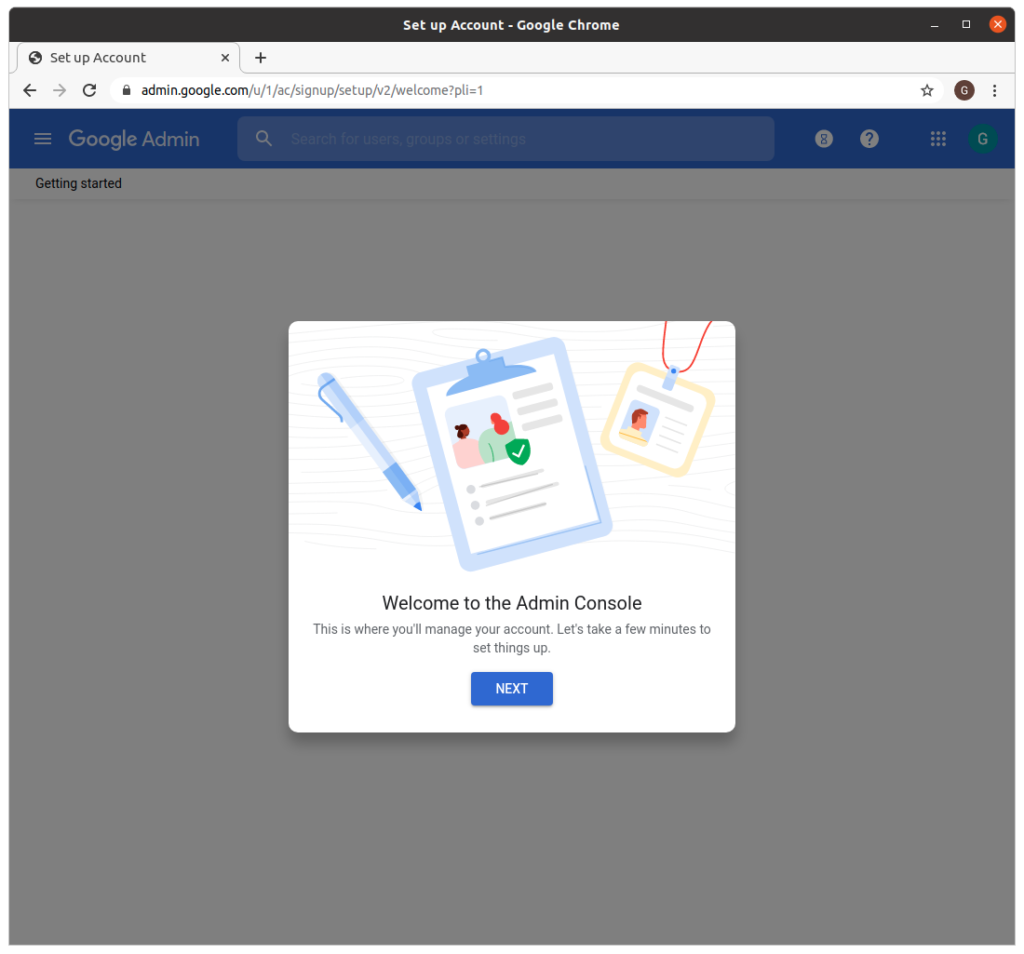
Click “Continue to setup”:

Click “Next”:

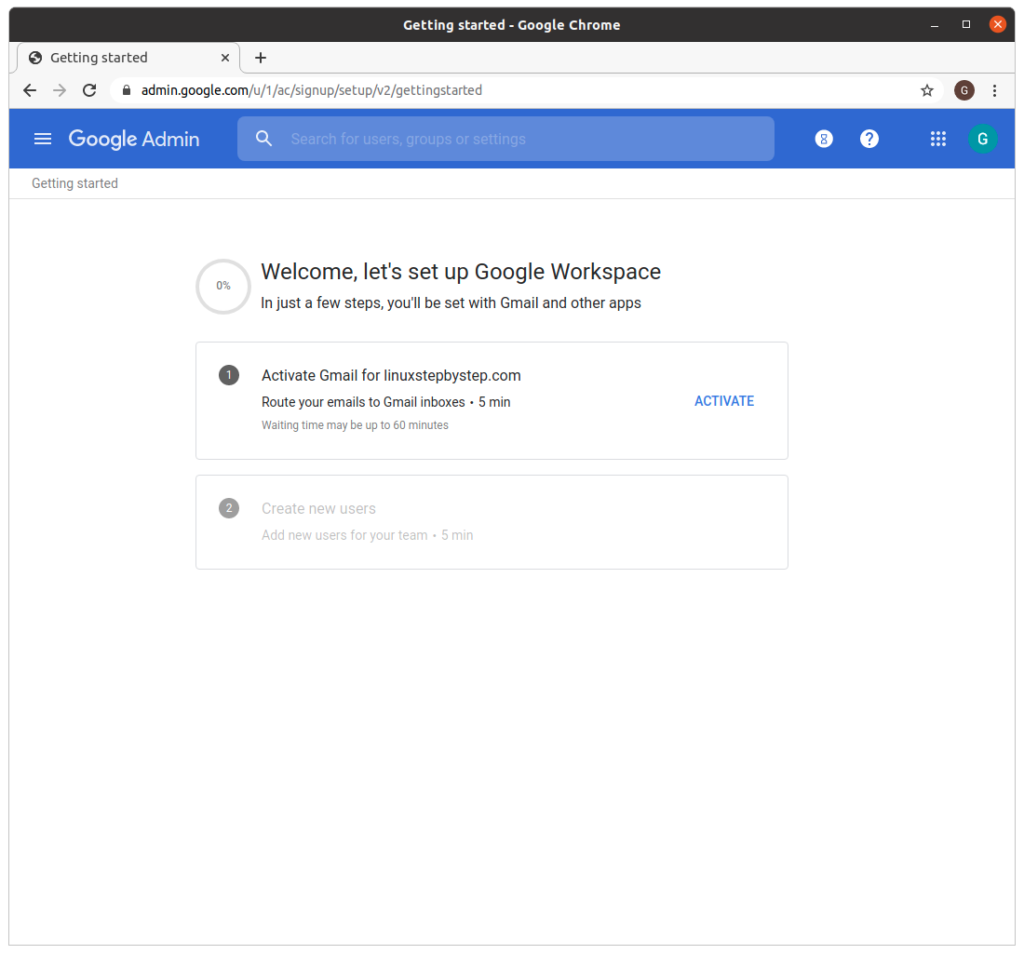
Click “Activate”:

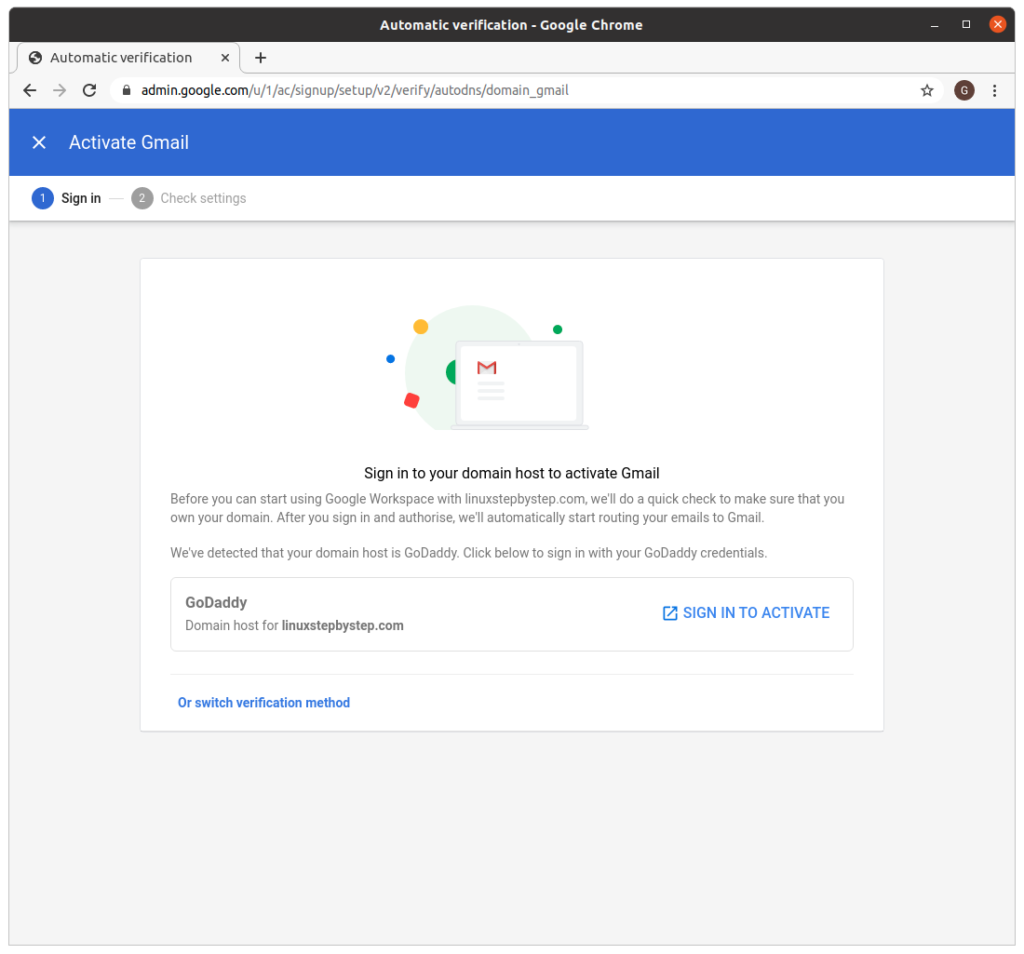
Click “Sign in to activate”:

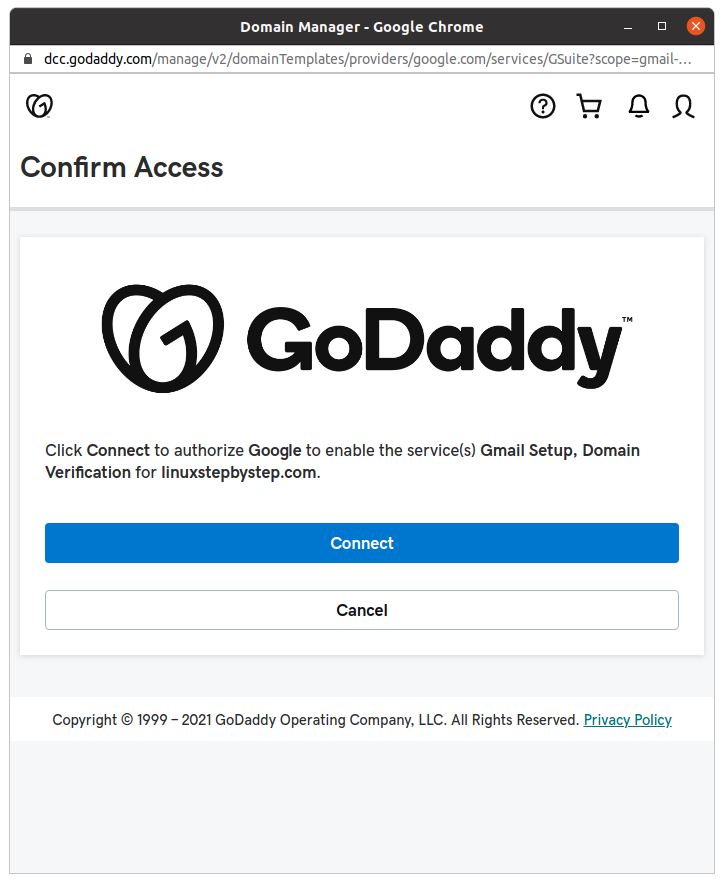
Click “Connect”:

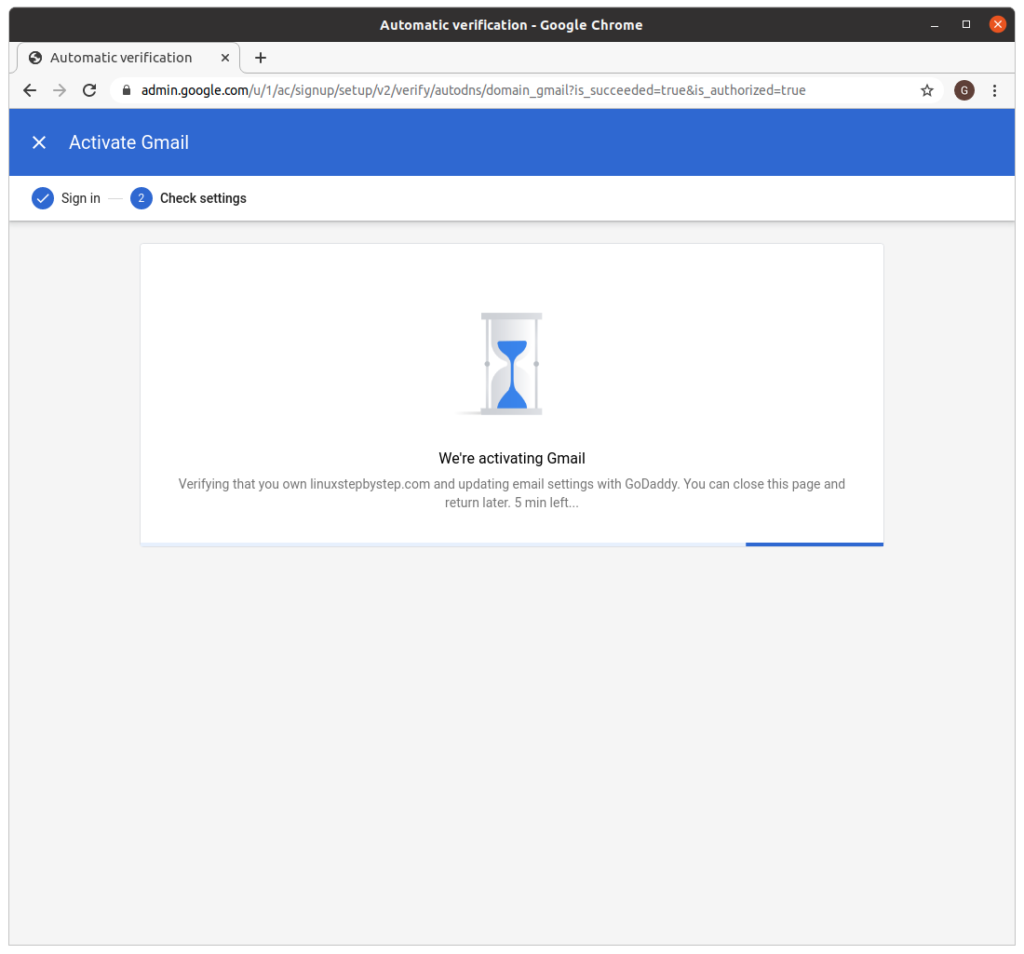
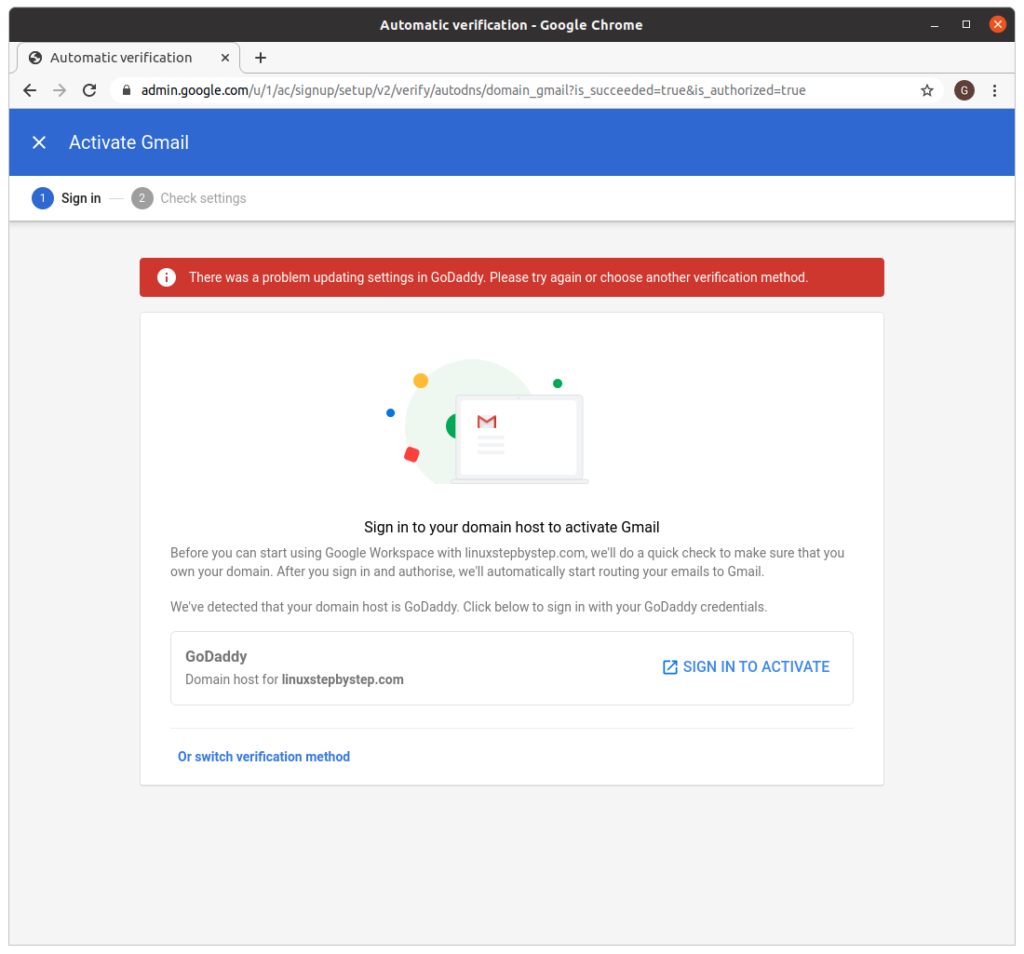
Google Workspace will attempt to connect to GoDaddy to setup email for the domain using the GoDaddy DNS servers:

Sometimes, the connection between Google Workspace and GoDaddy times out. If this happens, try again by clicking on “Sign in to activate”:

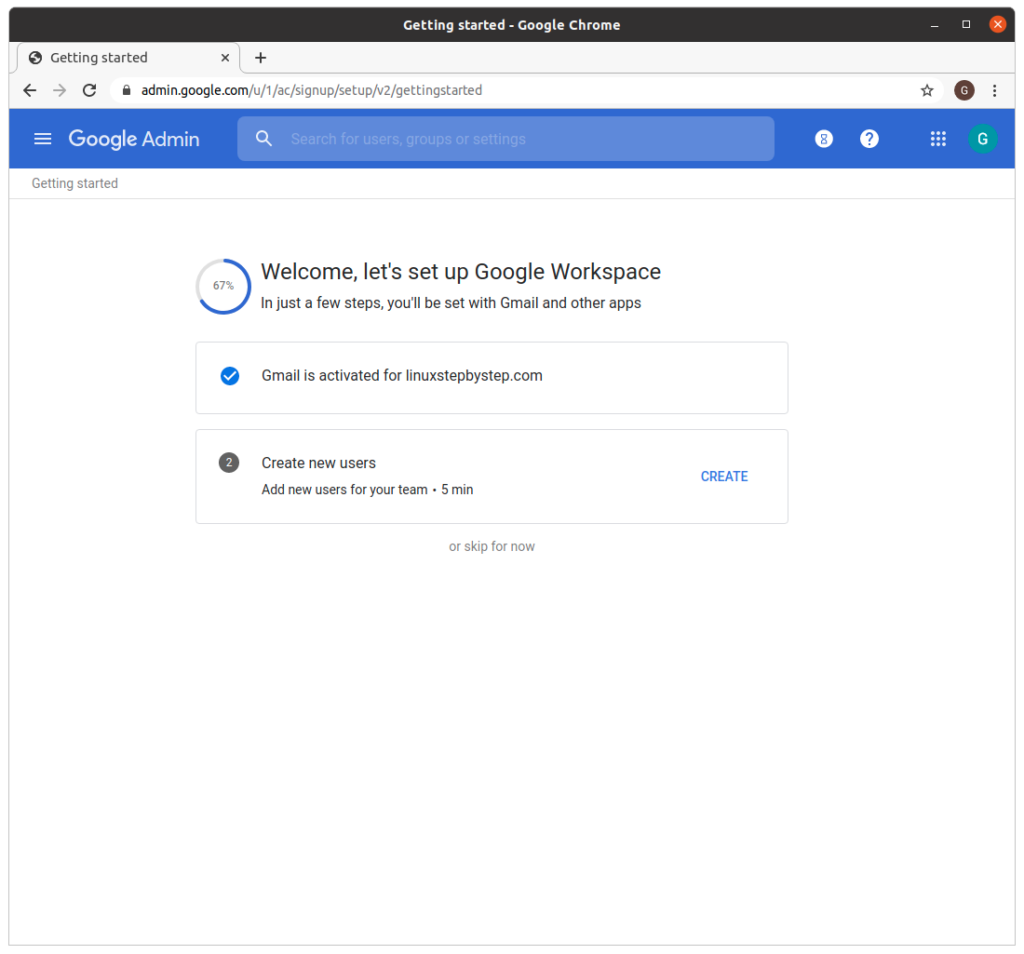
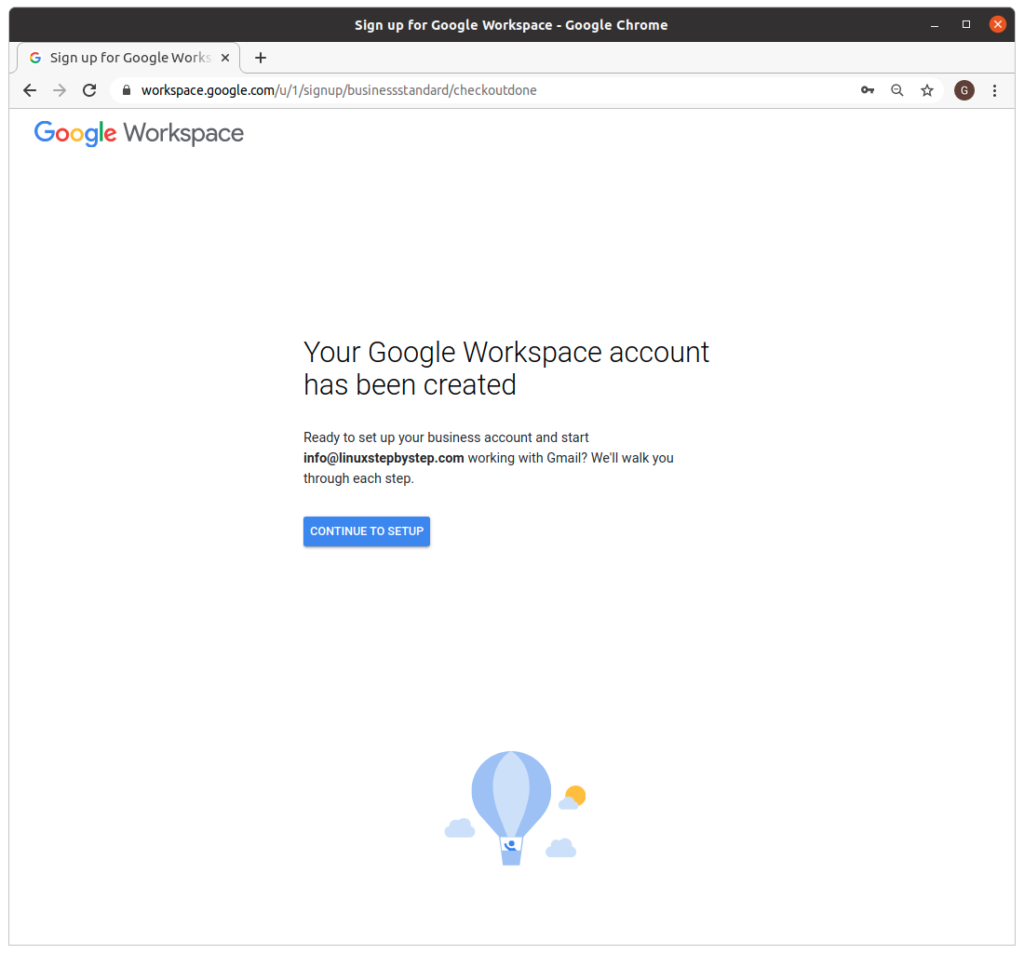
Google Workspace shows this screen if the domain if Gmail is activated for the domain. Since we do not want to create new any more new users, click “or skip for now”:

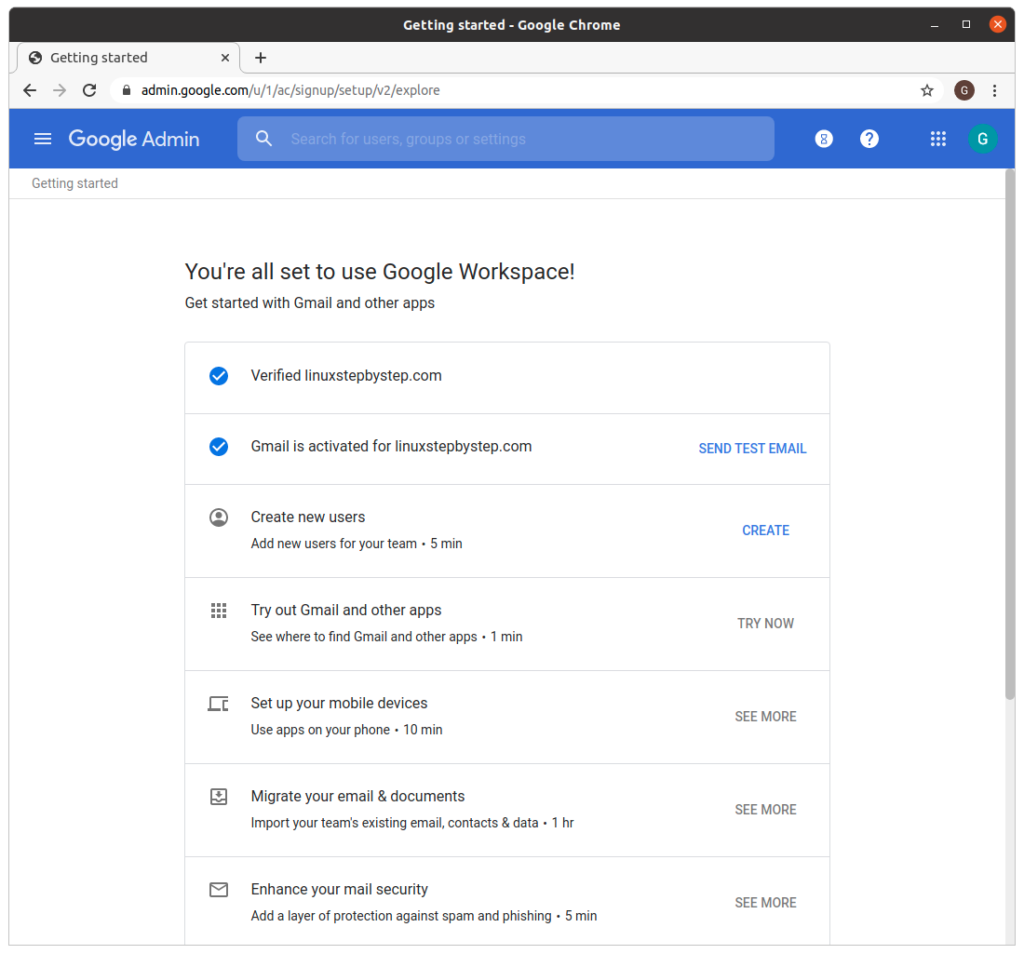
The following screen is shown.

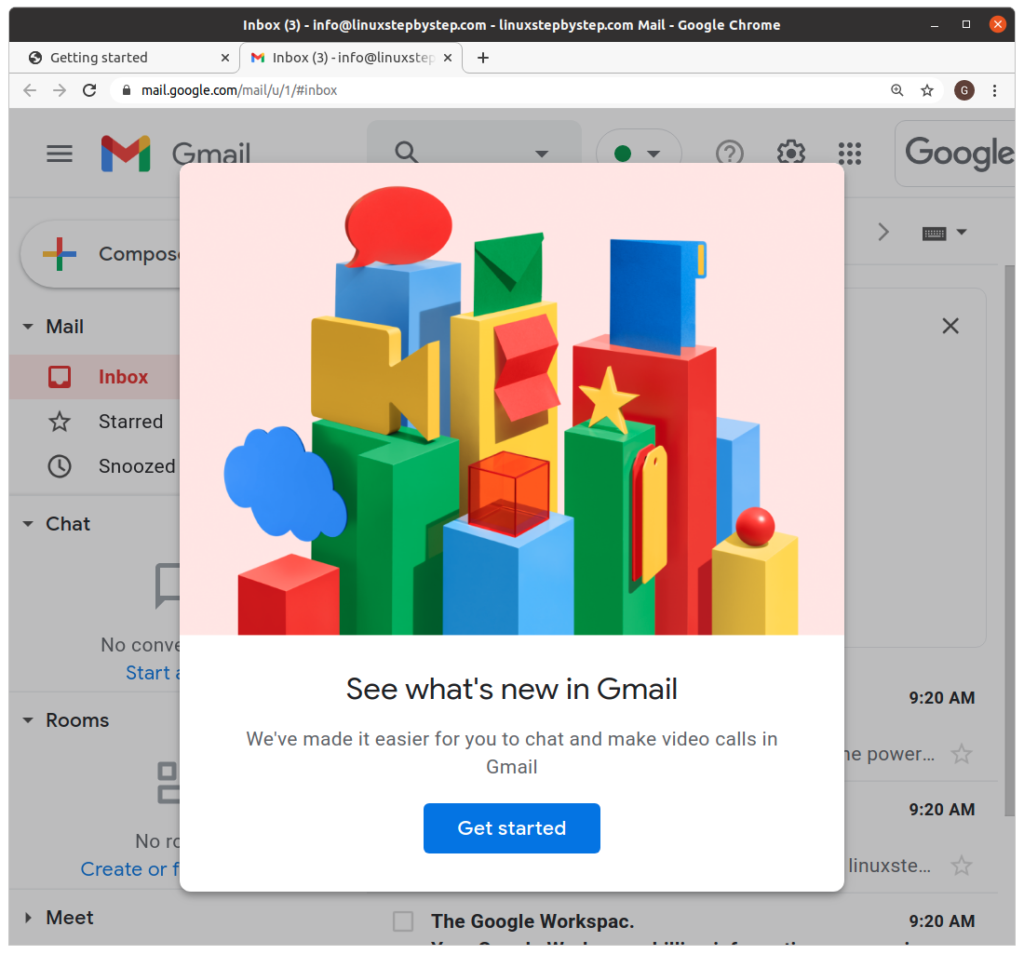
visit Gmail and login to the email account you created, for example info@domain.com:

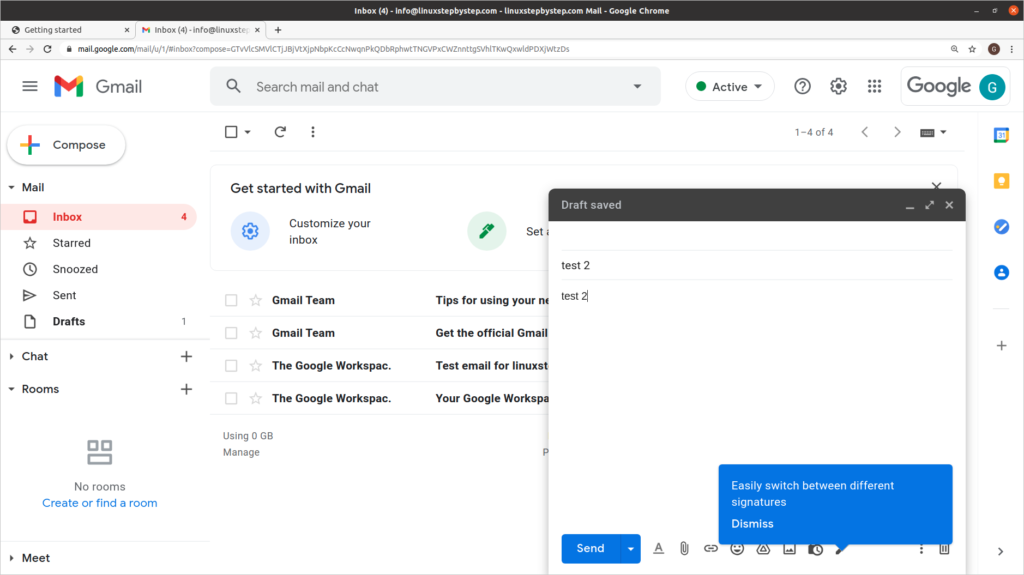
Send a test email message to an email account you control:

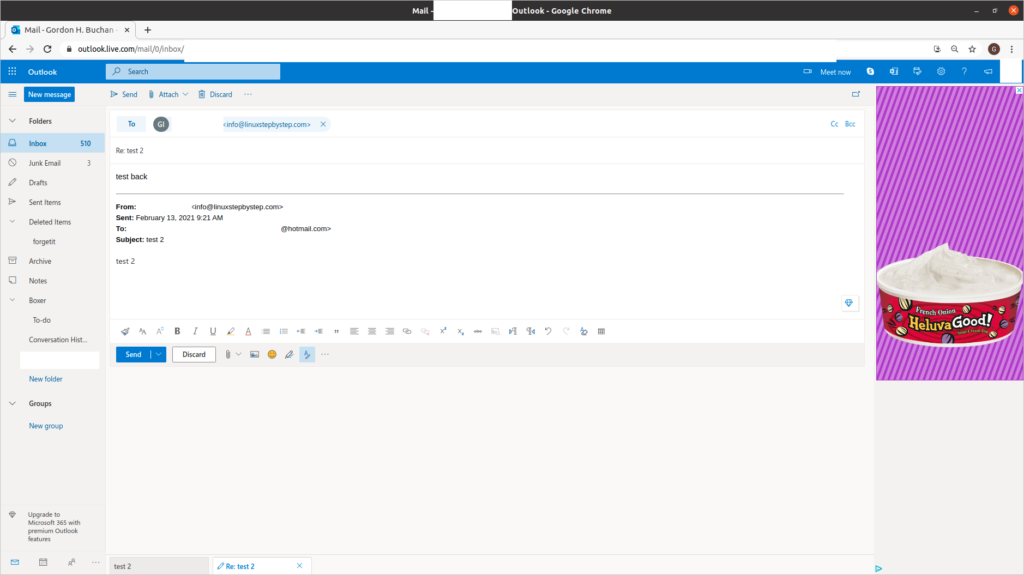
Verify that you have received the test message in the email account you control. Reply to the test message:

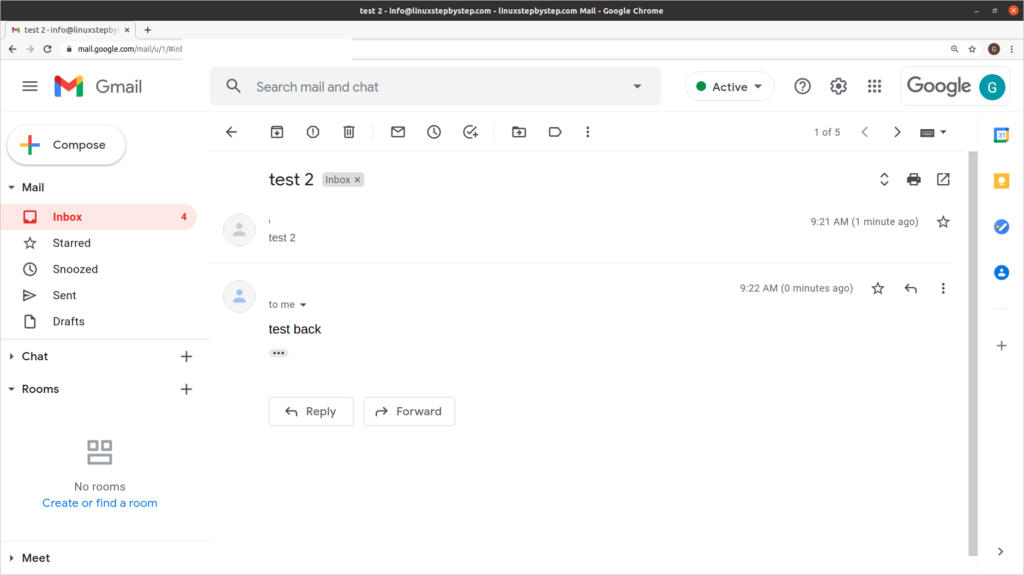
From Gmail, verify that you have received the reply to the test message:

Visit the GoDaddy site so we can examine the MX and TXT records in the DNS zone file for your domain:

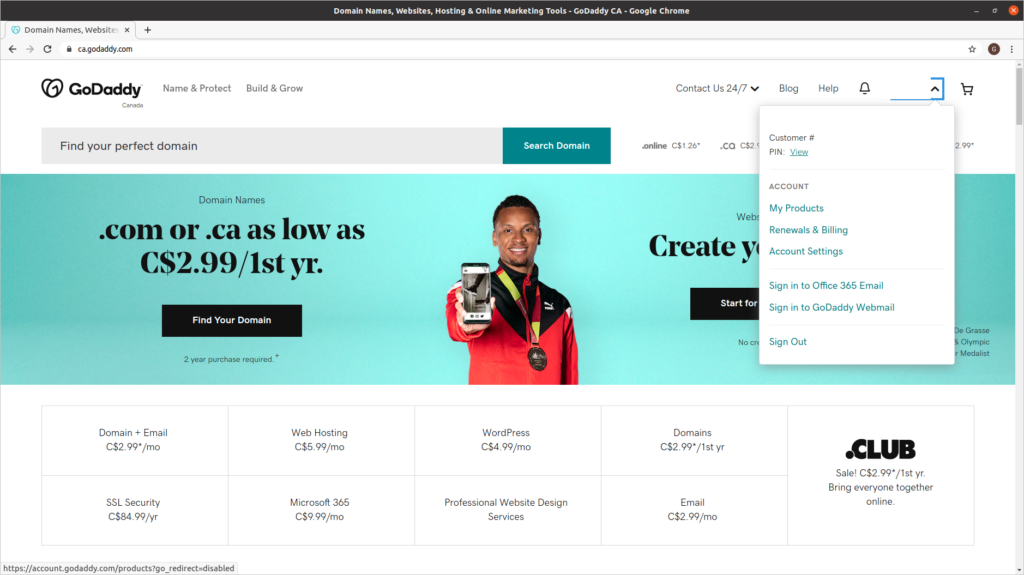
Click on the icon for your account in the upper-right corner of the site. Click on “My Products”:

Click on the “DNS” tab:

On the DNS tab’s pull-down menu, click on “Manage Zones” Search for your domain name:

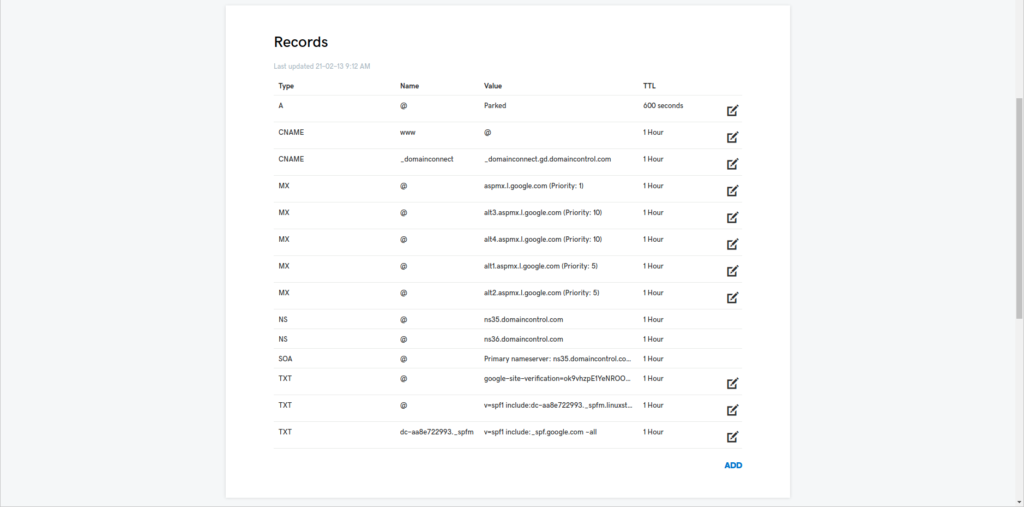
This screen shows the DNS zone file information for the domain. MX is short for Mail eXchanger. TXT is short for text comment, but TXT records are used for security tokens and email subsystems like SPF and DKIM.

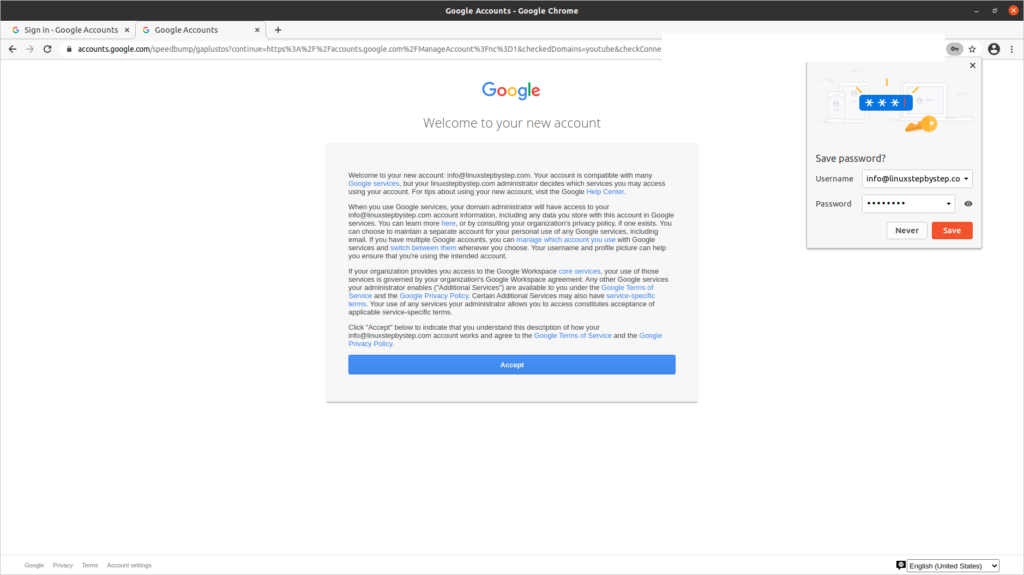
Visit the Google Workspace admin site. Click Accept:

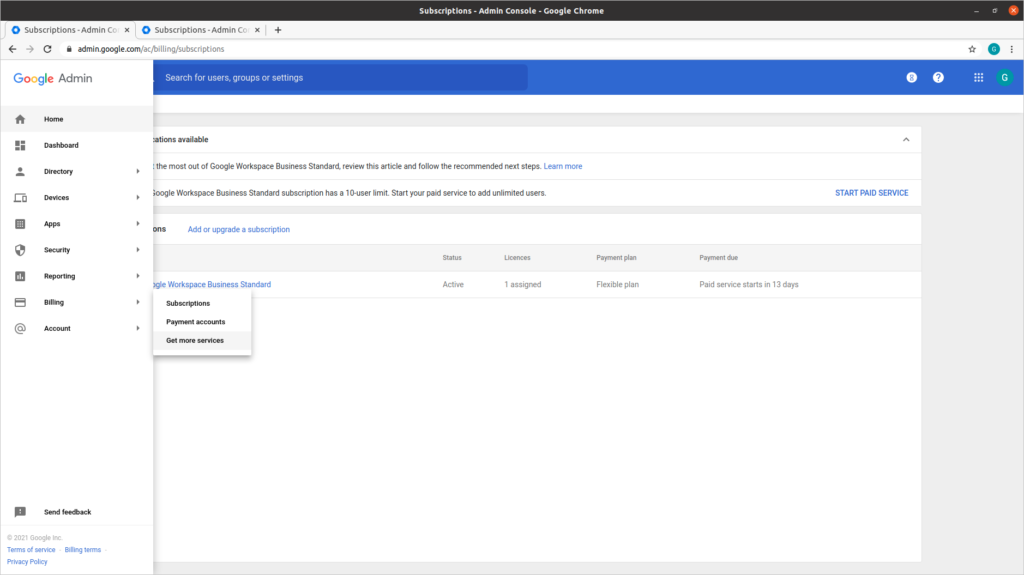
On the left-side menu, hover over “Billing,” then click on the sub-option “Get more services”:

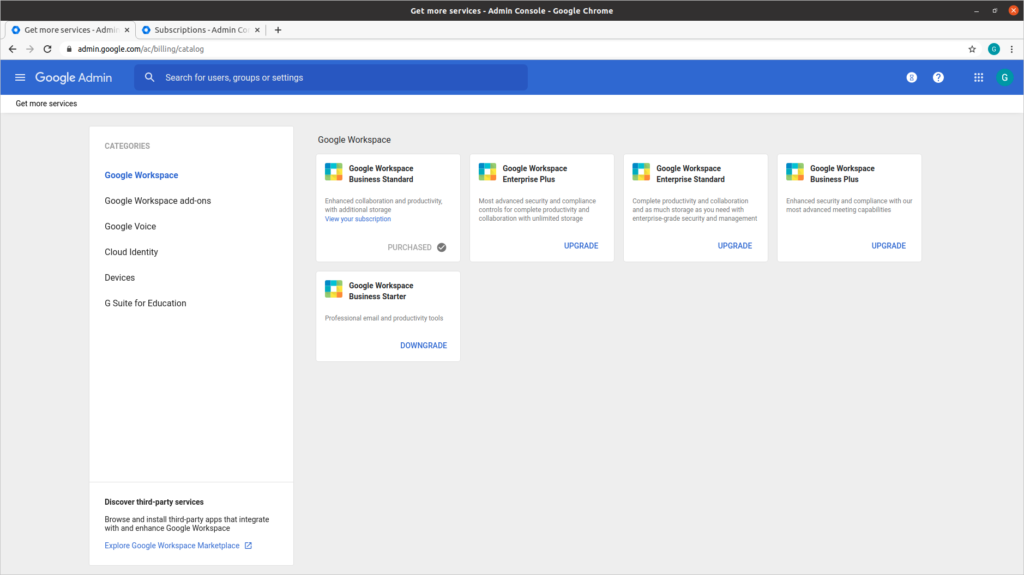
In the rectangle labeled “Google Workspace Business Starter,” click “Downgrade”:

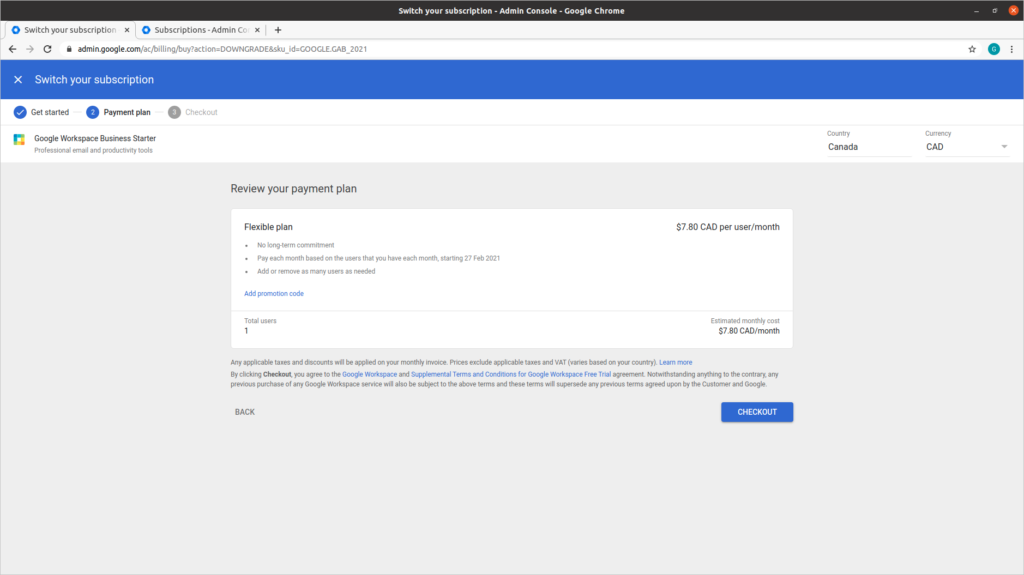
Click “Checkout”:

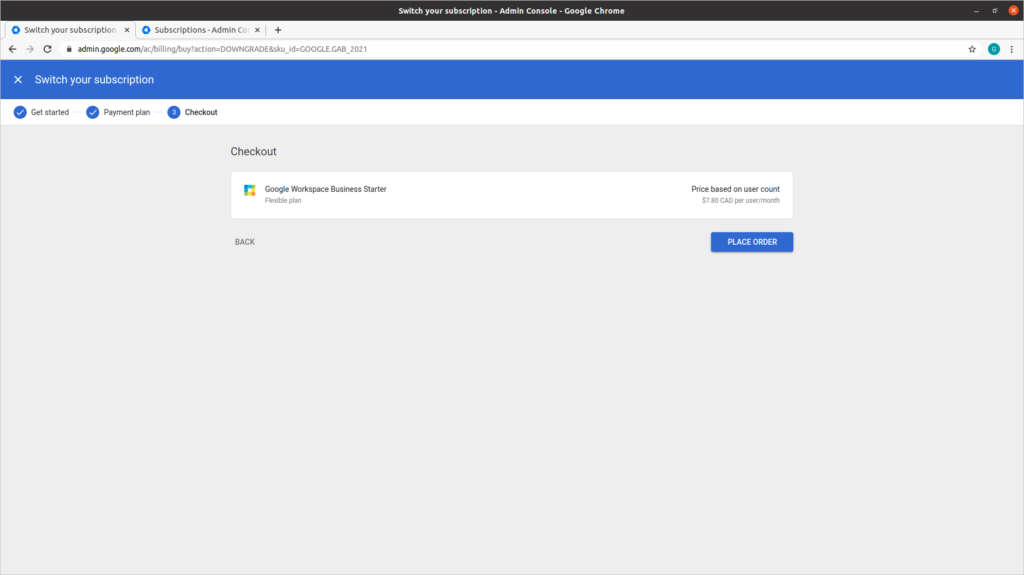
Click “Place order”:

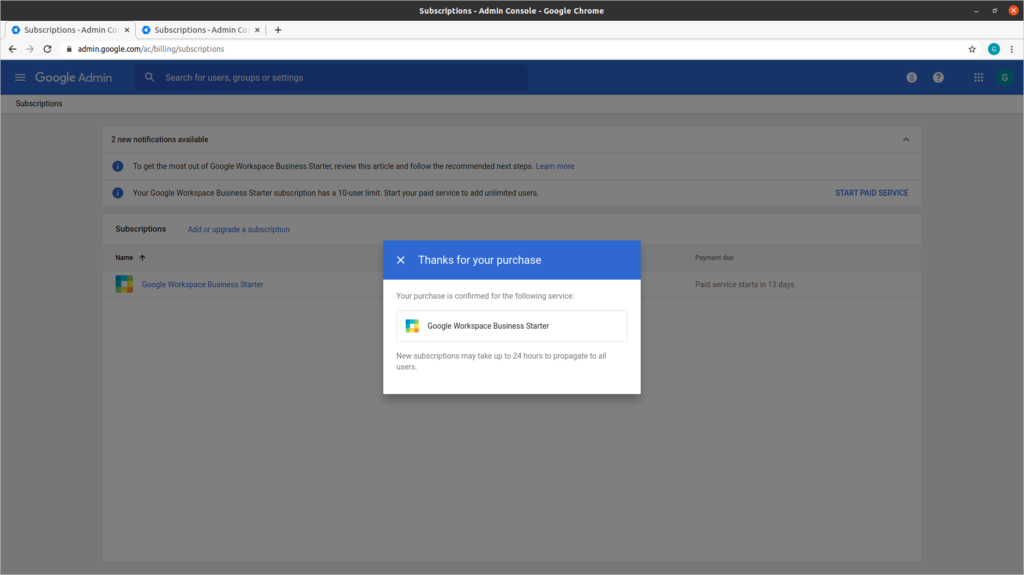
Google will present the following screen:

Previous step: Chapter 1: Buying a domain name from GoDaddy
Next step: Chapter 3: Buying an Ubuntu Linux cloud server from Digital Ocean

Web presence step by step Chapter 1: Buying a domain name from GoDaddy

Next step: Chapter 2: Buying branded email from Gmail

Web presence step by step is a series of posts that show you to how to build a web presence.

In this post, we register a domain name with GoDaddy, a domain name registrar.

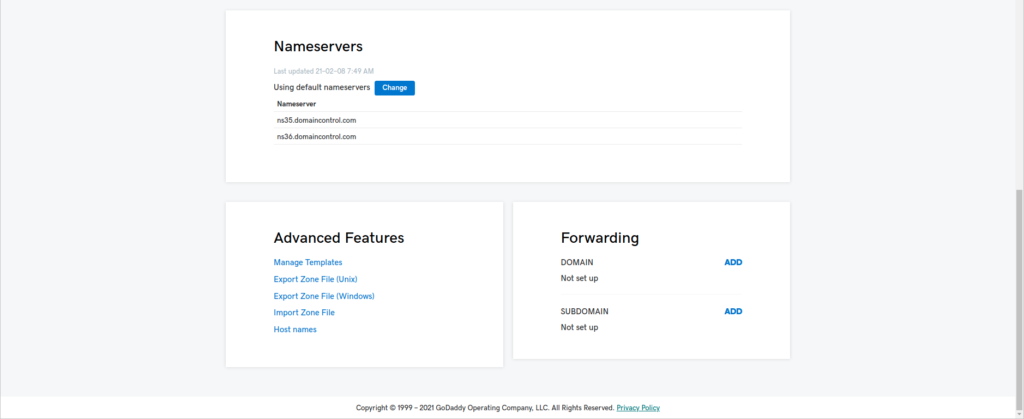
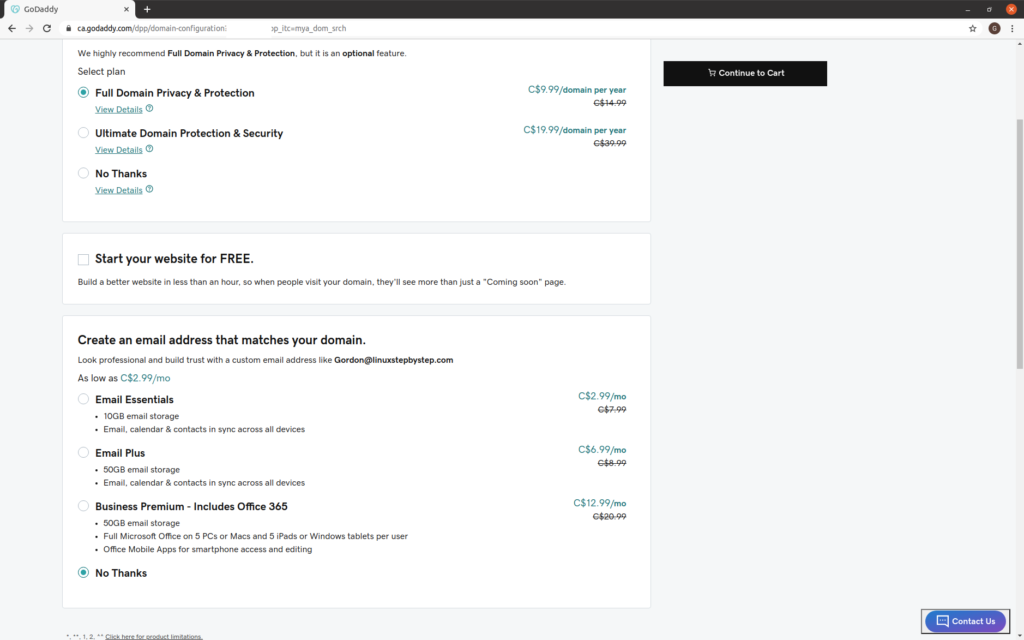
Make sure that you select private registration. Skip the offers for email and website builders. Use the default name servers (DNS servers) provided by GoDaddy.

(In later chapters, we will build out our email and website capabilities with other vendors.)

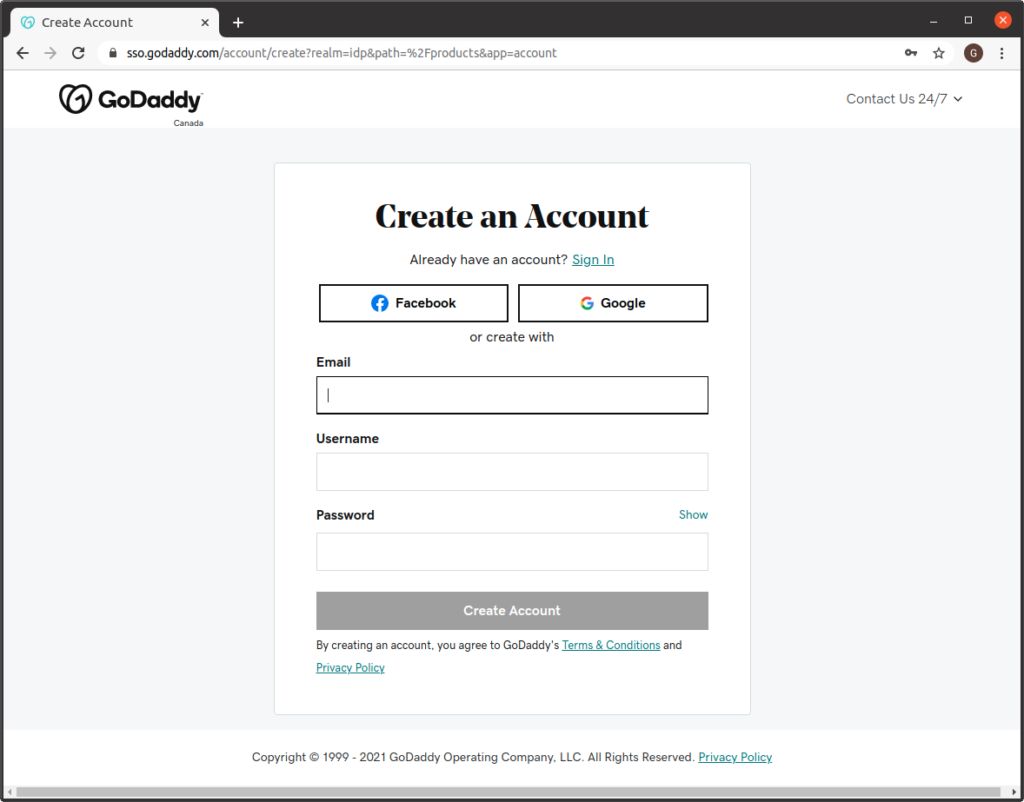
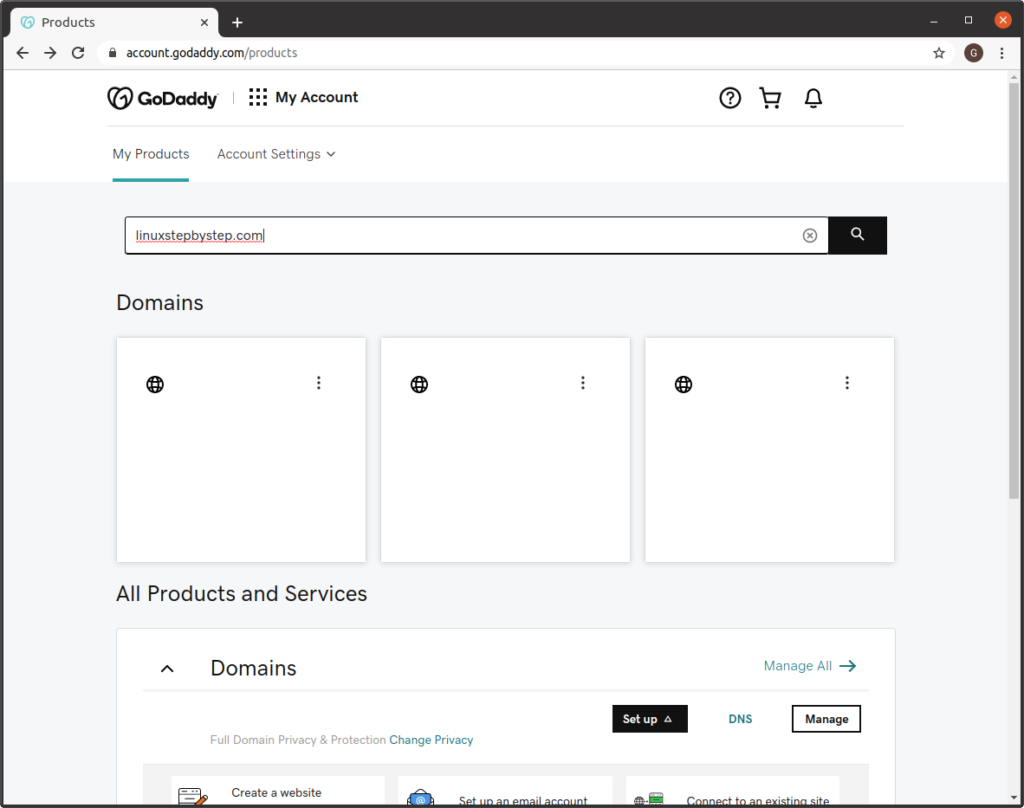
Create an account or sign in to an existing GoDaddy account:

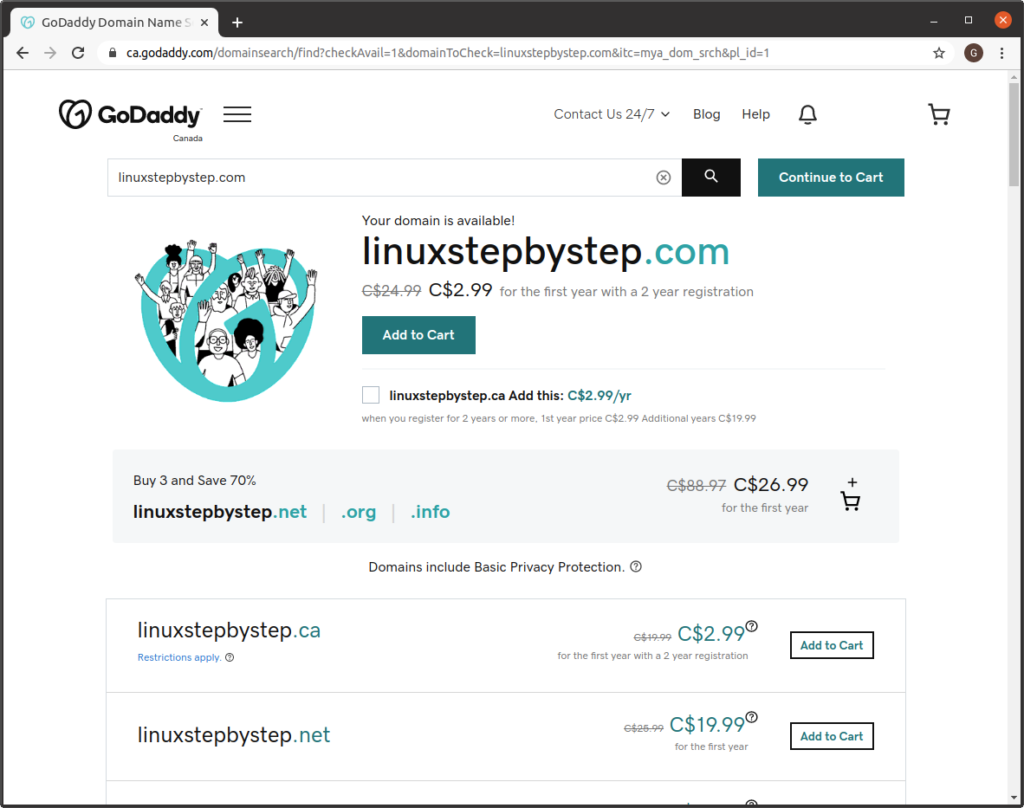
enter the name of the domain you would like:

Choose “Full Domain Privacy & Protection.” Do not select “Start your website for FREE.” Do not take optional email services under “Create an email address that matches your domain.” Click “Continue to Cart”:

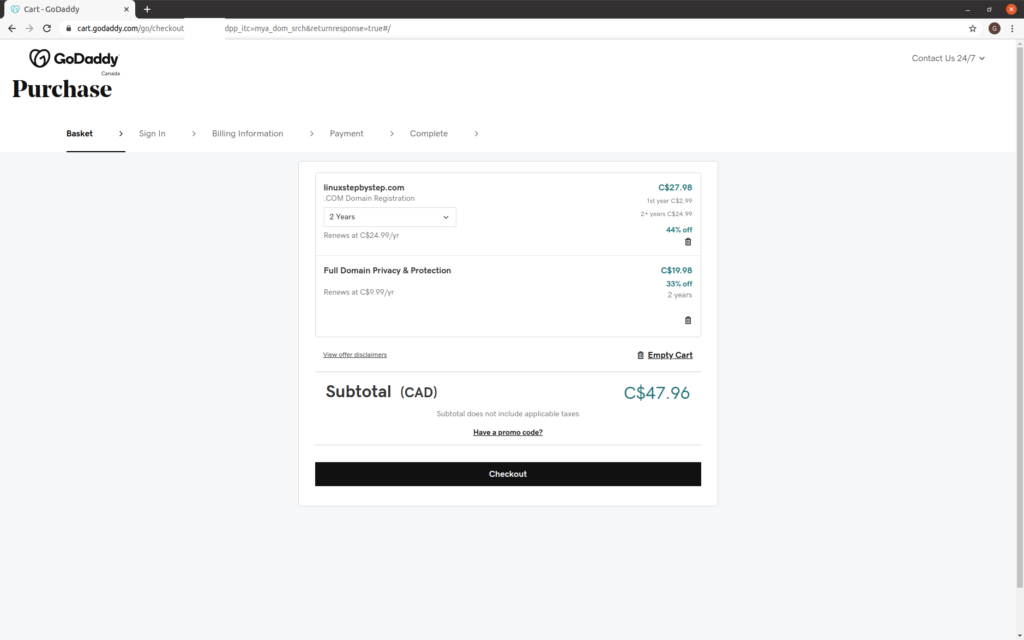
Click “Checkout”:

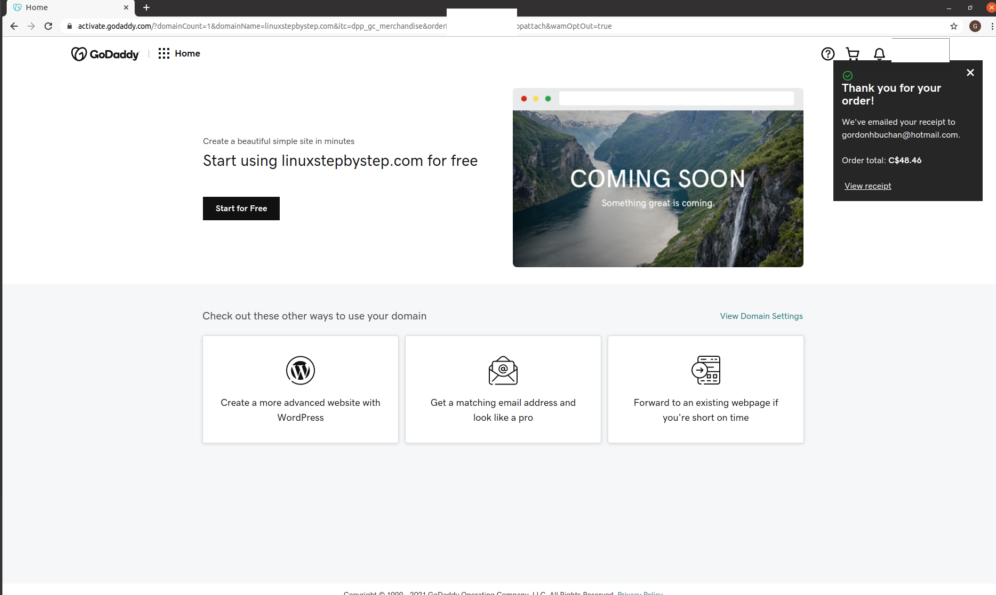
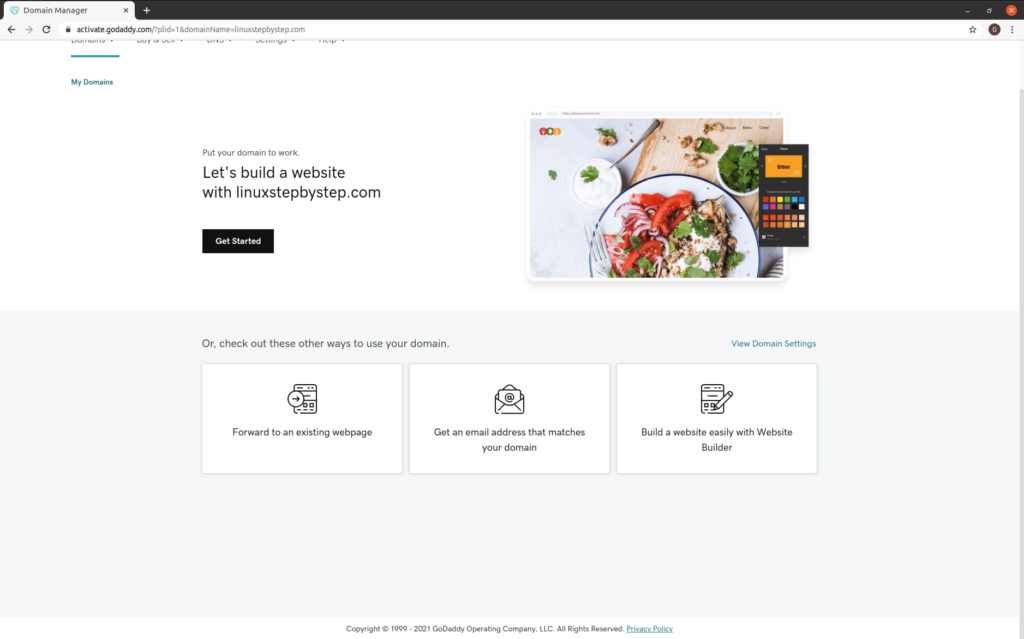
Click “View Domain Settings”:

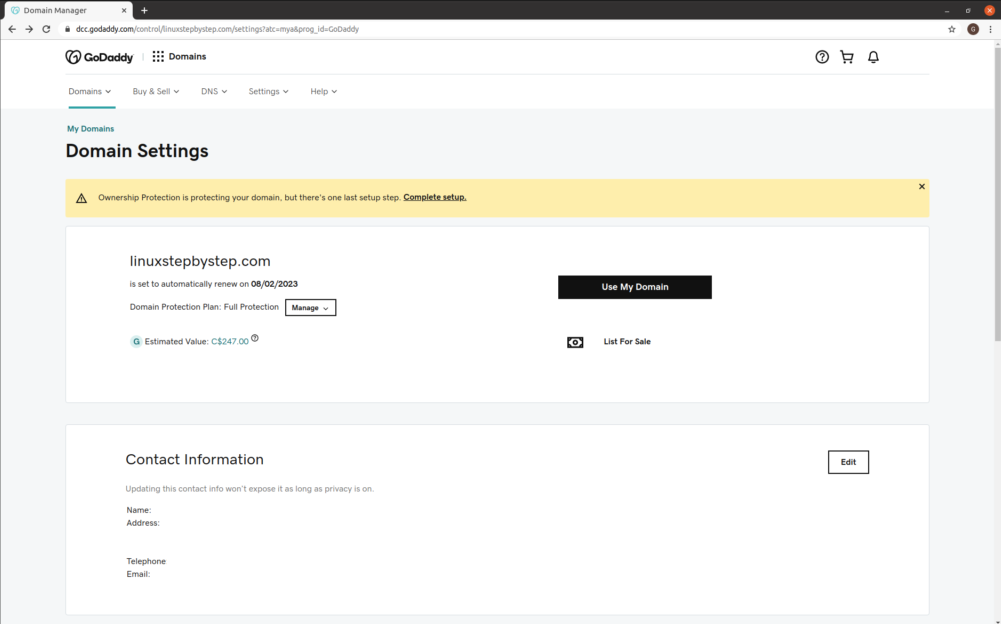
Click “Complete setup”:

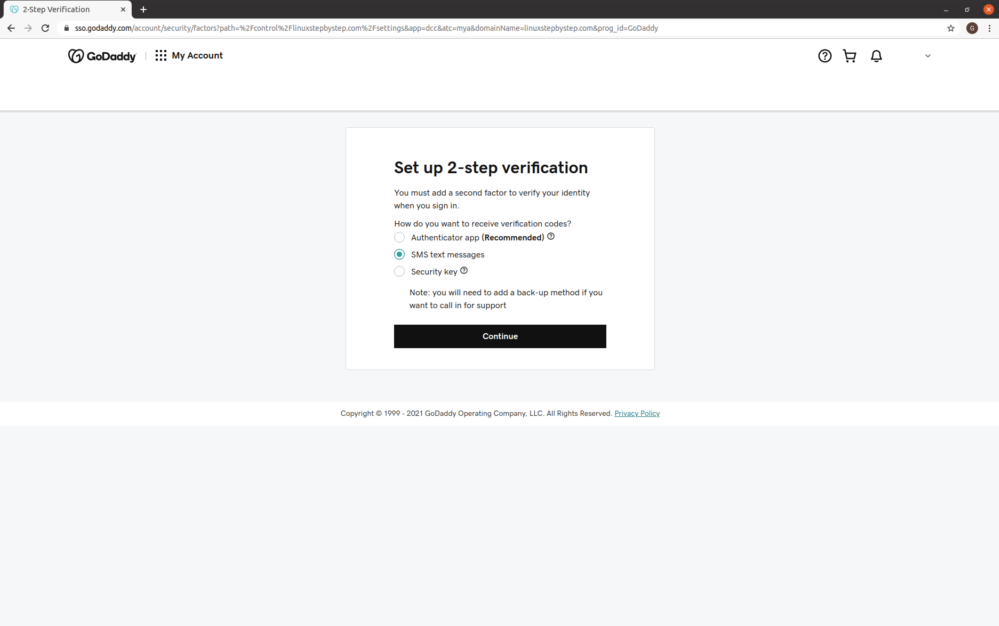
Select “SMS text messages.” Click Continue:

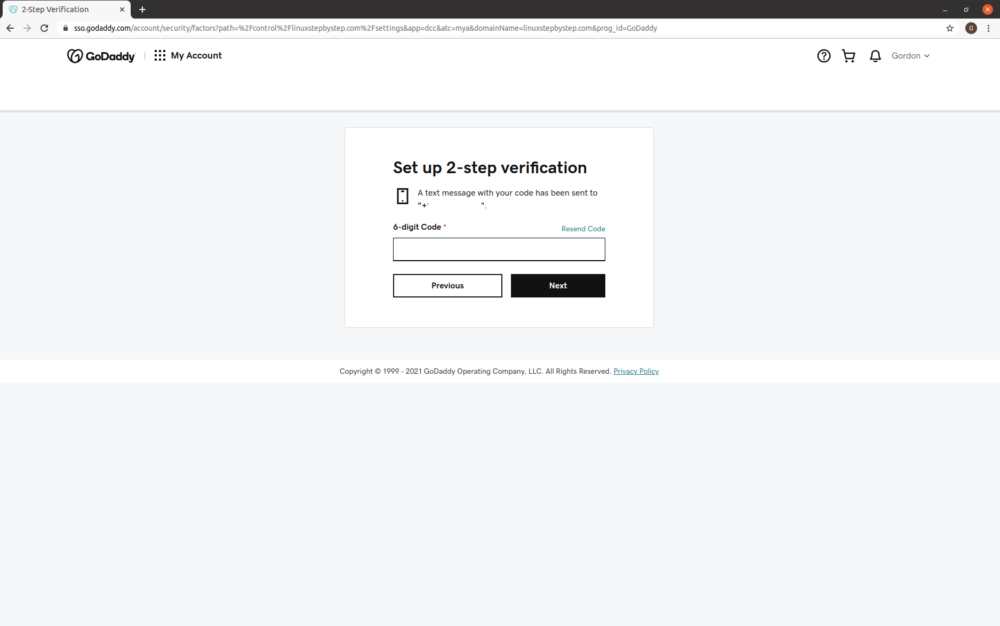
Enter the code sent by SMS text. Click “Next”:

Click “View Domain Settings”:

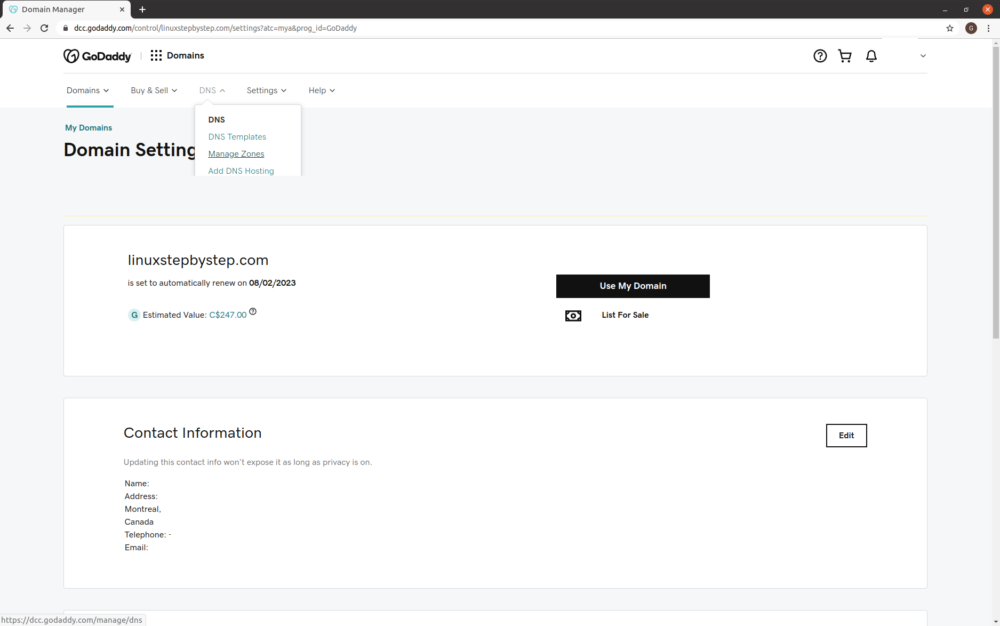
From the DNS menu, select “Manage Zones”:

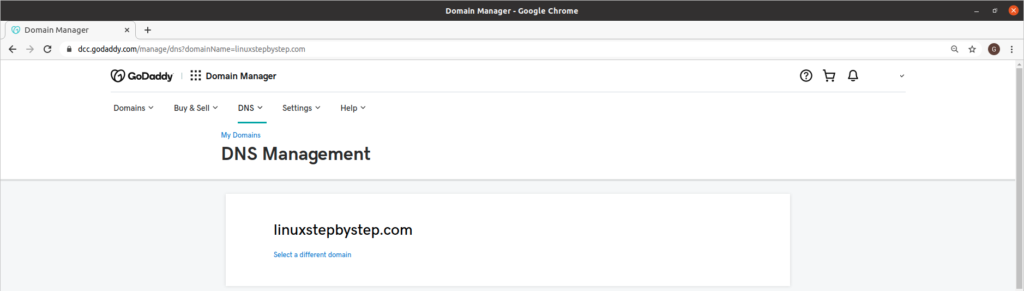
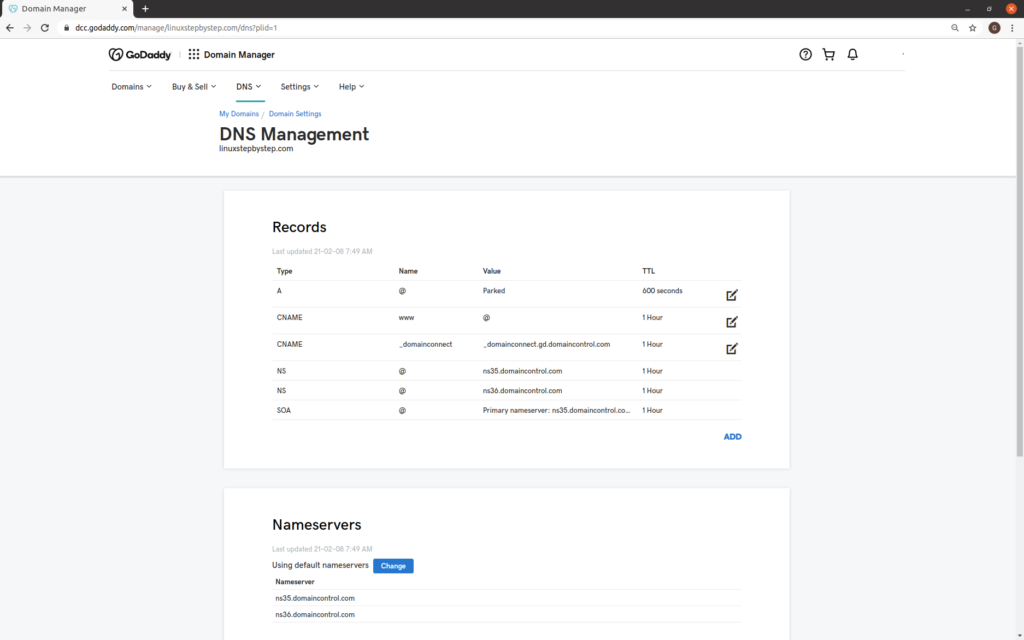
For now, just look. This is your DNS control panel.

You will use the GoDaddy DNS servers to control your domain in later steps.

Next step: Chapter 2: Buying branded email from Gmail